# Activate License
# Activate License
After purchasing Chronoid, you will receive a license key by email. Follow the steps below to activate it and manage your purchase later.
## Activate Your License
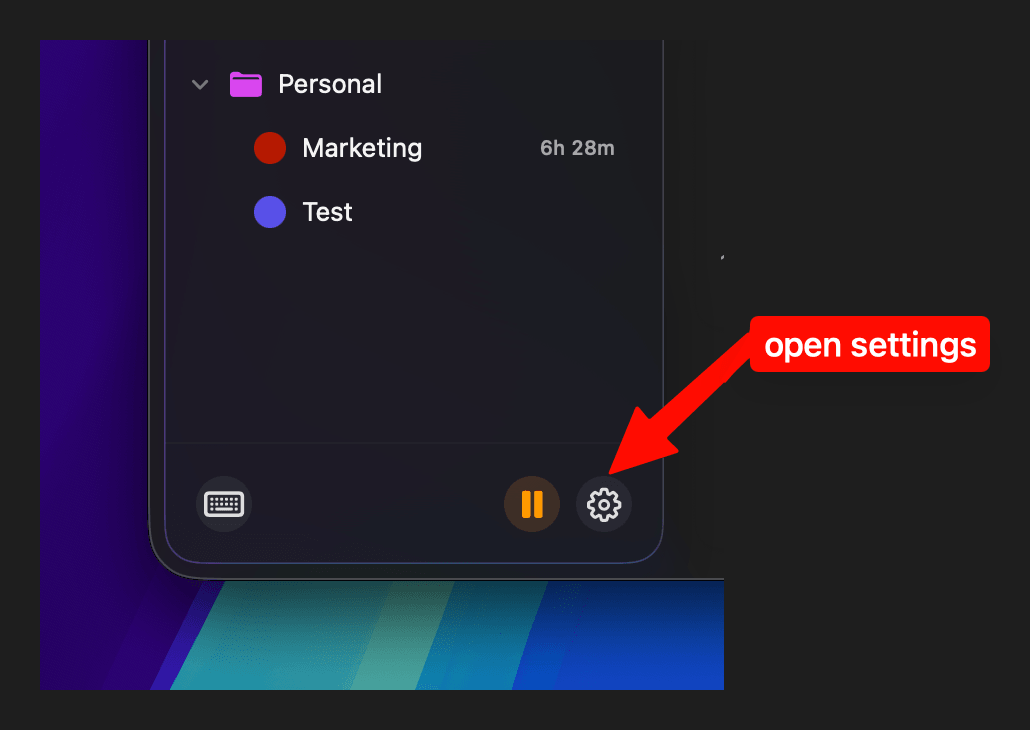
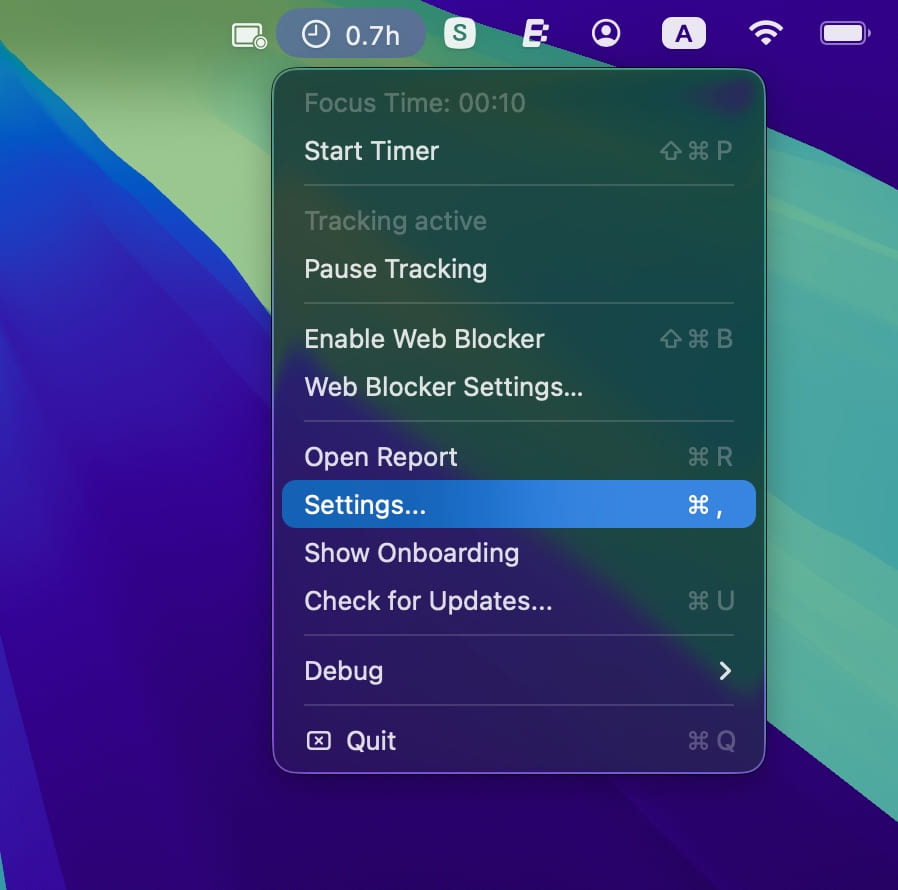
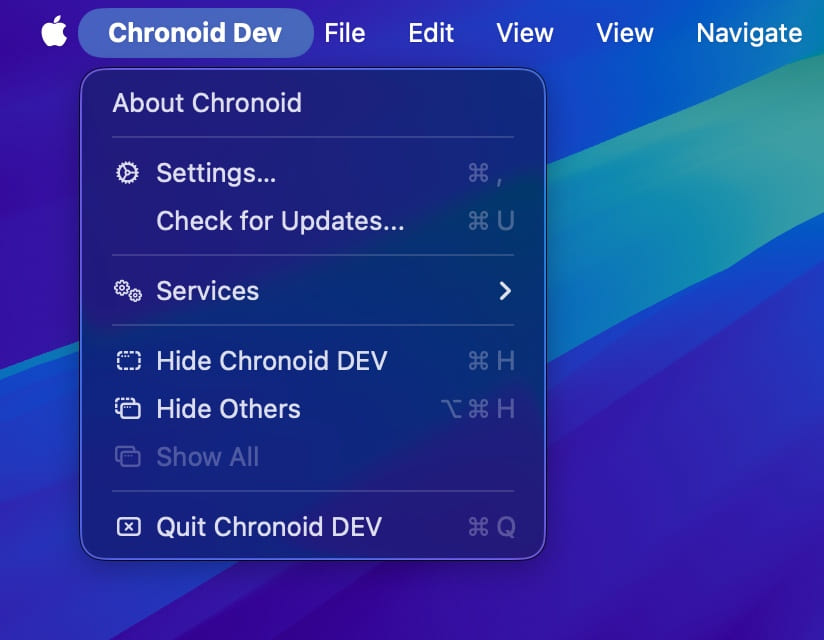
1. Open **Settings** in Chronoid. You can do this in a few ways:
- Press `Cmd + ,`
- Click the **Settings** button inside the app
- Click the Chronoid icon in the **menu bar** and choose **Settings**
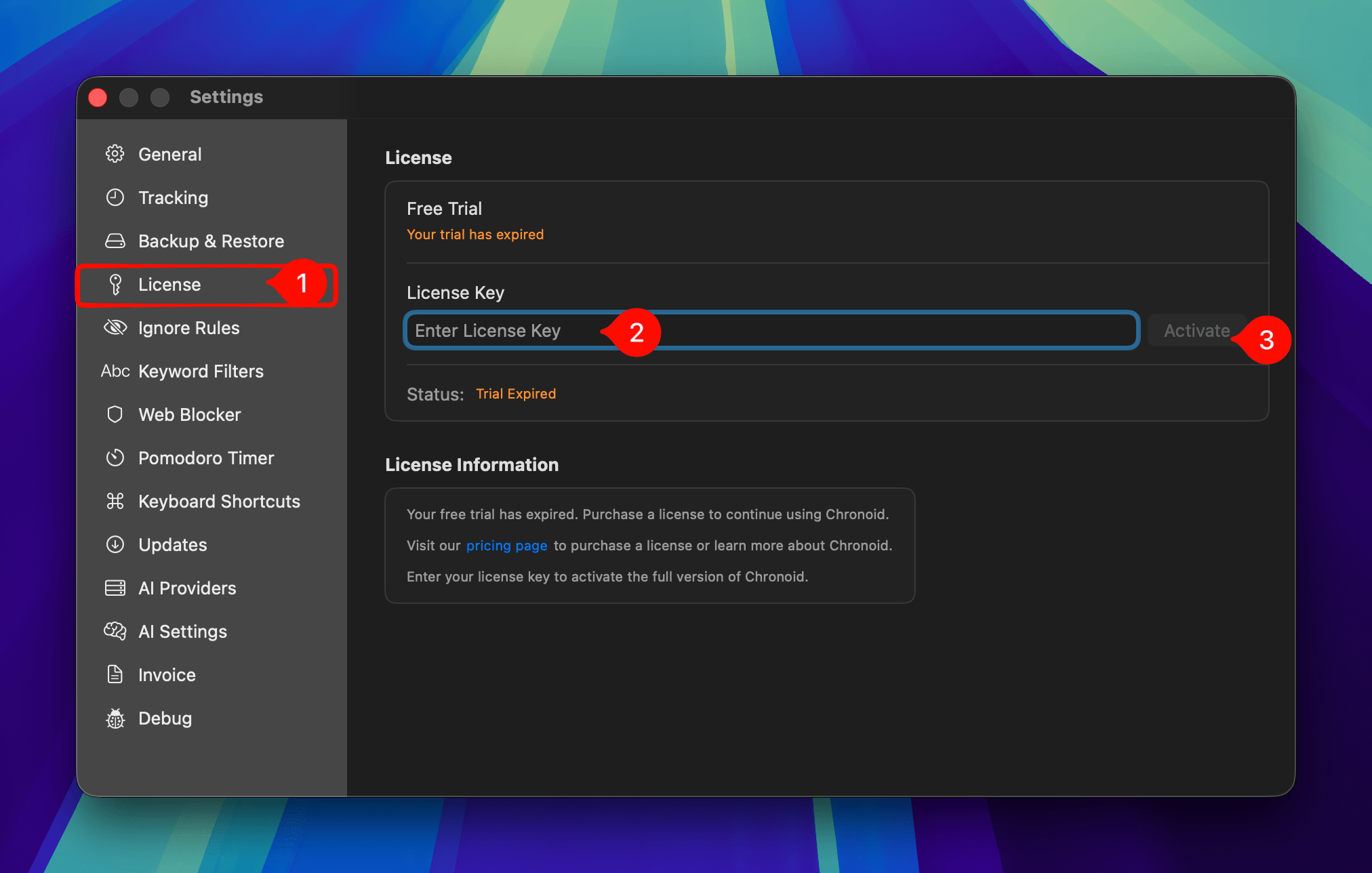
 2. Open the **License** tab, paste your license key, and click **Activate**.
 ## Manage Your License
To view your purchase history, download invoices, or manage your license, open the Chronoid customer portal.
## Need Help?
If you are having trouble activating your license or cannot find your license key, contact [support@chronoid.app](mailto:support@chronoid.app?subject=License%20Activation%20Help).
---
Source: https://www.chronoid.app/docs/getting-started/activate-license
## Manage Your License
To view your purchase history, download invoices, or manage your license, open the Chronoid customer portal.
## Need Help?
If you are having trouble activating your license or cannot find your license key, contact [support@chronoid.app](mailto:support@chronoid.app?subject=License%20Activation%20Help).
---
Source: https://www.chronoid.app/docs/getting-started/activate-license