
If you have ever reached the end of a workday wondering where all the hours went, you are not alone. The Pomodoro Technique remains one of the most effective methods for reclaiming focus, and choosing the best Pomodoro app for Mac can make the difference between a system you actually stick with and one that collects dust. With dozens of timers available on macOS, from minimal menu bar utilities to full-featured productivity suites, finding the right fit takes real research. We tested and compared seven standout options so you can skip the trial-and-error and start focusing today.
Quick comparison
| App | Price | Blocks apps and websites | Stats | Platforms |
|---|---|---|---|---|
| Chronoid | Pay once from $59, or $15/month | Yes | Full time tracking | Mac |
| Session | Free; Pro $4.99/month or $39.99/year | Yes (Pro, Mac only) | Yes (free plan shows 2 days) | Mac, iPhone, iPad, Apple Watch |
| Flow | Free; Pro from $1.49/month | Yes (Pro) | Yes, free | Mac, iPhone, iPad, Apple Watch |
| Be Focused Pro | $19.99 one-time (Mac) | Yes | Yes | Mac; iPhone and iPad sold separately |
| Focused Work | Free; Pro $4.99/month or $29.99/year | Yes | Yes | Mac, iPhone, iPad, Vision Pro |
| TomatoBar | Free, open source | No | No (local log file only) | Mac |
| Focus To-Do | Free; Premium from $3.99, or $11.99 lifetime | No | Yes | Mac, Windows, iPhone, Android, web |
Prices checked October 15, 2026 on each developer’s site or the US App Store. App Store prices can differ by country.
Want to try the technique right now? Use our free online Pomodoro timer — no download or signup — then come back to pick the right Mac app.
Plan your next task with the free Pomodoro calculator. It estimates focus sessions, breaks, and your finish time before you start a timer.
What Is the Pomodoro Technique (and Why Does It Work)?
The Pomodoro Technique was created by Francesco Cirillo in the late 1980s. The concept is deceptively simple: work in focused intervals of 25 minutes (called “pomodoros”), then take a 5-minute break. After four consecutive pomodoros, take a longer break of 15 to 30 minutes. The method gets its name from the tomato-shaped kitchen timer Cirillo used as a university student.
The reason the technique works so well comes down to how our brains handle sustained attention. Research in cognitive psychology shows that our ability to maintain focus degrades over time. By introducing mandatory breaks, the Pomodoro Technique prevents mental fatigue before it sets in. The short intervals also make large, intimidating projects feel manageable. Instead of facing a four-hour writing session, you face a single 25-minute block, and that psychological shift is powerful.
For Mac users specifically, a dedicated Pomodoro timer Mac app offers advantages that a simple phone alarm cannot match. Native macOS timers can live in your menu bar, integrate with your calendar, block distracting websites during work sessions, and track your productivity patterns over weeks or months.
7 Best Pomodoro Apps for Mac in 2026
We evaluated each app on timer flexibility, distraction blocking, analytics, macOS integration, and value for money. Here are our top picks.
1. Chronoid
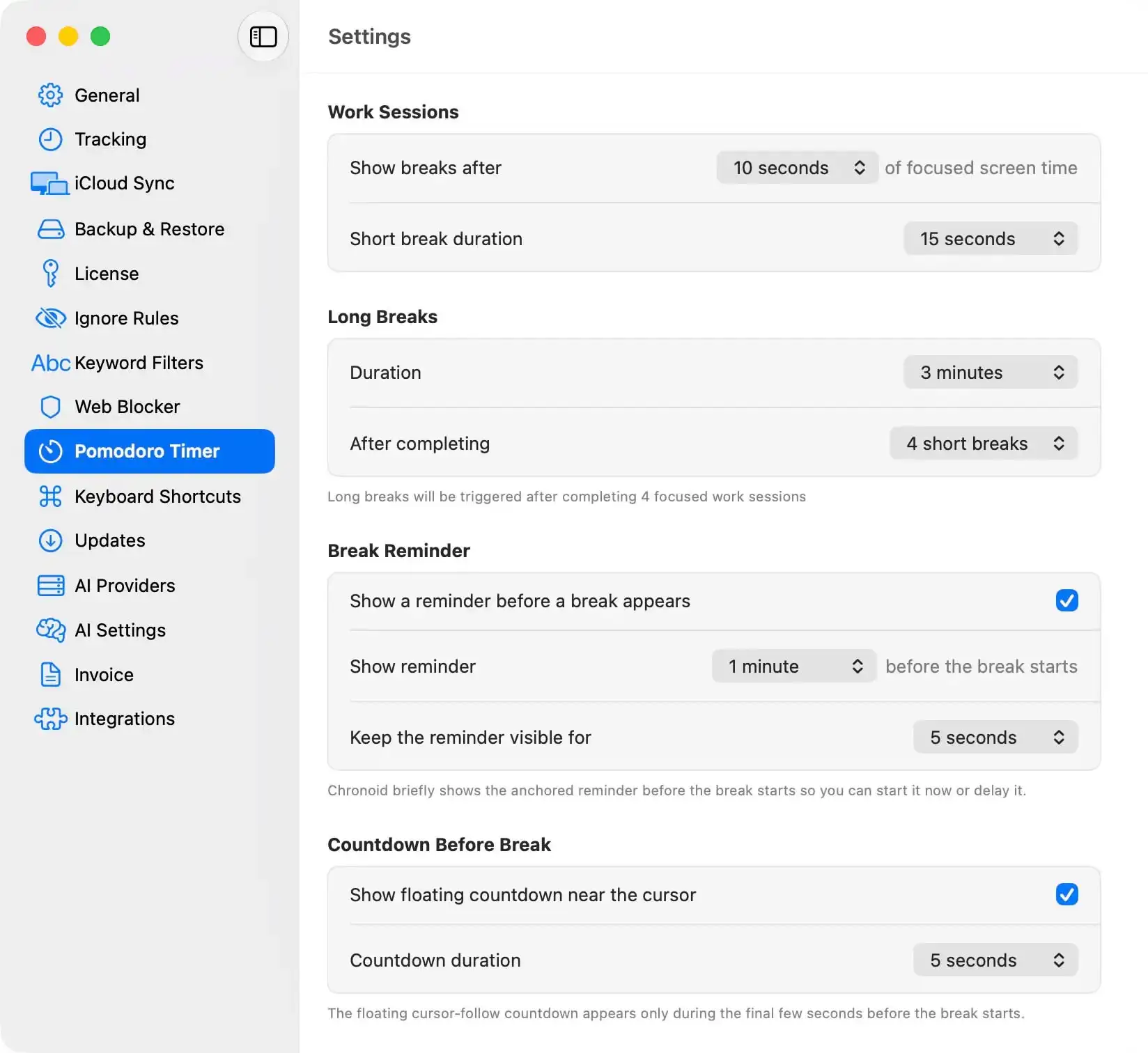
Chronoid takes a different approach from pure Pomodoro timers by combining automatic time tracking with a built-in Pomodoro timer and website blocker. The timer runs from the menu bar, and every session is automatically logged alongside your regular activity data. This means you do not just know how many pomodoros you completed; you can see exactly what apps and websites you used during each one.
Breaks also pause on their own while you are on a call or playing media, so a meeting does not eat your break. On the Personal plan and up, you can ask questions like “How focused was I during my Pomodoro sessions this week?” in the AI chat. Your activity data is stored on your Mac, and multi-Mac sync goes through your own iCloud account.
Key Features:
- Built-in Pomodoro timer with automatic time tracking
- Website and app blocker during focus sessions
- Breaks pause automatically during calls and media playback
- AI chat about your own time data (Personal plan and up, uses your own AI provider key)
- Activity data stored locally on your Mac
- Automatic categorization of work vs. distractions
Pricing: 7-day free trial. Then pay once from $59 (Basic, one Mac, includes the Pomodoro timer and blocker), $99 (Personal, two Macs, adds AI and iCloud sync), or $149 (Lifetime), or subscribe for $15 per month. See current pricing.
Best for: Users who want Pomodoro sessions paired with deep visibility into how they actually spend their time.
2. Session
Session is a polished, Apple-native Pomodoro timer built specifically for the Apple ecosystem. It syncs seamlessly between Mac, iPhone, iPad, and Apple Watch, and supports Apple-specific features like Live Activities on the Dynamic Island and Shortcuts integration. The app offers detailed analytics dashboards, calendar integration, and the ability to block apps and websites during active sessions.
Session also integrates with tools like Slack, automatically setting your status to “focusing” when a Pomodoro is running. The interface is clean and feels like it belongs on macOS.
Key Features:
- Cross-device sync across Apple devices
- Slack and calendar integration
- App and website blocking
- Detailed session analytics
- Keyboard shortcuts and menu bar timer
Pricing: Free plan with unlimited sessions, but stats only cover the past 2 days and blocking is Pro only. Pro is $4.99/month or $39.99/year, with a 7-day Pro trial. See Session’s pricing.
Best for: Users deep in the Apple ecosystem who want tight integration across all their devices.
3. Flow
Flow is a minimalist Pomodoro app for macOS that does the essentials well without overwhelming you with options. The menu bar timer is unobtrusive, sessions are customizable, and it includes website and app blocking on the Mac version. Flow syncs between Mac and iPhone, and integrates with Apple Calendar so your focus sessions show up alongside your meetings.
The free plan is genuinely usable: it includes the interval timer, statistics and graphs, break reminders, and iCloud sync of your stats. Pro adds app and website blocking, fully custom durations and cycles, Apple Calendar sync, and export.
Key Features:
- Clean, minimal menu bar interface
- Website and app blocking (Pro)
- Apple Calendar integration (Pro)
- Cross-device sync (Mac, iPhone, iPad, Apple Watch)
- Customizable session lengths and break durations
Pricing: Free plan available. Pro from $1.49/month, with a discount for yearly billing. See Flow’s pricing.
Best for: Users who want a straightforward, affordable Pomodoro timer without extra complexity.
4. Be Focused Pro
Be Focused Pro is a long-standing favorite in the Mac App Store. It lets you customize timer lengths, set daily Pomodoro goals, and manage multiple tasks with individual timer tracking. The interface is simple and reliable. The Mac version can also block distracting apps and websites during work sessions (in Safari, Chrome, Edge, Opera, and Brave), and it has widgets for the desktop and Notification Center.
What sets Be Focused apart is its task management integration. You can assign Pomodoro sessions to specific tasks and review how many intervals each task required, which is useful for improving time estimates on future projects.
Key Features:
- Customizable work and break intervals
- Per-task Pomodoro tracking
- Daily goals and progress tracking
- App and website blocking during work sessions
- Desktop and Notification Center widgets
- Syncs with the iPhone and iPad version (sold separately)
Pricing: $19.99 one-time on the Mac App Store (requires macOS 12 or later). The iPhone and iPad app is a separate purchase.
Best for: Users who want task-based Pomodoro tracking and blocking without a subscription.
5. Focused Work
Focused Work goes beyond the standard 25/5 Pomodoro format by letting you build fully custom timer sequences. You can create complex schedules like 50 minutes of deep work, a 10-minute break, 30 minutes of email, and another break, all chained together. It also offers a “flow timer” mode that automatically assigns one minute of rest for every five minutes you work.
The app integrates with Shortcuts and Calendar, and its design feels native to macOS. It can block apps and websites while the timer runs, and it shows your session in widgets and Live Activities. Analytics help you track your focus trends over time.
Key Features:
- Fully customizable timer sequences
- Flow timer mode (automatic rest ratios)
- App and website blocking while the timer runs
- Widgets and Live Activities
- Apple Calendar and Shortcuts integration
- Focus trend analytics
Pricing: Free to download. Pro is $4.99/month or $29.99/year on the App Store, and a lifetime option is also listed. Requires macOS 13 or later.
Best for: Users who find the standard 25/5 format too rigid and want complete control over their focus schedule.
6. TomatoBar
TomatoBar is an open-source (MIT license), completely free Pomodoro timer that lives in your macOS menu bar. It is lightweight, distraction-free, and does exactly one thing well. You get configurable work and rest intervals, optional sounds, and a global hotkey to start and stop sessions. There are no accounts, no subscriptions, and no analytics screen, though it writes a local log of timer events if you want to analyze them yourself.
For developers and power users who prefer open-source tools, TomatoBar is available on GitHub and can be installed with brew install --cask tomatobar. A tomatobar:// URL scheme lets you start and stop it from scripts.
Key Features:
- 100% free and open-source
- Menu bar timer with global hotkey
- Configurable intervals and sounds
- URL scheme for scripting
- Install via Homebrew
Pricing: Free.
Best for: Developers and minimalists who want a no-frills, open-source timer.
7. Focus To-Do
Focus To-Do combines a Pomodoro timer with a full task management system inspired by Getting Things Done (GTD). You can organize tasks into projects, set due dates and reminders, and attach Pomodoro sessions to individual tasks. The app syncs across Mac, iOS, Android, and the web, making it one of the more cross-platform options. Apps are available for Mac, Windows, iPhone, iPad, Apple Watch, Android, and as a Chrome extension. On the Mac, it also has a menu bar item.
The built-in white noise and ambient sound library is a nice touch for users who find background audio helpful during focus sessions.
Key Features:
- Integrated task manager with Pomodoro timer
- Cross-platform sync (Mac, iOS, Android, web)
- Built-in ambient sounds and white noise
- Project and task organization
- Reminders and due dates
Pricing: Free basic plan. On the Mac App Store, Premium is $3.99 or a one-time $11.99 lifetime upgrade.
Best for: Users who need a combined task manager and Pomodoro timer that works across platforms beyond Apple.
Feature Comparison: Best Pomodoro Timer Mac Apps at a Glance
| Feature | Chronoid | Session | Flow | Be Focused Pro | Focused Work | TomatoBar | Focus To-Do |
|---|---|---|---|---|---|---|---|
| Menu bar timer | Yes | Yes | Yes | Yes | Yes | Yes | Yes (menu bar item) |
| Website/app blocking | Yes | Yes (Pro) | Yes (Pro) | Yes | Yes | No | No |
| Auto time tracking | Yes | No | No | No | No | No | No |
| Custom intervals | Yes | Yes (Pro) | Yes (Pro) | Yes | Yes | Yes | Yes |
| Analytics | Full time tracking + AI chat | Detailed (Pro) | Stats and graphs | Basic | Detailed | Log file only | Basic |
| Cross-device sync | Macs via your iCloud | Apple devices | Apple devices | Mac + iOS (iOS sold separately) | Apple devices | Mac only | All platforms |
| Free plan | 7-day trial | Yes | Yes | No | Yes | Yes (fully) | Yes |
| One-time purchase | Yes (from $59) | No | No | Yes ($19.99) | Lifetime option | Free | Yes ($11.99 lifetime) |
Pomodoro widgets and menu bar timers for Mac
If you want the timer visible without opening an app, you have two options on a Mac: a menu bar timer or a widget.
Menu bar timers show the countdown next to the clock at the top of the screen, and you can usually start, pause, or skip from there. Every app in this list has one. TomatoBar is the lightest pick if the menu bar is all you need.
Widgets sit on your desktop (macOS Sonoma and later) or in Notification Center. Widget support varies, so check before you buy:
- Be Focused Pro has widgets for the desktop and Notification Center.
- Focused Work shows your current session in widgets and Live Activities.
- Focus by Meaningful Things, another popular Pomodoro timer not covered above, has a menu bar app, widgets, task lists, and iCloud sync. It is free to download, with a subscription for full features ($39.99/year on the Mac App Store, macOS 14 or later). It does not block apps or websites.
If you mostly want a timer you can see at a glance, a desktop widget is enough. If you want the timer to block distractions or record what you worked on, pick an app with those features first and use its menu bar timer.
How to Choose the Right Pomodoro App for Mac
Selecting the best Pomodoro app for Mac depends on what you need beyond a simple countdown timer. Here are the key factors to consider:
If distraction blocking is your priority, look at apps that combine the timer with website and app blocking. Running your Pomodoro sessions while your most tempting websites are inaccessible is far more effective than relying on willpower alone. Chronoid, Be Focused Pro, and Focused Work offer this, and Session and Flow include it on their Pro plans. If blocking matters more to you than the timer itself, our distraction blocker comparison covers 10 dedicated options.
If you want data and insights, consider how much you want to know about your work patterns. Basic apps show you how many pomodoros you completed. More advanced tools like Chronoid track what you actually did during each session, revealing whether your “focus time” was genuinely focused.
If budget matters, note the pricing models carefully. Subscriptions add up quickly. TomatoBar is free, Focus To-Do has an $11.99 lifetime upgrade, Be Focused Pro is $19.99 once, and Chronoid is a one-time purchase from $59. Session costs $39.99 per year and Focused Work $29.99 per year.
If you work across devices, check sync capabilities. Session excels within the Apple ecosystem, while Focus To-Do covers Mac, iOS, Android, and web.
Frequently Asked Questions
Does Mac have a built-in Pomodoro timer?
No, macOS does not include a dedicated Pomodoro timer. The built-in Clock app has a basic countdown timer, but it lacks features like automatic break scheduling, session tracking, and distraction blocking. A dedicated Pomodoro technique app gives you the structure the method requires, including automatic transitions between work and break intervals.
What is the ideal Pomodoro session length?
The traditional Pomodoro session is 25 minutes of work followed by a 5-minute break. However, many people find that longer intervals like 50 minutes of work with a 10-minute break suit deep work better. Most quality Mac Pomodoro apps let you customize these durations. Experiment with different lengths to find what matches your concentration patterns.
Can I use the Pomodoro Technique with automatic time tracking?
Yes, and combining the two is one of the most effective productivity setups. A Pomodoro timer structures your work into focused intervals, while automatic time tracking records exactly what you did during each one. This combination lets you measure not just how many sessions you completed, but how effectively you used them. Tools like Chronoid integrate both features into a single time tracking app for Mac.
Is the Pomodoro Technique good for ADHD?
Many people with ADHD find the Pomodoro Technique helpful because it breaks work into short, manageable chunks with built-in rewards (breaks). The external timer acts as an accountability partner, and knowing a break is coming soon makes it easier to resist distractions. Pairing the technique with an app that blocks distracting websites during sessions can further improve focus.
Are free Pomodoro apps good enough?
For basic timer functionality, absolutely. Apps like TomatoBar and the free tiers of Flow, Focused Work, and Focus To-Do cover the fundamentals well. However, if you want website blocking, detailed analytics, or cross-device sync, you will likely need a paid plan. The good news is that most Mac Pomodoro apps offer free trials, so you can test premium features before committing. If you also want to log your hours without paying, see our best free time tracking software comparison.
Start Your First Pomodoro Session Today
The best productivity system is the one you actually use. Every app on this list can help you build a consistent focus habit, but the right choice depends on how much structure and insight you need. If a simple timer is enough, TomatoBar or Flow will serve you well. If you want to understand your work patterns at a deeper level, try a tool that pairs the Pomodoro Technique with real activity data. Reviewing those sessions in a daily work journal at the end of the day is the simplest way to turn the numbers into better habits.
Ready to see how a Pomodoro timer works alongside automatic time tracking? Download Chronoid free and start a 7-day free trial. Every focus session is tracked automatically, so you can finally see where your time really goes.
Cover photo by Lindsy Brown on Unsplash