
Every list of the best time tracking apps for Mac faces the same problem: “time tracking” means three different things. Some people want an app that watches their work automatically and tells them where the hours went. Some want a timer they start and stop for client billing. Some need a shared tool for a whole team.
This guide covers all three, with real screenshots of each app and prices checked against each vendor’s own pricing page in July 2026. If you want the short version:
- Best automatic tracker that keeps your data private: Chronoid
- Best for client budgets on a subscription: Timing
- Best free option: ActivityWatch
- Best manual timer for teams: Toggl Track
Prices verified July 2026. Pricing in this category changes often. Timing dropped its lifetime license years ago and is subscription only now, and Clockify capped its free plan at 5 users in April 2026. Every price below was checked against the vendor’s own pricing page this month.
How we picked and ranked these apps
We judged every app on the questions that actually decide whether you keep using a time tracker after week one:
- Automatic or manual? Automatic trackers record your apps, documents, and websites in the background. Manual timers depend on you remembering to press start, and most people forget. We say clearly which type each app is.
- Where does your data live? A time tracker sees everything you do on your Mac: window titles, document names, every website. That record is sensitive. We flag whether each app stores it on your Mac or uploads it to the vendor’s cloud.
- What does it really cost over time? A $10 monthly subscription is $120 every year, forever. A one-time license costs more upfront and then stops costing anything. We show the billing model, not just the sticker price.
- Is it actually good on a Mac? Native Mac apps feel and perform differently from cross-platform web wrappers. Mac-first tools rank higher here when everything else is equal.
1. Chronoid: best automatic tracker that keeps your data private
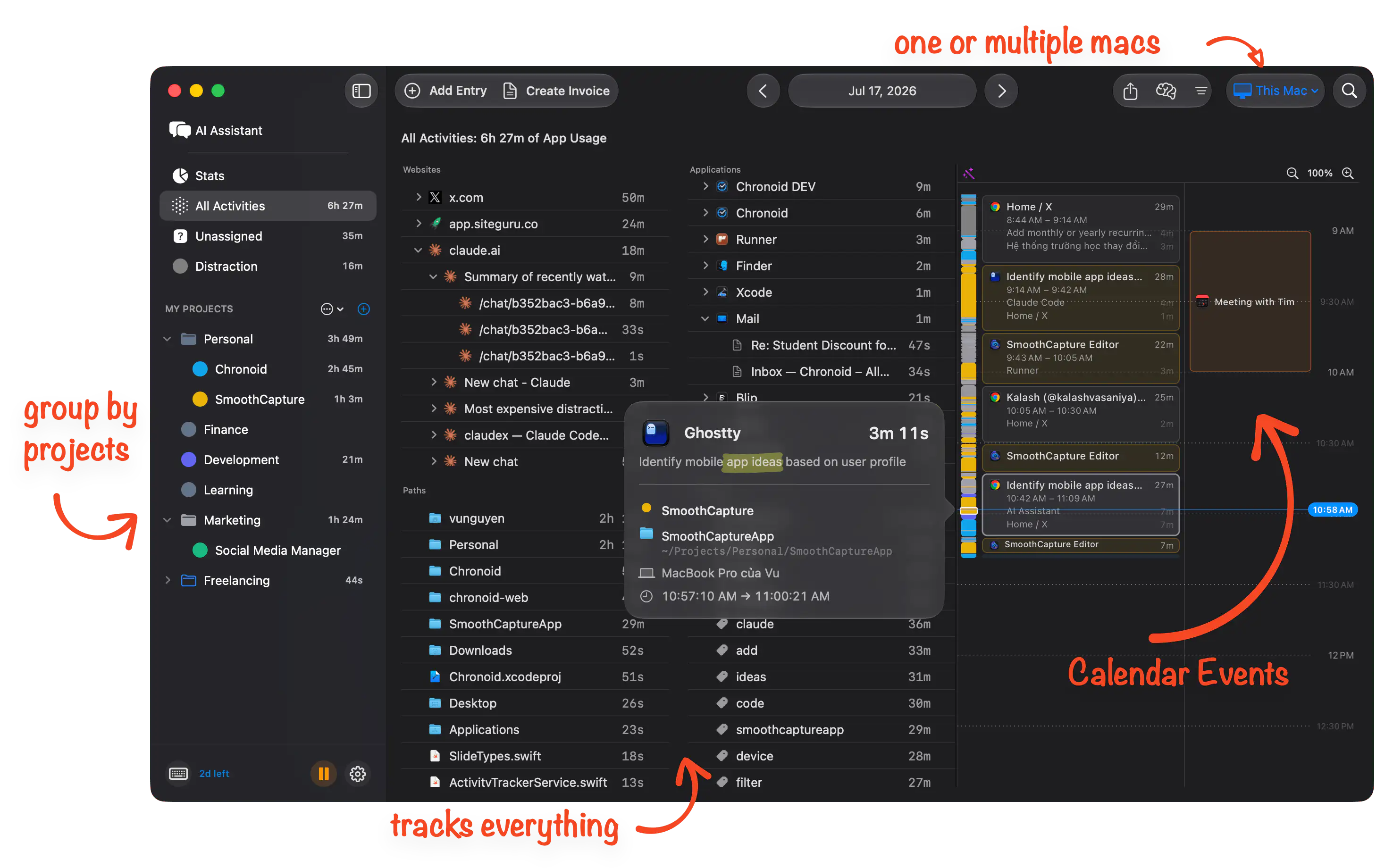
Chronoid is a native Mac app that tracks your work automatically. You do not start timers. It records which apps, websites, and documents you use, splits work sessions from breaks, and assigns time to projects with rules you set once. At the end of the day you can see exactly where your hours went, including AI coding sessions with tools like Claude Code and Cursor, which most trackers lump into “Terminal”.
The core difference from Timing and Rize is where your data lives. Chronoid processes and stores everything on your Mac. There is no vendor server collecting your activity. Since July 2026 it also syncs between your Macs through iCloud, using your own Apple account, so you get multi-Mac sync without your work history ever landing in a third party cloud. Timing and Rize both route your data through their own servers to provide sync; Chronoid deliberately does not.
It also connects to the rest of your Apple setup instead of trying to replace it:
- Calendar integration. Your meetings appear next to tracked time, and when a meeting ends Chronoid prompts you to log it to the right project while you still remember what it was about.
- Idle prompts. Step away from your Mac and Chronoid notices. When you come back it asks what to do with the gap, so lunch does not get billed to a client and a whiteboard session does not vanish.
- Screen Time import. Pull your iPhone and iPad activity into the same reports, so mobile browsing and reading show up alongside your Mac work.
- AI access on your terms. A built-in MCP server lets AI assistants like Claude query your own time data, either locally or remotely through a private relay, without exposing your Mac to the public internet. You can ask “what ate my afternoon on Tuesday” and get a real answer from your real data.
For freelancers there are billable projects, billing reports, and PDF invoices. There is also a built-in Pomodoro timer and website blocker, so the app covers focus as well as measurement. Apple Reminders and phone call logging are on the public roadmap.
Honest downsides: Mac only, one person only. There are no Windows apps, no team dashboards, and no free forever plan. If you need to see a teammate’s hours, this is the wrong tool.
Price: One-time purchase from $49 after a 7-day free trial. No subscription.
Pick Chronoid if you want automatic tracking, care where a record of your entire workday is stored, and would rather pay once than every month.
2. Timing: best for client budgets, on a subscription
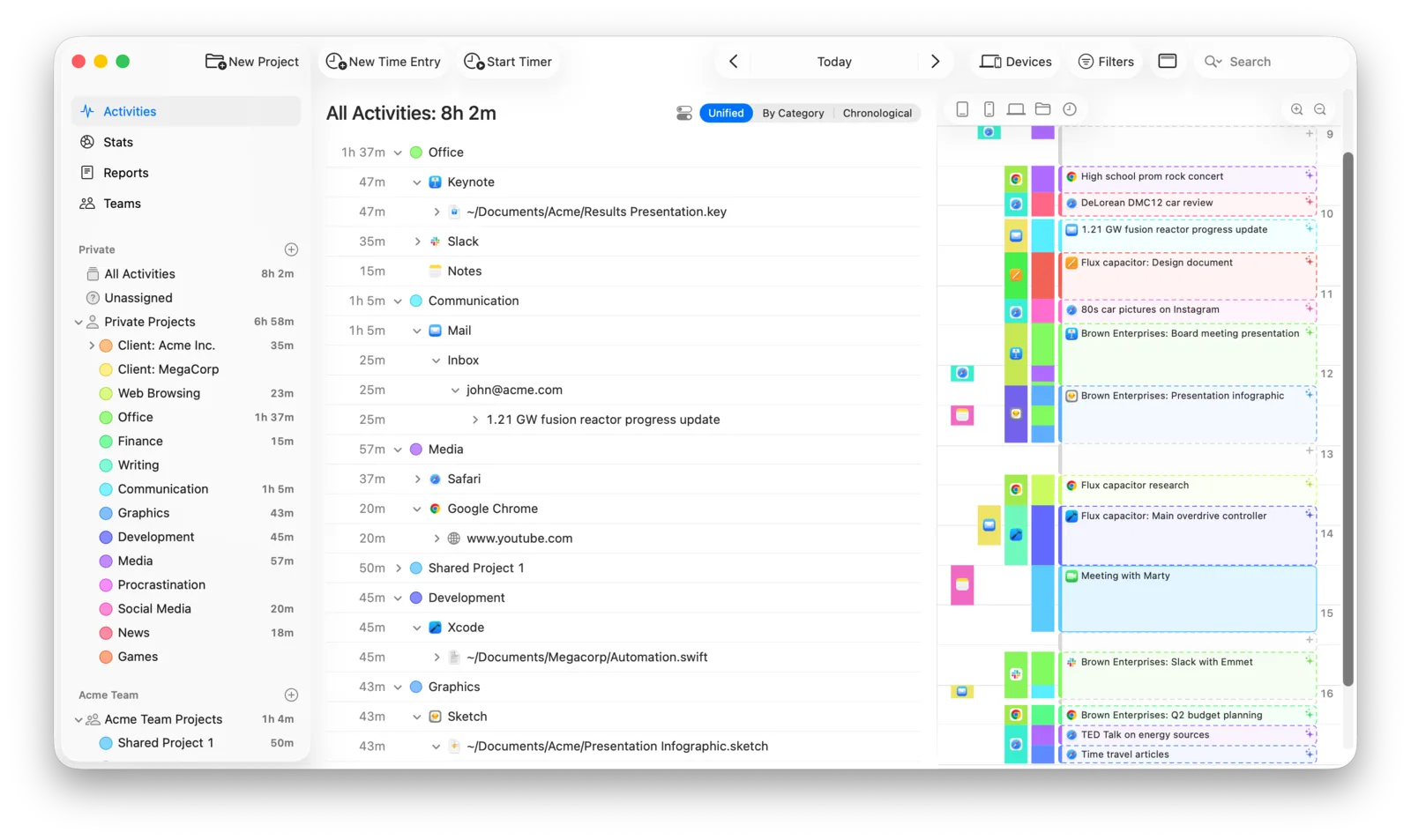
Timing is the longest-running automatic time tracker for Mac and it remains a polished, mature product. Like Chronoid it records your app and document activity without timers, then lets you drag that activity onto projects. Where it pulls ahead is client work at scale: project budgets, hourly rate estimates, scheduled reports, and a web app for sharing time with clients and teams on higher tiers.
The tradeoffs are cost and cloud. Timing discontinued its lifetime license and is subscription only now, from about $9 to $10 per month billed yearly, which works out to roughly $108 to $192 per year depending on tier. Sync and the web features run through Timing’s own cloud. It is a well run company and the app is excellent, but you are renting it, and your activity data leaves your Mac if you use sync. We compare the two in detail in Chronoid vs Timing.
Honest downsides: No one-time license, so a multi-year cost that keeps growing. Team and web features require the more expensive tiers.
Price: From about $9 per month billed yearly. Subscription only, 30-day free trial.
Pick Timing if you bill many clients against budgets and estimates, and a yearly subscription is fine.
3. Rize: best for focus coaching, if cloud is acceptable
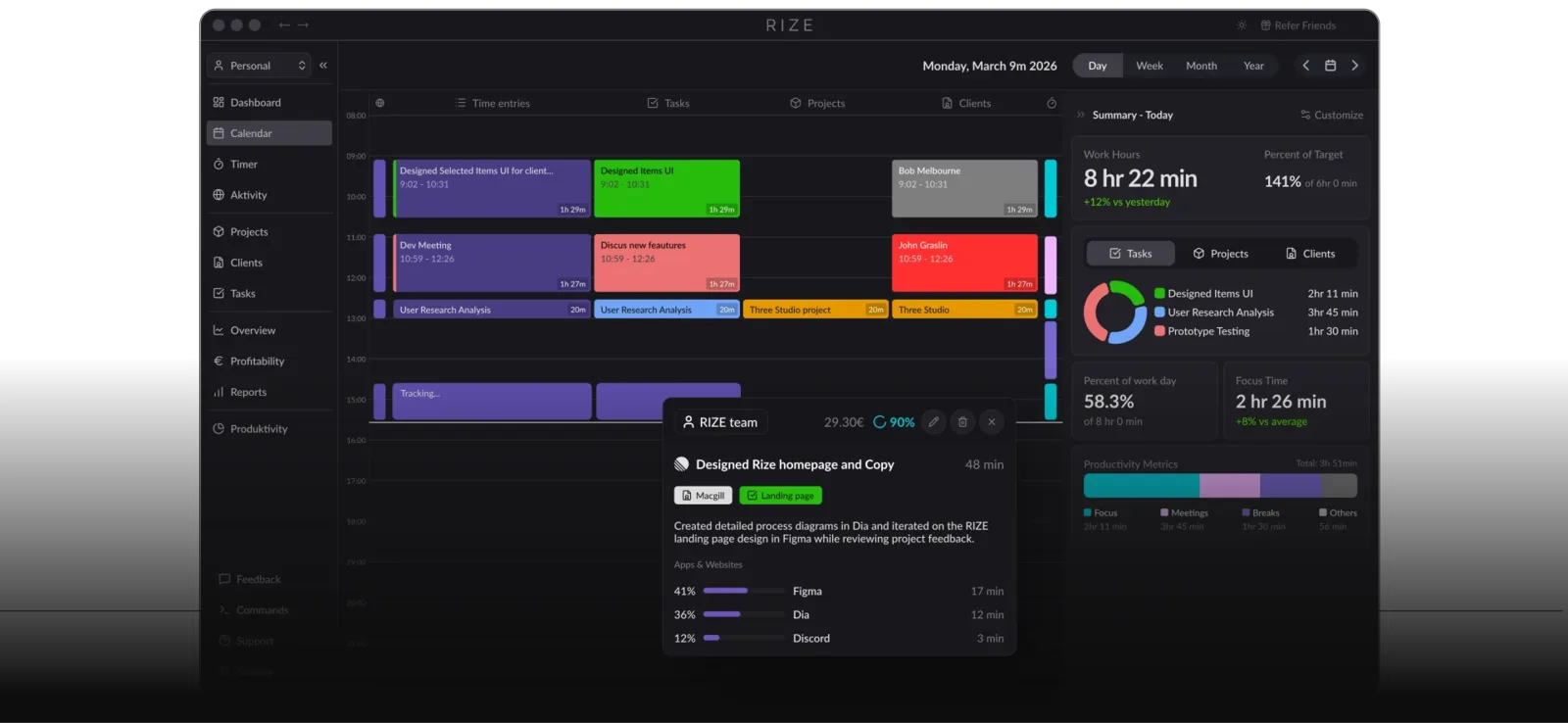
Rize is the trendy option: an AI tracker that watches your activity, builds a calendar of your day, scores your focus, and nudges you to take breaks or get back to work. The dashboards are genuinely attractive, and if you respond well to a daily score, the coaching angle works.
Understand what you are trading for it. Rize uploads your activity data to its cloud, where the AI categorization runs. It is also the most expensive app on this list over time, from $9.99 per month billed yearly and up. For a tracker whose main job is watching everything you do, “your work history lives on our servers” is a real cost on top of the subscription. Our Chronoid vs Rize page goes deeper.
Honest downsides: Cloud storage of your activity is mandatory. Ongoing subscription. macOS and Windows only, no mobile.
Price: From $9.99 per month billed yearly ($12.99 monthly), higher tier around $23.99 per month. 7-day free trial.
Pick Rize if you want a focus score and AI coaching nudges more than you want privacy or a one-time price.
4. Timemator: best rules-based tracker for Mac and iPhone
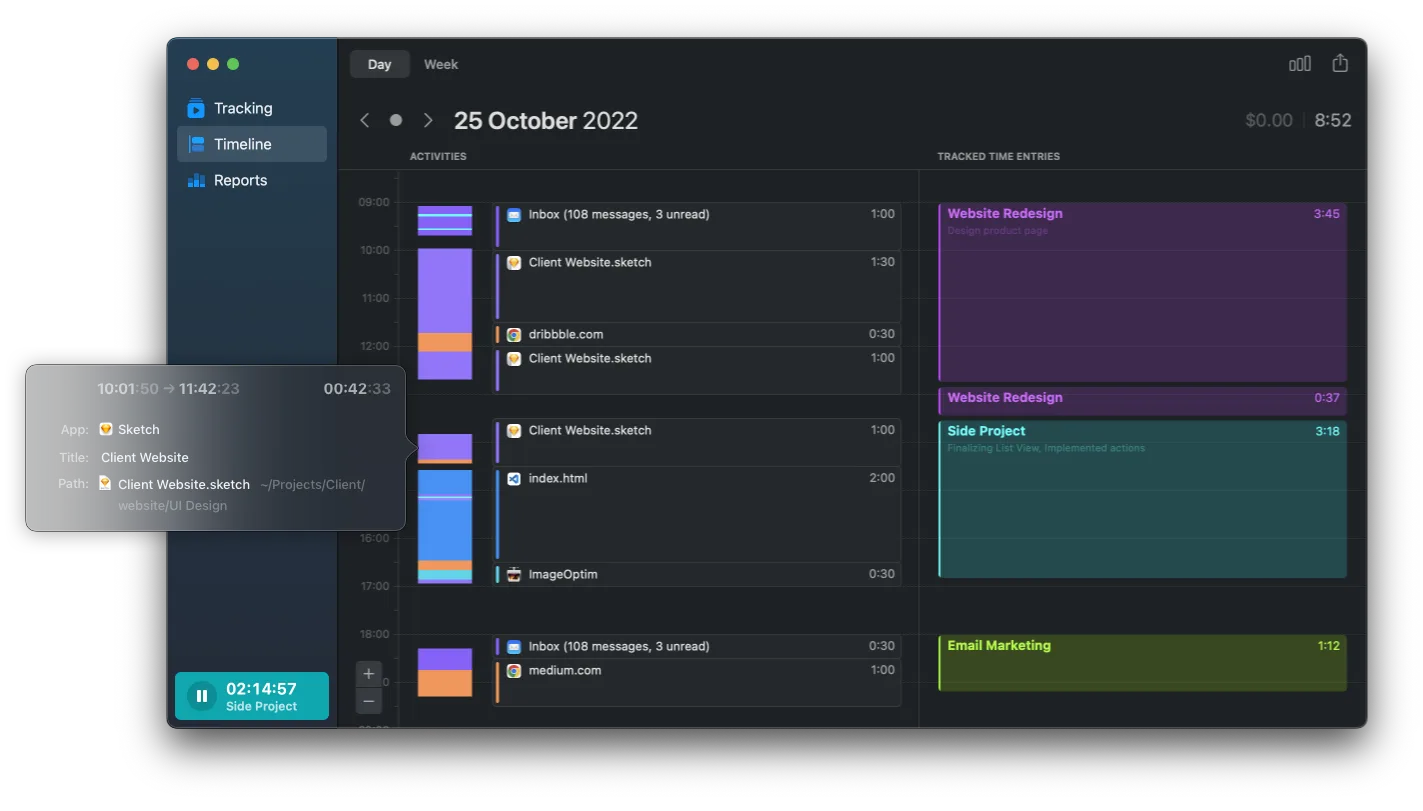
Timemator sits between automatic and manual. It records your Mac activity in the background, and you create rules like “when Xcode opens this project, start the Client A timer”. Once your rules are set, tracking is hands-off, and everything stays on your device with optional iCloud sync to a separate iOS app.
It is a one-time purchase, which is rare and welcome in this category: $39 for the Mac app, $7.99 for the iOS app. The catch is that the automation depends on you building and maintaining rules per project, and the reporting is lighter than Timing’s or Chronoid’s. Updates ship at an indie pace.
Honest downsides: Auto-tracking only works as well as the rules you write. Lighter reports, no billing documents like invoices.
Price: $39 one-time for Mac, $7.99 one-time for iOS. 30-day free trial.
Pick Timemator if you want rule-triggered timers, iPhone sync, and a one-time price, and you are happy to set up the rules.
5. ActivityWatch: best free and open source option
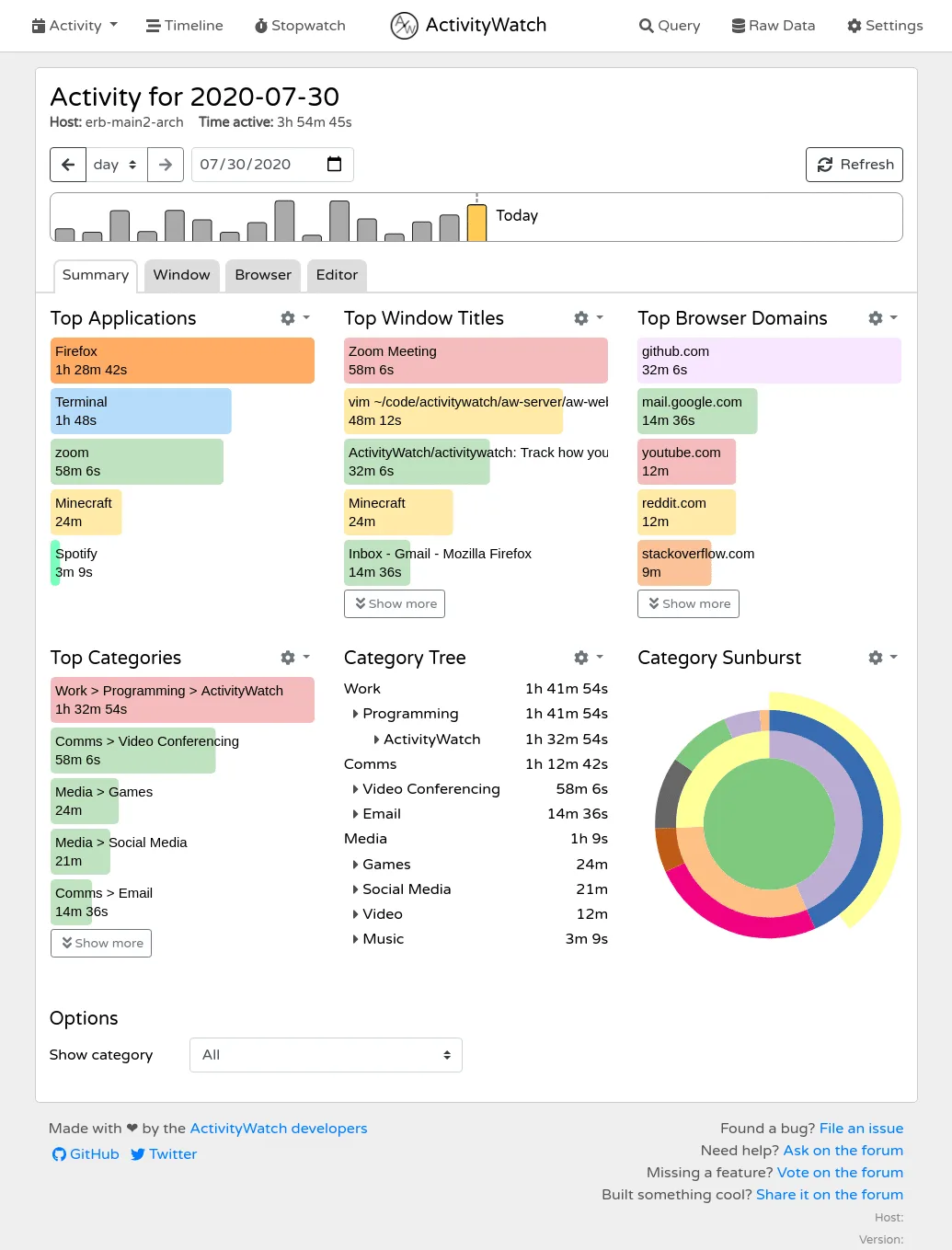
ActivityWatch is free, open source, and stores everything locally. It automatically records active windows and, with a browser extension, the sites you visit, then shows dashboards of your top apps, window titles, and categories in a local web interface. For $0 it is genuinely impressive, and for many people it is all they need.
The cost is your time instead of your money. ActivityWatch is a community project: you install watchers, configure categories by hand with regular expressions, and interpret fairly raw data yourself. There are no projects, no billing, no idle prompts, no meeting logging. It answers “what did I do today” but not “what do I invoice this client”. We wrote a full guide to open source time tracking software and an honest Chronoid vs ActivityWatch comparison if this is your direction.
Honest downsides: Setup and categorization are manual and technical. The interface is functional rather than Mac-native. No client or billing features.
Price: Free forever, open source.
Pick ActivityWatch if the price must be $0, you like tinkering, and you do not need billing or polished reports.
6. Qbserve: cheapest one-time automatic tracker, but stalled
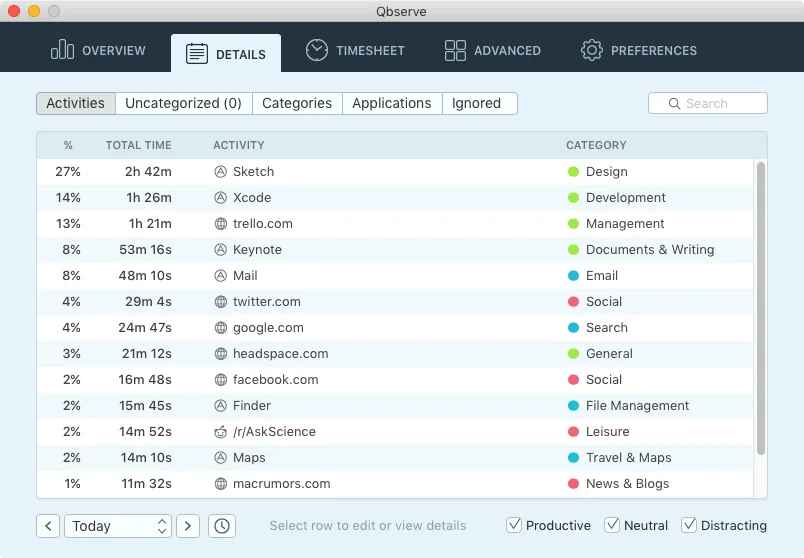
Qbserve deserves a spot for one reason: it is a $40 one-time automatic tracker for Mac that keeps data local, with productivity scoring and even invoice export. The idea is very close to Chronoid’s, and for years it was the default recommendation for private Mac tracking.
The problem is that development has effectively stalled. The app still runs, but it has not seen meaningful updates in years, and it predates the modern Mac ecosystem: no Apple Silicon-era redesign, no calendar or Screen Time integration, no AI access. Buying unmaintained software is a bet that nothing in macOS breaks it.
Honest downsides: No longer actively developed. Dated interface and no modern integrations.
Price: $40 one-time. 15-day free trial.
Pick Qbserve if you want the cheapest one-time automatic tracker and accept that it is frozen in time.
7. RescueTime: best cross-platform productivity scores
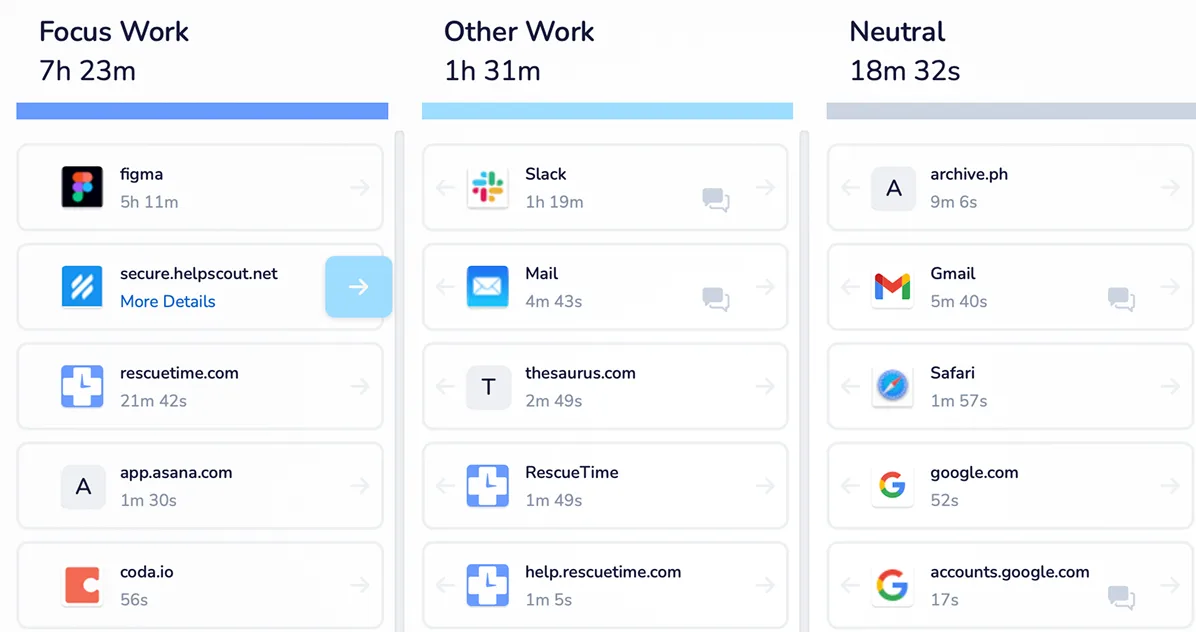
RescueTime is the veteran of automatic tracking, and its strength is breadth: Mac, Windows, Linux, iOS, and Android, all feeding one productivity score in the cloud. It grades your activity from “very productive” to “very distracting”, tracks goals, and includes a focus session blocker. If you split your day between a Mac, a PC, and a phone, it is the simplest way to see everything in one place.
As a Mac time tracker specifically, it is less compelling. The Mac app is a lightweight agent for a web dashboard, project-level tracking for client work is weak, and your data lives on RescueTime’s servers. The free Lite tier is a reasonable taste, but useful history and reports require the subscription. See Chronoid vs RescueTime for a direct comparison.
Honest downsides: Cloud only. Weak client and project billing. The Mac app is a companion to the website, not a full app.
Price: Free Lite tier. Paid from $9 per month, or about $84 to $144 per year depending on tier. 14-day free trial.
Pick RescueTime if you work across many devices and want one productivity score more than detailed Mac reports.
8. Toggl Track: best manual timer for freelancers and small teams
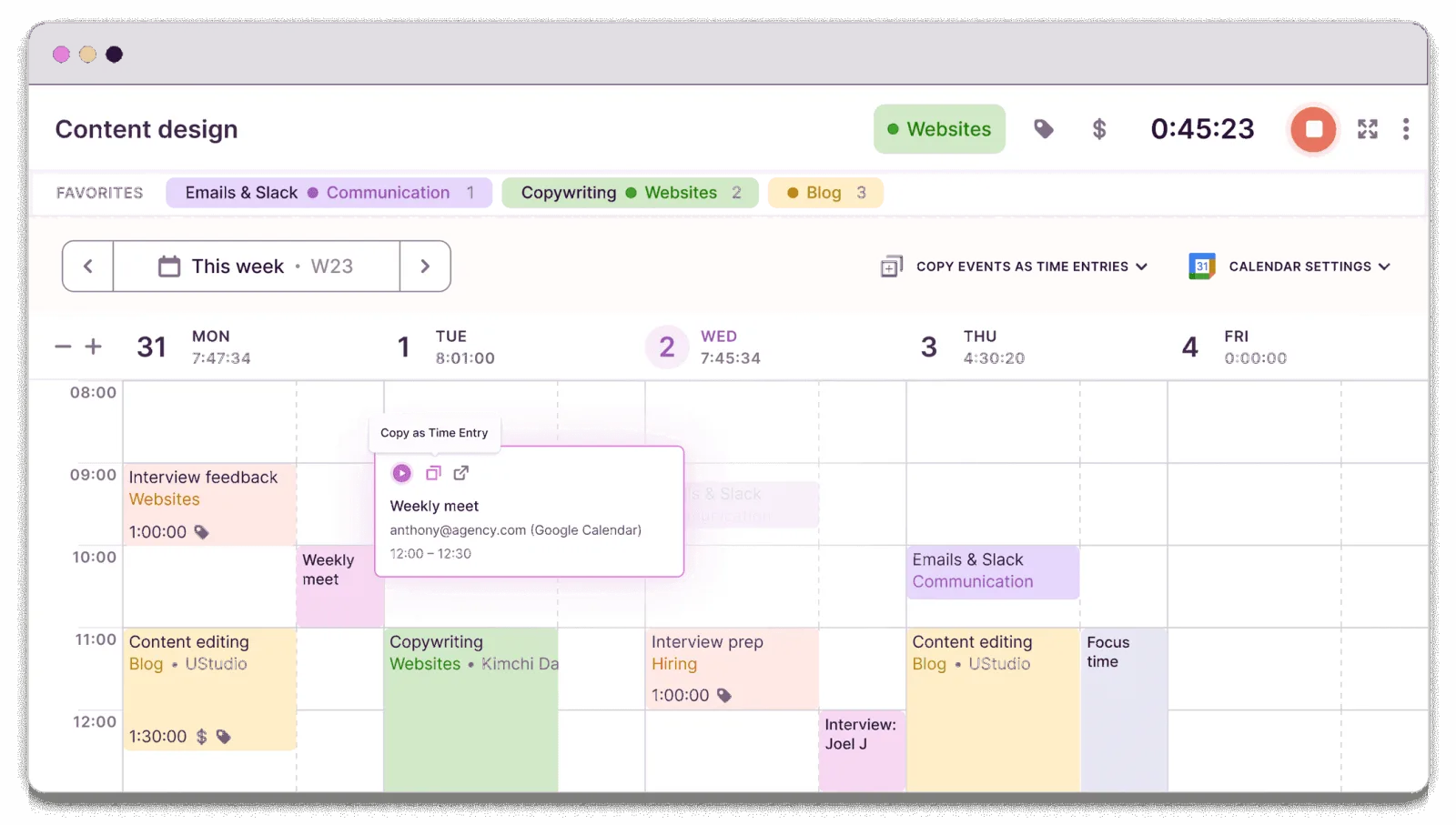
Toggl Track is the best-known manual timer, and for good reason: starting and stopping a timer is instant, the apps are polished on every platform, and reports are clean and client-ready. It integrates with more than 100 tools, so a timer can follow you from your task manager to your calendar to your browser.
The keyword is manual. Toggl records what you tell it, so your data is only as complete as your discipline, and every forgotten timer is invoiced time lost. There is a desktop autotracker, but it only suggests entries based on triggers you define; it does not build a complete record the way Chronoid or Timing do. The free plan covers up to 5 users, and paid plans are per user per month, which is priced for teams rather than individuals. Here is our full Chronoid vs Toggl breakdown.
Honest downsides: Depends on you remembering timers. Per-user subscription pricing. Your data lives in Toggl’s cloud.
Price: Free for up to 5 users. Starter $9 per user per month billed yearly, Premium $18. 30-day trial on paid plans.
Pick Toggl Track if you bill clients from deliberate timers and want the same tool on your Mac, phone, and browser. If most of your billing comes from client work, our time tracking software for consultants guide ranks 12 tools by how cleanly tracked hours become invoices.
9. Clockify: best free plan for teams
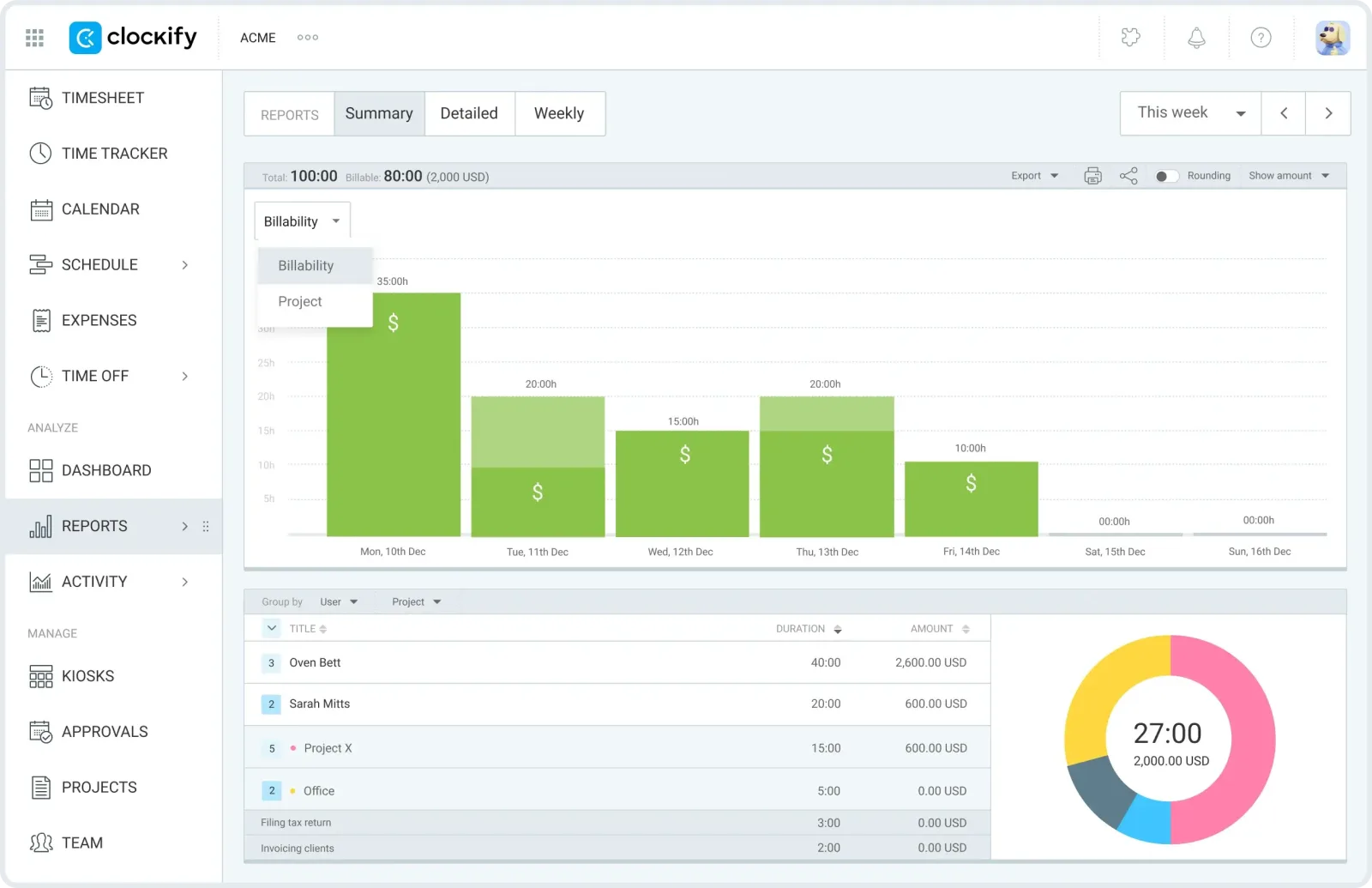
Clockify built its reputation on an unlimited free plan. That era ended in April 2026 when the free tier was capped at 5 active users, but it is still the most generous free team tracker: unlimited projects, timesheets, and basic reports without paying. Paid tiers add approvals, invoicing, scheduling, and longer report ranges at prices well below Toggl’s.
Like Toggl it is a manual, cloud-based timer, and the Mac app is serviceable rather than delightful. For a solo Mac user it is overkill in the team direction and underpowered in the automatic direction. For a small team that needs shared timesheets at the lowest possible cost, it is the obvious pick. Our free time tracking software guide covers the free tier limits in detail.
Honest downsides: Manual timers, cloud storage, and a web-first interface. Free plan now capped at 5 users.
Price: Free for up to 5 users. Paid from $3.99 to about $12 per user per month billed yearly. 7-day trial of paid features.
Pick Clockify if you need a shared team timesheet and want to pay as little as possible, ideally nothing.
All 9 apps side by side
| App | Tracking | Your data lives | Pricing model | Price | Platforms |
|---|---|---|---|---|---|
| Chronoid | Automatic | On your Mac, iCloud sync via your own Apple account | One-time | From $49, 7-day trial | macOS |
| Timing | Automatic | Local + vendor cloud for sync | Subscription | ~$9-10/mo billed yearly | macOS, web app |
| Rize | Automatic | Vendor cloud | Subscription | From $9.99/mo billed yearly | macOS, Windows |
| Timemator | Rule-based automatic | On device, iCloud sync | One-time | $39 Mac, $7.99 iOS | macOS, iOS |
| ActivityWatch | Automatic | Local, self-managed | Free, open source | $0 | Mac, Windows, Linux, Android |
| Qbserve | Automatic | On your Mac | One-time | $40 | macOS |
| RescueTime | Automatic | Vendor cloud | Freemium | Free Lite, ~$84-144/yr | Mac, Windows, Linux, mobile |
| Toggl Track | Manual timers | Vendor cloud | Freemium | Free to 5 users, $9-18/user/mo | Everywhere |
| Clockify | Manual timers | Vendor cloud | Freemium | Free to 5 users, from $3.99/user/mo | Everywhere |
Prices verified against each vendor’s pricing page in July 2026.
How to actually choose
Start with automatic vs manual. If your goal is understanding where your time goes, choose an automatic tracker (Chronoid, Timing, Rize, ActivityWatch). Manual timers systematically miss time because humans forget to press buttons. If your goal is deliberate, client-approved billing entries and team timesheets, a manual tool like Toggl or Clockify fits, and pairing it with an automatic tracker catches what the timers miss.
Then decide where your data may live. A time tracker’s log is a minute-by-minute record of your working life: every document name, every site, every meeting. On-device tools (Chronoid, Timemator, Qbserve, ActivityWatch) keep that record on hardware you own. Cloud tools (Rize, RescueTime, Toggl, Clockify, and Timing when syncing) store it on their servers, which enables features like web dashboards but means trusting a vendor with the most detailed dataset you produce. Sync does not have to force this choice anymore: Chronoid syncs between Macs through your own iCloud account instead of a vendor server.
Finally, do the subscription math. Rize at $9.99 per month is about $120 per year, and roughly $360 over three years. Timing lands in the same range. A one-time purchase like Chronoid or Timemator costs more than one month and less than one year of those subscriptions, and year two is free. Subscriptions are worth it when they fund something you need continuously, like a team web platform. For a personal tracker running on your own Mac, paying forever is a choice, not a requirement.
Frequently asked questions
Does macOS have a built-in time tracker? Sort of. Screen Time shows app and website totals, but it was built for parental controls: no projects, weak history, no exports. It tells you Safari ran for 3 hours; it cannot tell you which client that was for. We break down what it can and cannot do in our Screen Time on Mac guide.
What is the best free time tracking app for Mac? ActivityWatch, if you want automatic tracking and do not mind configuring it. Clockify or Toggl Track, if manual timers are enough. Every free plan on this list is covered in our free time tracking software roundup.
Are automatic time trackers safe to use? The tracking itself is passive: these apps observe window and app activity, they do not read your files. The real question is where the activity log is stored. Read each vendor’s answer before installing, because “we upload your activity to our cloud” and “everything stays on your Mac” are very different promises. This is the main reason Chronoid exists.
Do any of these track AI coding sessions? Chronoid tracks coding-with-AI sessions (Claude Code, Cursor, and similar tools) as first-class work, not just “Terminal time”. General trackers see the app name at best.
The bottom line
For most Mac users who want to know where their time actually goes, Chronoid is the best combination available in 2026: fully automatic tracking, a native Mac app, meeting and idle prompts that catch the time other apps lose, and a privacy model where your work history stays in your own Apple ecosystem, all for a one-time price. Try it free for 7 days.
If you need client budgets and estimates on a mature platform and do not mind subscribing, get Timing. If the budget is zero, get ActivityWatch and expect to tinker. And if you are billing as a team with deliberate timers, Toggl Track or Clockify will serve you well.