Bring iPhone and iPad Screen Time Into Chronoid
Chronoid can import Screen Time activity from Apple's local Biome data on your Mac, so iPhone or iPad usage appears beside your Mac work in the same timeline, reports, and project workflows.
Experimental feature
Screen Time import depends on Apple's private sync and local database behavior. It works today, but future iOS or macOS updates could degrade it or break it without notice. Chronoid treats this as best-effort functionality, not a guaranteed platform integration.
Why Use Screen Time Inside Chronoid
See mobile activity in your timeline
Review imported iPhone or iPad sessions with the same timeline-style visibility you already use for Mac activity, instead of relying on Screen Time's coarse summaries.
Keep mobile and Mac reporting together
Pull mobile usage into the same reporting workflow as your Mac work, then filter by device when you want to focus on desktop time only.
Categorize imported sessions
Imported Screen Time activity behaves like other Chronoid data, so you can review it, assign it to projects, and keep your history in one place.
Choose the device that matters
Chronoid lets you select one iPhone or iPad as the source for ongoing background sync, then uses incremental imports so each sync only scans new Screen Time activity.
Safari detail when available
For imported Safari sessions, Chronoid can backfill page URL details from Safari history on your Mac when that database is available and readable.
Resolve app names and sources
Chronoid resolves iOS app display names and SF Symbol icons for imported SpringBoard bundle IDs, while keeping source attribution separate between local Mac tracking and Screen Time.
Set Up Screen Time Sync
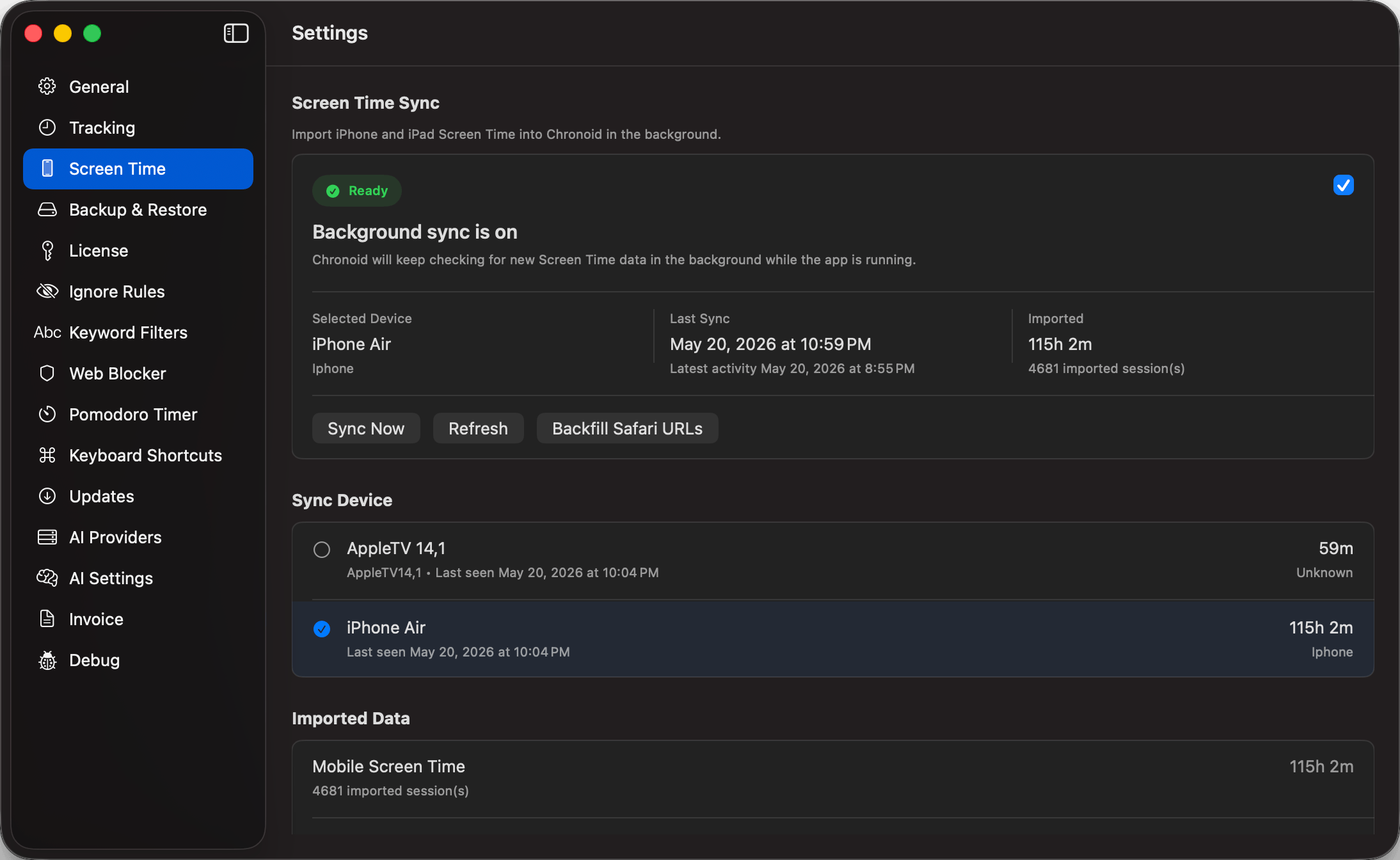
Turn on Screen Time on every Apple device involved
Enable Screen Time on your Mac, then enable it on the iPhone or iPad you want to import. Make sure sharing across devices is turned on in Apple's settings so that mobile data is copied back to your Mac.
Grant Full Disk Access to Chronoid
Chronoid reads the local Screen Time database that macOS stores on your Mac, so Full Disk Access is required before the import can work reliably.
Choose one device and start syncing
Open Settings > Screen Time in Chronoid, turn on sync, pick the iPhone or iPad you care about, then use Sync Now or let Chronoid keep importing in the background while it runs. Background sync starts after a short initial delay and then runs hourly.
What the Workflow Looks Like
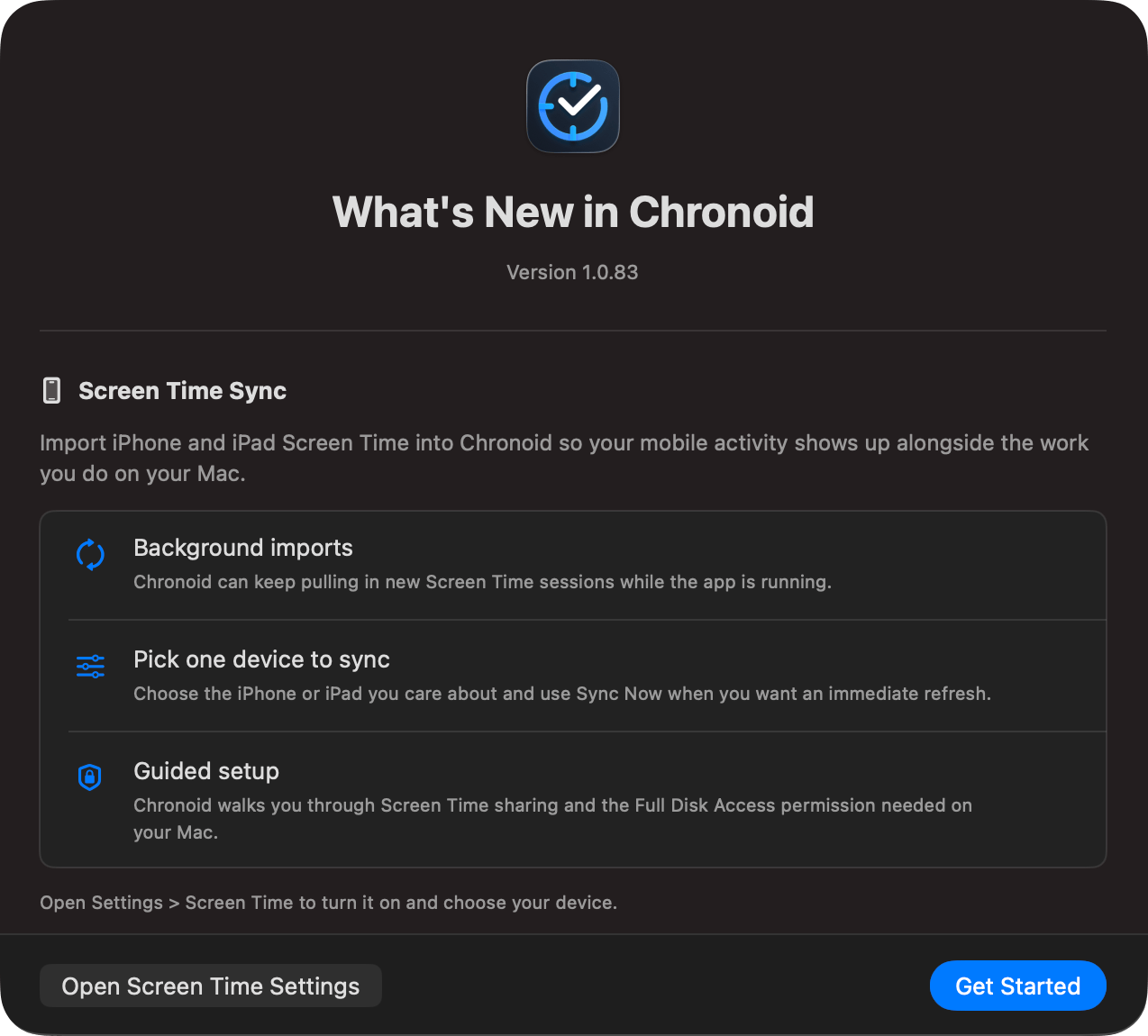
Guided setup inside the app
Chronoid walks you through enabling Screen Time sync: background imports, single-device sync, and the permissions the import needs — no manual database digging.
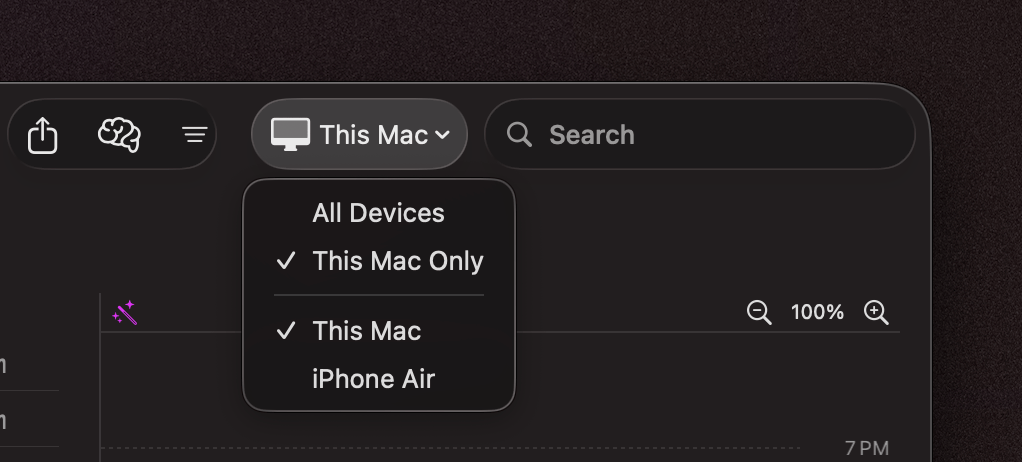
Filter reports by Mac or mobile device
Imported iPhone or iPad activity stays in the same reporting workflow as your Mac usage, but you can still filter down to This Mac Only, This Mac, or the synced mobile device when you want a narrower view.
Limitations to Expect
Apple controls the pipeline
Chronoid depends on Apple's Screen Time and cross-device sync behavior. If Apple changes the underlying format, timing, or availability, import quality can change without warning.
Data may lag behind real usage
Imported activity is not instant. Your latest mobile sessions can arrive hours later, especially during the initial setup.
Imported activity is only as clean as Screen Time
If Screen Time records noisy, missing, or surprising events, Chronoid will reflect those same issues because it is importing from that source rather than observing the phone directly.
One mobile device at a time
Chronoid currently asks you to choose one iPhone or iPad for future background sync, rather than continuously merging every mobile device in parallel.
Safari enrichment is conditional
Safari page details are backfilled from Safari history on your Mac when that database is accessible. If Safari history is unavailable or unreadable, imported Safari sessions stay less detailed.
Background activity can look real
Some iPhone and iPad apps wake in the background. Screen Time can record those events, and Chronoid may import them because there is no perfect signal for whether you actively touched the device.
Better than leaving mobile usage siloed in Apple's settings
Screen Time is useful as a raw source, but Chronoid makes it easier to review that activity in the same place where you already understand your work on macOS.
- Review imported mobile activity in Chronoid's timeline and reports.
- Keep imported history locally even after Apple's own retention window moves on.
- Filter by device so Mac-only summaries stay available when you need them.
- Enrich some imported Safari sessions with URL detail from Safari history on your Mac.
Frequently Asked Questions
I turned it on, but I still don't see any Screen Time data. What should I do?
First, confirm Screen Time is enabled on your Mac and on the mobile device, with sharing across devices turned on. Then make sure Chronoid has Full Disk Access and that you selected a device in Screen Time settings. If all of that is correct, wait a few hours because Apple's sync can be slow.
Why does Chronoid show different totals than Apple's Screen Time view?
There can be sync delay, attribution differences, and noisy background events in Apple's own data. Chronoid imports from that source, but it presents the activity inside a different reporting model and can also filter by device.
Can Chronoid import Safari websites from my iPhone directly?
Not directly from the phone. Instead, Chronoid can backfill URL details for imported Safari sessions by matching them against Safari history stored on your Mac when that data source is available.
Can I sync multiple iPhones and iPads at once?
Chronoid currently asks you to choose one iPhone or iPad for background sync. That keeps the import flow predictable, but it also means this feature is not yet a full multi-device merger.
Track your mobile time without leaving your Mac workflow
Chronoid gives Screen Time data a better home: local, searchable, project-aware, and integrated with the rest of your productivity history.