You're probably not losing focus in big dramatic chunks anymore. You're losing it in tiny waiting windows.
An AI coding agent starts generating. A video export crawls along. A sync job runs. You've got two spare minutes, so you open Reddit, check Instagram, maybe skim a forum thread. Then the agent finishes, but you don't snap back. You stay scrolling. The work session that felt intact is gone.
That pattern is easy to dismiss because each interruption looks small. In practice, it's one of the most expensive habits on a Mac, especially if you bill by the hour, juggle client work, or spend half your day moving between terminal, browser, docs, and creative tools. A good website blocker for Mac fixes that by removing the decision point entirely. The point isn't self-discipline. The point is fewer chances to leak attention.
The Modern Distraction You Barely Notice
The most common modern distraction pattern isn't random procrastination. It's idle-time drift.
A developer waits for an AI agent to respond and opens social media. A writer waits for a transcript to process and jumps to Reddit. A designer waits for an upload and starts checking feeds. Those moments feel harmless because they start inside a legitimate pause.
They aren't harmless. Users report that social platforms like Reddit are the most common distractions while waiting on AI tools, with checks happening up to 15 times per hour during idle periods, and users of blocking tools report saving up to 3 hours daily (discussion of distraction patterns while waiting on AI tools).
The problem isn't weak willpower
What makes this pattern nasty is context switching. You weren't done working. You were mid-task. You just hit a short gap and your brain reached for frictionless stimulation.
I've seen this most clearly in AI-assisted coding workflows. You send a prompt, wait for a response, then drift into Reddit or social apps. Once a blocker is on, that loop breaks. You stay in your terminal, read the model output carefully, guide it, and catch mistakes earlier instead of coming back after a distracted detour.
Social media doesn't usually steal a full afternoon at once. It steals the thread of what you were thinking about.
That matters more than people admit. Deep work on a Mac isn't only about having a quiet hour. It's about staying attached to the problem long enough to make good decisions. If you use AI tools, that includes reading responses closely, steering them, and stopping them when they go off the rails.
Why a blocker changes the equation
A website blocker for Mac works because it turns a fuzzy intention into a hard boundary. You're no longer asking yourself whether this Reddit check is justified. The answer has already been decided.
That's why blockers beat vague productivity systems. They remove negotiation.
A lot of professionals don't need motivation. They need structure. If your worst distraction appears during dead time, the fix isn't another habit tracker. It's a blocker that catches the exact sites you open when your attention gets loose.
- For freelancers: those idle browsing loops eat directly into billable time.
- For developers: the leak often happens while waiting on builds, agents, logs, or test runs.
- For students: the problem shows up between tasks, not only during long study sessions.
- For creative work: uploads, renders, and exports create the same trap.
The right blocker won't make you superhuman. It just closes the obvious exits, which is usually enough.
How Website Blockers Actually Work on a Mac
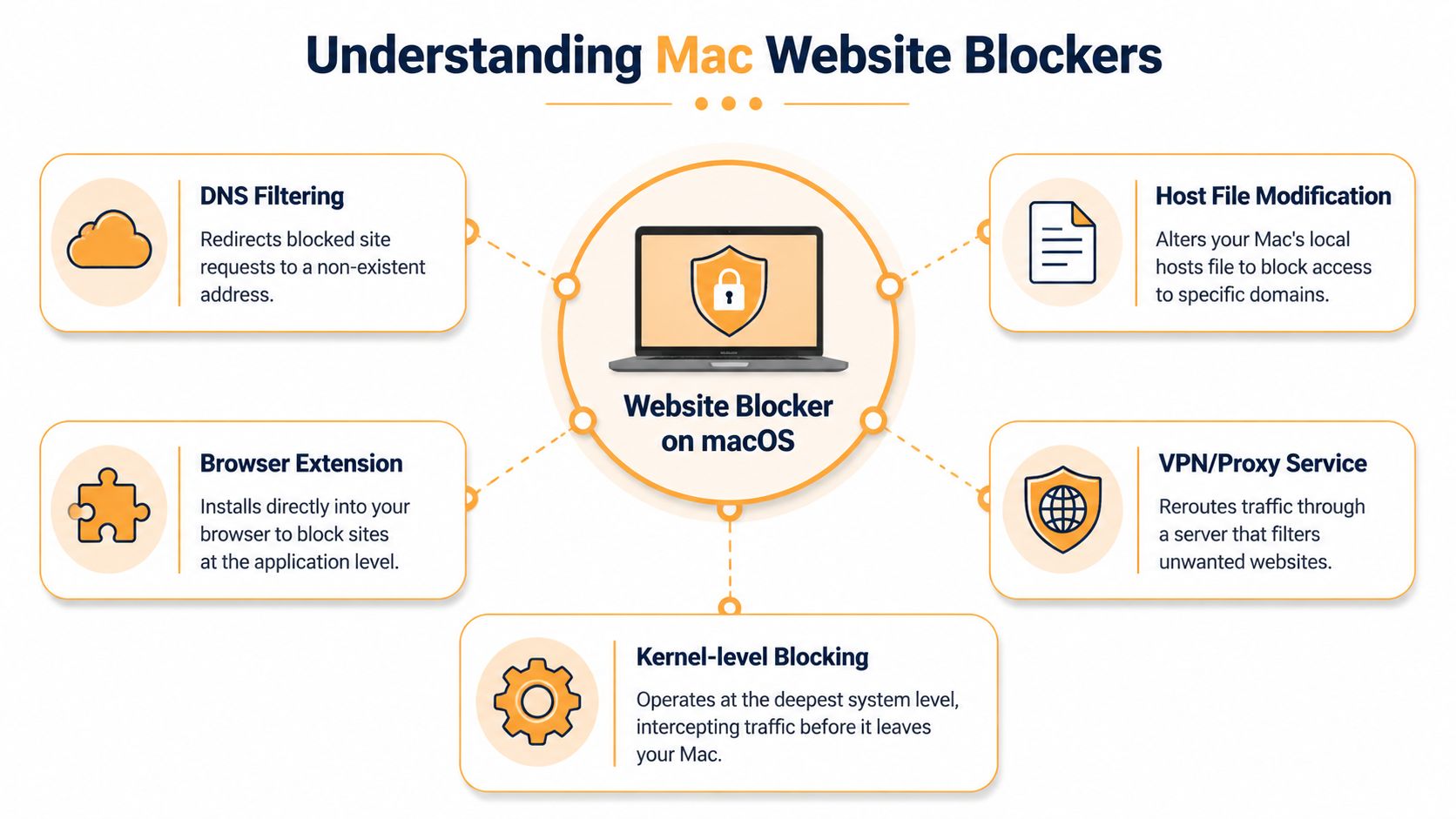
A website blocker on macOS is just a gatekeeper placed at a different point in the traffic flow. Where that gate sits determines how strong the block feels and how easy it is to bypass.
Browser-level blockers
This is the lightest approach. A browser extension watches what you open and stops matching sites inside that browser.
It's simple, and sometimes that's enough. But it only protects the browser where you installed it. If you use Safari for work and Chrome for random browsing, or if you switch to Firefox when you're annoyed, the block can fall apart fast.
For casual users, browser blockers are fine. For professionals, they're usually too easy to route around.
System-level methods
macOS also lets you block at the system level. One route is Screen Time. Another is editing the hosts file so the Mac intercepts requests before they reach the web. That's why hosts-based blocking works across browsers and user accounts on the machine, while browser extensions don't.
Here's the useful mental model:
| Method | Where it acts | What it covers | Typical weakness |
|---|---|---|---|
| Browser extension | Inside one browser | That browser only | Easy to avoid by switching apps |
| Screen Time | macOS settings | Native controls, partial app/site limits | Easier to disable |
| Hosts file | Local network resolution | System-wide browser coverage | Manual to manage |
| Dedicated blocker | Varies by app architecture | Usually broader enforcement | Depends on how deep it hooks into macOS |
Hard blockers and why they matter
Some dedicated tools go deeper. SelfControl is the classic example. Coverage describing strict blockers on Mac notes that SelfControl uses an immutable session architecture so the block remains active even if you restart the computer or delete the app, while Screen Time relies on user-accessible settings (analysis of strict Mac blocking methods).
Practical rule: If you know you'll try to outsmart your own blocker, pick the method that removes your ability to negotiate with it.
That's the key dividing line. Not “free versus paid” or “simple versus advanced.” The crucial question is whether the blocker survives your worst impulse.
A final wrinkle matters for developers and power users. Browser coverage isn't the whole story anymore. A lot of Mac workflows spill into terminals, embedded browsers, app webviews, and tool-specific windows. If your blocker only catches normal browser traffic, it may miss the exact distraction path you use when you're in work mode.
Comparing Mac Website Blocking Methods
There are four approaches worth taking seriously on a Mac: Screen Time, hosts file edits, browser extensions, and dedicated blockers. They solve different problems. Most frustration comes from picking a light tool for a hard problem.
Mac Website Blocker Method Comparison
| Method | Ease of Use | Reliability (Hard to Bypass) | Privacy | System-Wide |
|---|---|---|---|---|
| Screen Time | High | Low to medium | Strong, built into macOS | Partial |
| Hosts file | Medium for technical users, low for everyone else | Medium | Strong, local | Yes |
| Browser extension | High | Low | Varies by extension | No |
| Dedicated blocker | Medium | Medium to high | Varies by app | Often broader than extensions |
Screen Time is good for light structure
Screen Time is the obvious starting point because it's already on your Mac. Apple lets you set a one-minute daily limit on specific websites or apps, which acts like a practical block during work hours, and you can also use Content & Privacy settings to limit access more aggressively (how Screen Time blocks websites on Mac).
For a lot of people, that one-minute limit is enough to interrupt autopilot. It creates friction without adding software.
The downside is enforcement. Screen Time lives in settings you can reach. If your habits are mild, that's okay. If you're trying to protect a serious focus block, it's often too soft. If you want a deeper look at what Apple's tool can and can't do, this guide on Screen Time on Mac is a useful companion.
The hosts file is blunt, effective, and annoying
Editing the hosts file is old-school, but it works. The Mac checks it before normal domain lookups, so blocks apply across Safari, Chrome, and Firefox without extra extensions. It's one of the cleanest ways to get broad browser coverage using built-in system behavior.
Its weakness is flexibility. There's no pleasant scheduling. Turning access on and off means manual edits. That makes it strong for permanent bans and clumsy for realistic workdays where you may want a site blocked in the morning and available later.
If you want a free system-wide wall and you're comfortable maintaining it yourself, the hosts file still earns respect.
Browser extensions are convenience tools
Extensions are appealing because setup takes minutes. Add sites, flip the switch, done.
That ease is exactly why they're weak. They live in the easiest layer to escape. Open another browser, use a private window depending on the tool, or move into another app, and the system has holes. For people with light distraction habits, that may be fine. For anyone who already knows they hop between browsers, it's a poor fit.
Dedicated blockers are where hard focus starts
Dedicated apps exist because built-in options leave gaps. Some focus on website blocking only. Some add app blocking, scheduling, lock modes, passwords, and session timers.
The best reason to use one isn't feature count. It's enforcement. SelfControl stands out because once a session starts, the block remains until the timer expires, even if you restart or remove the app. That's a different category of tool than Screen Time.
Cold Turkey is also often chosen by people who want strict lock behavior on Mac. The trade-off with stricter tools is obvious. They work because they're less forgiving. If you start a block at the wrong time, you have to live with it.
The gap most guides miss
Most Mac blocker roundups talk about Safari and Chrome and stop there. That misses a real professional use case.
A 2025 developer survey cited in Chronoid's coverage found that 62% of macOS developers use terminal managers that bypass standard browser-based blockers (discussion of cross-browser and terminal leaks on macOS). That's the issue many “best website blocker for Mac” lists ignore.
If your real workflow lives in terminal panes, local docs, browser devtools, app webviews, or secondary browsers, you need to test for leaks, not just check feature lists.
A practical checklist:
- Switch browsers on purpose: If the block only works in one browser, you've found the weak point.
- Test work-adjacent apps: Open the distractions the way you reach them during the day.
- Check whether schedules matter: Manual blocking sounds fine until you need it every weekday.
- Decide how much self-control you trust: Pick the architecture that matches your real behavior, not your ideal one.
A Practical Walkthrough with Chronoid
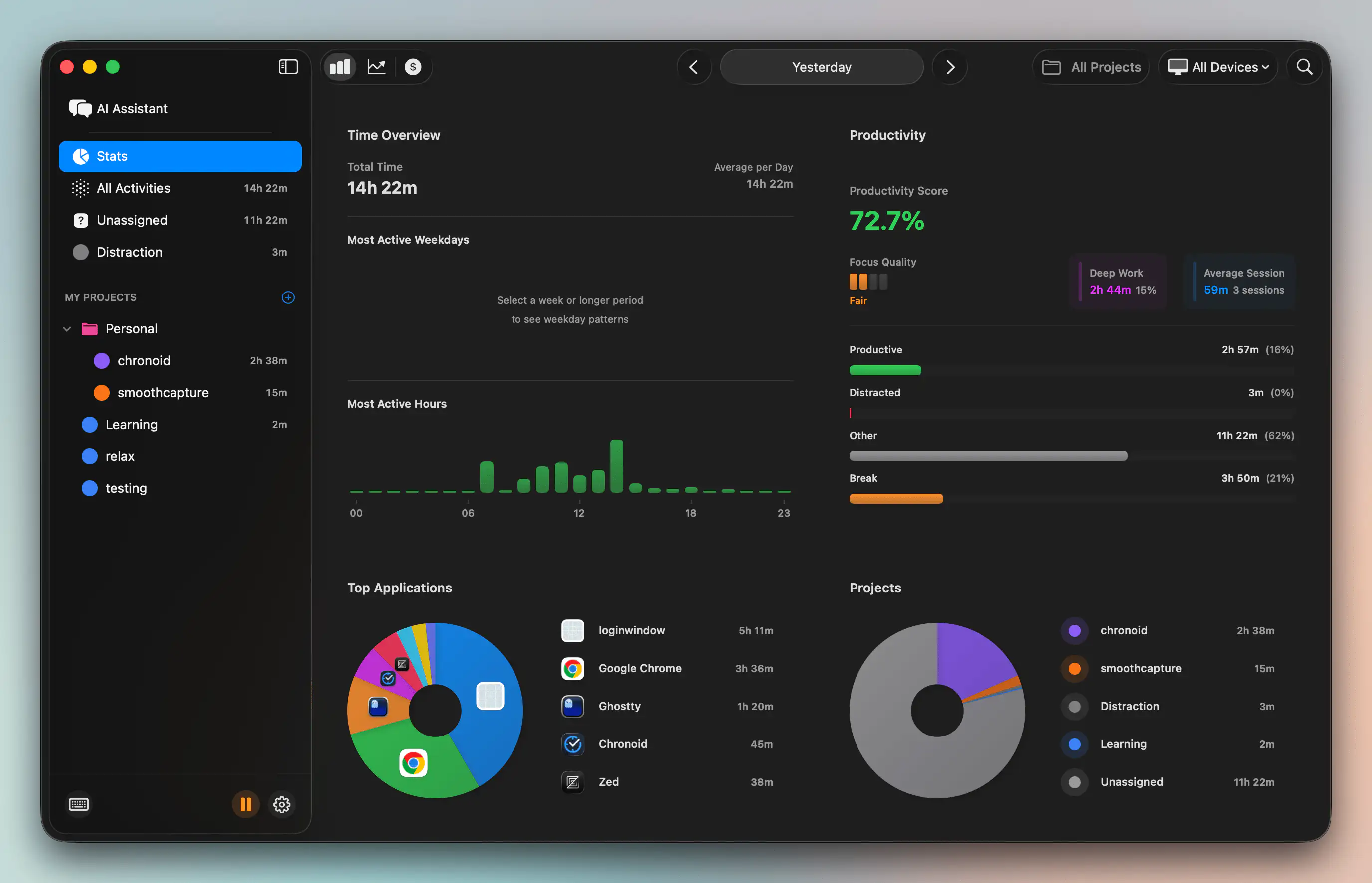
If your distraction pattern shows up while waiting on AI tools, the cleanest setup is one that first reveals where your time goes, then lets you turn those findings into a blocklist.
Start by observing, not blocking
Users often build the wrong blocklist on day one. They choose the obvious culprits, then miss the sites and keywords they open during idle moments.
A better pattern is to let the app run for a short period, review the activity log, and drag your real distractions into a block category. Apps built around that workflow report higher adherence after a 1 to 2 day self-monitoring period, with a 30% to 40% reduction in unplanned browsing compared with preset-only blocklists (discussion of personalized blocklists from activity logs).
That matches how many Mac users discover the problem. They don't need a generic list of “bad websites.” They need proof that Reddit, a specific forum, a news site, or a search pattern is where their attention leaks.
Build a blocklist from your own behavior
The practical setup looks like this:
- Let tracking run first. Give it a day or two so you can see your actual pattern, not the story you tell yourself.
- Review the activity log. Look for the sites you open while waiting on AI output, uploads, renders, or replies.
- Drag distractions into the blocker. Add websites and keywords that match your actual detours.
- Start with your highest-risk windows. Early afternoon, coding sessions, and idle waiting periods are usually where blocks pay off first.
- Tighten later if needed. If you still leak attention, move from selective blocking toward allow-lists or stricter sessions.
One option for this workflow is Chronoid, which combines automatic activity tracking with a website blocker and focus tools on macOS. If you want the exact setup flow, the Chronoid web blocker documentation shows how the blocklist and sessions work.
A personalized blocklist works better because it reflects what you actually do when you drift, not what a productivity app assumes you do.
Use blocking and breaks together
A blocker solves one problem. It stops you from escaping into distractions. It doesn't stop you from grinding too long and burning out.
That's where a Pomodoro-style rhythm helps. Use the blocker during work intervals, then let breaks happen on purpose instead of as accidental scrolling. Some people prefer short cycles. Others just want a break reminder every hour so they hydrate and stretch before jumping back in.
Here's a quick demo format that makes sense if you want to see that workflow in action:
For AI-heavy work, this combo is stronger than a standalone blocker. During the focus block, social sites stay closed. During the break, you step away on purpose. You're not asking social feeds to be your break system.
Beyond Blocking Best Practices for Lasting Focus
A website blocker for Mac works better when it sits inside a larger focus system. Blocking removes temptations. It doesn't diagnose patterns, create healthy pacing, or tell you whether the setup is helping.
Diagnose before you restrict
The first move should be observation. If you don't know whether your distraction comes from Reddit, YouTube, news sites, chat apps, or random searches, you'll build a weak blocklist.
That's especially true for creative and client work. The same browser may hold your CMS, reference material, invoices, docs, and distractions. You need enough context to separate useful browsing from leakage.
Schedule focus instead of waiting for motivation
The professionals who get the most from blockers don't turn them on reactively. They schedule focus windows and let the rule fire automatically.
That can be a morning writing block, a client work block, or an afternoon coding sprint. If you also care about your environment, this guide to a writing setup for content creators is a good reminder that focus usually comes from stacked conditions, not one perfect app.
A durable routine often includes:
- Predefined focus windows: block distractions before the drift starts.
- Intentional breaks: use break reminders so recovery happens on schedule.
- A short review loop: check which sites still slip through and adjust weekly.
One useful test: if your blocker only helps on your best days, it's too weak. Good focus systems hold up on messy days too.
Measure whether the system is working
You don't need a complicated score. Just review your time data and ask a few practical questions.
- Which sites disappeared from your day?
- Which distractions still show up during idle periods?
- Do your longest uninterrupted work blocks happen more often now?
- Are breaks becoming deliberate instead of accidental?
That's the loop that lasts. You observe, block, review, refine. Over time, the Mac stops being a machine full of tempting exits and starts acting more like a workspace.
Choosing Your Mac Focus Strategy
Pick the tool that matches your real behavior.
If you want a free, built-in option and your habits aren't severe, start with Screen Time. It's good enough for light boundaries and casual blocking.
If you're technical and want a free system-wide method, use the hosts file. It's effective across browsers, but it's manual and not friendly for changing schedules.
If you need hard enforcement for deep work sprints, use SelfControl or another strict dedicated blocker. These tools exist for people who know they'll click “disable” the moment work gets uncomfortable.
If your workday is messy, spread across apps, websites, documents, and AI-assisted workflows, an integrated tool can make more sense because it shows where your attention leaks before you decide what to block. If that's your situation, this overview of a focus app for Mac is a useful next read.
The important part is not finding the perfect system. It's choosing one approach today and testing it against your actual work.
If your Mac keeps bleeding attention during AI waits, client work, or creative sessions, try Chronoid to track where your time goes, spot your real distraction sites, and block them without switching between separate tools.