
By late afternoon, a lot of Mac workdays start to feel suspiciously busy. You answered messages, jumped into Figma, checked a few docs, opened a browser tab for research, then another, then ten more. By 6 PM, you know you worked. You just can’t say clearly what the time produced.
That gap often goes underacknowledged. Screen use adds up fast. According to 2026 screen-time estimates summarized by Exploding Topics, the average person spends 4 hours 47 minutes per day on internet-connected screens, while U.S. users average 6 hours 12 minutes per day. If your Mac is your office, studio, dev machine, and distraction machine, a big share of that time probably runs through one device.
Apple gives you a built-in way to inspect that behavior. It’s called Screen Time, and for personal awareness it’s useful. You can see which apps and websites got your attention, how often notifications pulled you off task, and whether your day matched your intentions. If your main problem is “Where did my afternoon go?”, Screen Time on Mac is a solid first stop.
If your problem is “How do I show a client what I worked on?”, that’s where things change. Built-in Screen Time was made for awareness and limits. Professional time tracking needs attribution, project context, and records you can use. That’s a different job.
Your Mac Knows Where Your Time Goes, Do You?
It usually starts with a harmless lie you tell yourself at noon. You’ll check one message, skim one article, clear one inbox mess, then get back to the main work. A few hours later, the Mac has been active the whole time, but the important task still isn’t done.
That’s why screen time on Mac matters. Not because every minute on a screen is bad, but because unexamined screen time turns into vague busyness. You end the day with effort but no clean account of where your attention went.
For health, this isn’t just a productivity issue. If you’re spending long stretches in front of a display, it’s worth reviewing Prescript Glasses’ eye care insights, especially if dry eyes, strain, or blurred focus tend to show up after long client sessions.
What Screen Time solves first
Apple’s built-in tool is good at one thing right away. It replaces guesswork with a usage picture.
A lot of people discover that the problem isn’t one dramatic distraction. It’s fragmentation. Mail for a few minutes. Slack or Messages. Browser tabs. Notes. Calendar. Then a “quick” social check. The day gets chopped into pieces too small for deep work.
Practical rule: If you’re repeatedly surprised by how your day disappeared, your first issue isn’t discipline. It’s visibility.
If you want a broader Mac-level view of what runs on your system besides Screen Time, this guide to an activity monitor app for Mac is useful. It helps distinguish system activity from actual work habits, which are not the same thing.
The real question at 6 PM
The hard part isn’t seeing that you were active. The hard part is deciding whether that activity was meaningful.
Screen Time can answer basic questions. Which apps did I use most? Which sites kept pulling me back? Was my phone part of the problem too? Those are worthwhile questions, and they often reveal more than memory does.
But professionals usually need one more layer. Not just where time went, but whether it went to work that counts.
Enabling and Configuring Screen Time on Your Mac
The setup is simple, but a sloppy setup produces weak data. If you want Screen Time to be more than a colorful chart, turn on the right controls at the start.
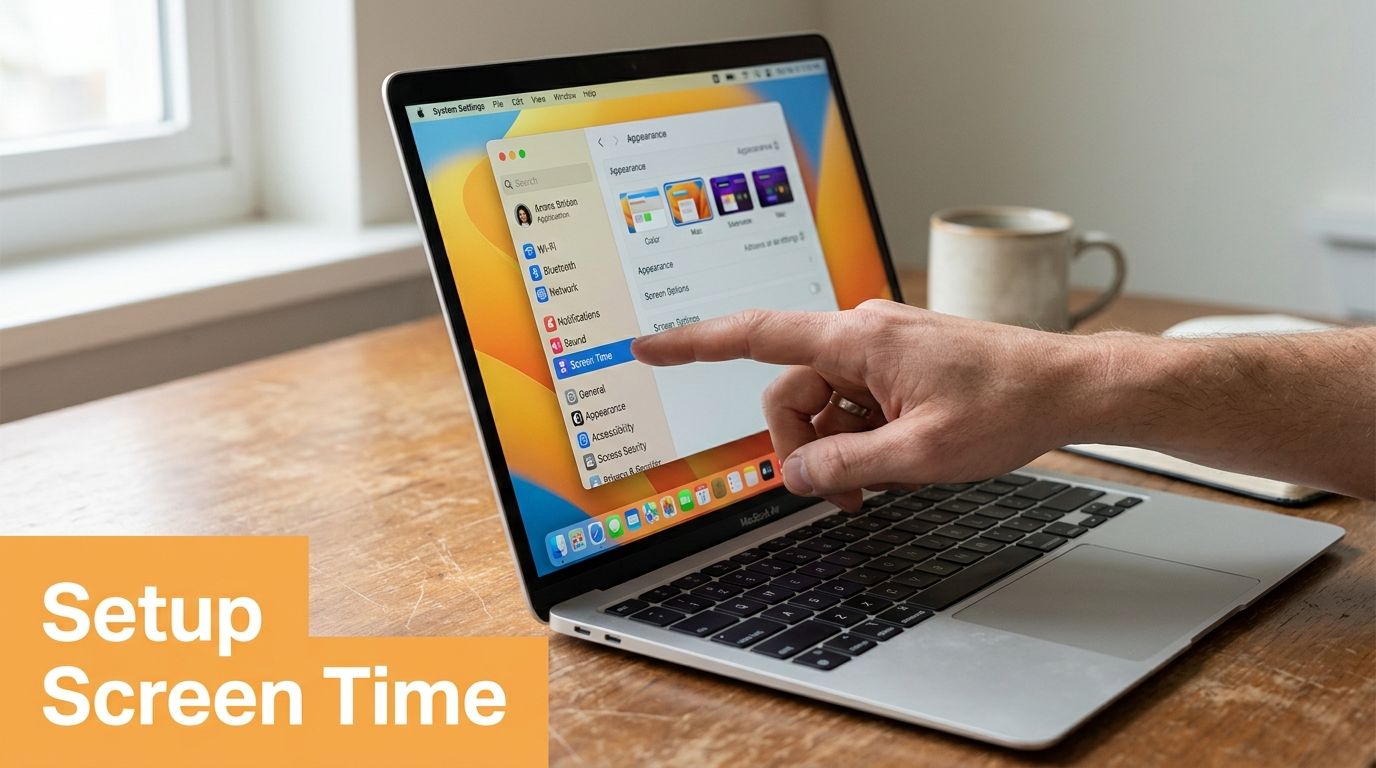
For Screen Time to be analytically useful, the key step is enabling App & Website Activity and, if needed, turning on Share Across Devices, as explained in Timing’s walkthrough of analyzing iPhone Screen Time on macOS tools. Without that, you’re looking at partial behavior.
Start with the core switch
On your Mac, open System Settings, then go to Screen Time. The first thing to confirm is that Screen Time itself is enabled for your account.
Then check these settings:
-
App & Website Activity
This is the actual engine behind the reporting. If it’s off, Screen Time has very little to analyze. -
Share Across Devices
Turn this on if your iPhone or iPad is part of the same work pattern. If you read briefs on your phone, answer client messages on an iPad, or drift into mobile distractions during desktop work, this matters. -
Notifications and related usage views
These aren’t just side details. They help explain interruptions that don’t show up cleanly in app totals.
A common mistake is enabling Screen Time and assuming the default view tells the whole story. It doesn’t. The better your configuration, the less guessing you’ll do later.
Decide whether you want personal or cross-device tracking
If your Mac is your only serious work device, Mac-only data can be cleaner. It isolates desktop behavior and avoids muddying the report with evening phone use.
If your work crosses devices, don’t pretend otherwise. A freelancer who reviews comments on an iPhone and edits on a Mac is still working across one workflow. In that case, shared tracking gives a more honest picture.
Use Mac-only data when you want a clean view of desk work. Use shared data when your real workflow moves between devices.
Some apps that analyze or import this data also need Full Disk Access to read activity details correctly. That’s more of a power-user step, but if you’re trying to combine Screen Time with another Mac analysis workflow, permissions matter.
Watch the setup once if you prefer visuals
If you’d rather confirm the path on screen before changing anything, this walkthrough helps:
After that, leave it alone for a few days. Screen Time becomes useful when it captures normal behavior, not when you babysit the settings every hour.
How to Interpret Your Screen Time Report
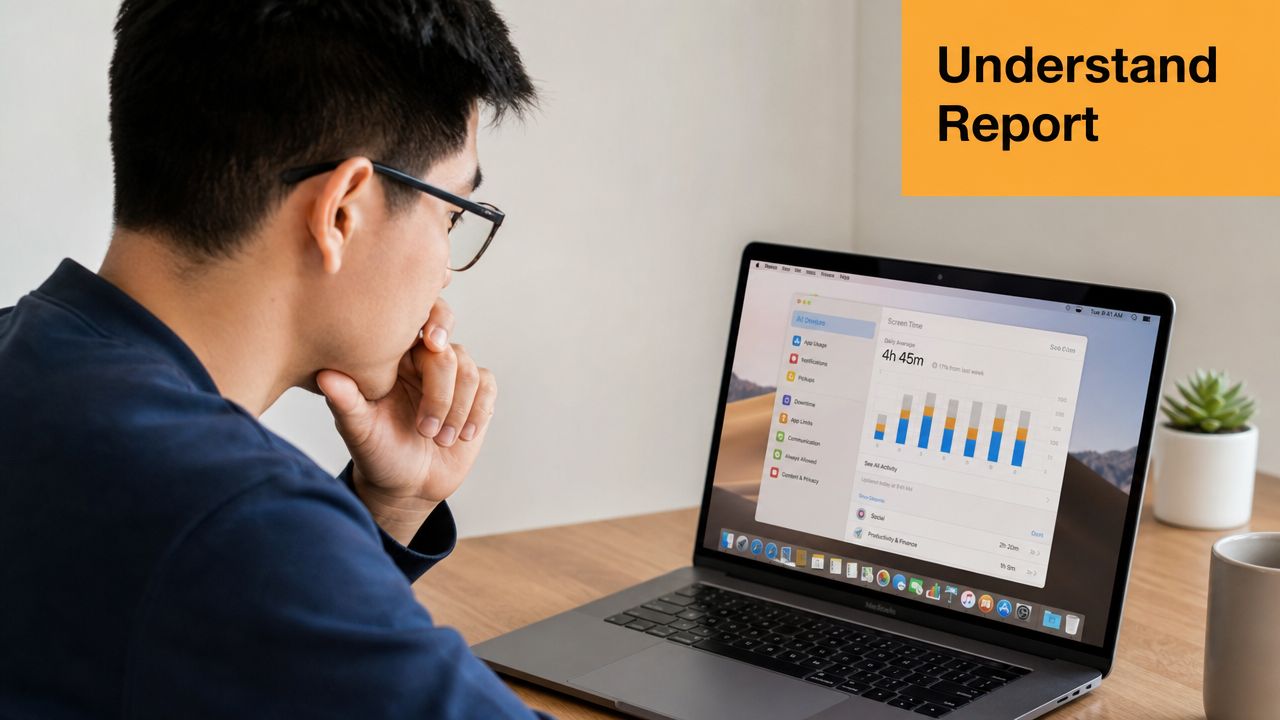
Once a few days of data build up, Screen Time starts showing patterns you probably felt but couldn’t name. Apple says Screen Time on Mac shows app and device-usage statistics for single days or a week, and the visible history is limited to the last four weeks in its Mac Screen Time usage guide. That makes it good for recent habit review, not long-term record keeping.
Read the chart like a pattern, not a score
The daily and weekly chart isn’t a grade. It’s a behavior map.
If one app dominates your day, ask whether that’s expected. For a developer, heavy Xcode use may be perfectly fine. For a writer, huge browser time might be research, or it might be drift. The same number can mean focus or avoidance depending on the work.
What matters more is consistency. If the same cluster of apps shows up every productive day, that’s a useful baseline. If your “work” day is spread across too many unrelated categories, that’s often a sign of constant context switching.
Look beyond minutes
Apple also tracks notifications and pickups. Those are easy to overlook and often more revealing than raw usage.
- Notifications can expose passive interruption. You may not think Slack, Mail, or Messages are hurting focus because you only reply briefly, but repeated alerts can break momentum all day.
- Pickups matter when your phone is part of your desk routine. Frequent checking often points to fragmented attention rather than necessary communication.
- Website activity is where vague browser time becomes more concrete. A browser isn’t one task. It’s many.
A high total in one app isn’t automatically a problem. Repeated interruption is usually the bigger issue.
What to ask when you review it
Use the report to answer specific questions, not to admire the bars.
| Question | Why it matters |
|---|---|
| Which apps dominate my working hours? | Reveals your real workflow, not your intended one |
| Which sites keep recurring? | Shows where research ends and habit loops begin |
| When do notifications spike? | Helps you find the hours that are easiest to protect |
| Does my weekly view match my priorities? | Exposes mismatch between planned work and actual attention |
The four-week limit changes how you should use this feature. Screen Time is good for weekly correction. It’s weak for quarterly reflection, client reporting, or annual habit analysis.
Setting Smart Limits and Scheduling Downtime
It’s 10:30 a.m. You sat down to do client work, opened Slack to check one message, clicked into Mail, skimmed a news tab, and ended up twenty minutes off plan before the intended work started. That is the kind of drift Screen Time can curb well on a Mac.
The feature works best as a friction layer. It helps reduce casual app hopping and gives your workday more shape. It does not understand projects, billable hours, or whether time in Safari was research or avoidance. Keep that trade-off in mind before you spend too much energy perfecting the settings.
Use App Limits to interrupt repeat distractions
App Limits are useful for apps and sites that pull you in by habit. Keep the scope narrow. Broad limits usually create annoyance, then get ignored.
A few setups that tend to hold up in real work:
- Social apps and sites: set a modest cap during work hours instead of banning them outright. Strict bans often fail the first time you need a legitimate check.
- YouTube or other video platforms: allow enough time for tutorials, but not enough for passive watching to spill across the afternoon.
- News, Reddit, and forums: these are usually low-value interruptions, especially if your work already involves constant browser use.
Operational rules beat aspirational ones. The goal is fewer reflex clicks, not a cleaner conscience.
Use Downtime to protect blocks, not punish yourself
Downtime is better when the problem is general wandering rather than one specific app. Turn it on for deep work windows, an evening cutoff, or the hour before bed if your Mac keeps pulling you back in.
For freelancers, I’ve found one setup works especially well: schedule Downtime around the hours you want to reserve for deliverables, then leave a short gap for admin. That keeps communication tools from bleeding into production time all day. If you need a stronger routine around keeping track of work hours across your day, pair those protected blocks with automatic time tracking instead of relying on memory later.
A simple rule helps here. Use App Limits for specific temptations. Use Downtime when the whole desktop starts feeling too available.
Keep Always Allowed small
This setting decides whether Screen Time stays practical or becomes something you disable by noon.
Good candidates usually include:
- Calendar
- Your password manager
- One communication app you need for urgent messages
Be careful with Mail, Slack, and browser access. Those tools can be necessary and still wreck focus. On a professional Mac, “always allowed” should mean “required to keep work moving,” not “I might want this nearby.”
If meetings are a common source of reactive work, protect the time around them too. Blocking distractions for thirty minutes before and after a call often leads to better prep and clearer follow-through. Typist’s guide to meeting outcomes is a useful companion if you want tighter meeting boundaries, not just tighter app limits.
The best Screen Time setups are boring. They remove obvious failure points, preserve access to what you need, and stay simple enough that you keep using them. That makes Screen Time a solid personal control system. It still stops short of professional time accounting, which matters once your hours need to be explained, billed, or reviewed later.
When Screen Time Is Not Enough for Professionals
Friday afternoon. A client asks how those six hours were spent, and Screen Time gives you a neat total for Safari, Figma, and Slack. That is enough to notice a pattern. It is not enough to defend an invoice.
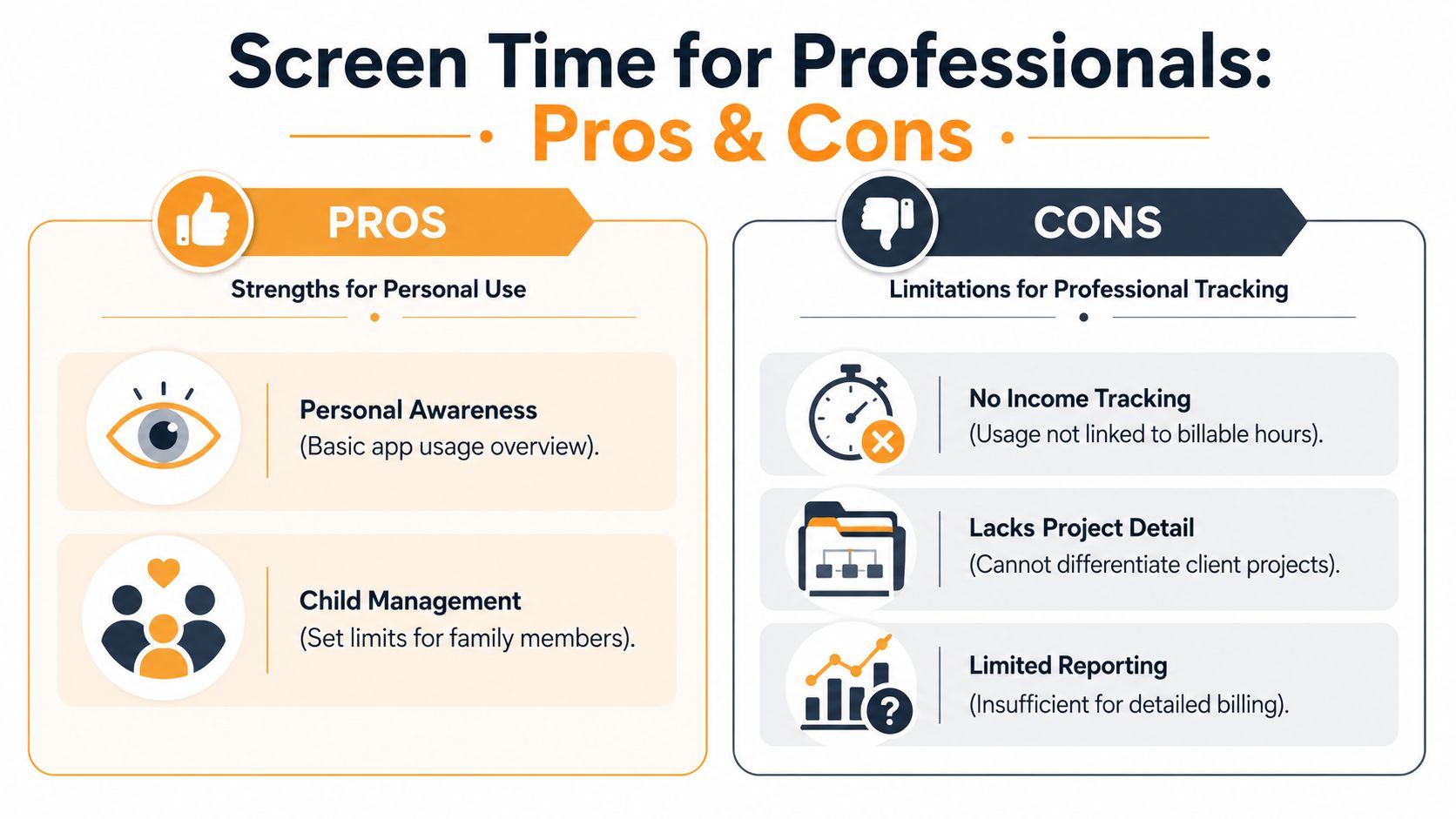
That gap matters once your Mac stops being just a personal device and starts being part of how you earn. Screen Time is good at awareness. It shows where attention went at the app and website level. Professional time tracking needs attribution: which client, which project, which task, and whether the work was billable at all.
Awareness is not attribution
A long block in Figma proves one thing. Figma was open for a long time.
It does not tell you whether that session belonged to Client A’s landing page, Client B’s design system cleanup, or an hour lost adjusting components that never shipped. The same problem shows up in browsers, terminals, docs, and communication tools. One app can hold three kinds of work at once, plus a few minutes of drift.
That is why Screen Time helps with personal behavior but falls short for professional records. Billing depends on context, not just duration.
Where work records break down
Freelancers and consultants usually hit the same limits fast:
-
Client separation
One app often serves several projects in the same day. Screen Time groups by app, not by client. -
Billable versus non-billable work
Estimates, email triage, invoicing, scheduling, and internal admin all consume time. They should not always land on a client invoice. -
Usable audit trails
A weekly total for Slack or Safari does not answer a client who wants a breakdown of research, revisions, calls, and delivery work. -
Session detail
Professional review depends on reconstructing what happened, not glancing at category totals after the fact.
I run into this most with mixed days. A morning can include a proposal, two rounds of client feedback, meeting prep, and actual production work in the same set of apps. Screen Time records the surface. It does not separate the work into something you can review, price, or explain later.
The trade-off professionals have to make
Screen Time is still useful. It is built into macOS, it is easy to check, and it can expose distraction patterns quickly. For solo users trying to cut down on reactive browsing or late-night app use, that is often enough.
Professional work asks for a different standard. You need records that survive handoff, invoicing, retrospectives, and the occasional client question. If you want a practical benchmark for what those records should include, this guide on how to keep track of work hours accurately for client work lays out the difference well.
The same pattern shows up in meetings. Attending the call is one thing. Capturing what changed, what was decided, and what needs to happen next is the part that makes the time useful. Typist’s guide to meeting outcomes gets at that distinction from the meeting side, and the logic carries over here.
Screen Time helps you notice habits. Chronoid and similar automatic trackers are built for work records.
That is the dividing line. Use Screen Time to spot overuse, distractions, and rough patterns. Use a dedicated tracker when your hours need to be allocated, reviewed, or billed with confidence.
The Best Alternatives for Automatic Time Tracking
Professional time tracking starts where consumer screen tracking stops. The job isn’t just measuring minutes. The job is turning computer activity into usable work records.
A peer-reviewed review of screen-time measurement calls the field a “conceptual and methodological mayhem” and argues for objective logs such as app logs or server logs while stressing the difference between minutes of use and goal-directed screen use in the review published on PMC. That’s the core reason many freelancers hit a ceiling with Screen Time on Mac. Minutes alone don’t carry enough meaning.
What better tools do differently
Automatic time trackers watch your work as it happens. They typically capture apps, websites, and in some cases document-level activity, then organize that information into sessions you can review later.
That changes the workflow in a few important ways:
-
You don’t rely on memory
Manual timers are easy to forget. Retrospective timesheets are worse. Automatic tracking gives you a factual base to review. -
You can reconstruct the day
Instead of “I think I worked on onboarding edits before lunch,” you can inspect the actual sequence of tools and tasks. -
Reports become operational
A useful report should support billing, estimates, workload review, and focus analysis.
If you’re comparing categories of tools, this overview of effective productivity software is a decent reminder that “productivity” apps solve different problems. Some block distractions. Some manage tasks. Some log work. Those aren’t interchangeable.
What to look for in a Mac time tracker
The short list is practical:
-
Automatic capture
If you have to start and stop timers all day, the system will fail during busy weeks. -
Project attribution
You need a way to connect activity to clients, projects, or categories that matter for billing. -
Reviewable timeline
The best tools let you revisit your day and correct edge cases without rebuilding everything from memory. -
Privacy controls
Work activity data is sensitive. On-device handling is a serious advantage for many consultants and agencies. -
Focus support
Tracking is one side of the problem. Reducing unnecessary switching is the other.
Screen Time and dedicated tracking are not the same job
Here’s the clean comparison.
| Feature | Apple Screen Time | Chronoid |
|---|---|---|
| Main purpose | Personal awareness and usage limits | Automatic work activity tracking on macOS |
| Data view | App and website usage summaries | Timeline of apps, websites, and documents |
| Project context | No project or client mapping | Supports categorization for project workflows |
| Billing support | Not built for invoicing or audits | Better suited for reviewing work by project |
| Retention style | Short recent-history view | Intended for ongoing work tracking |
| Focus tools | App limits, downtime, allowed apps | Includes website blocking, focus sessions, and Pomodoro tools |
| Privacy approach | Apple ecosystem feature | Activity data stays local by default |
| Mobile import | Shared device usage in Apple views | Can import Screen Time activity into the Mac timeline |
For people who need a stronger work log, one option is time tracking on Mac with Chronoid. It automatically tracks apps, websites, and documents, uses AI-powered categorization, includes an on-device chat interface for reviewing patterns, and keeps activity data local by default. That makes it a different tool from Screen Time, not a prettier version of the same thing.
A practical way to choose
Use Screen Time if your main question is personal:
Which apps and sites are eating my attention?
Use automatic tracking if your main question is professional:
What did I work on, for whom, and how do I verify it?
A lot of Mac users eventually use both ideas, just not in the same role. Screen Time is helpful for awareness and limits. A dedicated tracker is what turns activity into records you can act on.
If Screen Time has shown you that your Mac day is busier than it looks, Chronoid is worth evaluating. It tracks apps, websites, and documents automatically on macOS, helps group activity into project workflows, and keeps your data local by default, so you can review where your work hours went without running manual timers all day.