
Some days on a Mac feel productive right up until you try to explain where the time went. You answered messages, bounced between tabs, opened design files, fixed one urgent problem, then another, and suddenly the day is over. The machine was busy. That doesn’t mean you were focused.
That gap is why the phrase activity monitor app now means two different things. One kind watches your Mac’s health. The other watches your work habits. Both matter, but they solve very different problems.
What Is an Activity Monitor App Anyway?
On macOS, users already have an activity monitor app installed. Apple’s built-in Activity Monitor is part of the system, and Apple describes it as a utility for seeing how apps use the processor, memory, and other resources. Apple also positions it as a way to identify and force quit troublesome processes when a Mac becomes sluggish or unresponsive, which makes it a system-health tool rather than a personal work tracker (Apple’s Activity Monitor guide).
That matters because the original purpose of activity monitoring on a Mac was straightforward. Find out what’s eating CPU. Check memory pressure. See whether one misbehaving process is making the whole system feel slow.
What Apple’s tool does well
If your fans spin up, your battery drops faster than expected, or an app freezes, Activity Monitor is useful. It gives you immediate visibility into what the machine is doing. You can inspect a process, sort by resource use, and kill the thing that’s causing trouble.
That’s practical, not theoretical.
Practical rule: Use Apple’s Activity Monitor when the question is, “What is my Mac doing right now?”
For that job, the built-in tool is still the right starting point. It’s already there, it’s reliable, and it speaks the language of system resources.
Where the built-in idea stops
The trouble starts when your question changes from machine behavior to human behavior.
Activity Monitor can tell you a browser is active. It can’t tell you whether that browser time went to research, admin work, random scrolling, or a client deliverable. It can show that an app consumed resources. It can’t show how your day fragmented across tasks, projects, documents, and distractions.
That’s where a modern activity monitor app for productivity becomes useful. Instead of asking the Mac for processor and memory clues, it asks a more valuable question for knowledge work: where did your attention go?
If you’ve ever tried manual timers, you already know the failure mode. You forget to start them, forget to stop them, or leave one running while you switch tasks. That’s why automatic tracking matters so much for real-world use, especially for freelancers and consultants who need accurate records without extra admin. Tools built for automatic time tracking on macOS exist because the old model of “remember to log everything” breaks under normal working conditions.
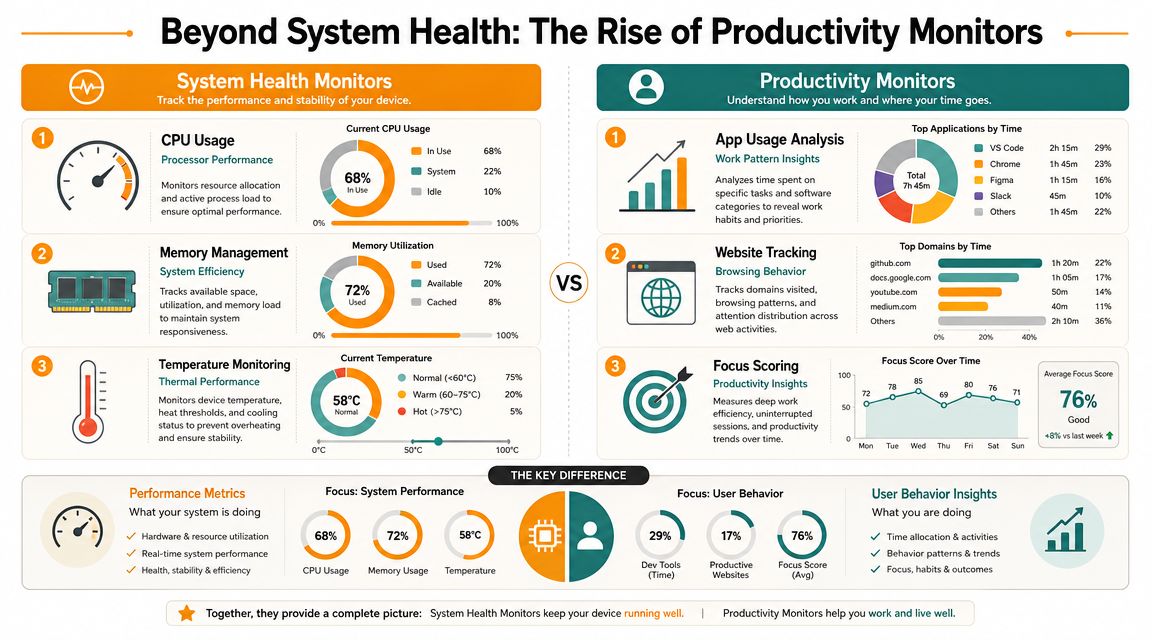
Beyond System Health The Rise of Productivity Monitors
Apple’s Activity Monitor is designed to diagnose the computer. That’s the key distinction. It exposes CPU, Memory, Energy, Disk, and Network so you can isolate bottlenecks, and that structure is exactly why it’s useful when a Mac slows down or battery drain shows up unexpectedly (OSXDaily’s breakdown of Activity Monitor tabs).
But none of those tabs answer a question freelancers ask every week: what did I spend time on?
Two categories that look similar but behave differently
A system monitor treats activity as resource usage. A productivity monitor treats activity as work context.
That means the same event gets interpreted in different ways. A browser process using modest CPU is unremarkable to Activity Monitor. To a productivity tool, that same browser session might be the difference between client research and a distraction spiral.
Another missing piece is idle detection. Apple’s built-in Activity Monitor doesn’t have it. If you walk away from your Mac, the app doesn’t help you separate actual work from a machine sitting there active. A productivity monitor needs that distinction or the timeline becomes noisy fast.
Here’s the shortest way to frame it:
A system monitor tells you what your Mac is consuming. A productivity monitor tells you what your day is becoming.
System Monitor vs. Productivity Monitor A Quick Comparison
| Feature | Apple Activity Monitor | Modern Productivity Monitor (e.g., Chronoid) |
|---|---|---|
| Primary purpose | Diagnose Mac performance issues | Understand work patterns and time use |
| Main view | Resource telemetry by process | Timeline of apps, websites, and work sessions |
| Tracks CPU, memory, disk, network | Yes | Sometimes secondary, not the main job |
| Idle or away detection | No | Yes |
| Helps force quit stuck apps | Yes | Not the core purpose |
| Answers “what distracted me?” | No | Yes |
| Useful for billing and time reviews | No | Yes |
Why this shift matters now
Knowledge work has become more fragmented. One hour can include a document, a call, three tabs, chat replies, and two context switches. The built-in Mac tools were never meant to convert that mess into insight.
That’s why the category has expanded beyond performance diagnostics. People want to know when they do their deepest work, how much time goes to admin, and which tools keep breaking concentration. If you care about the difference between deep work and constant reaction, this is the layer of visibility that changes behavior. It’s the same reason ideas around deep work versus shallow work resonate so strongly with Mac users who feel busy all day but still finish with too little meaningful output.
Evaluating a Modern Activity Monitor App 5 Key Features
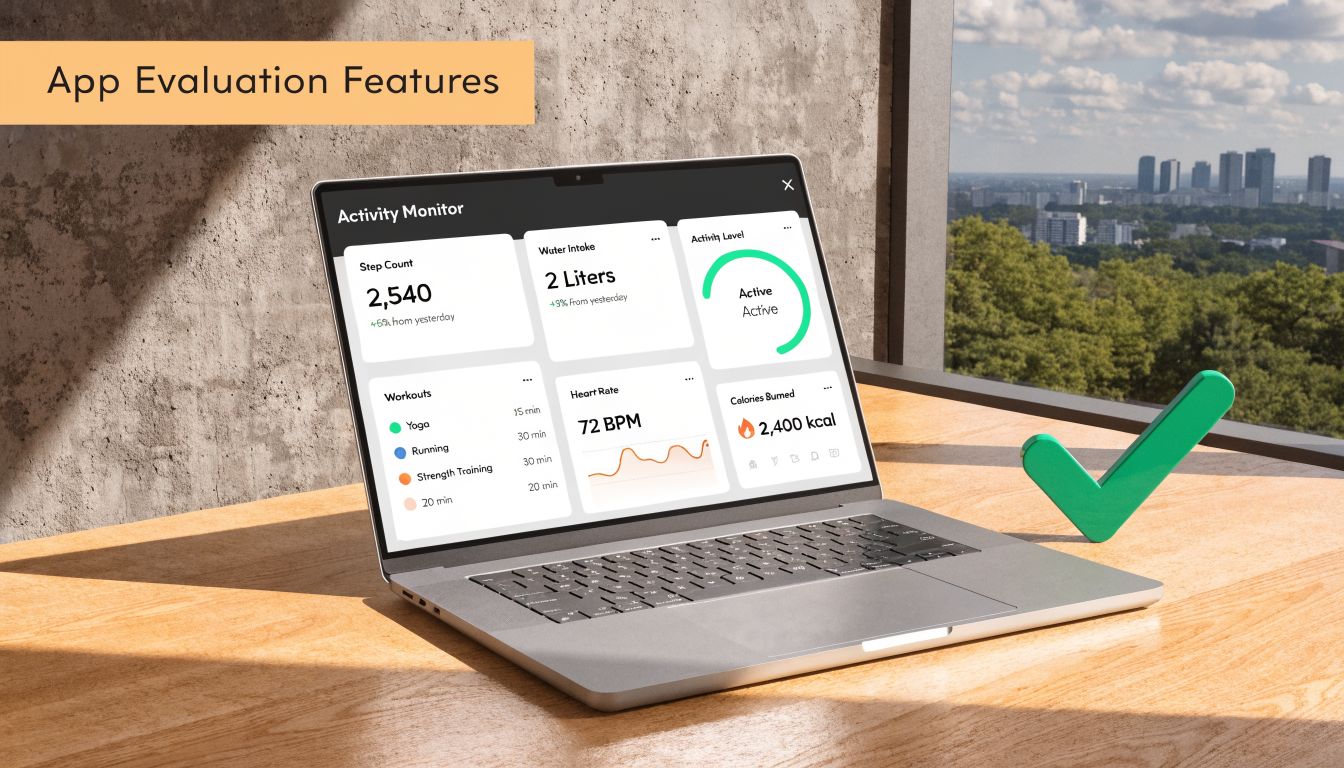
A modern activity monitor app should reduce friction, not add another dashboard you ignore after three days. If a tool creates more maintenance than insight, it fails.
Automatic capture beats manual honesty
The first requirement is automatic tracking. Manual timers look disciplined on paper, but they depend on memory and self-interruption. Professionals and casual users alike switch tasks too often for that to hold up.
Good tools capture app, website, and document context in the background so you can review work after the fact. That’s more realistic than asking yourself to behave like a timesheet clerk all day.
Idle handling and categorization change raw logs into usable data
Raw activity streams are messy. You need two things to make them useful:
- Idle and away detection so inactive time doesn’t get counted as work.
- Smart categorization so the timeline becomes understandable by project, client, or type of activity.
Without those, you don’t get insight. You get digital exhaust.
A second layer matters too. The best tools help you ask better questions of your own behavior. Not just “how long was I in Safari,” but “which sites kept interrupting focused work” or “which project consumed more time than expected.”
Privacy isn’t optional
This category touches sensitive information. App usage, websites, and document context can reveal client names, internal workflows, and personal habits. That’s why privacy architecture matters more here than in many other software categories.
One important trade-off often gets ignored. Some products push data to the cloud by default, while users may want something local first. That gap is real, especially because deeper app-usage monitoring on Apple platforms involves constraints and privacy trade-offs tied to frameworks such as Screen Time, which are built around family controls and special entitlements rather than open-ended self-analytics (Crunchy Bagel’s Screen Time API implementation notes).
Choose the tool you’d still trust if it logged your most sensitive workday.
The five features worth demanding
-
Automatic tracking
It should start working without timers and without constant maintenance. -
Useful categorization
AI can help here, but the point isn’t novelty. The point is turning scattered digital activity into understandable work buckets. -
Local-first privacy
Your activity history should stay under your control by default. -
Integrations that reduce copy-paste work
The timeline becomes more valuable when it fits the rest of your workflow. -
Focus tools inside the same app
Insight is half the job. Blocking distractions or starting a focus session inside the same environment is what makes behavior change stick.
A tool that only reports the past can feel passive. A tool that helps shape the next hour is much more useful.
Real-World Use Cases Who Needs an Activity Monitor App?
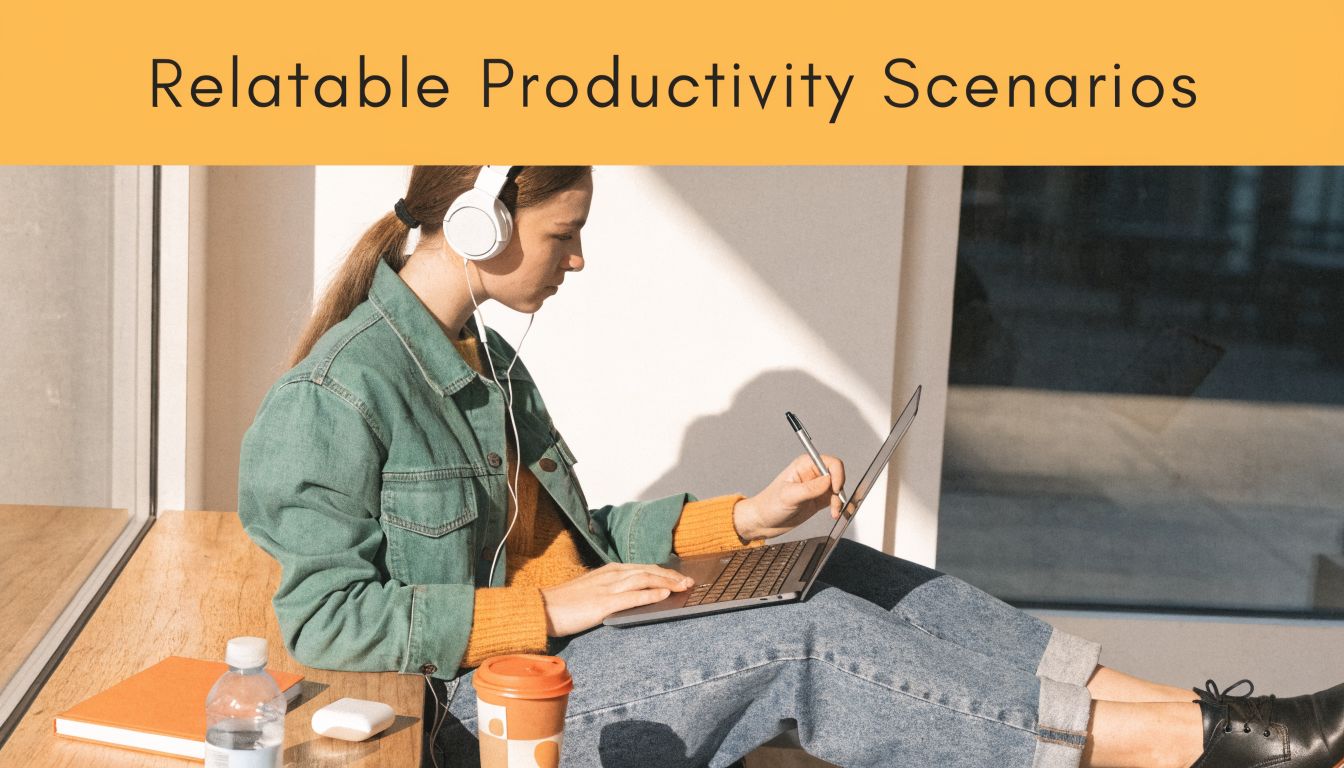
Not everyone needs the same kind of visibility. The value of an activity monitor app shows up differently depending on how you work.
Freelancers and consultants
The classic problem is undercounting. A freelancer works across email, docs, calls, browsers, and file reviews, then reconstructs the day from memory. That usually misses the small transitions that still consumed real time.
Automatic activity tracking closes that gap. It gives a cleaner record of what happened without asking the person doing the work to interrupt themselves all day.
Developers and product builders
Developers lose time to context switching more than to obvious idleness. A bug report pulls them out of one codebase, then a message thread drags them into another, and by afternoon they’ve touched five things without finishing the hard one.
A timeline of apps, websites, and sessions helps them spot that pattern. It also helps distinguish real build time from support, meetings, and research.
The most expensive distraction isn’t always social media. Often it’s legitimate work arriving in the wrong order.
Creatives and agency teams
Designers, editors, and writers often spend long stretches in a few core tools, then suddenly fracture into feedback loops, asset hunts, browser tabs, and admin. The loss isn’t always visible because every action still looks “work related.”
That’s why categorization and focus tools matter for creative work. They show when the day shifted from making to managing.
Remote workers, students, and ADHD-prone learners
Remote workers often want lightweight accountability without surveillance. Students and ADHD-prone learners usually need awareness more than judgment. They benefit from seeing when attention drifts, how often tasks change, and what conditions support longer focus windows.
The common thread is simple:
- Freelancers need cleaner records for billing and review
- Developers need protection from hidden context switching
- Creatives need help preserving making time
- Remote workers need structure without micromanagement
- Students and ADHD-prone users need feedback they can act on
An activity monitor app becomes useful when it turns a vague feeling of “I was busy” into something concrete enough to change tomorrow’s decisions.
Putting It Into Practice Setup and Best Practices
Once you’ve decided you want productivity visibility, setup should be short. If onboarding is complicated, users often never reach the point where the data becomes useful.
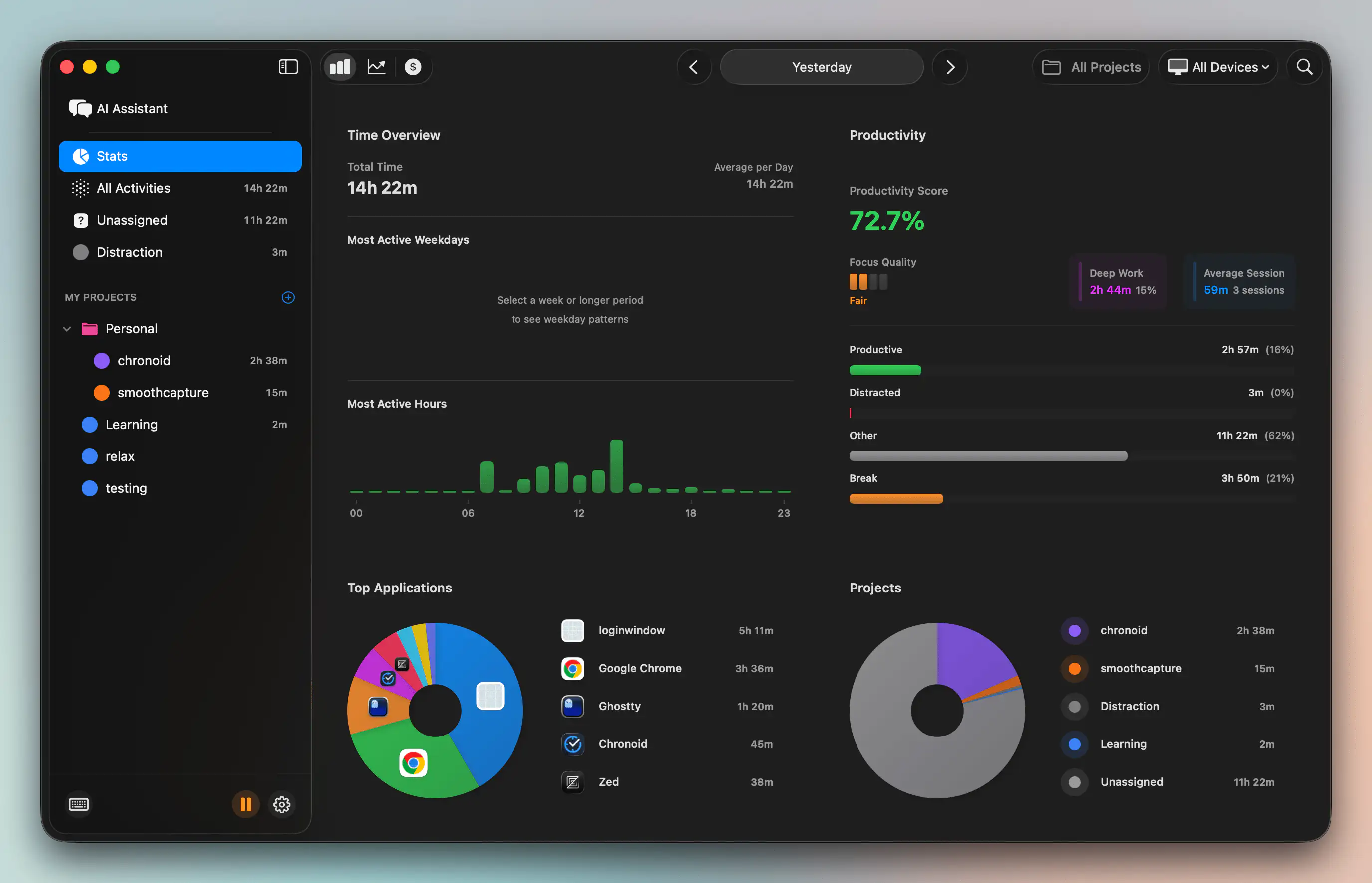
For first-time macOS users, the straightforward path is to install the app and complete the four-step onboarding. That’s enough to enable background tracking. In practice, that matters more than feature depth because a tool that runs automatically is the one you’ll keep using.
One option in this category is Chronoid, a macOS app that automatically tracks apps, websites, and documents, includes idle and away detection, and keeps data local by default. It’s also built to run with less than 1% CPU usage on average, which addresses the most reasonable concern about any always-on utility: the tracker shouldn’t become the thing that slows your Mac down.
Three habits that make the data useful
- Run a weekly review: Don’t stare at the dashboard all day. Review patterns once a week and look for repeated distractions, underestimated projects, or time sinks.
- Treat idle time as signal: If you step away often during certain tasks, that usually points to resistance, fatigue, or unclear next actions.
- Pair tracking with blocking: If one category of sites repeatedly breaks focus, use a blocker during planned work sessions instead of relying on willpower. This is where practical guides on how to stop getting distracted while working become more useful than another motivational pep talk.
What works and what doesn’t
What works is passive collection, periodic review, and one or two small behavior changes. What doesn’t work is trying to optimize every metric at once.
Start by answering one question: where does my planned work get replaced by reactive work?
That answer is usually enough to improve the next week.
Your Next Step From Awareness to Action
You can’t improve time use from memory alone. Memory edits, compresses, and flatters. A good activity monitor app gives you a more honest record.
Apple’s built-in tools remain useful for machine health. But if your real problem is scattered attention, unclear billing, or constant context switching, you need visibility into your work habits, not just your Mac’s resource usage. That’s the shift from diagnostics to self-management.
The goal isn’t to watch yourself all day. It’s to notice patterns early enough to change them. Once you can see where your focus goes, you can protect more of it.
Chronoid helps macOS users track apps, websites, and documents automatically, with idle detection and local-first privacy. If you want a simpler way to understand where your time goes without manual timers, try Chronoid.