
It’s usually the same scene. You finish a long week on your Mac, open your invoicing app, and realize half your work lives in fragments. A few calendar events. A browser history that sort of helps. Slack messages, Figma files, terminal sessions, a couple of calls you never logged, and one client task that took much longer than you thought.
That’s when time tracking turns into archaeology.
If you’re trying to keep track of work hours for client billing, payroll, or just to understand where your day goes, the method matters more than is often realized. On macOS, the biggest shift isn’t from one timer app to another. It’s from manual recall to automatic capture, then from raw activity to a clean review process.
Why Manual Time Tracking Often Fails
Manual tracking sounds simple. Start a timer. Stop a timer. Fill in a timesheet. Move on.
In practice, it breaks down fast, especially on a Mac where work jumps between Mail, Safari, Figma, Xcode, Notion, Slack, Zoom, and Finder all day.
The trade-off is simple: manual systems give you direct control, but automatic systems usually give you better accuracy.
The problem isn’t discipline
It’s often assumed that a lack of consistency is why individuals struggle with time tracking. That’s usually not true. The bigger issue is that manual logging asks you to interrupt real work to record work.
That interruption adds friction every time you switch tasks. If you forget once, your log is already off. If you forget five times, you end up reconstructing the day from memory, and memory is a terrible timesheet.
The broader data backs that up. 69% of employees admit they don’t track their time accurately, 43% of hourly workers have embellished their work hours, employees who manually track hours can be 15% less productive, and businesses may overpay for 200 billable hours annually due to inaccuracies, according to OfficeClip’s time tracking statistics roundup.
Small tasks disappear first
The easiest work to lose is not the big project block. It’s the scattered admin around it.
That includes things like:
- Replying to client email: quick, necessary, and easy to ignore when filling out a timesheet later.
- Reviewing files: opening a draft, checking a document, or comparing versions often feels too small to log.
- Context switching: the ten minutes before a call, the fifteen minutes after it, and the app hopping in between often vanish.
- Follow-up work: sending assets, exporting files, uploading deliverables, or writing handoff notes still counts as work.
Those fragments matter because they accumulate into real hours. Manual systems tend to lose them first.
What actually works better
A better system removes the need to remember everything in real time. It captures activity while you work, then gives you a short review window later to label, clean up, and approve the record.
That’s the key mindset shift. Don’t treat time tracking as a memory test. Treat it as a capture problem.
If your system depends on perfect recall at the end of the week, the system is broken.
Once you accept that, the rest gets easier. You stop chasing the fantasy of the perfect spreadsheet and start building a workflow that matches how work really happens on a Mac.
Choosing Your Tracking Method Manual vs Automatic
The choice isn’t between one app and another. It’s between two operating models.
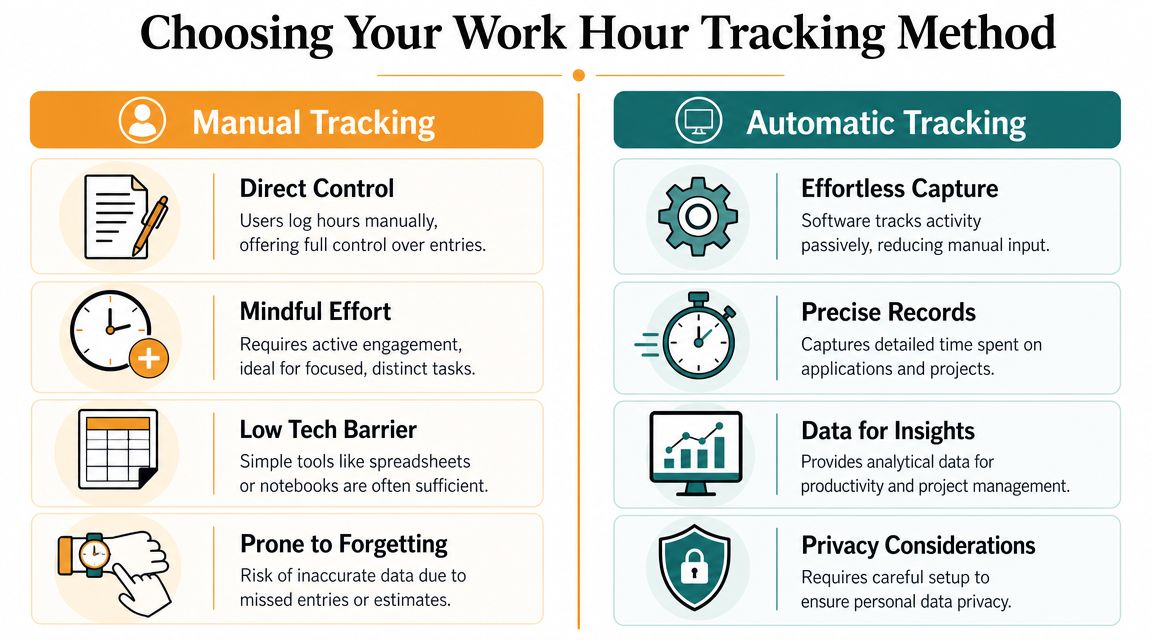
Manual tracking means you decide when an entry starts and stops. Automatic tracking means software observes activity in the background, then helps you sort that activity into useful records later.
What manual tracking gives you
Manual tracking still has legitimate uses. If your day consists of a few large, clearly separated blocks, a timer or spreadsheet may be enough.
It usually fits people who:
- Work on one client at a time: fewer context switches mean fewer missed entries.
- Need deliberate logging: some people like the act of pressing start because it reinforces focus.
- Have simple billing rules: fixed project categories are easier to manage manually.
The problem is that most Mac-based freelance work isn’t that tidy. Design work branches into feedback. Development work jumps between editor, browser, docs, and terminal. Writing work includes research, edits, formatting, and admin.
Where manual systems usually break
The main weakness is built into the method. Manual tracking relies on memory and discipline, and manual timers require constant start and stop actions, which makes omissions and short context switches easy to miss, as explained in Memtime’s breakdown of manual time tracking pitfalls.
That doesn’t just hurt accuracy. It also nudges people toward tracking presence instead of useful output. You end up measuring “time at desk” because it’s easier to estimate than actual task flow.
A quick comparison makes the trade-off clearer:
| Method | Best for | Main risk |
|---|---|---|
| Manual timers | Deep single-task sessions | Forgotten switches |
| Spreadsheets | Simple weekly reporting | End-of-week guesswork |
| Notebook logging | Field work or low-tech setups | Low detail |
| Automatic tracking | Fragmented digital work on Mac | Needs review rules |
For a deeper Mac-specific breakdown, this guide to time tracking on Mac is useful because it focuses on how app-based work gets recorded.
What automatic tracking changes
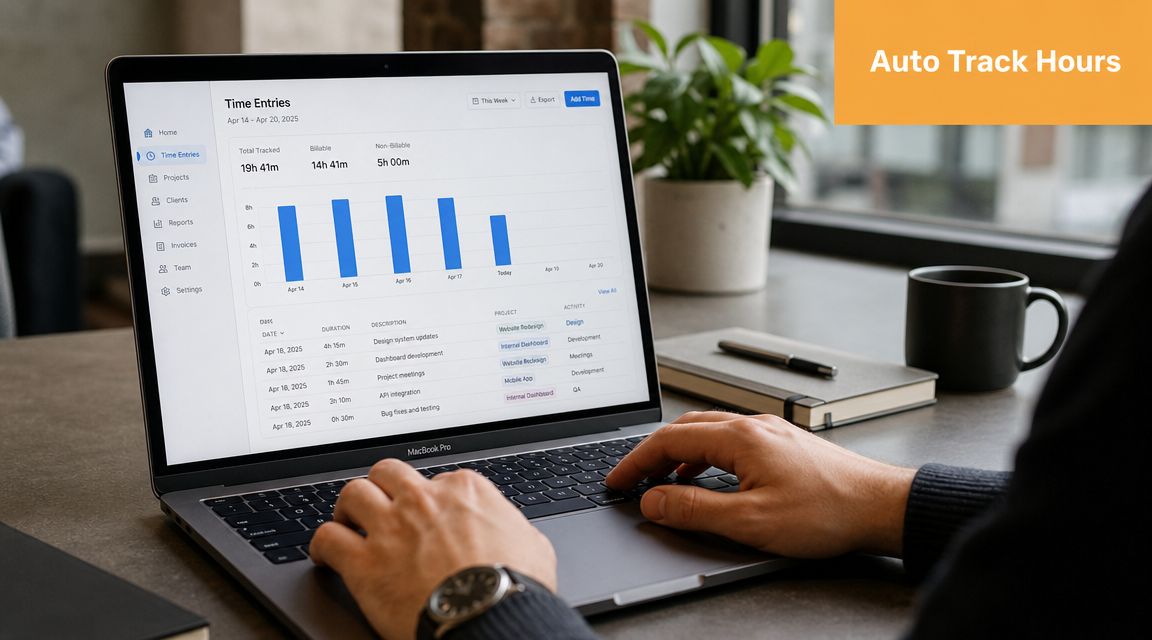
Automatic tracking works better when your day is fragmented. It watches app usage, websites, documents, and idle time in the background, then turns that into a timeline you can review.
Automatic tracking doesn’t remove judgment. It removes the need to remember.
That distinction matters. You still decide what counts as billable, what belongs to a project, and what should be excluded. But you make those decisions with evidence instead of guesswork.
If your current system feels like a weekly cleanup job, that’s usually the sign to switch.
Setting Up Effortless Automatic Tracking on macOS
Automatic tracking isn’t magic. It still needs a sensible setup.
The goal is simple: capture first, reconcile later. Your Mac should collect enough activity data in the background that you can review it quickly, without babysitting timers all day.
Start with the right signals
A useful macOS setup should track the things that map to real work:
- Apps in use: Safari, Figma, Final Cut Pro, VS Code, Xcode, Notion, Slack, and other daily tools
- Documents or files: which client brief, design file, or codebase you were in
- Web activity: enough detail to separate research from drift
- Idle and away time: so lunch, breaks, and interruptions don’t inflate the log
If a tool can’t detect idle time, you’ll spend too long cleaning up false work. If it can’t distinguish activities at the app or document level, your timesheet will stay too vague to invoice confidently.
One option in this category is automatic time tracking for Mac, which describes the model well: background capture of apps, websites, and documents, plus idle detection so your log reflects active work rather than just an open laptop.
Use a weekly review, not constant correction
The biggest mistake people make with automatic tracking is trying to perfect entries all day long. That defeats the point.
A better workflow looks like this:
- Let the system run in the background during the day.
- Check uncategorized time once in the afternoon or at day’s end.
- Do a fuller review at the end of the week before invoicing.
That review doesn’t need to be long. You’re mainly looking for mismatches, offline work, and anything that needs a client or project label.
The walkthrough below gives a good visual sense of how modern trackers fit into a normal workday:
Set rules for recurring work
Automatic capture gets much better once you add a few rules.
For example:
- A domain rule: a client’s project management site always maps to that client
- A document rule: files in a specific folder go to one project
- An app rule: certain tools default to internal admin unless reassigned
That means the system improves over time. Your first week may need cleanup. By the third or fourth, recurring work usually falls into place with much less effort.
Review should be deliberate and short. If you’re editing logs all day, you’ve rebuilt manual tracking with nicer graphics.
Organizing Time and Correcting Entries
Raw activity data isn’t invoice-ready. It needs shaping.
That’s where the capture-and-reconcile model matters. A strong workflow logs activity first, then checks it against the reality of the week. In professional services, inaccurate time tracking is estimated to cost firms over $60K per employee per year, and Deltek’s guidance argues that reviewing logs against project milestones and calendar events is a revenue-control task, not just admin work, as noted in Deltek’s article on the hidden impact of inaccurate time tracking.
Clean the log before you invoice
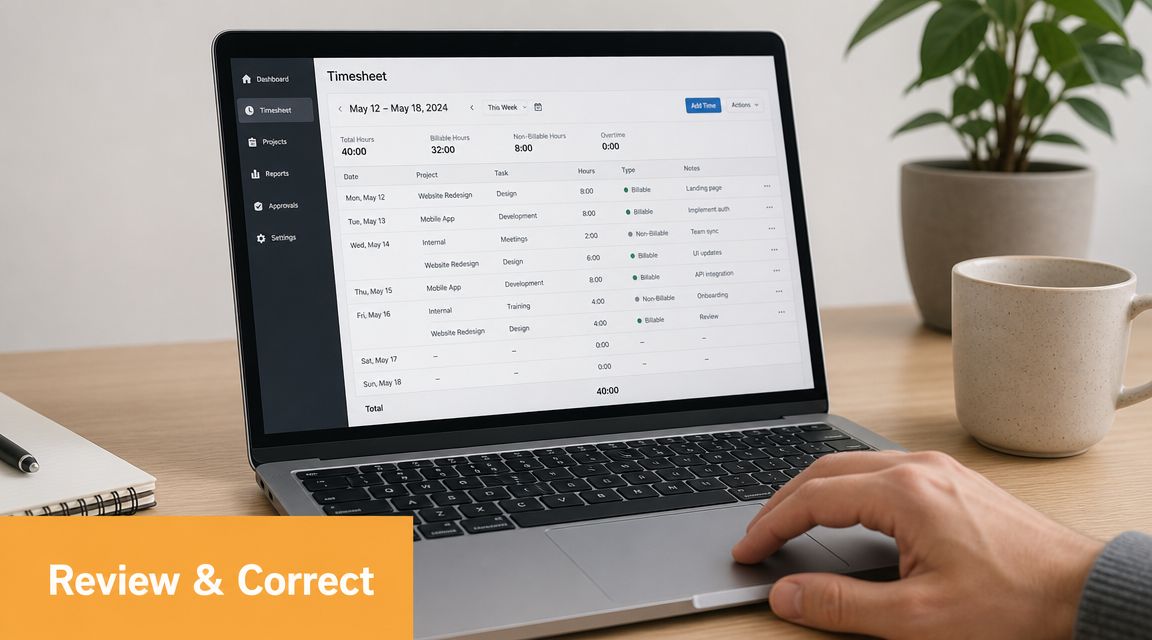
A good review session is short and specific. Don’t stare at the whole week at once. Work through it in passes.
First, scan for obvious gaps:
- Offline work: calls, whiteboarding, travel between meetings, handwritten planning
- Misclassified sessions: browser time marked as admin but was client research
- Idle leftovers: periods that should be trimmed or excluded
- Split blocks: one long session that really covered two clients
Then compare your log against external anchors:
- Calendar events
- Project milestones
- Sent deliverables
- Messages that triggered urgent work
Turn activity into client-friendly language
Clients rarely want a dump of app names and timestamps. They want a clear record of work performed.
Translate the machine-level log into categories like:
- Design revisions for homepage mockups
- Research and source review for article draft
- Bug investigation and fix verification
- Client communication and delivery prep
That translation does two things. It makes your invoice easier to approve, and it makes your own billing easier to defend if questions come up later.
A timesheet should explain the work without forcing the client to decode your desktop.
Use recurring rules where possible
If you keep doing the same cleanup every week, automate that part.
Examples that save time:
- Client folder rules for project files
- Domain-based rules for client dashboards
- Admin buckets for email, scheduling, and invoicing
- Non-billable labels for prospecting or internal planning
This is also where freelancers usually improve margins. Not by charging more overnight, but by losing fewer legitimate hours in the review process.
From Tracked Hours to Paid Invoices
A lot of people stop too early. They collect time data, maybe even clean it up, then send a vague invoice that raises more questions than it answers.
That wastes the value of the tracking.
What a strong invoice includes
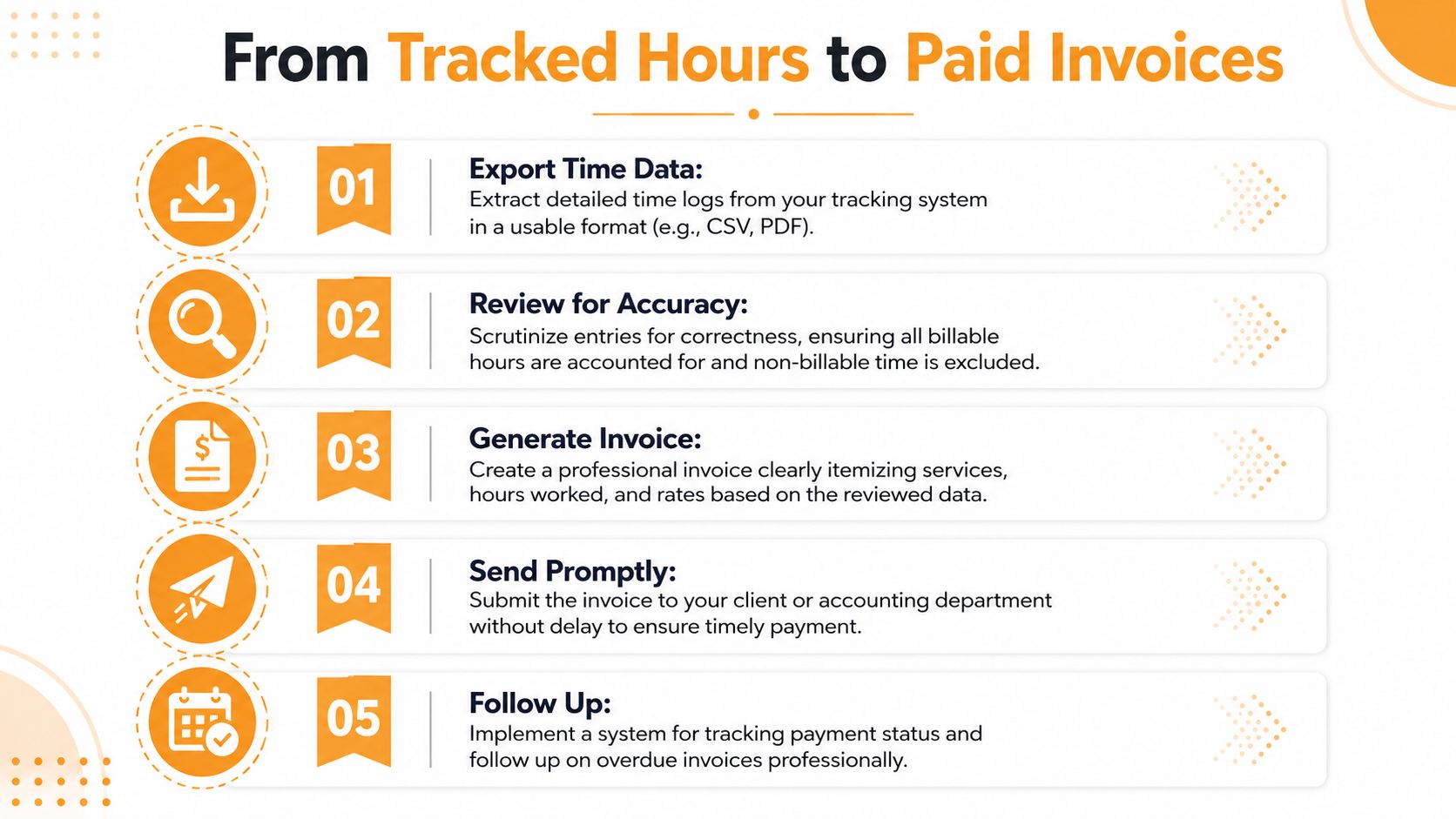
When you export your time, the goal isn’t to show every click. It’s to create a record that is clear, believable, and easy for a client or finance team to process.
Include:
- Project or retainer name
- Plain-English task descriptions
- Approved billable hours
- Rate or fee structure
- Date range covered
If a client cares about supporting detail, keep the detailed timesheet ready as backup. Use CSV when you want to analyze or reshape the data. Use PDF when you want something clean and presentation-ready.
The hidden value isn’t billing
Billing is the obvious reason to keep track of work hours. The more valuable reason is that your records show where your business leaks time.
You can ask better questions once the data is clean:
- Which clients create the most unbilled overhead
- Which task types consistently run over estimate
- Which meetings produce follow-up work that never makes it onto the invoice
- Which days generate the weakest ratio of focused work to admin
That matters for compliance too, especially if you work across employment, contractor, or wage-sensitive arrangements. For a practical breakdown of what qualifies as working time in one common pay context, Stewart Accounting’s NMW advice is a useful reference.
A clean invoice gets you paid. A clean dataset helps you quote better, schedule better, and stop underestimating the work around the work.
Using Time Data to Work Smarter Not Just Harder
Once the tracking is accurate enough for billing, you can use it for something more interesting. You can use it to understand your attention.
That’s where modern time tracking gets more useful than old-school timesheets. Time tracking is shifting from simple logging to understanding productivity, with more workers looking for attention leaks, automatic categorization, project insights, and distraction reporting, as described in Hubstaff’s overview of employee hour tracking options.
Questions worth asking your own data
The review of tracked hours frequently stops at totals. Totals don’t explain much.
Better questions are:
- When do I do my best focused work
- Which apps dominate my day but don’t move projects forward
- How often do I break concentration with small switches
- Which clients create the most reactive work
- How much time goes to setup, file hunting, and communication instead of execution
For developers, this often reveals that coding time isn’t the whole story. Debugging, reading docs, testing, and issue triage may consume more of the week than expected.
For writers and designers, the pattern is often different. The leak is usually not one giant distraction. It’s repeated short switches between communication, reference material, browser tabs, and revision loops.
Use tracking to protect deep work
Automatic tracking becomes more than billing infrastructure.
If you notice your sharpest work happens in a narrow window, protect that time. If one website repeatedly breaks focus, block it during client sessions. If afternoon work is mostly fragmented admin, schedule lower-cognitive tasks there on purpose.
A few good comparisons of best time study software tools can help if you want to evaluate products based on analysis features rather than just stopwatch functions.
Good time data should change how you plan tomorrow, not just document yesterday.
Accuracy and privacy should work together
The best systems don’t force a choice between insight and autonomy. They capture enough detail to reveal patterns, but they don’t need to turn your workday into surveillance.
That matters more now because many freelancers, remote workers, and knowledge workers want two things at once. They want automatic records, and they want control over what gets seen, stored, and shared.
A modern setup should support both.
Maintaining Privacy While Tracking Hours
Privacy is where many time tracking setups go wrong. They collect too much, expose too much, or feel like they were built for monitoring staff rather than helping people work.
That’s a bad fit for freelancers and Mac users who want clean records without handing over their whole digital life.
Keep the model simple and transparent
A good system should make it obvious what it records, when it records it, and what you can exclude. The U.S. Department of Labor’s own app frames hour tracking as a simple, transparent record of regular hours, breaks, and overtime, which is a useful trust-first model for this whole category, as described on the Department of Labor Timesheet App page.
That’s the standard I’d use when evaluating any tracker:
- Can I see what’s being collected
- Can I correct or delete entries
- Can I separate work from personal activity
- Does it support a non-invasive workflow
Look for local-first data handling
If privacy matters, check how the vendor handles your data before you install anything. A clear public explanation matters more than vague reassurance. For example, Snyp’s data handling practices are the kind of policy page worth reading because they spell out the model instead of hiding it behind marketing language.
If you want a Mac-specific example of privacy-focused time tracking, Chronoid’s privacy approach describes local-by-default storage and optional cloud support. That model fits people who want automatic tracking without giving up control.
The best time tracker should feel like a personal instrument panel, not a surveillance camera.
Privacy-first tracking is the durable answer for remote and hybrid work. You still get the records you need. You still keep track of work hours accurately. But you do it in a way that preserves trust, autonomy, and a sane relationship with your own tools.
If you want a Mac app that automatically tracks apps, websites, and documents without manual timers, Chronoid is worth a look. It’s built for exactly this workflow: passive capture, quick review, focus insights, and privacy-first data handling on macOS.