
You already know the feeling. You answer the same client email again, paste the same project update into Slack, type the same meeting link, rebuild the same code comment, and re-enter the same address block into a form that should have remembered it. By the end of the day, the typing isn’t the actual problem. The repetition is.
A good Text Expander Mac setup fixes more than speed. It reduces friction, cuts context switching, and turns recurring language into a system you can trust. That matters if you bill by the hour, juggle multiple clients, or just want your Mac to stop making simple tasks feel heavier than they are.
The Hidden Cost of Repetitive Typing
A freelance designer sends the same three messages every week. One confirms a timeline. One asks for missing assets. One nudges an overdue invoice without sounding hostile. None of them are hard to write. That’s why they become dangerous. Easy, familiar tasks slip under the radar and eat attention.
The same thing happens in development work. A small bug report template. A commit message pattern. A support reply with steps to reproduce. A short intro paragraph for proposals. Each one takes only a moment, but each one interrupts whatever your brain was doing before.
That interruption is the actual tax.
If you’re deciding how to reduce keyboard workload overall, it helps to think bigger than shortcuts alone. This guide on speaking vs typing for productivity is useful because it frames input as a workflow choice, not just a speed contest. Text expansion handles repeatable language. Voice can help with rough drafting. They solve different bottlenecks.
Repetition steals focus before it steals time
Repetitive typing often becomes apparent only when annoyance is felt. The better signal is loss of momentum. You stop to type an email signature, then remember you still need the invoice link, then go hunting for a previous message, then return to the task you were doing half a minute ago with less context than before.
That’s why I treat text expansion as a focus tool first.
If you want proof from your own machine, track where those tiny interruptions pile up during a normal week. A passive Mac workflow review using automatic time tracking on Mac usually reveals the pattern fast. The wasted effort rarely sits in one dramatic block. It shows up as constant micro-detours.
Repetitive typing doesn’t just slow output. It breaks concentration at the exact moments when deep work needs continuity.
What belongs in a snippet
The best candidates are boring, frequent, and stable:
- Client communication: Availability replies, onboarding messages, revision requests, follow-ups.
- Personal admin: Email addresses, phone numbers, invoice notes, calendar links.
- Technical text: Terminal commands, code comments, reusable documentation fragments.
- Creative operations: File naming conventions, asset links, licensing notes, feedback frameworks.
If you type it often enough that you can predict the wording, it probably shouldn’t live only in your memory.
Your First Step with macOS Text Replacement
If you’ve never used a text expander on Mac before, start with what’s already built in. Apple’s text replacement lives in System Settings > Keyboard > Text, and AppleInsider describes it as a system-wide feature designed for short phrases that works across apps and websites, which makes it a core macOS capability rather than an add-on. You can see that workflow described in AppleInsider’s guide to built-in Mac text expansion.

Set up a few wins first
Click the + button and create a trigger on the left, then the full replacement on the right. Keep the first batch simple. Your primary email address, your company name, a canned thank-you line, or a meeting link are ideal starting points.
The built-in tool is best for short phrases. That’s the sweet spot. Don’t try to turn it into a document assembly platform on day one.
A few examples that work well:
- A short contact snippet: something like a trigger for your email address.
- A repeatable courtesy line: a polished sentence you use in replies.
- A logistics shortcut: a Zoom link, studio address, or booking URL.
- A typo fix: a misspelling you make often.
Test in normal places
After you save a few replacements, try them in Notes, Mail, Safari, and any other app where you type daily. The point isn’t just to confirm they expand. It’s to see which snippets feel natural and which ones feel forced.
A common beginner mistake is making triggers too clever. Clever abbreviations are hard to remember. Boring ones win because you’ll use them.
Practical rule: Your first snippets should solve daily annoyance, not impress you with complexity.
That same principle applies to almost any workflow system. The strongest setups usually begin with friction reduction, then grow into structure. If you like that style of thinking, this piece on methods of productivity is worth reading because it keeps the focus on repeatable habits instead of app collecting.
Use native text replacement as a baseline
macOS text replacement matters because it gives you a no-install baseline. You can build useful shorthand immediately, and because it’s part of the operating system, it fits naturally into the Mac experience.
It also teaches the core habit that makes every dedicated text expander better later on. Type less. Standardize more. Stop composing from scratch when the wording doesn’t need to be new.
When to Upgrade to a Dedicated App
At some point, the native tool stops feeling lightweight and starts feeling uncertain. That’s the moment to upgrade.
Independent guidance notes that with macOS Text Replacement, users often have to manually trigger expansions when they don’t fire consistently, which creates a reliability gap for professionals who need predictable behavior across tools. Nick Ang’s write-up on free text expander software for Apple devices captures that problem well.
If your snippets are just a convenience, occasional inconsistency is irritating. If your workflow depends on them, inconsistency is unacceptable.
The line between casual use and professional use
You should move to a dedicated app when any of these are true:
- You rely on snippets for client-facing work: You can’t afford to wonder whether a shortcut will fire in a browser, email client, or form.
- You need more than plain replacement: Long templates, structured replies, and reusable blocks become hard to manage in a minimal interface.
- Your snippet count is growing: Once the library gets bigger, naming, grouping, search, and editing matter a lot.
- You work across contexts all day: Support, sales, consulting, development, and project management all benefit from stronger cross-app behavior.
Apple’s built-in feature is good at convenience. Dedicated apps are built for dependency.
macOS built-in versus a dedicated app
| Feature | macOS Built-in Text Replacement | Dedicated App (e.g., TextExpander) |
|---|---|---|
| Setup | Built into macOS | Requires installation |
| Best use | Short phrases and simple shorthand | Larger snippet libraries and professional workflows |
| Cross-app reliability | Can be inconsistent in practice | Better suited for predictable daily use |
| Snippet management | Basic | More robust organization and editing |
| Advanced behavior | Limited | Better support for dynamic workflows |
| Professional scaling | Hits limits sooner | Designed to grow with heavier use |
Apple’s App Store also shows how far the category has matured. The listing for QuickKey says it can expand short abbreviations into long phrases, code snippets, or entire emails and insert expanded text into any app with a keyboard shortcut. That’s a clear sign that Text Expander Mac workflows have moved beyond simple replacement into reusable productivity tooling. You can see that evolution in the QuickKey App Store listing.
If you’re comparing workflows more broadly, not just for office work, our roundup of the best productivity apps for students is useful because it highlights the same underlying issue, and outside roundups land in the same place. Reliable systems matter more than feature lists when your day spans notes, assignments, messages, and research.
Building Your Snippet Library Strategically
Failure with text expansion frequently occurs for one simple reason. Users collect snippets without designing a library.
That creates a pile of random shortcuts, many of which are hard to remember, easy to trigger by accident, and unpleasant to maintain. A real Text Expander Mac system needs structure from the start.
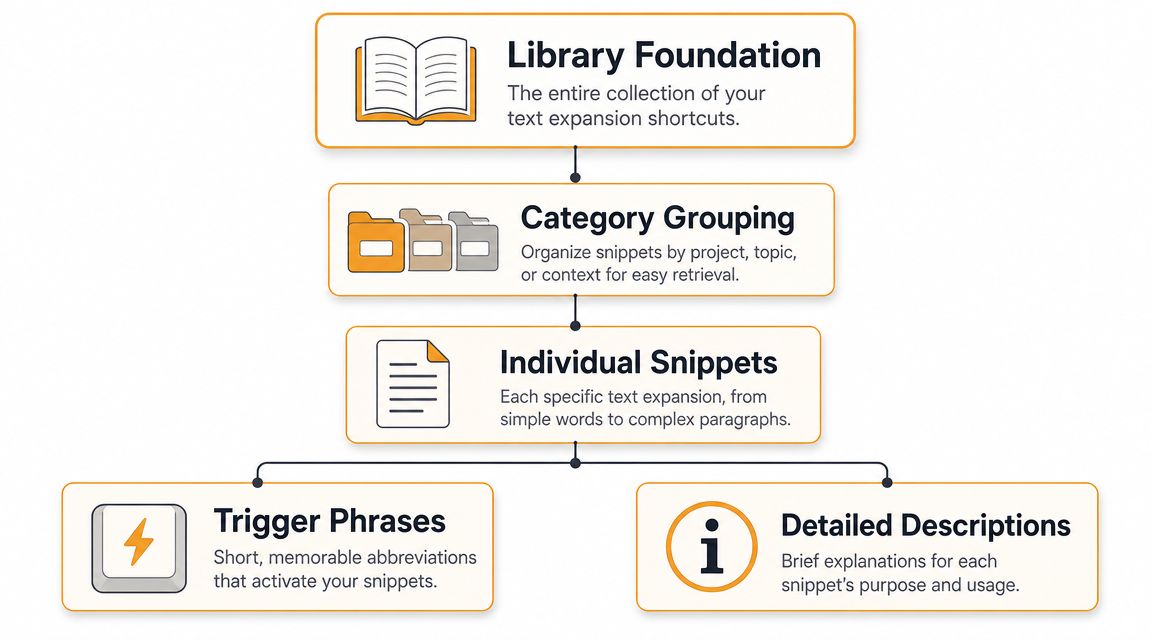
Independent app guidance points to the core rule: effective workflows rely on standardized snippets with short, non-colliding abbreviations, and common mistakes include abbreviation collisions and overly long snippets without a naming convention. That guidance appears in the App Store listing for Fast Text Text Expander.
Use prefixes, not random abbreviations
A prefix-based convention is the easiest way to scale cleanly. Pick a short namespace for each category, then add a memorable ending.
Examples:
- eml. for email snippets
- sig. for signatures
- cal. for calendar or booking links
- adr. for addresses
- prj. for project boilerplate
- cmd. for terminal commands
- faq. for support answers
So instead of one vague trigger like thanks, you might create eml.thanks, eml.followup, and eml.assets.
This does two things. First, it reduces accidental triggering during normal typing. Second, it makes recall easier because you only need to remember the category and intent.
A good snippet name should feel obvious six months later, not just the day you create it.
Build from frequency, not imagination
People often try to build a giant library in one sitting. That usually produces clutter. Build from real repetition instead.
Use this order:
-
Daily snippets
Start with phrases you type multiple times in an ordinary week. Client acknowledgments, call scheduling messages, asset requests, intro blurbs. -
Operational snippets
Add the language that supports work around the work. Status updates, invoice notes, proposal headers, contract reminders. -
Specialized snippets
Then create snippets for code blocks, technical instructions, editorial notes, or project-specific language.
This video is a useful visual walkthrough if you want to see snippet thinking in action before reorganizing your own library.
Organize by context, not by app
One mistake I see often is grouping snippets by software. That sounds tidy but breaks down fast. The same snippet may appear in Mail, Slack, Notion, and a browser form.
Group by purpose instead:
- Sales and leads
- Client delivery
- Admin
- Personal
- Code
- Support
- Content publishing
That structure mirrors how you think while working. It’s easier to remember “this is a support answer” than “I usually use this in Gmail.”
Keep descriptions even if you work solo
Many apps let you add descriptions or labels. Use them. A trigger should be short. The description can be explicit.
For example:
- Trigger:
eml.rev1 - Description: First revision delivery message with request for consolidated feedback
That extra line prevents future confusion, especially once your library gets large enough that similar snippets start to overlap.
Retire weak snippets aggressively
A snippet library gets stronger when you delete bad entries. Remove anything you can’t remember, don’t trust, or never use. Keep the active library lean.
The goal isn’t to own a huge vault of text. The goal is to create a system where your best repeated language is always one short trigger away.
Advanced Text Expansion Workflows
Static snippets are useful. Dynamic snippets are where text expansion starts feeling like automation.
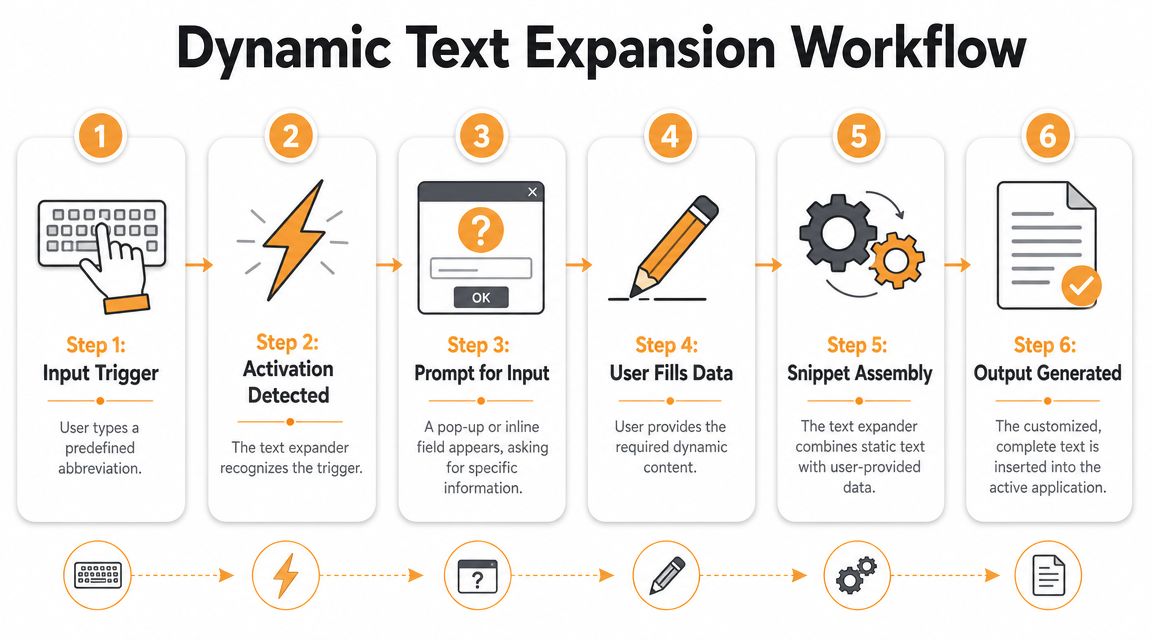
Modern Mac text expanders can support rich text, case adaptation, JavaScript, AppleScript, and shell-script-based expansions, which makes it possible to generate templated letters or data-driven tables instead of plain boilerplate. That capability is documented in this advanced TextExpander workflow video.
Fill-ins make templates flexible
A fill-in snippet asks for a few pieces of information at the moment you trigger it. That keeps one snippet reusable across many situations.
Examples that work well:
- Consulting proposals: client name, scope summary, deadline, fee notes
- Bug reports: issue title, environment, reproduction steps, severity
- Support replies: customer name, product area, next action, expected follow-up
- Editorial handoffs: article title, deadline, target word count, reviewer
The value isn’t just faster typing. It’s consistent structure. You stop rebuilding the same message and start instantiating a reliable template.
Cursor placement removes cleanup
A good snippet doesn’t only insert text. It lands your cursor where work should continue.
That matters in forms, emails, and structured docs. If your expanded text ends with the cursor in the wrong place, you still have to move the cursor manually. It sounds minor until you do it dozens of times a day.
A polished snippet can insert:
- opening language
- placeholders or prompts
- a closing block
- the cursor exactly where custom text belongs
That’s one of those small workflow details that separates a usable snippet from one you eventually avoid.
Date logic and computed text help with recurring operations
Date and time macros are useful anywhere deadlines, scheduling, or document dating matter. A consultant can insert a proposal date automatically. A project manager can create a handoff note with the current date. A freelancer can stamp update notes consistently.
The same principle applies to lightweight automation with scripts. Some snippets can pull in processed text, generate structured output, or create data-aware formatting that would be tedious to assemble by hand.
If you already think in shortcuts and workflow chaining, these kinds of automations pair well with broader Mac efficiency habits like keyboard shortcut driven workflows.
Reserve advanced snippets for high-value repetition. Keep most of the library simple, and let the complex pieces solve genuinely complex recurring tasks.
Where advanced setups go wrong
The biggest trap is overengineering. Just because a text expander can run scripts doesn’t mean every snippet should.
Watch for these failure modes:
- Fragile snippets: They depend on a very specific app field or context and break easily.
- Too many prompts: A fill-in with excessive questions feels slower than typing.
- Unreadable triggers: Complex logic often tempts people to create equally complex names.
- Maintenance drag: Scripted snippets need occasional cleanup, especially when your workflow changes.
The best advanced setup has layers. Most snippets stay simple. A smaller set handles richer templates. Only a few deserve scripting.
That balance keeps the system fast, trustworthy, and easy to maintain.
Troubleshooting Common Text Expansion Issues
Even a strong setup needs occasional cleanup. Most problems come from naming collisions, app behavior, or snippet bloat rather than from the concept itself.
My snippet expands when I don’t want it to
Your trigger is probably too close to normal language. Prefixes solve this. Add a marker pattern you won’t type accidentally, and keep category names consistent.
Short, random abbreviations often look efficient. In practice, they create collisions and make the library harder to trust.
My snippet doesn’t fire in one app
Start by testing the same trigger in a plain text field, then compare behavior in the problem app. If the snippet works elsewhere, the issue is likely app-specific rather than library-wide.
For native macOS text replacement, inconsistency across apps is a known reason many professionals switch to dedicated tools. For third-party expanders, check accessibility permissions, keyboard shortcut conflicts, and whether the app handles rich text fields differently from plain ones.
My library feels messy
That usually means the structure was built reactively. Fix it with a short audit:
- Merge duplicates: If two snippets do nearly the same thing, keep the better one.
- Rename vague triggers: Make them category-based and easier to recall.
- Archive low-value entries: If you haven’t used a snippet in a long time, remove it from the active set.
- Add descriptions: A short explanation can save future confusion.
I built advanced snippets and now they feel slow
Simplify them. Remove unnecessary prompts. Break one giant snippet into smaller pieces. Use scripting only where the payoff is clear.
A text expander should reduce hesitation, not introduce it.
If you’re refining a text expansion system, it helps to measure the work around it too. Chronoid shows how time gets spent on your Mac across apps, websites, and documents, so you can spot repetitive admin work, context switching, and focus leaks that deserve automation next. It’s a practical companion for anyone who wants cleaner workflows instead of more guesswork.