
You close your laptop, glance at a browser full of client tabs, docs, project boards, research pages, and half-finished drafts, then try to answer a basic question: what did I spend time on?
That’s the problem a time tracker Chrome extension tries to solve. It puts a timer where a lot of modern work already happens, inside the browser. For freelancers, consultants, remote workers, and anyone billing from web-based tools, that’s an easy starting point.
But easy doesn’t always mean complete. A browser extension can be useful, fast to install, and good enough for some workflows. It can also miss major chunks of your day or depend too heavily on your memory. The difference matters if you bill clients, review team capacity, or want an honest picture of where your time goes.
Why Your Browser Is a Time Tracking Black Hole
A lot of work now happens in tabs. You answer email in Gmail, write in Google Docs, manage tasks in Asana or ClickUp, review briefs in Notion, and jump between client portals all day. By the time you stop, your actual work history is scattered across dozens of pages.
That’s why the time tracker Chrome extension category became so popular. Chrome was the dominant browser globally in 2024, with StatCounter showing roughly 65% of worldwide desktop browser share in many monthly snapshots, which helps explain why Chrome extensions became the default delivery channel for lightweight time tracking tools, as noted in Toggl’s overview of Chrome time tracking.
Why this problem keeps getting worse
Browser work has a strange effect on memory. You feel busy all day, but your work gets split into tiny fragments:
- Client switching: You move from one tab group to another and lose track of where one task ended.
- Invisible admin work: Email replies, quick edits, and research often don’t make it into invoices.
- Late reconstruction: At day’s end, you guess. That usually means undercounting some work and overestimating other parts.
Practical rule: If you’re rebuilding your day from browser history, calendar memory, and open tabs, your tracking system is already too fragile.
A Chrome extension helps because it sits close to the action. You don’t need to open a separate desktop tool just to start a timer. For many people, that lowers the friction enough that tracking happens.
Still, browser tracking creates its own questions. The extension can only see what the browser sees. It can also collect browsing activity in ways that make people uneasy if they haven’t thought through protecting your online privacy. That matters when your tabs include client work, personal accounts, and sensitive research.
When a browser extension is a good first step
A Chrome extension usually makes sense if most of your workday lives in web apps and you want something lightweight. It’s especially practical for solo consultants, virtual assistants, marketers, and support roles that work inside browser-based platforms.
If that sounds like you, a browser timer can bring order quickly. Just don’t assume it captures your whole day.
How Chrome Time Trackers Work
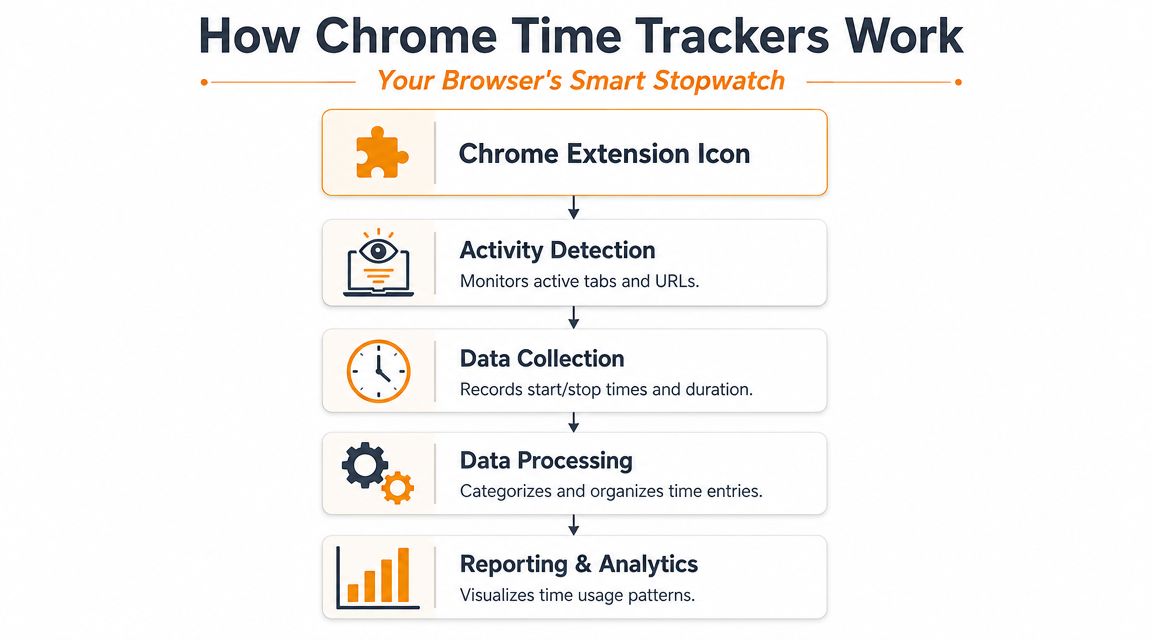
A Chrome tracker is basically a smart stopwatch in your toolbar. The simplest version lets you start a timer, attach it to a project or client, and stop it when you’re done. That alone is useful if your current system is sticky notes, memory, or end-of-week estimates.
The basic model
Most tools start with the same core flow:
- You click the extension icon or a timer button inside a web app.
- You choose a task, project, or client.
- The extension records duration until you pause or stop.
- The time entry syncs to the service’s dashboard, report, or timesheet.
That’s the manual version. It’s simple, and it works well when your day has clear starts and stops.
What better extensions add
The stronger tools do more than act like a stopwatch. A common foundational feature is automatic productivity context rather than only manual timing. Some extensions integrate time tracking into more than 60 web-based productivity apps such as Asana, Trello, Notion, and ClickUp, which reduces forgotten timers and improves accuracy, according to Clockify’s Chrome time tracking documentation.
That changes the experience in a few practical ways:
- In-app timer buttons: You can start tracking directly inside task tools instead of switching tabs.
- Idle detection: If you step away, the tool can flag or pause inactive time.
- Automatic clock-in and clock-out: Some extensions reduce the need for constant manual control.
- Start from selected text: Handy when you want to turn a task name or ticket title into a quick time entry.
A good browser tracker doesn’t just count minutes. It reduces the number of times you have to remember to count them.
What this feels like in real use
Here’s the mental model I give clients:
| Part of the tool | What it does in practice |
|---|---|
| Toolbar timer | Gives you a fast place to start and stop work |
| App integrations | Puts the timer where your task already lives |
| Idle prompts | Helps clean up accidental over-tracking |
| Reports | Turns raw entries into client, project, or personal review data |
This is why Chrome extensions remain popular. They meet people where they already work. For browser-heavy roles, that convenience is the main selling point.
The catch is that convenience can hide scope limits.
Browser-Only vs OS-Level Tracking The Key Trade-Off
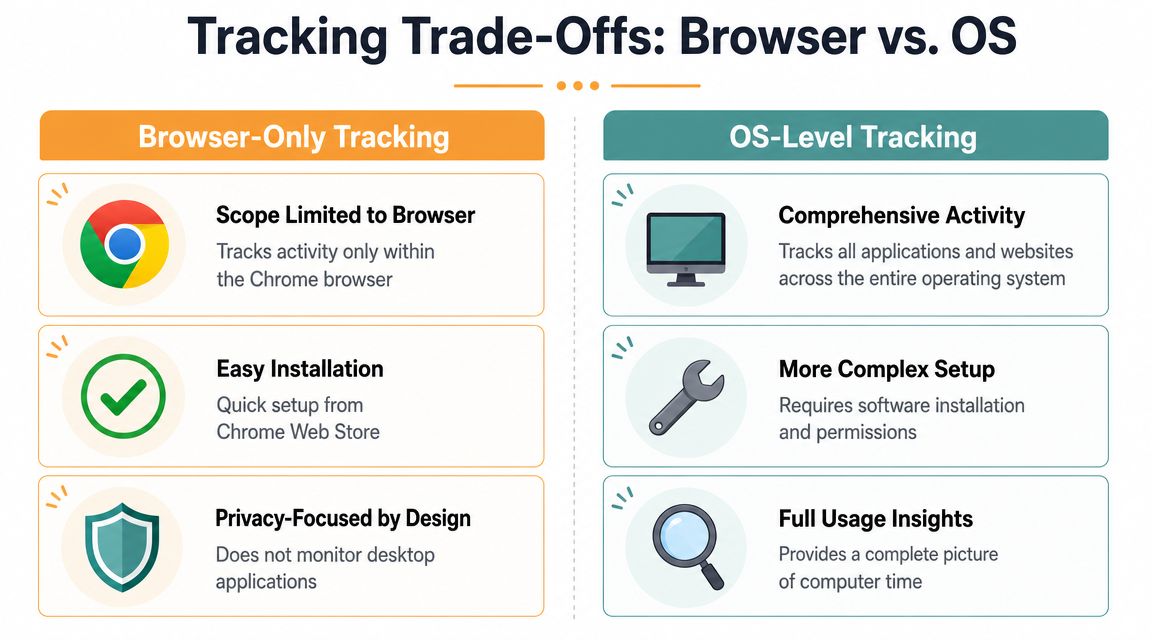
The biggest mistake people make with a time tracker Chrome extension is assuming it gives them a full record of work. It doesn’t. It gives them a record of browser work.
That’s a different thing.
One door versus the whole building
A browser extension is like a security guard watching the lobby. The guard can tell who entered that one space and how long they stayed. But the guard can’t see what happened in meeting rooms, back offices, or hallways.
An OS-level tracker is closer to a building-wide system. It sees browser time, desktop apps, documents, and other activity across the computer.
That distinction matters more than most product pages admit. ManicTime’s documentation for its browser tracker explicitly says browser-only tracking excludes apps, documents, meetings, and offline work, as described in its write-up on the browser time tracker Chrome extension.
The blind spots that matter
If you work only in Chrome, a browser extension may be enough. Most people don’t.
A browser-only setup will often miss:
- Desktop apps: Photoshop, Figma desktop, Final Cut Pro, Slack, VS Code, Excel, Word
- Local files: Drafts, design files, spreadsheets, exports, PDFs
- Meetings outside the browser: App-based calls and offline conversations
- Offline work: Planning on paper, review sessions, client calls away from the keyboard
For some jobs, those gaps are small. For others, they make the entire record unreliable.
Which type fits which workflow
Use this quick comparison to decide:
| Workflow | Browser extension | OS-level tracking |
|---|---|---|
| Freelancer working mostly in web apps | Often enough to start | Better if context switching is frequent |
| Designer using desktop creative tools | Usually incomplete | Much better fit |
| Developer moving between browser, terminal, editor, and docs | Misses important time | Usually necessary |
| Consultant in calls, docs, spreadsheets, and browser research | Can undercount badly | Stronger overall picture |
A browser extension wins on simplicity. Installation is quick, there’s less setup, and the privacy boundary is narrower because it isn’t watching the whole machine.
An OS-level tool wins on coverage. If your real question is “Where did my workday go?”, not just “How long was I in Chrome?”, then automatic time tracking across apps and websites is the category to look at.
If your invoices depend on work done in desktop apps, a browser-only log isn’t incomplete by accident. It’s incomplete by design.
The practical decision
I usually give people a blunt test: look at yesterday. Did meaningful work happen outside the browser?
If the answer is yes, a Chrome extension is a partial solution. That may still be fine. Partial is better than guessing. But partial data shouldn’t be mistaken for full visibility.
The Hidden Costs of Manual Tracking Accuracy and Privacy
Most time tools are sold on one core promise: better records. The problem is that many still rely on manual start and stop behavior from people who are busy, distracted, and switching context all day.
That’s why manual tracking breaks down.

Where manual timers fail
FreshBooks frames Chrome time tracking around productivity and billing, but the deeper issue is accuracy. The core value proposition for most time trackers is billing accuracy, yet manual start and stop timers are prone to user error. Forgotten timers and misremembered sessions lead to underbilling, which is exactly the problem passive tracking is meant to solve, as explained in FreshBooks’ guide to the Chrome time tracker extension.
In practice, the failure points are predictable:
- You forget to start the timer when switching to a new task.
- You leave it running during lunch, interruptions, or a call.
- You backfill later and round from memory.
- You skip small tasks because logging them feels annoying.
Each one sounds minor. Together, they distort your records.
Why passive tracking is different
Automatic tracking doesn’t ask you to remember every transition. It captures activity first, then lets you review and categorize it later. That usually produces a more honest timeline, especially for people who bounce between clients or projects.
A real split exists in the market. Timer-based tools ask for discipline. Passive tools ask for review.
Neither is perfect. Passive tracking raises a harder question: where does the data live?
Manual timers test your memory. Automatic tracking tests your comfort with visibility.
Privacy is not a side issue
Time data can reveal client names, browsing habits, document titles, and work patterns. That’s sensitive. If you’re evaluating tools, privacy should sit next to features, not behind them.
A few questions matter immediately:
- What gets stored? Browser URLs only, or app names and document titles too?
- Where is it stored? On your device, in the vendor’s cloud, or both?
- Who can access it? Just you, or managers and admins too?
- Can you exclude activity? Some people need blocklists for sensitive sites or personal work.
For users who want automatic tracking without handing over a detailed activity feed, privacy-focused local data handling is a meaningful differentiator. It changes the trade-off from “more visibility means less control” to “visibility with tighter control over where the data stays.”
The right answer depends on your role. A freelancer handling confidential client work may care about this differently than an internal employee on a shared reporting system. But nobody should treat privacy as an afterthought.
How to Choose Install and Use a Chrome Extension
If a browser-based tool still sounds right for your workflow, keep the selection process simple. Don’t start with branding. Start with friction.
Choose based on your actual workday
A lot of people install the first extension they see, then abandon it a week later. A better approach is to check four things before you click install.
- Where you work: If most of your day is in Asana, Trello, Notion, or ClickUp, make sure the extension places timers there.
- How you bill: If you invoice clients, you’ll want projects, tags, and export options. If you only want awareness, a lighter tool may be enough.
- How forgetful your workflow is: Idle detection and automatic prompts matter if task switching is constant.
- What else you need in Chrome: If you’re also refining your setup, this list of top tools for Chrome productivity is useful for comparing time trackers with the broader extension stack you use every day.
Basic installation without overthinking it
The setup is usually straightforward:
- Open the Chrome Web Store.
- Search for the extension by name.
- Click Add to Chrome.
- Review permissions carefully.
- Pin the extension so the timer stays visible.
- Sign in and create your first project, client, or tag.
After installation, a browser-focused option like Chronoid’s Chrome tracking page can help if you specifically want website-level visibility inside Chrome rather than a traditional button-only timer.
Configure the parts that actually matter
You shouldn’t spend an hour in settings. Start with these:
- Projects and clients: Add only the categories you use often.
- Idle handling: Turn it on if the extension supports it.
- Notifications: Keep reminders visible but not noisy.
- Default descriptions: Useful if you repeat similar tasks every day.
A quick walkthrough helps if you prefer to see the flow before using it:
One practical habit makes the biggest difference: review your entries before ending the day. Even good extensions work better when you clean up gaps while the context is still fresh.
When You’ve Outgrown Your Chrome Extension
A Chrome extension is a solid first step. It’s lightweight, convenient, and often enough to stop the daily guessing game. But there’s a clear point where it stops being the right tool.
You’ve probably outgrown it if any of these sound familiar:
- You suspect you’re underbilling because too much work never gets timed.
- You spend large parts of the day outside Chrome in design tools, editors, spreadsheets, or meetings.
- You’re tired of managing timers and still don’t trust the final record.
- You want a full timeline of work, not just manually created entries.
- You are particular about where tracking data is stored and who can see it.
The upgrade trigger is usually mental overhead
The biggest sign isn’t always missing data. Sometimes it’s the constant effort of remembering to track. If the tool itself keeps asking for attention, it adds more admin to a day that already has enough of it.
That’s where the market splits in a useful way. Browser extensions are good for lightweight capture. Full-device tracking is better when the objective is accuracy with less manual effort. If you want a broader comparison of how those approaches differ, Toolradar’s practical guide is worth reading before you switch categories.
For macOS users, this is also the point where a dedicated desktop option becomes more sensible. Chronoid is one example. It tracks apps, websites, and documents on macOS automatically, detects idle time, and keeps activity data local by default. That makes it relevant for people whose work happens across Chrome and the rest of their computer, not just inside browser tabs.
The key is to match the tool to the shape of your work. If your workday lives in Chrome, a time tracker Chrome extension can serve you well. If your day spills across the whole machine, the extension hasn’t failed. It has just reached its limit.
If you’re on a Mac and your browser extension no longer gives you a complete or reliable picture of your workday, take a look at Chronoid. It’s built for automatic tracking across apps, websites, and documents, with privacy-first local storage and no need to babysit timers.