
You’re probably already doing the hard part well. Your Asana projects are organized, tasks are assigned, due dates are clear, and clients can see progress. Then billing time comes around and everything falls apart. People try to remember what they worked on, rebuild the week from memory, and guess how long each task took.
That gap is why so many freelancers, consultants, and small agencies struggle with time tracking in Asana. Asana is strong at managing work. It’s much weaker at capturing the reality of how work happens across apps, documents, meetings, revisions, and interruptions.
The Challenge with Time Tracking in Asana
The biggest mistake I see is assuming task management and time capture are the same thing. They aren’t. Asana tells you what needs to get done. It doesn’t automatically tell you how long the work took across your day.
For hourly billing, that difference matters. If you rely on memory, your records drift. If you rely on manual timers, you forget to start them, stop them late, or skip the small tasks that add up. That’s not a workflow problem. It’s a design problem.
Why manual logging breaks down
Asana’s native setup is centered on task fields, not passive tracking. That means someone still has to enter the time or keep a timer running. In real client work, people jump between an Asana task, a Figma file, a Google Doc, Slack, a browser tab, and a quick bug fix. Manual logging can’t keep up with that context switching.
Data shows 68% of freelancers report time attribution errors due to manual logging, and Asana’s own forums reveal no native solution for cross-project automatic time capture or idle-time detection for hourly-billing professionals, according to the Asana community discussion on track time limitations.
Practical rule: If a system depends on you remembering every start and stop event, it will undercount real work.
That undercounting hurts in two places:
- Billing accuracy: You invoice less than you worked.
- Project estimates: Future quotes are based on bad history.
- Productivity review: Teams think a task was fast when the data was incomplete.
- Client communication: You can’t explain where the hours went with confidence.
The mental overhead is the real cost
Even when people say they’re fine with manual entry, they usually mean they tolerate it. They don’t mean it works well. There’s a constant background tax: “Did I start the timer?” “Was that meeting billable?” “Do I put research under this task or the project as a whole?”
That friction changes behavior. People stop logging small blocks. They round down. They batch-enter time later in the day. By then, accuracy is already gone.
Asana can store time values. That’s not the same as capturing time truthfully.
If you use Asana mainly for internal planning on fixed-fee work, basic fields may be enough. If you bill by the hour, manage multiple clients, or need clean records for invoicing, native-only time tracking in Asana usually isn’t enough.
Using Asana’s Built-in Time Tracking Fields
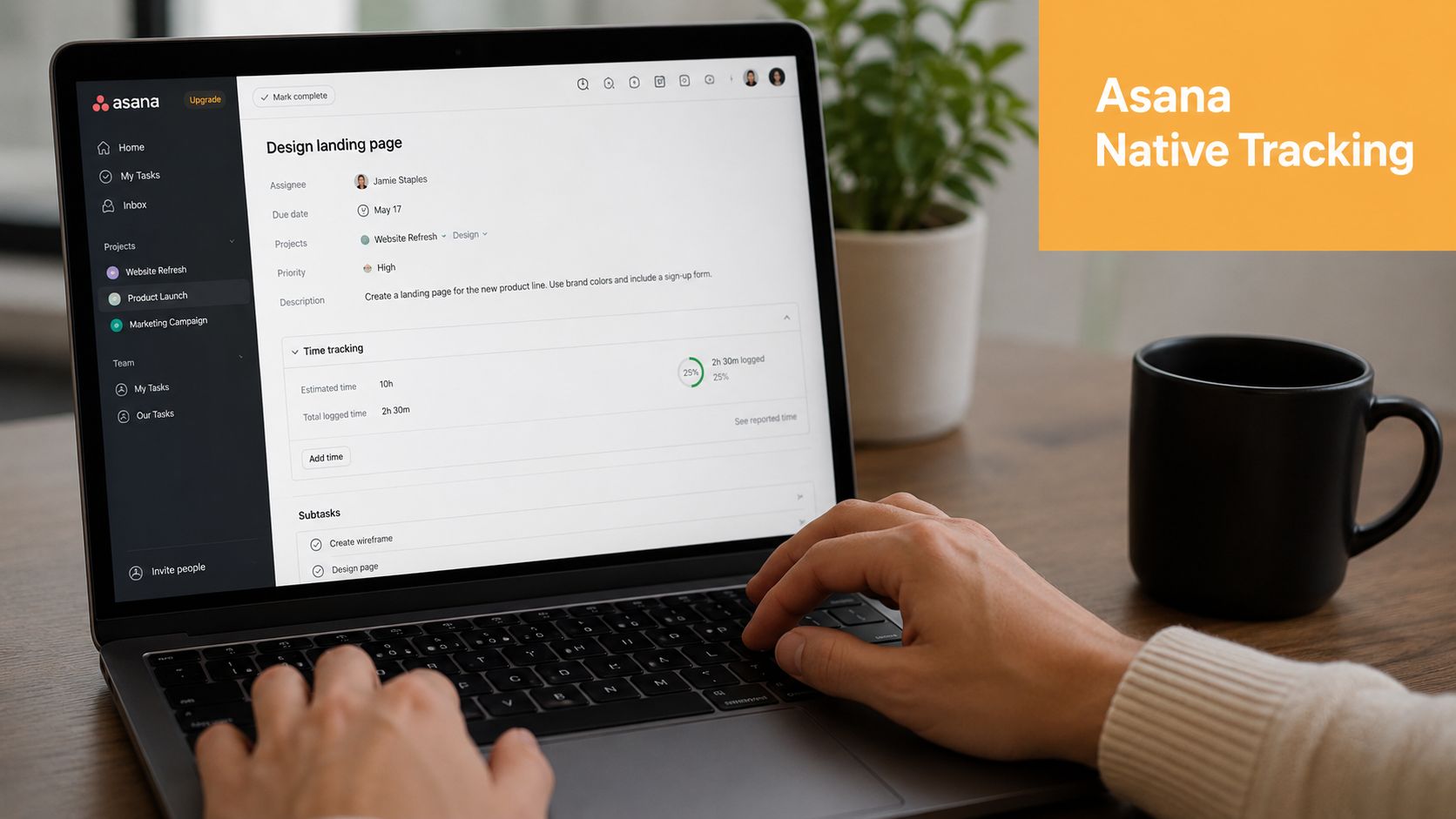
If you want a baseline setup, start with what Asana already offers. It’s simple, and for some teams that’s enough.
How to set it up
In an Asana project, open the customization options and add custom fields for Estimated Time and Actual Time. Once added, those fields appear on tasks and subtasks, which gives your team a place to compare plan versus reality.
A basic setup usually looks like this:
- Add estimated time first. Use it during planning so tasks have an effort expectation.
- Log actual time manually. Enter the actual duration after work is complete.
- Review variance weekly. If estimates and actuals are far apart, adjust future planning.
When this works
Built-in fields are fine when the goal is rough effort tracking rather than precise billing. Internal teams using fixed retainers or broad monthly budgets can often get by with this approach. It’s also useful when you want a lightweight habit before introducing a separate system.
Here’s the trade-off in plain terms:
| Approach | Good for | Main limitation |
|---|---|---|
| Asana custom fields | Planning and simple estimate vs actual reviews | Manual entry |
| Manual timers tied to tasks | Short focused work blocks | Easy to forget |
| Automatic tracking tools | Billing, reporting, and fragmented workdays | Requires a dedicated tool |
Why it stops being enough
Once work moves outside a single task view, the cracks show. The actual work might happen in a browser, document editor, code editor, or design tool while Asana stays open in the background as the command center. Manual fields don’t bridge that gap.
That’s one reason this category is growing so quickly. The global time tracking software market is projected to reach USD 149.92 billion by 2034, expanding at a CAGR of 25.66%, according to Fortune Business Insights on time tracking software market growth. That demand exists because project tools alone don’t solve accurate time capture.
Use Asana’s fields if you need a starting point. Just be honest about what they are. They’re a record-keeping layer, not a reliable measurement system.
Supercharging Asana with an Automatic Integration
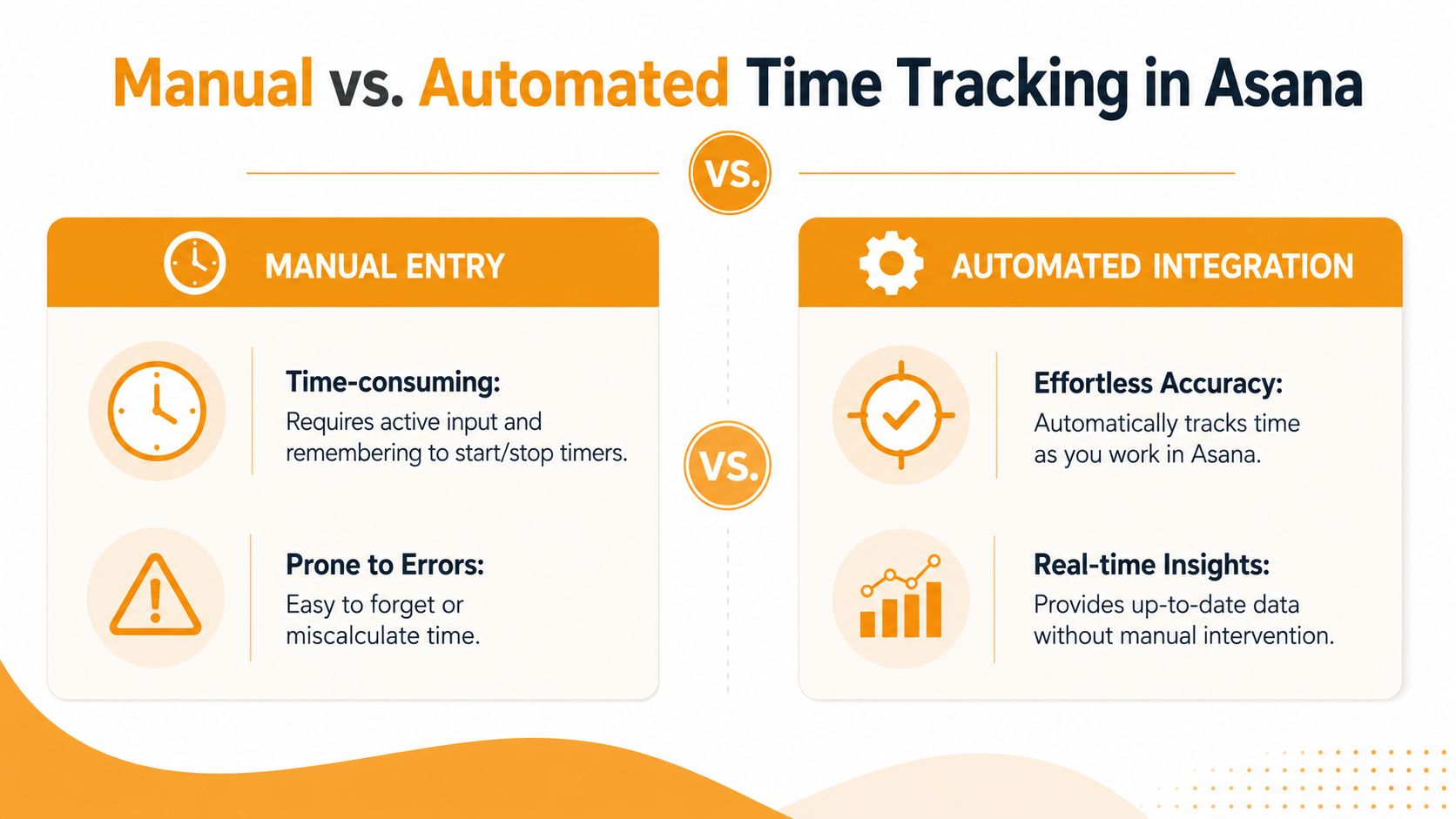
Manual tracking fails for the same reason calorie logging fails. It asks busy people to interrupt themselves all day and record reality perfectly. That’s not how modern knowledge work happens.
An automatic integration changes the job of time tracking. Instead of asking people to remember every timer event, it captures activity in the background and lets them clean up categories afterward if needed. That’s a much better fit for consultants, creatives, and developers who switch contexts constantly.
What automation fixes
The manual workflow sounds simple on paper. Start timer. Work. Stop timer. Assign entry. Repeat. In practice, that falls apart when someone gets pulled into a client call, opens three related documents, reviews comments, and then jumps into another project.
Automatic tracking removes most of that friction.
- Forgotten timers disappear: Work is captured while you’re doing it.
- Task switching becomes visible: You see the actual shape of the day, not the cleaned-up version.
- Admin time drops: Less reconstruction at the end of the week.
- Billing gets cleaner: Entries are based on observed activity, not memory.
Why it’s better for real productivity data
The point isn’t just more data. The point is better data. If you want to know whether a project is profitable, whether a retainer is priced correctly, or whether meetings are swallowing execution time, you need records that don’t depend on perfect user behavior.
That’s especially important in Asana environments where tasks organize work, but the work itself happens elsewhere. A proper automatic layer closes that gap.
Manual time tracking measures what people remember. Automatic tracking measures what happened.
If you want to see what that kind of workflow looks like in practice, Chronoid’s automatic time tracking on macOS shows the model clearly. The value isn’t in replacing Asana. It’s in giving Asana a reliable time layer it doesn’t provide on its own.
The trade-off worth accepting
Automatic systems do require some setup discipline. Project names need to be consistent. Categories need occasional review. Idle detection should be enabled so inactive time doesn’t slip into billable records.
That’s still a much better trade than trusting people to reconstruct six hours of fragmented work from memory on Friday afternoon.
Connecting Chronoid for Automatic Time Capture
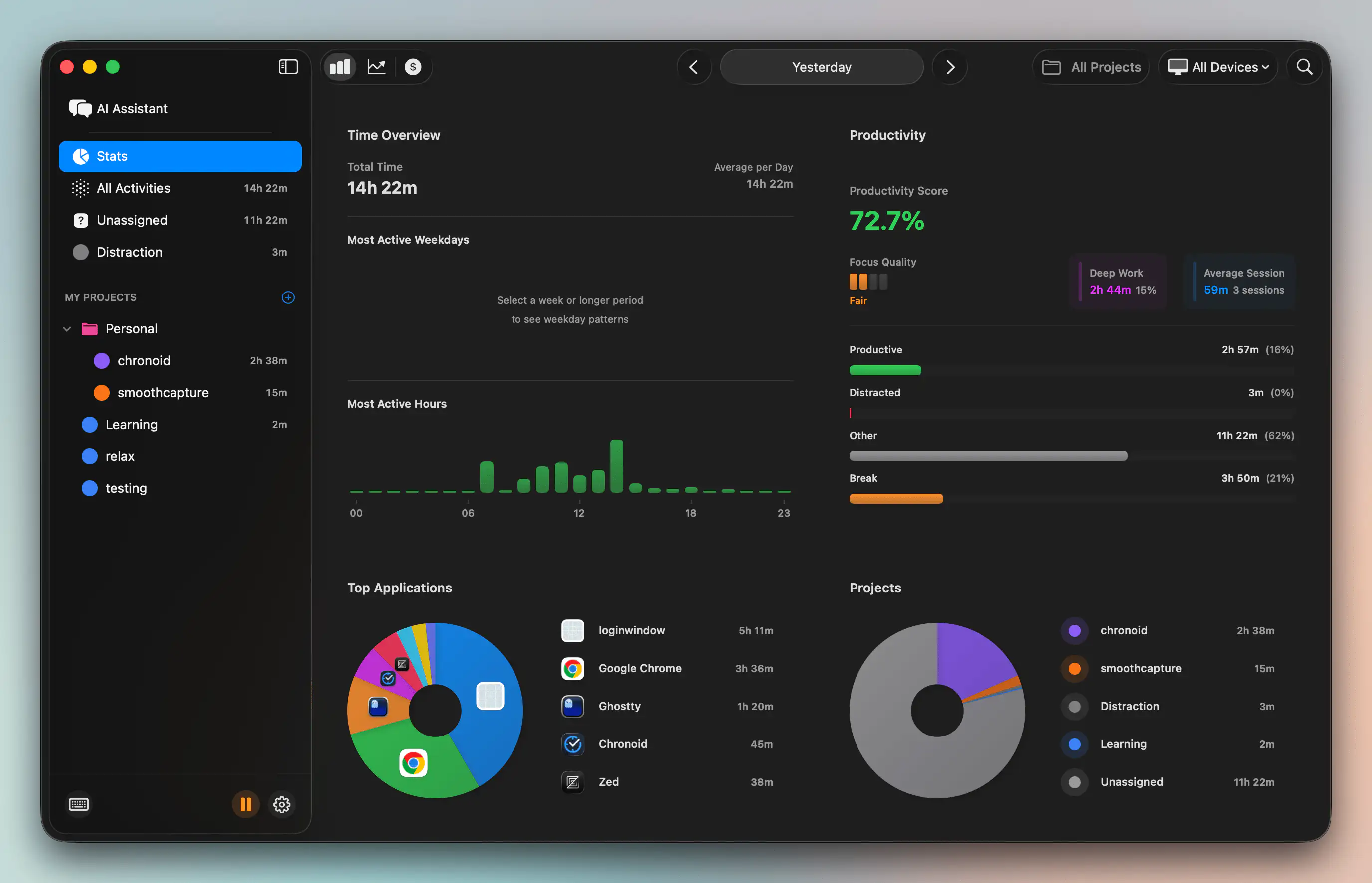
The best setup I’ve seen for time tracking in Asana is simple. Let Asana remain the place where projects and tasks live. Let the time tracker observe work in the background. Then use project names and categories to connect the two.
Start with the integration
For the technical side, use the Chronoid integrations settings guide to connect your workflow. The goal is not to mirror every Asana detail perfectly on day one. The goal is to make project-level attribution reliable first.
Once connected, let the app run in the background. That matters because passive capture is what removes the timer habit from your day. If the app isn’t active consistently, you’re back to manual gaps.
Use project names as the categorization rule
The most effective way to auto-categorize Asana work is to use the project name as the keyword trigger. For example, if you have a project called “Chronoid,” set the rule so any activity containing the keyword Chronoid is categorized under that project. That approach is reflected in the Asana forum discussion about automatically adding project names to tasks.
This works because project names usually appear in task titles, references, working docs, and related context. Good naming makes automation much more accurate.
A practical pattern looks like this:
- Client first: “Acme Website Redesign”
- Service next: “Acme SEO Retainer”
- Internal work labeled clearly: “Internal Admin” or “Business Development”
Avoid vague names like “Sprint,” “Tasks,” or “Updates.” Automation can’t categorize fuzzy labels well because they overlap across clients.
Working rule: If a project name would confuse a human skimming a report, it will also confuse your categorization system.
Mapping categories is easier than people expect
Most users overcomplicate setup here. They expect to build a long list of manual rules before anything works. In practice, mapping Asana project names to AI categories doesn’t require manual configuration. You can ask the AI assistant, and it guides you through the mapping process.
That makes a big difference for small agencies and solo consultants. Instead of maintaining a rules engine, you confirm the logic and move on.
Track all Asana work, not just tasks
A lot of teams ask which Asana element they should prioritize. Boards, tasks, or tags. In practice, users track all of them because work doesn’t happen neatly in one view. Some teams live in boards. Others work from task lists. Tags often matter for internal reporting or filtering.
The key is to keep the categorization tied to project structure rather than a single Asana feature. That gives you broader visibility and fewer blind spots.
A clean setup usually follows this order:
- Name projects clearly
- Connect the integration
- Let background tracking run
- Use project-name keyword triggers
- Ask the AI assistant to confirm category mapping
- Review the first week of logs and adjust edge cases
That’s enough to get accurate, low-friction time capture without turning your workflow into a maintenance project.
Turning Time Data into Reports and Invoices
The significant payoff starts after the tracking. Raw logs don’t help much on their own. What matters is whether you can turn them into clear reports, better estimates, and invoices a client can understand without a long explanation.
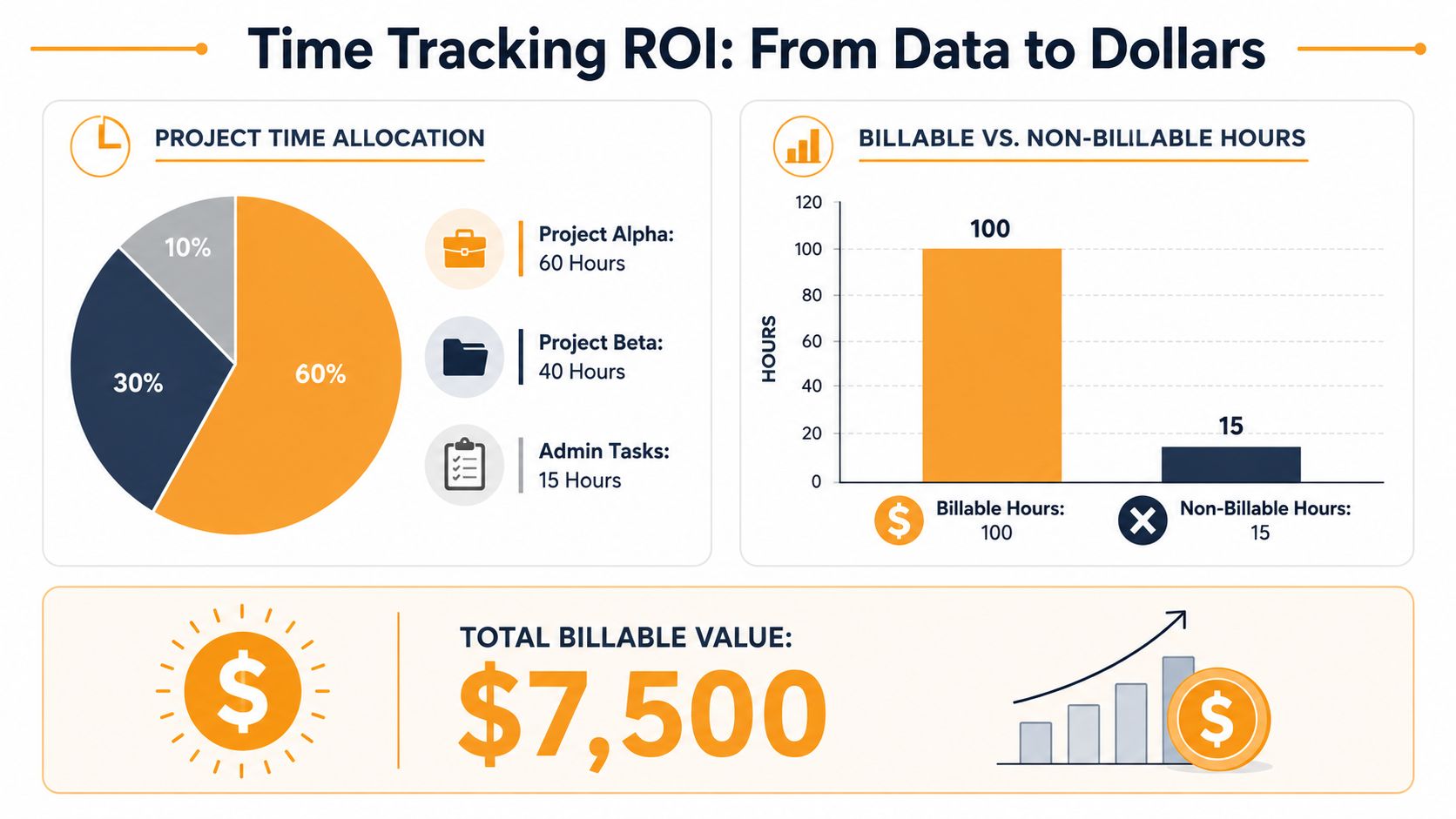
One of the most useful real-world examples is debugging. Time reports from Chronoid combined with Asana revealed that a developer was consistently underestimating debugging time, which helped refine future project estimates and correct under-billing, as described in this Reddit example about Asana workflow automation and project time patterns.
What that changes in practice
This kind of reporting improves decision-making fast. A developer might assume feature work takes most of the budget, then discover the hidden cost sits in debugging, rework, and validation. Once that pattern is visible, the next proposal gets scoped more accurately.
That same logic applies outside software. Designers often undercount revision cycles. Consultants undercount prep time. Writers undercount research and cleanup. Accurate reports expose those recurring blind spots.
Better time reports don’t just justify invoices. They improve the next quote.
How to use the output well
A useful report should answer three questions:
- Which Asana project consumed the time
- Which work was billable versus operational
- Where estimates repeatedly break down
For firms that also need cleaner financial workflows, it helps to pair reporting discipline with broader guidance on accounting project management. That’s especially relevant when project timelines, client approvals, and invoice readiness all need to stay aligned.
Once your records are clean, invoice creation becomes much less painful. Chronoid’s invoice generation documentation shows the practical handoff from tracked time to billing output.
The important shift is this: you stop debating hours after the work is done. You review a report, spot patterns, and send invoices backed by real activity history.
Best Practices for Accurate and Insightful Time Logs
Good tools help, but naming, review habits, and filtering rules still decide whether your reports are trustworthy. The best time tracking Asana setups aren’t complicated. They’re consistent.
Keep your project structure machine-friendly
Use descriptive project names that include the client or workstream. That makes categorization much more reliable and reporting easier to scan later. If your projects are labeled vaguely, your logs will be vague too.
Review category matches regularly. Not obsessively. Just often enough to catch drift, rename unclear projects, and fix one-off misclassifications before they become a monthly reporting problem.
Turn on idle detection and review exceptions
This is the single setting too many teams ignore. Manual entry errors can approach 95% accuracy when automated idle detection and background activity logging are used, compared with workflows that lead to 30–40% time underreporting, according to TMetric guidance on automated tracking and idle detection.
That matters because inactive screen time isn’t the same as active work. A good log should separate work, breaks, and away time cleanly.
A short operating checklist works well:
- Name clearly: Every Asana project should be identifiable without extra context.
- Review weekly: Check logs before invoicing, not weeks later.
- Separate admin work: Keep internal operations distinct from billable client time.
- Use focus data: Time logs become more useful when you compare them with broader ways to boost team performance, especially if you’re managing utilization and delivery quality together.
The teams that get the most value from time tracking don’t chase perfect granularity. They build a system that captures enough truth to support billing, planning, and better decisions.
Chronoid fits that model well if you want automatic time capture on macOS without living inside manual timers. It tracks apps, websites, and documents in the background, uses AI categorization to map work to projects, and keeps privacy central with on-device data handling by default. If your Asana setup is solid but your billing data still feels fuzzy, try Chronoid.