
You’re in the middle of real work. A draft is open on your Mac, a client message just came in, and you pick up your iPhone for what should be a quick check. Ten minutes later, you’re in social media, your attention is gone, and getting back into flow feels harder than the original task.
That pattern shows up constantly with freelancers, consultants, designers, and anyone who works in short bursts of focus. The phone interruption looks small in the moment, but it often causes the biggest break in the day. Many track billable hours on their computer and ignore the device that keeps knocking them out of those hours.
A good activity tracker app for iPhone helps you see the interruption itself. Not just the step count, not just health rings, but the chain reaction between a pickup, an app switch, and lost focus. Once you can see it clearly, you can start fixing it.
Why Your iPhone Activity Is a Hidden Productivity Metric
A lot of professionals still think of activity tracking as a fitness category. That’s too narrow. On iPhone, your activity data often says more about your work rhythm than your calendar does.
One user pattern comes up again and again. They’re deep in work, they grab the phone to check a notification, then drift into social apps and keep scrolling. By the time they look up, the original task has gone cold. The issue isn’t only the minutes spent on the phone. It’s the cognitive reset afterward.
The distraction pattern most people miss
Creative work is especially vulnerable here because it depends on momentum. Writers, editors, designers, and developers don’t lose focus in neat blocks. They lose it in tiny fragments.
Common examples:
- Quick checks that aren’t quick: Opening Messages or email leads to one more app, then another.
- Social drift: TikTok, Instagram, or X become the default after any moment of friction in work.
- Context switching: A phone pickup during a hard task often means the brain was already looking for an exit.
Most distraction doesn’t start with a deliberate break. It starts with a small permission slip.
That’s why iPhone activity is a productivity metric. It reveals when your workday gets punctured, not just how long you worked overall.
Why this matters for Mac-based work
If you bill by the hour or manage multiple clients, your Mac only tells half the story. Your desktop timeline might show design work, research, writing, coding, or meetings. It won’t always show the interruptions happening on the phone beside you.
That’s where broader tracking systems become useful. If you’re comparing tools and workflows, this overview of Tribble Software productivity solutions is a useful starting point because it frames tracking as a work-pattern problem, not just a timer problem.
For many professionals, the hidden leak isn’t bad planning. It’s unmeasured phone behavior.
Choosing Your Path Apple Screen Time vs Third-Party Apps
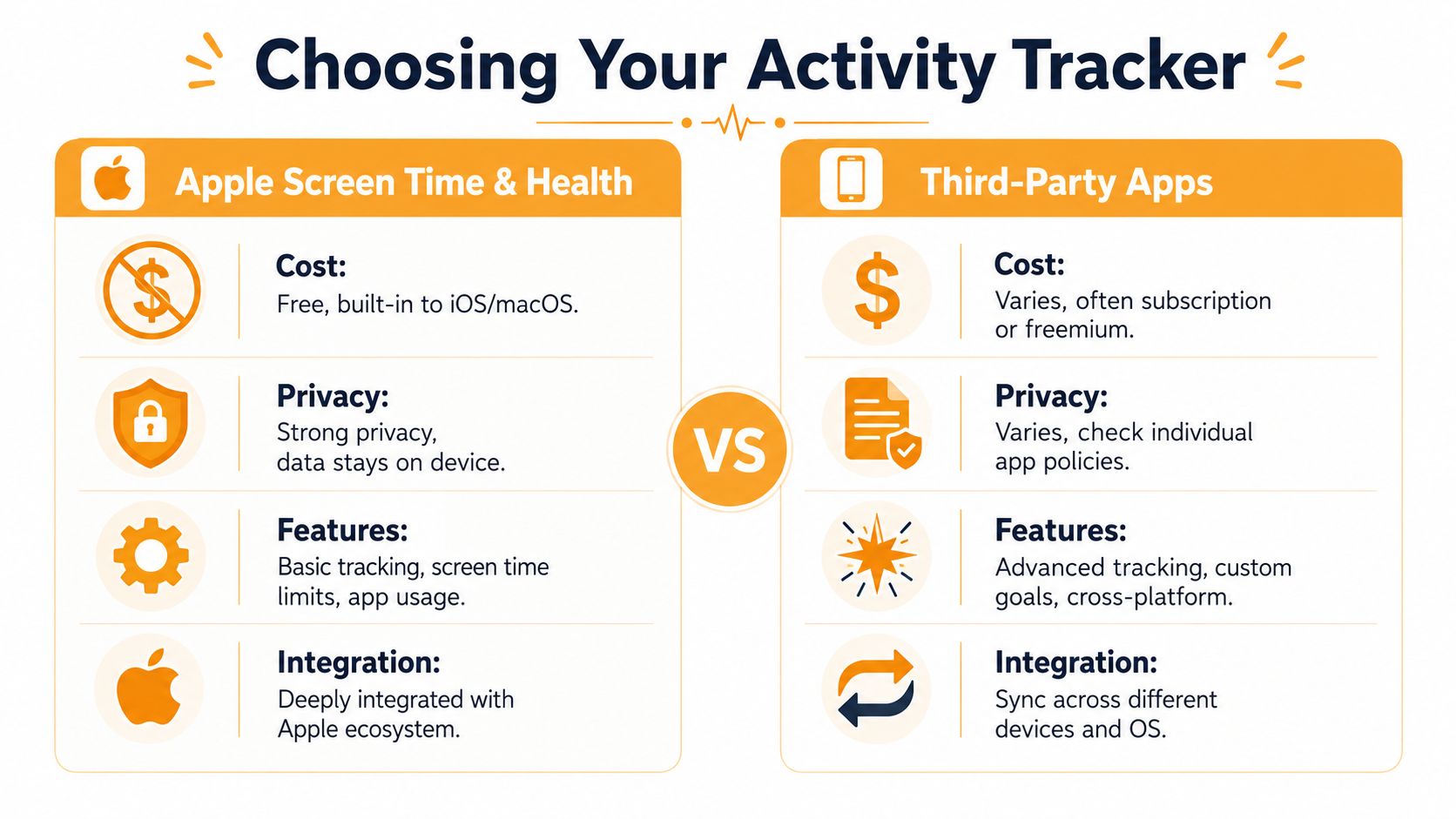
If you want an activity tracker app for iPhone, you usually end up on one of two paths. You either stay inside Apple’s built-in system, or you use a third-party app that adds more visibility, longer history, or broader sync.
Neither path is automatically better. It depends on what you need to learn.
Where Apple’s built-in tools work well
Apple gives you two very different tracking layers.
Screen Time is the obvious one for productivity. It shows app usage, pickups, notifications, and basic limits. It’s built into iPhone and Mac, so there’s no setup friction.
Health handles a different type of activity. Apple’s built-in Health app became a foundational activity-tracking layer for iPhone users because it can continuously collect activity patterns and vital trends through wearable devices like Apple Watch, creating a default ecosystem that many third-party iPhone activity tracker apps build on top of rather than replacing. That broader scope helps explain why activity-tracking on iPhone evolved from simple movement logging into a major consumer health category, as described in Todoist’s overview of quantified self apps.
For many users, Apple’s main advantages are simple:
| Option | Best at | Trade-off |
|---|---|---|
| Screen Time | Built-in usage awareness | Limited historical analysis |
| Health | Passive health and movement data | Not designed for work-pattern analysis |
Where third-party apps pull ahead
Third-party tools tend to matter when you need one of these:
- Longer history: Native usage summaries are good for recent behavior, but weak for long-term pattern review.
- Cross-device context: Many professionals want iPhone behavior next to Mac activity, not in a separate silo.
- Custom reporting: Built-in tools show data. Some outside tools help interpret it.
This is the core trade-off:
- Apple tools give you convenience, baseline privacy expectations, and no extra cost.
- Third-party apps can give you depth, customization, and unified workflows, but you need to inspect privacy and data handling carefully.
Decision rule: If you only want awareness, start with Apple. If you want pattern analysis across weeks, projects, and devices, you’ll probably outgrow Apple’s default view.
The mistake I see most often is expecting Screen Time to act like a professional analytics tool. It doesn’t. It’s good at surfacing recent habits. It’s not built to be your complete work-behavior archive.
How to Set Up and Use Apple Screen Time Effectively
If you want immediate results, start with the tools already on your iPhone. Screen Time is the fastest way to get a baseline on your distraction habits.
Turn it on with a work lens
Don’t set it up like a parent managing a child’s device. Set it up like a professional auditing attention.
Start here:
- Open Settings on iPhone.
- Tap Screen Time.
- Enable it if it isn’t already on.
- Review your app usage, pickups, and notifications.
- Identify the apps that break focus most often.
Look for surprise patterns, not just total time. An app you open briefly but repeatedly can be more disruptive than one you use in a single block.
Set limits that match real work
A lot of people fail with Screen Time because they set aggressive limits they’ll ignore by day two. Better approach: target the apps that trigger mindless switching.
Try this:
- Use App Limits for social apps: If TikTok, Instagram, Reddit, or YouTube are your default drift apps, limit those first.
- Use Downtime during deep work: Block the hours when you need uninterrupted creative output.
- Keep essentials available: Messages, Maps, music, or authentication apps may need to stay accessible.
What works is friction, not perfection. Even a small pause before opening a distraction app can stop the autopilot loop.
Read the reports correctly
Don’t obsess over one bad day. Watch for repeated conditions.
Ask yourself:
- Did pickups spike during hard tasks?
- Are notifications creating most of the phone checks?
- Do you use social apps most during client work, admin work, or after meetings?
- Are evenings affecting the next morning’s focus?
On iPhone, background execution is a real technical constraint. iOS strongly limits continuous background processing, so trackers usually rely on Apple-approved mechanisms like Background App Refresh or HealthKit-integrated sync. That creates a practical trade-off between accuracy and battery efficiency, since frequent background polling can drain battery, as noted in this explanation of iPhone background execution limits.
That matters because no iPhone tracker sees everything in a limitless way. You’re always working within Apple’s rules.
A quick walkthrough helps if you haven’t used these settings much:
Practical rule: Use Screen Time to find your top two distraction triggers first. Don’t try to optimize your whole digital life in one pass.
Beyond Apple Privacy-First Third-Party Trackers
Once you move beyond basic awareness, privacy becomes the main filter. That’s especially true if your phone activity reveals work habits, client communication patterns, sleep routines, or periods of stress.
A privacy-first tracker isn’t just an app with a reassuring tagline. It usually means the app can work with minimal data collection, avoid forcing account creation, and keep as much processing on the device as possible.
What to check before installing anything
Look at the app’s behavior, not just its marketing.
A few things matter immediately:
- Account requirement: If an app can’t function without sign-up, ask why.
- Data transfer: Find out what leaves the device.
- Identity linkage: Check whether your activity data is tied to you personally.
- Offline usefulness: A good tracker should still be useful without constant server dependence.
Privacy-focused reviews and App Store privacy labels have made one gap very clear. Some step and activity apps can track movement without an Apple Watch, but users still have to dig to learn whether the app requires an account, sends data to servers, or can work fully on-device. That gap is one of the most useful takeaways from this discussion of privacy in step-tracking apps.
A concrete example of lightweight tracking
If your needs are simple, Pedometer++ is a useful example of a mature iPhone activity app. It reports over 20 million downloads since launching in 2013, and it supports both iPhone and Apple Watch, which shows how durable passive tracking has been in the Apple ecosystem, according to the Pedometer++ app site.
That doesn’t make it the right tool for every productivity use case. It does show that low-friction, automatic tracking has real staying power when the setup is simple and the value is obvious.
Privacy should be visible, not implied
When I evaluate any third-party tracker, I want to see a clear privacy posture in plain language. Good examples explain what they collect, what stays local, and what optional sync means in practice. For a straightforward example of that kind of transparency, review how Redline handles your data. If you want to compare that approach with a privacy model centered on local activity data, this Chronoid privacy page is worth reading.
The more sensitive the data, the less willing you should be to trust vague wording.
Your Activity Tracker App Feature Checklist
Many users choose an activity tracker app for iPhone by looking at screenshots and reviews. That’s not enough. If you’re a freelancer, consultant, student, or creative pro, the right checklist is more useful than a popularity ranking.
The features that actually matter
Here’s what I’d look for before trusting any tracker with daily use.
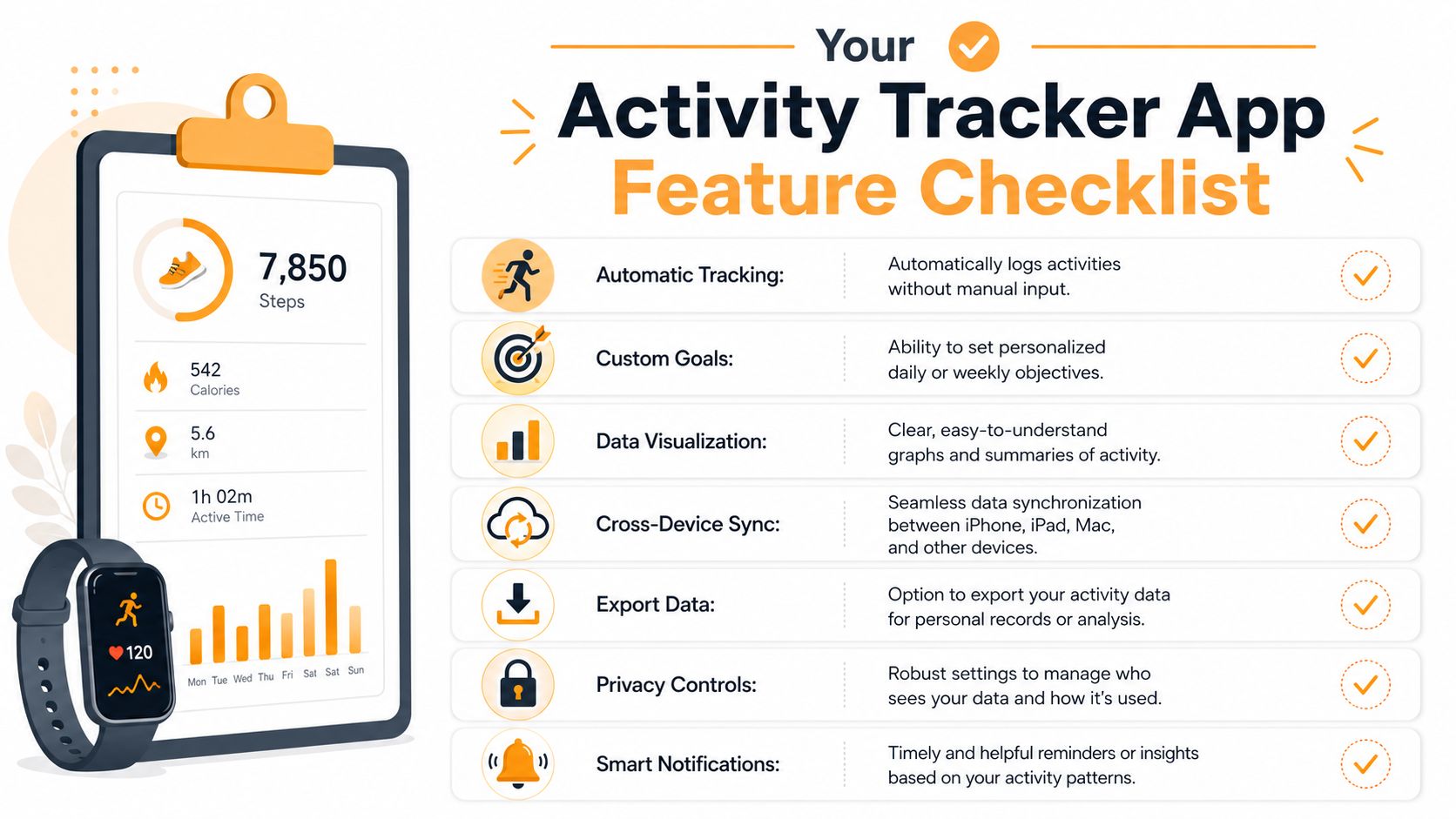
- Automatic tracking: Manual timers fail fast on busy days. If you have to remember to start and stop the app, your records will break the moment work gets hectic.
- Clear visual summaries: You need charts and daily views that answer simple questions quickly. Where did the time go, when did focus drop, and what keeps repeating?
- Cross-device sync: Work doesn’t stay on one screen. If your phone, tablet, and Mac live in separate silos, you’ll miss the pattern between them.
- Export options: If you bill clients, audit habits, or review monthly work patterns, you need your data outside the app.
- Privacy controls: This should be inspectable, not assumed.
- Useful notifications: Alerts should interrupt bad habits, not become another source of noise.
Why simple step counts aren’t enough
A lot of weak trackers still lean too hard on one narrow signal. That usually leads to bad conclusions.
For modern iPhone activity trackers, better technical results usually come from sensor fusion plus on-device inference. Apple’s Core Motion and HealthKit provide normalized data, and combining signals helps reduce false positives from things like driving or minor wrist movements, which is where simple step-only models are weakest, according to this explanation of sensor fusion and on-device inference.
For productivity use, that same principle matters in a different way. A good system shouldn’t just log raw events. It should help separate meaningful work from noise, short checks from real sessions, and active focus from idle drift.
A professional buyer’s view
If I were vetting a tool for client work or my own billing, I’d ask these practical questions:
| Question | Why it matters |
|---|---|
| Can it track without constant manual input? | Manual systems collapse under real workloads |
| Can it show trends over time? | Short snapshots rarely reveal habits |
| Can I review and export my data? | Needed for invoicing, analysis, and accountability |
| Does it work across my actual devices? | Your workflow is already fragmented |
| Does it respect local processing and privacy? | Activity data is personal and often business-sensitive |
If your workday spans apps, websites, documents, and short bursts of phone use, automatic collection becomes the deciding feature. For this reason, systems built around automatic time tracking tend to fit modern professional workflows better than manual timers.
Unifying Your Workflow with iPhone and Mac Tracking
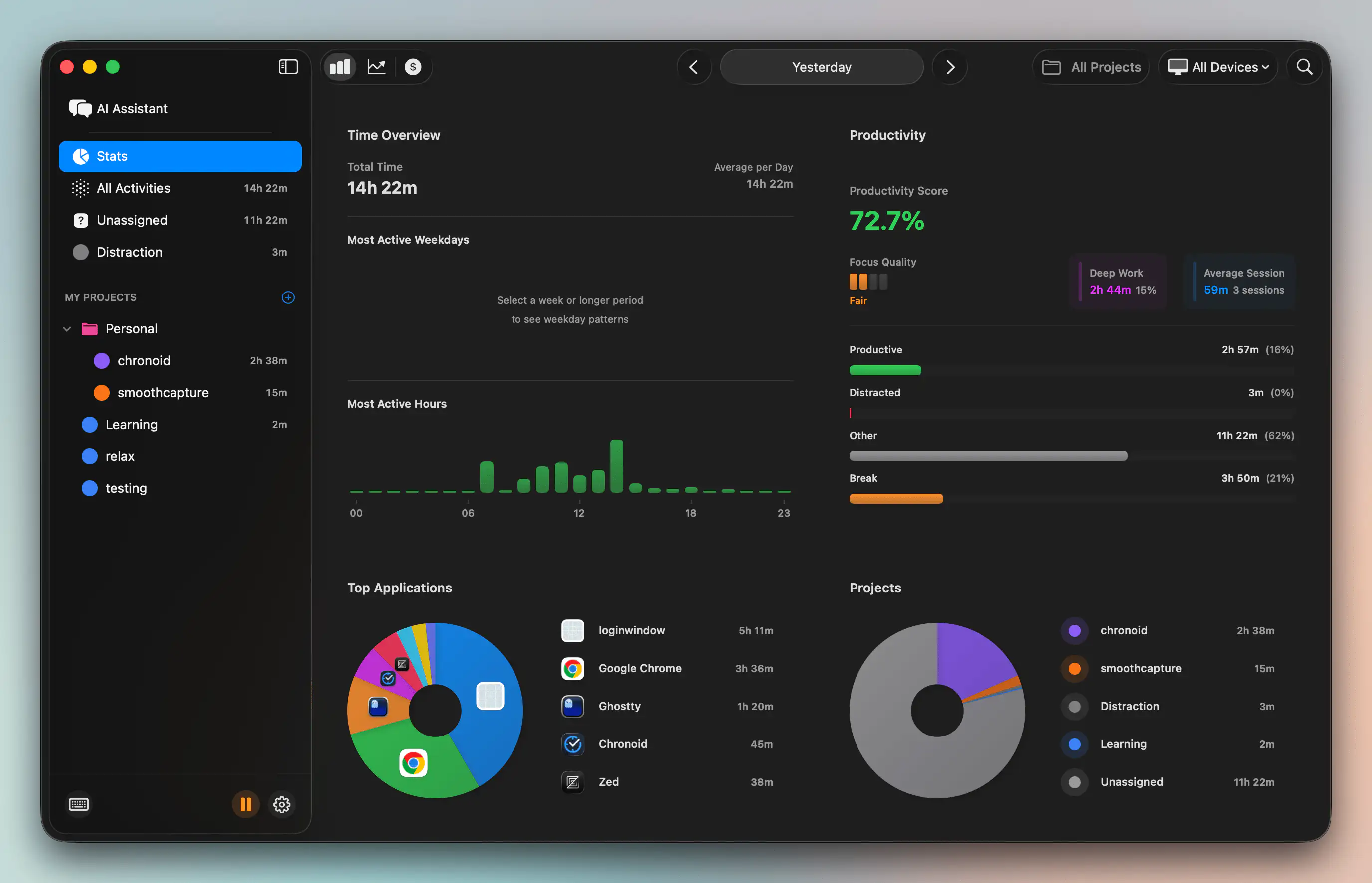
A significant breakthrough happens when phone activity stops living in its own report and starts sitting beside your Mac work.
Most professionals already know roughly how they spend time on a computer. They can name the big buckets. Figma, Final Cut Pro, Slack, Chrome, VS Code, Notion, email. What they usually can’t see is how often the iPhone cuts through those blocks and changes the shape of the day.
One timeline changes the interpretation
In this scenario, unified tracking becomes more useful than standalone reporting.
A Mac-only record might say:
- Design work in the morning
- Admin after lunch
- Writing in the afternoon
That sounds productive. But once you add phone activity, the same day might look different:
- Design work interrupted by repeated pickups
- Short social media sessions between tasks
- A drop in sustained focus after each interruption
The user interview insight here is practical and important. Many iPhone users want Screen Time history beyond the default window because short lookbacks don’t tell them much about real work patterns. When that phone history is synced alongside Mac activity, they can finally see the overview they were missing.
Why combined data is more useful than separate reports
Phone and Mac reports answer different questions.
Mac tracking tells you what you spent time on.
iPhone tracking often tells you what broke your momentum.
Put them together and you get something more actionable:
- Which projects trigger escape behavior
- Which times of day invite phone checking
- Whether meetings increase distraction afterward
- Whether “busy” days were fragmented days
A unified timeline doesn’t just show time spent. It shows where focus was lost.
That’s especially valuable for people who bill by the hour. A fragmented three-hour block and a focused three-hour block might look identical on an invoice. They feel very different in practice.
Long-term pattern review is the real advantage
This is also where syncing matters more than daily curiosity. If your iPhone history can be retained and compared with your desktop activity over time, you can spot trends that never appear in short snapshots.
Examples include:
- repeated doomscrolling after difficult client feedback
- higher phone pickup rates on admin-heavy days
- stronger focus during certain work windows
- mismatch between planned work and actual behavior
If you’ve only used Apple’s built-in reporting, it helps to see how broader Apple ecosystem usage fits into desktop analysis too. This guide to Screen Time on Mac is a useful reference point for that bigger picture.
From Tracking Time to Mastering Focus
Tracking by itself doesn’t solve distraction. It gives you evidence. That’s what makes better decisions possible.
The right starting point is simple. Use Apple Screen Time for awareness. Watch pickups, app opens, and recurring distractions for a couple of weeks. Don’t chase perfect discipline yet. Just get honest about what the phone is doing to your workday.
Then raise the standard. Use a stronger checklist. Look for automatic tracking, useful reports, exportability, cross-device visibility, and real privacy controls. If your work happens mostly on a Mac, don’t treat your iPhone as a side issue. It’s often the device that explains why your calendar looked full but your best work moved slowly.
One more habit helps here. When you begin spotting repeat distraction loops, document them like operational problems, not personal failures. This guide on strategies for documenting business workflows is helpful because the same mindset applies to focus. You’re mapping triggers, interruptions, and recovery steps.
The professionals who improve fastest usually do one thing well. They stop guessing where the time went.
If you want one place to see how your Mac work and iPhone behavior fit together, try Chronoid. It’s built for people who want automatic activity tracking, clearer focus patterns, and a practical view of where their day goes.