
You open Screen Time, see a huge block of time under YouTube, Facebook, and Threads, and feel two things at once. First, guilt. Second, confusion.
The guilt is easy to explain. The confusion is what matters.
For a professional who bills by the hour, time is inventory. If your iPhone report only tells you that you were active, but can’t tell you whether that time supported a client deliverable, a sales conversation, research, or pure drift, then the report isn’t helping you manage work. It’s only helping you feel bad about it.
Your iPhone Usage Report Is Lying to You
The most misleading part of app usage iPhone data is that it looks complete. It isn’t. It gives you a list of apps and minutes, which feels objective, but raw minutes don’t explain value.
I see this constantly with people who work mainly on a Mac and use the iPhone as a sidecar for communication, research, content, and distraction. A report shows heavy use in social apps, and the immediate conclusion is, “I need less phone time.” That conclusion is often too simple.
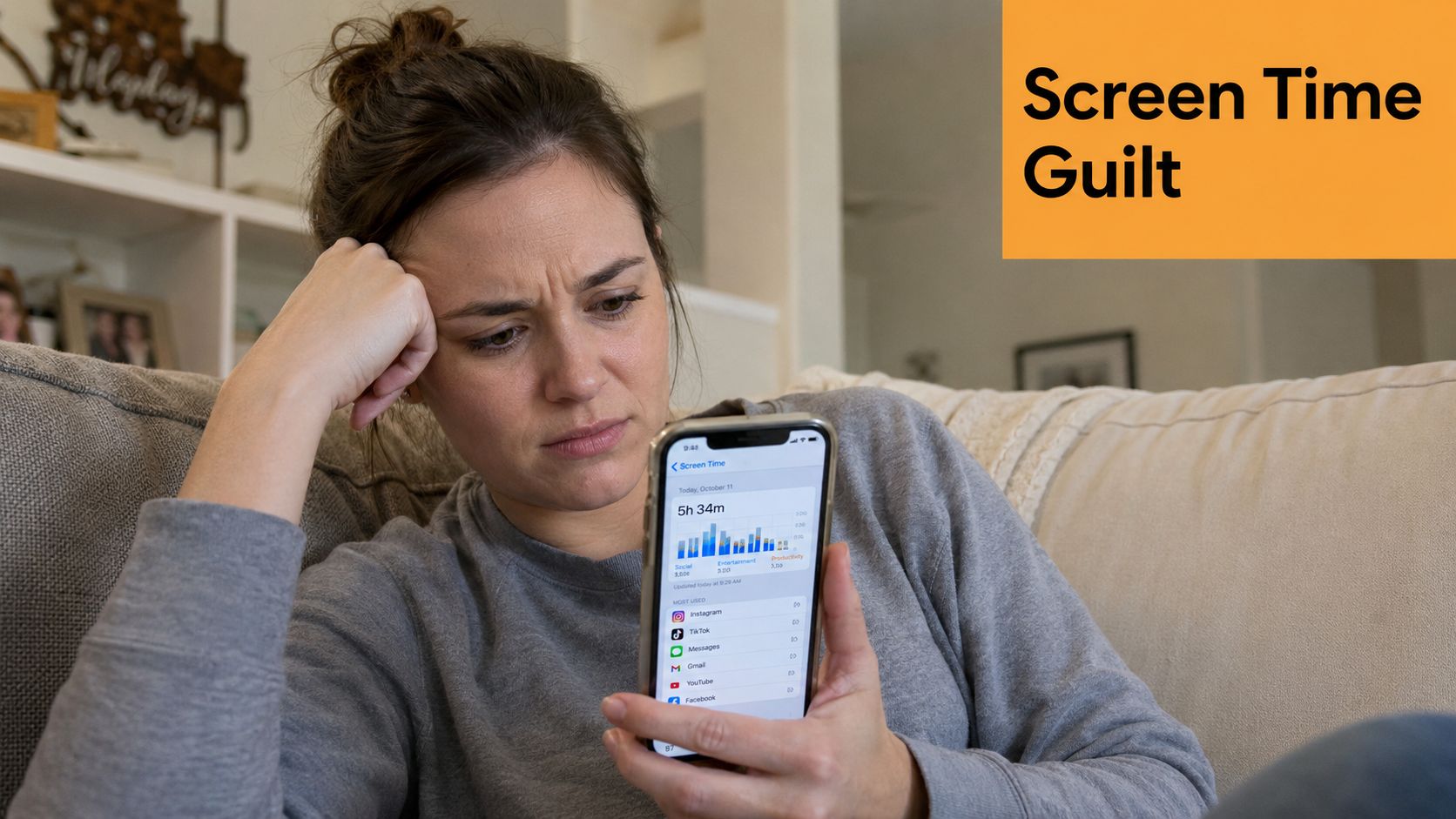
In 2025, 5.3 trillion hours were spent globally using mobile apps, and the average person spent 3.6 hours daily on their phone, according to Mindsea’s mobile app stats roundup. For professionals, a lot of that time becomes a black box of mixed productivity and distraction.
What the report shows and what it hides
Last week, the three biggest time sinks were YouTube, Facebook, and Threads. That kind of report is common. What’s uncommon is asking the right follow-up question.
Was YouTube background noise, skill-building, or client research?
Was Facebook a deliberate community check-in or a chain of interruptions?
Was Threads market monitoring or doom-scrolling disguised as work?
Those distinctions decide whether your iPhone habits are acceptable, harmful, or unmanaged.
Raw screen time is not the same as useful time.
A consultant can spend an hour inside one app and generate revenue. Another consultant can spend the same hour inside the same app and lose the morning.
Why this matters more when you bill by the hour
Freelancers and agency owners don’t need moral lessons about “less screen time.” They need better operational visibility.
If you miss a billable target this week, the problem isn’t that your phone says you spent time on social apps. The problem is that your tools can’t connect that usage to outcomes. That’s why so many people keep repeating the same cycle:
- Check the report: See a painful number.
- Set a vague goal: Promise to “use the phone less.”
- Break the rule: Tap back into the same apps.
- Learn nothing: End the week with the same blind spots.
The fix starts when you stop treating app usage iPhone reports as a moral scoreboard and start treating them as incomplete operational data.
How to Check and Read Your iPhone App Usage Data
If you want useful answers, start with the right panel. On iPhone, that’s Screen Time, not Battery.
The built-in data is good enough for awareness if you know where to look and what each screen means. Many users never get past the top chart, and that’s where they lose the plot.
Open the report that actually tracks time
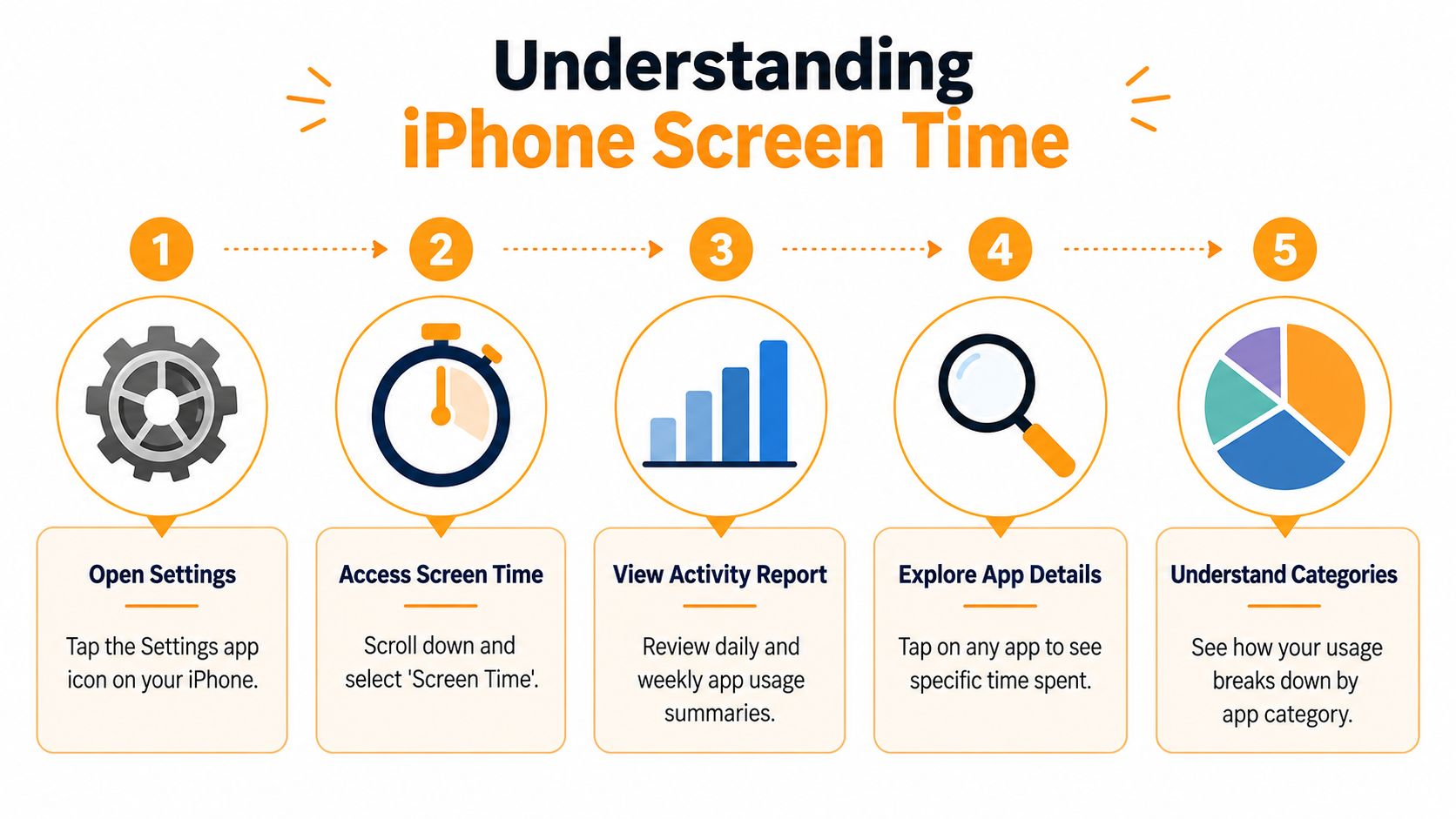
Use this path:
- Open Settings on your iPhone.
- Tap Screen Time.
- Select See All Activity.
- Review the day view and week view.
- Tap an app to see more detail.
That report shows total time, app categories, pickups, and notifications. It gives you a much clearer read on behavior than the Battery screen.
If you want a walkthrough before doing it manually, this short video gives a useful visual overview:
Read the dashboard like a professional
Don’t stop at total hours. Look at the pattern.
- Daily spikes: One bad day can distort your impression. Check whether an app is consistently high or just had one outlier session.
- Pickups: Frequent pickups usually signal reactive behavior. That’s often a bigger productivity problem than one long intentional session.
- Notifications: High notification counts often explain why attention keeps fragmenting.
- Category totals: These help you spot whether your issue is social media, messaging, entertainment, or something that only looks productive.
Practical rule: If an app shows high pickups and high notifications, it usually deserves attention before an app that only shows one long session.
For professionals who want deeper activity review on the phone side, this guide to an activity tracker app for iPhone is useful because it frames tracking around actual behavior rather than vanity totals.
Don’t use Battery for time tracking
This is the mistake that ruins a lot of self-audits. A critical common pitfall is relying on the Battery usage report for time tracking. Screen Time is better for behavioral analysis because it tracks distinguished usage and active sessions, while Battery Usage is fundamentally flawed for tracking time.
Battery data tells you about resource drain. Screen Time tells you about temporal engagement. Those are different things.
A few examples make that clear:
| View | Good for | Bad for |
|---|---|---|
| Screen Time | Seeing app minutes, pickups, notifications, daily and weekly trends | Judging whether time was billable |
| Battery Usage | Spotting power-hungry apps or heavy background activity | Estimating how long you actively used an app |
If you’re trying to answer, “How long was I on this app?” use Screen Time. If you’re trying to answer, “Which app is chewing through battery or running in the background?” use Battery.
Those answers often point to different apps.
Using App Limits and Focus to Manage Distractions
Once you’ve identified the apps pulling your attention, use the built-in controls. They’re worth setting up. Just don’t expect them to behave like a locked door.
In practice, App Limits helps most when you want a pause point, not a perfect ban. That’s the honest trade-off. It can reduce frictionless overuse, but it won’t make distraction impossible.
Set limits where you actually drift
Start with the obvious offenders, not with every app on your phone.
Go to Settings > Screen Time > App Limits > Add Limit. Choose categories like Social or Entertainment, or select specific apps such as YouTube, Facebook, or Threads. Set a daily time cap that forces a check-in.
The value isn’t the number itself. The value is the interruption. It breaks the autopilot loop.
A few setup rules work better than broad restrictions:
- Limit specific apps first: Broad category caps often create workarounds.
- Use separate limits for weekend behavior: Weekend usage patterns are usually different from weekday client work.
- Keep one communication lane open: If Facebook Messenger or another messaging tool matters for work, don’t lump it in with pure distraction by default.
Use Focus for context, not punishment
Focus Mode works better than App Limits when you tie it to a job.
For example, create a Deep Work Focus that silences non-essential notifications during client work blocks. Create another for Admin time if you need messaging and email available. This approach respects the fact that your iPhone has multiple roles.
If you mainly work from a Mac, it’s also worth reviewing a focus app for Mac so your browser and desktop don’t undo the rules you set on your phone.
App Limits can slow you down. They usually don’t stop you.
That matches real-world behavior. The biggest dent often comes from limits, but they still function more like a speed bump than a wall.
What works and what doesn’t
The native controls are useful. They’re just not enough on their own.
What tends to work:
- Scheduled Focus blocks: Good for client sessions, writing blocks, and design work.
- App Limits on high-drift apps: Useful for social apps that expand to fill every idle minute.
- Notification reduction: Often more effective than a strict time cap.
What usually doesn’t work on its own:
- Relying on willpower after the warning appears
- Setting aggressive limits you know you’ll ignore
- Treating iPhone controls as your whole productivity system
If you’re exploring broader behavior change, an app for digital wellbeing can be useful reading because it frames reduction as habit design, not just blocking.
The key is to stop asking these tools to do a job they weren’t built for. They can reduce interruptions. They can’t tell you whether your saved time turned into better work.
Why Native iPhone Tools Fall Short for Professionals
Apple’s built-in tools are fine for casual awareness. They break down when your work spans devices and your income depends on understanding where your attention went.
The biggest issue is fragmentation. Your phone can tell you one story, your Mac another, and your iPad a third. None of that becomes a clean professional record by itself.
The data expires too quickly
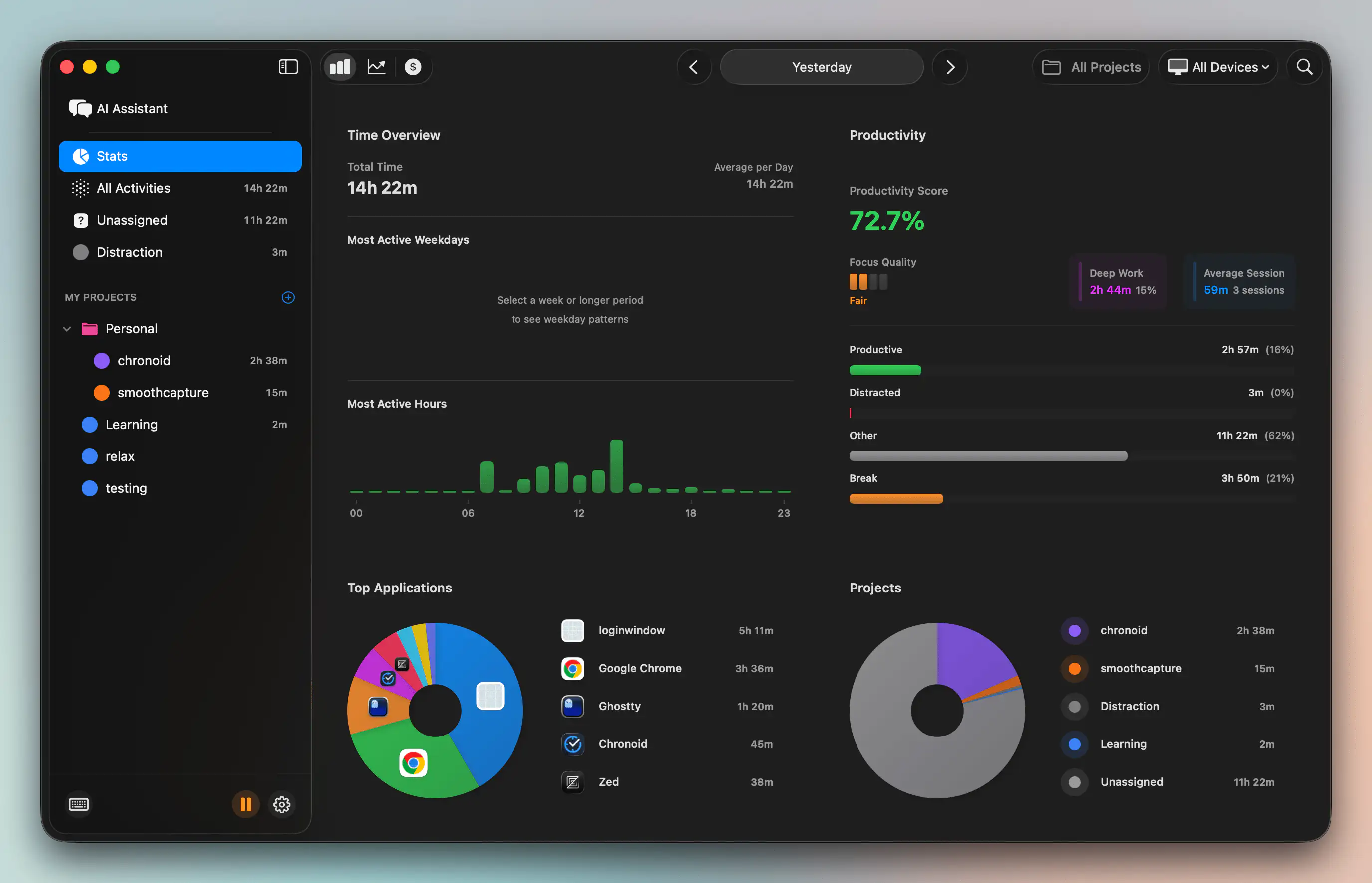
Apple’s Screen Time data is only synced to iCloud for up to 30 days and doesn’t offer a consolidated cross-device view with iPhone, iPad, and Mac simultaneously without third-party tools, as noted in this Screen Time overview video.
For professionals, that’s a serious limitation.
A month of data can show symptoms. It usually can’t show business patterns. You need enough history to answer questions like:
- Which weeks become distraction-heavy before deadlines
- Whether a new client changed your communication load
- How your phone usage shifts during launch, editing, or review cycles
Without longer retention, you end up reacting to snapshots.
You still don’t get business context
Even a perfect iPhone log has another problem. It can’t tell you whether time was billable, supportive, or avoidable.
One hour in Safari on a Mac might mean client research. One hour in Safari might also mean ten tabs of drift. The same goes for social apps on iPhone. Without project context, categories stay shallow.
That matters outside pure screen-time analysis too. Professionals often build fragmented mobile workflows for adjacent tasks such as scanning receipts, documents, and expense backups. If that’s part of your admin load, a guide to Receipt Router’s solution for iPhone receipt scanning is a practical example of how specialized mobile tools solve one narrow job well, but still don’t create a unified picture of work.
Professionals don’t just need logs. They need interpretation.
Why this becomes expensive
The cost isn’t abstract distraction. It’s bad attribution.
When your tools can’t separate work support from time leakage, you make weak decisions. You cut apps that were useful. You keep habits that looked harmless. You underestimate how often your Mac and iPhone are feeding each other interruptions.
That’s why app usage iPhone data, by itself, rarely helps a consultant improve billing accuracy. It surfaces activity. It doesn’t surface meaning.
A Better Workflow for Cross-Device Time Analysis
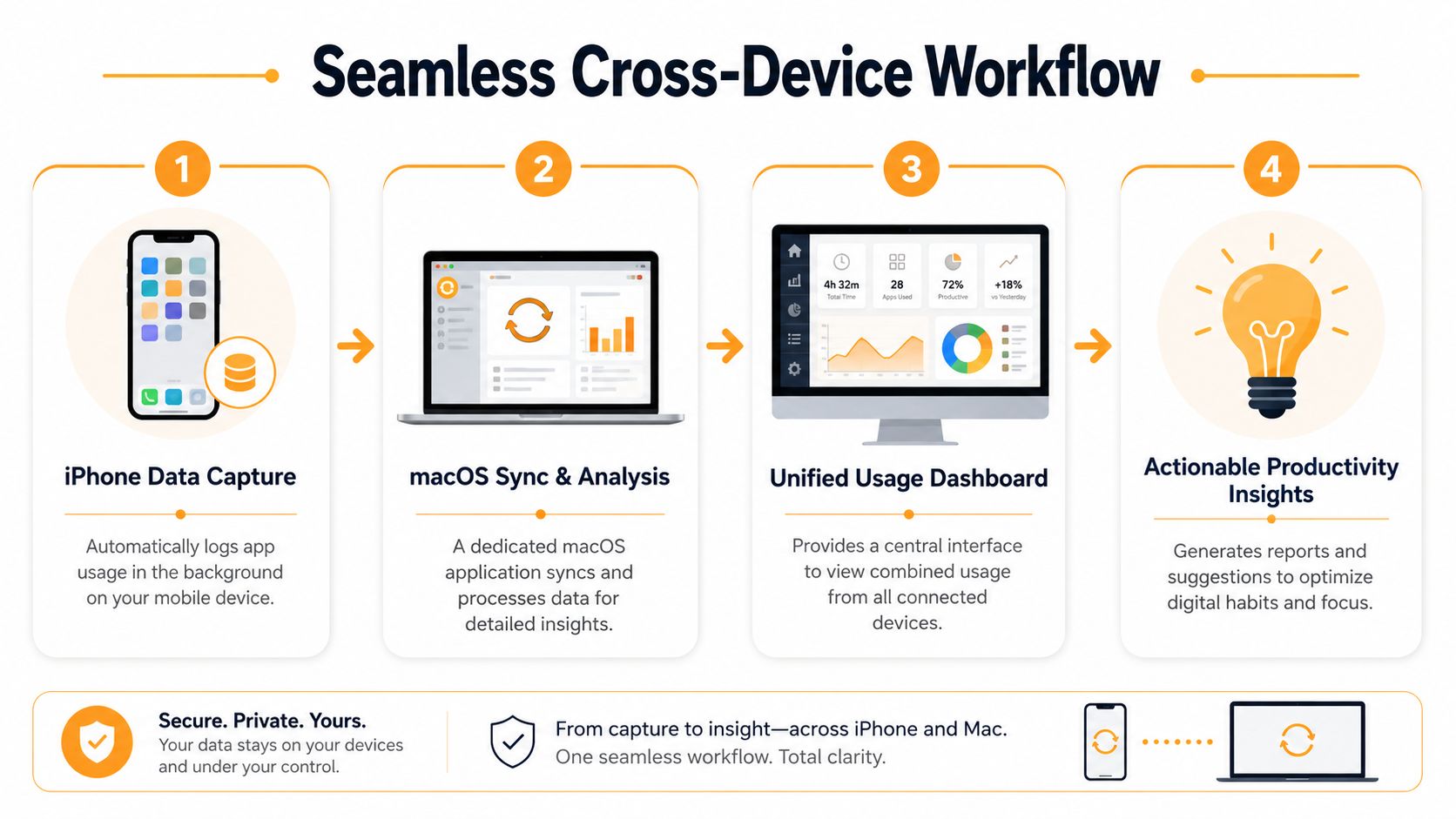
The useful shift is simple. Stop trying to track harder on the iPhone alone. Build a workflow that turns scattered device activity into one reviewable record.
That matters because reducing usage isn’t the full goal. A 2026 study on mobile intervention apps found that 31% of apps reduced usage time, but they didn’t connect that reduction to work quality or financial gain, according to the PMC study on mobile intervention apps. For freelancers, that’s the missing layer.
What a workable system looks like
A professional workflow needs four things:
| Need | Why it matters |
|---|---|
| Cross-device collection | Work doesn’t happen on one screen |
| Long-term history | Trends matter more than isolated spikes |
| Context by project or activity type | Minutes only matter when tied to outcomes |
| Reviewable summaries | You need a weekly process, not more raw logs |
One practical option is Chronoid, a macOS app that tracks apps, websites, and documents, syncs iPhone and iPad Screen Time into a consolidated Mac view, and removes the 30-day retention problem that Apple’s native setup leaves in place. It also supports asking direct questions about your activity so the data is easier to interpret.
If you want to understand the desktop side of that workflow, this guide on screen time on Mac is a useful companion read.
The questions that matter more than totals
Once your data lives in one place, your review changes. You stop asking, “How many hours was I on my phone?” and start asking better questions:
- Which apps interrupted client work most often this week?
- Did social activity rise during hard tasks or during breaks?
- Which device carried most of my non-billable drift?
- When I reduced phone use, did focused Mac work increase?
Those are operational questions. They lead to decisions.
If a time-tracking system can’t help you connect attention to revenue, it stays a habit tracker, not a business tool.
Why unified analysis changes behavior
A single dashboard does something Screen Time alone doesn’t. It reveals the handoff points.
You check one message on your iPhone. That opens Facebook. Later you continue in a browser tab on the Mac. Then you bounce to YouTube “for research.” Native tools record fragments. Unified analysis shows one chain.
That makes intervention more precise. You can block browser distractions during work blocks, adjust phone notification rules, and review whether specific app categories are helping or draining your billable day.
Build Routines to Boost Your Billable Hours
Data without routine turns into digital guilt. Routine is what converts app usage iPhone insights into actual control.
The most useful habit isn’t checking your phone more often. It’s reviewing your digital behavior on a schedule that matches how you work and invoice.
Run a weekly digital debrief
Set one recurring review session at the end of the week. Keep it short and practical.
Use that session to answer three questions:
- Which apps supported paid work
- Which apps created fragmented attention
- Which device carried most of the avoidable drift
Write the answers down in plain language. Don’t just stare at charts.
Build rules around specific triggers
General intentions don’t hold up well. Trigger-based rules do.
Try routines like these:
- Before client work: Turn on a work Focus and silence non-essential social notifications.
- During admin blocks: Batch messaging, email, scanning, and low-value replies together.
- When you catch a drift pattern: Add a friction step. Move the app off the home screen, tighten the limit, or block the desktop version during work hours.
- After a high-scroll day: Review what task you were avoiding. The app is often a symptom, not the cause.
Control the Mac side too
For many professionals, the iPhone starts the distraction but the Mac extends it.
A practical rule is to block browser distractions during scheduled work blocks on the desktop, then leave social apps available during a defined catch-up window. That’s a better balance than pretending you’ll eliminate every distracting app entirely.
The strongest routine I’ve seen is simple: review the full picture, decide what’s billable, and adjust one rule each week. That’s sustainable. It also beats the cycle of panic, over-restriction, and relapse.
Ask one question more often: Is this activity helping a project move forward, or just filling a gap in attention?
If you want one place to review your iPhone and Mac activity together, Chronoid is built for that workflow. It tracks apps, websites, and documents automatically on macOS, syncs Screen Time data from iPhone and iPad into a consolidated view, and helps you see where your time supported real work versus where it slipped away.