
You’re probably using your Magic Mouse as is common at first. Move pointer. Click. Scroll a little. Right-click when needed.
That works, but it leaves most of the device idle.
The value of a gesture Magic Mouse setup is that the top shell isn’t just a surface. It’s a control layer for moving around macOS faster, staying inside your flow longer, and cutting down the tiny interruptions that pile up across a workday. If you work on a Mac with multiple apps, desktops, PDFs, browser tabs, docs, and client files open at once, those interruptions matter.
Beyond Pointing and Clicking
The first time many people unbox a Magic Mouse, they treat it like a very clean-looking replacement for an ordinary mouse. That’s understandable. It looks minimal, the button lines are hidden, and there isn’t much on it that invites experimentation.
Then you brush a finger across the top and the page moves. You try another motion and realize the whole top surface behaves more like a tiny trackpad than a conventional mouse.
That was the point from the start. Apple’s Magic Mouse launched on October 20, 2009, and it stood out because it brought multi-touch functionality to a desktop mouse in Apple’s lineup, extending the gesture model people already knew from the iPhone to the Mac, as noted in the Magic Mouse launch history.
Why that changes daily work
A normal mouse asks you to click more. A gesture Magic Mouse lets you move across more.
That sounds small until you apply it to real work. Say you’re editing a proposal in Pages, checking source material in Safari, and jumping to Mail to answer a client. If your hand has to keep leaving the mouse for keyboard shortcuts or awkward cursor travel, you lose rhythm. If simple finger motions can move between spaces, scroll long documents, and expose windows, the machine starts feeling less like a pile of apps and more like one continuous workspace.
Practical rule: If a gesture saves you from breaking hand position, it usually saves more focus than the raw time suggests.
That’s also why people comparing peripherals should think beyond sensor specs and button counts. If you’re still deciding what kind of mouse fits your setup, these Budget Loadout mouse recommendations are useful because they frame mice by actual use case rather than hype.
For Mac users, the key shift is mental. Don’t think of the Magic Mouse as a fancy clicker. Think of it as a navigation surface that happens to click.
If you already rely on Apple’s laptop gestures, the transition is even easier. The same instinct that makes trackpad gestures fast on a Mac carries over to the mouse, and this guide to Mac trackpad gestures for productivity gives a good parallel for how gesture-driven navigation becomes muscle memory.
The Core Magic Mouse Gestures Explained
The easiest way to learn the Magic Mouse is to stop thinking in terms of buttons and start thinking in terms of surface actions. The mouse still handles pointer control, but the top shell is where navigation happens.
The gestures that matter most
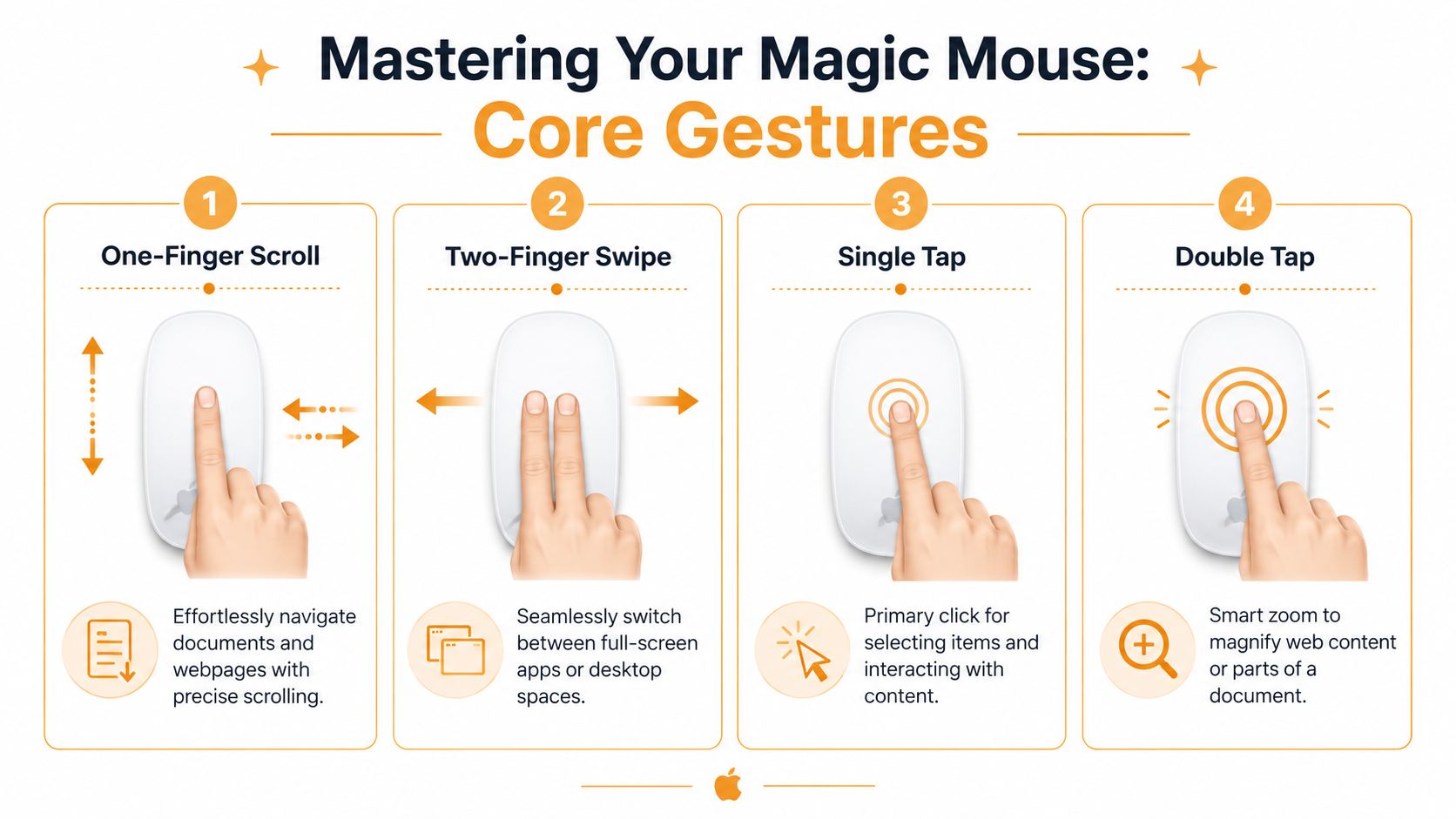
Apple documents a small set of built-in gestures for Magic Mouse use in macOS. The list isn’t huge, and that’s helpful. You’re not learning a giant command language. You’re learning a few motions that do high-value work.
| Gesture | What it does in practice | Why it helps |
|---|---|---|
| Single-finger scroll | Moves up and down through pages, documents, and lists | Keeps reading and scanning fluid |
| One-finger swipe between pages | Goes back or forward in compatible views | Speeds up browsing and document review |
| Two-finger swipe between full-screen apps | Moves across desktops or full-screen apps | Reduces context-switch friction |
| Two-finger double-tap for Mission Control | Opens Mission Control | Gives a fast overview of your active workspace |
| Right-side click | Triggers secondary click | Keeps context menus easy to access |
What each one feels like
Scroll is the foundation. You slide one finger over the mouse surface, and content moves with you. This is the first gesture commonly discovered, and it’s the one that immediately makes the mouse feel different from a standard wheel mouse.
Page swipes are useful when you’re reviewing web pages, going back through search results, or moving through app views that support horizontal navigation. They work best when you use a deliberate motion instead of a hesitant nudge.
Mission Control is one of the biggest productivity upgrades. A two-finger double-tap gives you a quick spatial map of your open windows and spaces. For anyone juggling research, writing, design, and communication at once, that overview is often faster than hunting through overlapping windows.
The best gestures aren’t the flashy ones. They’re the ones you can repeat all day without thinking.
Why the mouse glides the way it does
The hardware design helps. Apple describes the current Magic Mouse as a multi-touch wireless, rechargeable pointing device with a low-profile body that measures 0.85 in high, 2.25 in wide, and 4.47 in deep, and says its optimized foot design is intended to reduce friction for smoother gliding in use, according to the Magic Mouse technical specifications.
That matters more than it sounds. Gesture input on a mouse depends on stable contact with the desk and predictable movement under your hand. If the mouse drags, catches, or stutters on the surface, swipes and scrolls feel less consistent.
How to Customize Your Gestures in macOS
Out of the box, the Magic Mouse is usable. Customized properly, it becomes reliable.
The difference matters because gesture control only helps when it behaves the way your hand expects. If the secondary click is off, scrolling feels wrong, or app switching triggers at the wrong times, you’ll stop using the gestures entirely.
Start in the right place
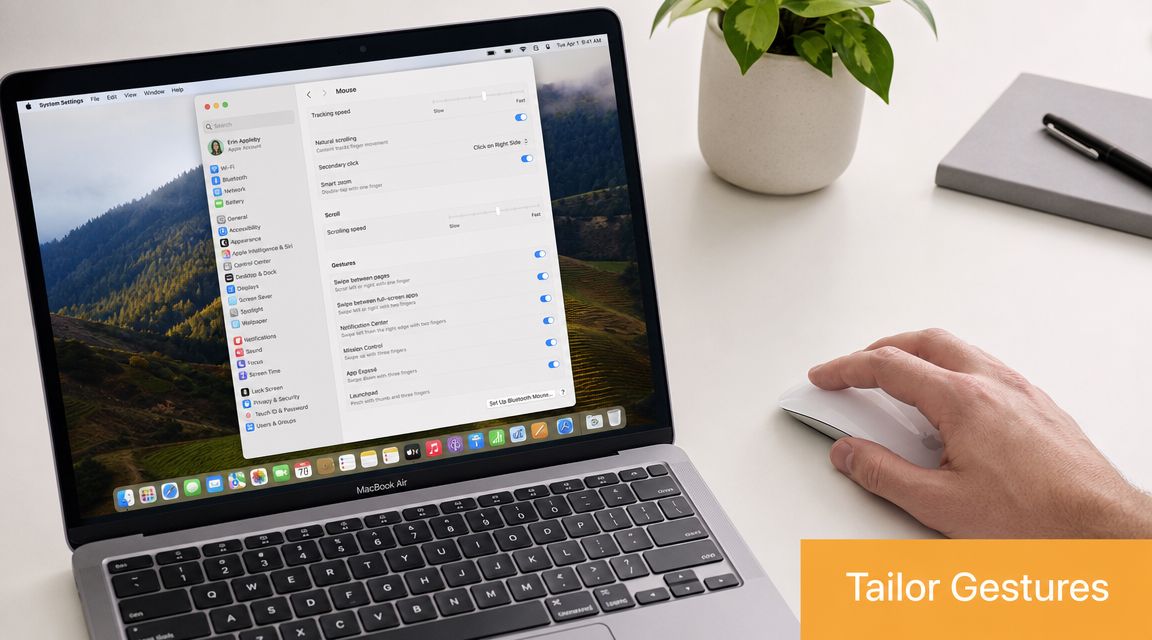
Open System Settings, then go to Mouse.
Apple documents that the Magic Mouse supports gestures such as right-side click and double-tap with two fingers for Mission Control, and those behaviors can be adjusted in System Settings > Mouse, as shown in Apple’s Magic Mouse gesture settings guide.
What to change first
Don’t change everything at once. Adjust the settings that affect daily usability first.
-
Set secondary click Turn on secondary click and make sure it matches how you naturally press the mouse. If right-side click doesn’t feel dependable, you’ll keep defaulting to keyboard workarounds and context menus become slower than they should be.
-
Tune tracking speed This controls how far the pointer moves when you move the mouse. If it’s too slow, your arm works too hard. If it’s too fast, precision suffers. Creative work usually benefits from a slightly calmer setting than general office work.
-
Adjust scrolling speed Many people either fix the mouse or give up on it at this point. Long documents, web pages, and Finder lists all feel different depending on this slider. Set it for control, not raw speed.
-
Review swipe options If you use multiple desktops or full-screen apps, leave swipe switching on. If you trigger it by accident, it may be better to disable it than to fight it all day.
A good setup philosophy
Use this simple rule set:
- Keep gestures that reduce clicks: Mission Control and desktop switching are usually worth learning.
- Remove gestures that misfire: A feature you trigger by accident is a tax on concentration.
- Tune for your main job: Designers, writers, developers, and finance users don’t all need the same pointer speed.
A shortcut system helps too, especially if you’re pairing mouse gestures with keyboard actions inside a larger workflow. This overview of macOS shortcuts and automation ideas is useful when you want gestures and shortcuts to complement each other instead of overlap.
A quick visual walkthrough can help if you want to see the settings in context.
Boost Productivity with Gesture Workflows
Knowing the gestures is nice. Building workflows around them is where the payoff shows up.
The pattern is simple. Put related tasks in predictable places, then use the Magic Mouse to move between them with minimal mental reset. When that movement becomes automatic, your brain spends less effort on navigation and more on the actual work.
Research and writing without the tab maze
A strong setup for writing work uses separate spaces for separate modes. One space holds Safari with source material. Another holds your writing app. A third holds notes, references, or a project outline.
With that layout, a two-finger swipe becomes a context switch that still feels organized. You’re not hunting for windows. You’re moving through a fixed workspace.
That approach works especially well when the project produces lots of files. If your day involves contracts, drafts, scans, and approvals, this guide to efficient document management is worth reading because it reinforces the same principle: order reduces friction.
Keep each space single-purpose. The gesture stays the same, but your brain learns what lives in each direction.
Project management with less window clutter
Client work often breaks concentration because communication, task tracking, and execution live in separate apps. You may be in Asana or Trello one moment, Slack the next, then back into a browser, spreadsheet, or creative tool.
A gesture Magic Mouse helps when you assign each type of work a home:
- Planning space: task manager, calendar, notes
- Execution space: design app, code editor, spreadsheet, or writing tool
- Communication space: Mail, Slack, or meetings
That arrangement makes Mission Control more useful too. Instead of opening it into chaos, you open it into a workspace with structure.
Design and review work
Designers and editors often dismiss the Magic Mouse because a trackpad or tablet may feel richer for gestures. That’s fair in some cases. The Magic Mouse won’t replace every precision tool.
But it does help in review-heavy work. Scrolling through mood boards, swiping through spaces, opening Mission Control to compare windows, and using secondary click for fast asset actions all reduce the amount of interface wrestling around the actual creative task.
Here’s what tends to work and what doesn’t:
| Works well | Usually doesn’t |
|---|---|
| Navigation between desktops | Fine-grained gesture-heavy editing |
| Document and webpage review | Long sessions if the mouse shape bothers your hand |
| Quick switching between app contexts | Workflows that need lots of extra buttons |
Why this improves focus
The productivity gain isn’t just speed. It’s continuity.
When you move between tasks with gestures, you keep your hand in one place and your attention on the screen. That lowers the number of tiny breaks caused by reaching, searching, and correcting. For freelancers, consultants, students, and anyone balancing several live tasks, that continuity is often the difference between deep work and constant drift.
Troubleshooting Common Gesture Issues
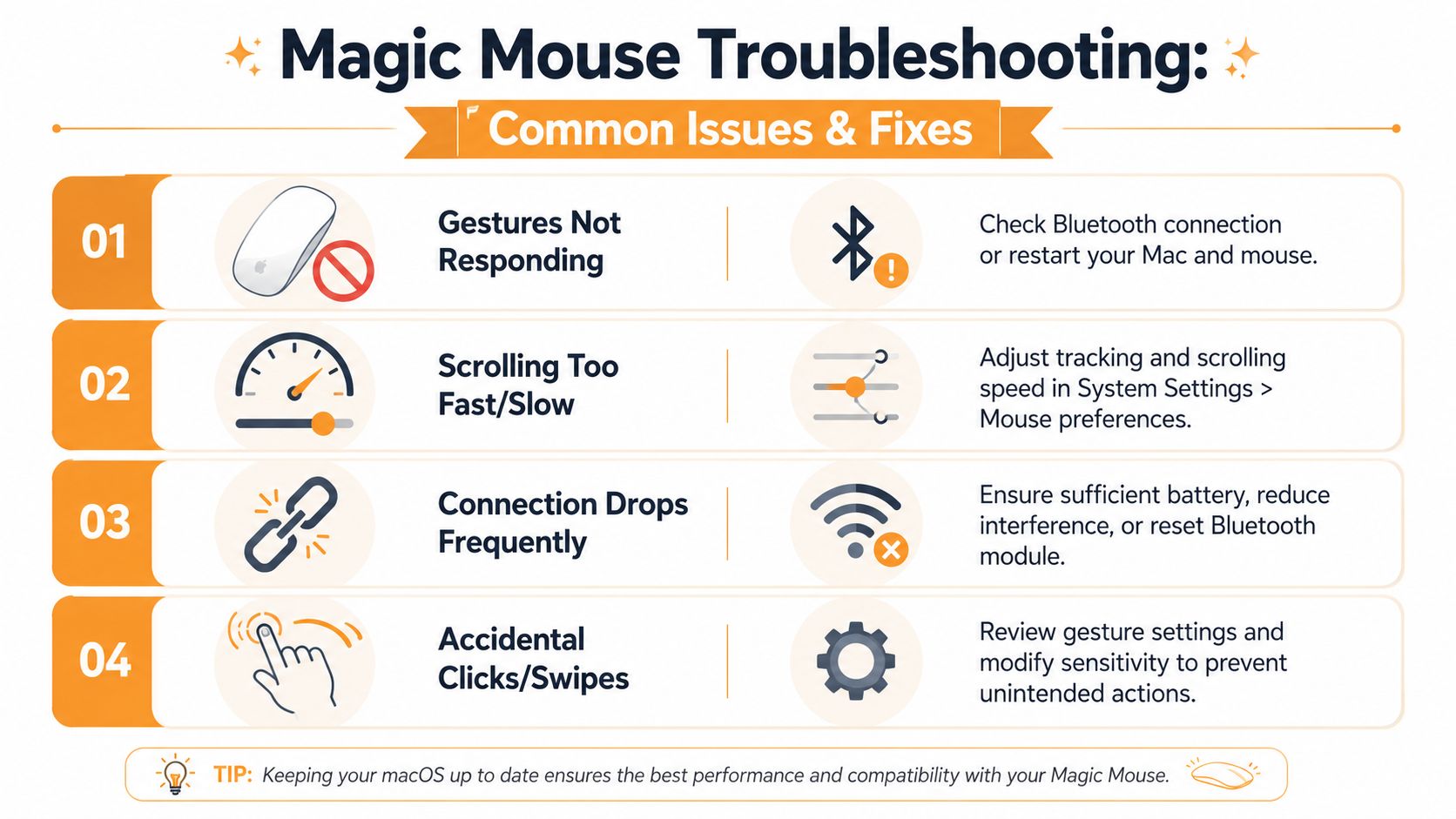
Magic Mouse problems are usually less mysterious than they feel. Most of them come down to one of four things: settings, surface contact, Bluetooth behavior, or finger placement.
If gestures seem unreliable, diagnose by symptom. Don’t change five variables at once.
Gestures aren’t responding
Start with the obvious checks first. Confirm the mouse is connected and charged, then verify the gestures are still enabled in Mouse settings. It’s common to assume hardware failure when a setting was toggled off or reset.
If the connection looks fine but the mouse still ignores gestures, restart the mouse and your Mac. Bluetooth oddities can make gesture behavior inconsistent even when basic pointer movement still works.
Try this checklist:
- Check connection status: Make sure the mouse is actively connected in Bluetooth settings.
- Clean the touch surface: Oils or debris can affect how consistently finger movements register.
- Recheck gesture toggles: Swipe and Mission Control options may be disabled.
- Restart both devices: This clears a surprising amount of temporary weirdness.
Scrolling feels jumpy or too sensitive
This is one of the most common complaints. In many cases, the problem isn’t the gesture itself. It’s the combination of desk surface, finger pressure, and scroll speed.
A slick desk can make movement feel too loose. A rough mat can make the mouse drag. The result is unstable gesture input. If scrolling feels jerky, test the mouse on a different surface before you blame the device.
Small physical factors matter. The Magic Mouse depends on smooth glide more than most people expect.
You should also reduce scrolling speed and test again. Users often set it too high, then mistake overshoot for poor gesture recognition.
Secondary click doesn’t work reliably
This usually comes from technique or configuration. The Magic Mouse expects a clear press on the right side when secondary click is enabled. If one finger rests awkwardly across the top, the mouse may interpret the input differently than you intended.
A quick fix is to slow down and exaggerate the click position for a few minutes. If it starts working consistently, the issue is hand placement, not hardware.
Accidental swipes and unwanted app switching
Some people love full-screen app swiping. Others trigger it by mistake and hate it by lunch.
If that’s you, disable the swipe gesture for a while and keep only scrolling plus secondary click. Then add one advanced gesture back later. A partial setup that works every time is better than a full setup you don’t trust.
The Future of Your Mac Workflow
Once you treat the Magic Mouse as a navigation tool instead of a basic pointer, your Mac starts feeling tighter and more deliberate. Less reaching. Less hunting. Less friction between tasks.
That’s why the best gesture Magic Mouse setup isn’t the one with every option enabled. It’s the one that supports your actual work. Writers may lean on scrolling, Mission Control, and desktop switching. Designers may use it mostly for review and navigation. Project managers may care most about fast movement between communication and execution spaces.
Apple’s longer-term direction makes this even more interesting. Apple has filed research on a future Magic Mouse that could detect gestures in the air near the device using sensors and cameras, which points toward a broader move from touch-only input to proximity and 3D gesture recognition, as described in this report on Apple’s gesture research.
That doesn’t change what you should do today. It clarifies it. Build the habit of gesture-based navigation now, and you’re already training the part that matters most: using movement as interface, not just buttons as commands.
If you’re interested in where Mac workflows are heading more broadly, this look at AI tools for Mac productivity fits well with the same idea. The future isn’t more complexity. It’s better interaction.
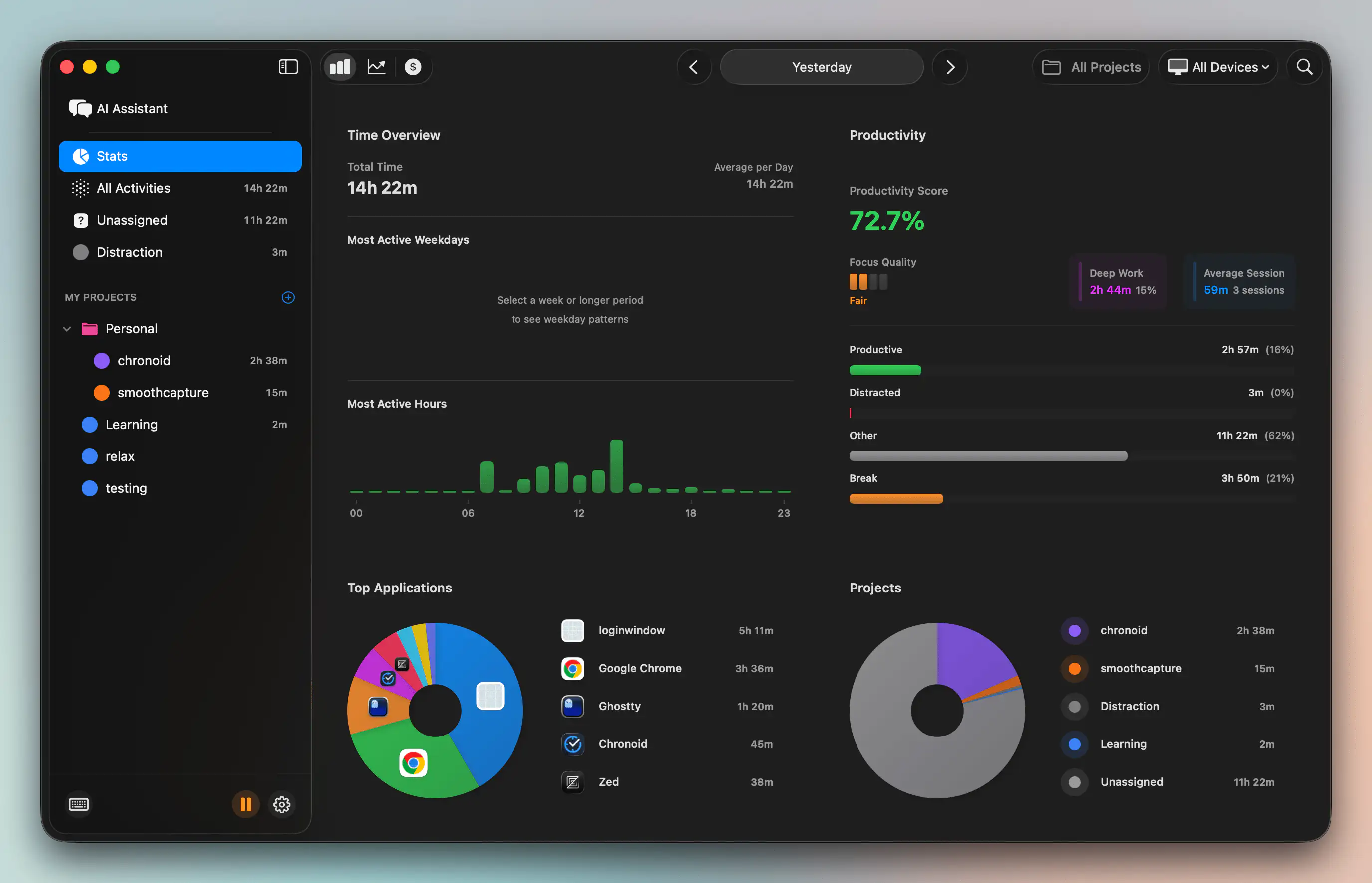
If you want better visibility into how your Mac habits affect focus, Chronoid is worth a look. It automatically tracks apps, websites, and documents on macOS, helps surface where your time goes, and adds built-in focus tools like scheduled sessions, website blocking, and a Pomodoro timer. That makes it useful for freelancers, students, creatives, and anyone trying to turn smoother navigation into more consistent work.