
AI is everywhere on the Mac right now, but many users still use it in the least useful way possible. They open a chatbot in a browser tab, ask a few questions, paste in a block of text, and then go back to doing their primary work in Mail, Notes, Finder, Xcode, Slack, Pages, or Figma.
That gap is the core story of ai for mac. The interesting part isn’t that a model can generate a paragraph or rewrite an email. It’s that AI has moved from a novelty in a tab to something that can sit inside everyday desktop work. The hard part is figuring out what belongs on your Mac, what belongs in the cloud, and what should never leave your device at all.
If you’re a Mac user who feels surrounded by AI marketing but still isn’t sure what helps, that’s a normal reaction. The practical questions are much simpler than the hype suggests. Which tools save time? Which ones create more friction? Which ones respect sensitive work? Which ones make your Mac feel faster and smarter, instead of heavier and more distracting?
Beyond the Hype What Is AI on Mac in 2026
You are editing a client brief in Pages, triaging email, pulling notes from PDFs, and trying to remember where a meeting decision lives. The useful version of AI on a Mac is the one that helps inside that work, without turning every task into a prompt-writing exercise.
That is the shift in 2026. AI on Mac now means native tools, system features, and app-level assistants that sit closer to Finder, Notes, Mail, coding editors, and document workflows. Some run locally. Some send your request to a remote model. The practical question is no longer whether AI exists on the Mac. It is whether it saves time without creating privacy risk, lag, or extra friction.
Mac users tend to spot the difference quickly. A flashy demo can look impressive for five minutes and still be useless on Tuesday afternoon. A modest feature that summarizes a long thread, cleans up dictation, tags files correctly, or helps rewrite a rough paragraph in the app you already use often matters more.
What changed
Three shifts pushed Mac AI from novelty to everyday utility:
- AI moved into desktop apps: Dedicated Mac clients and app integrations are now common, so AI is closer to the actual work.
- Privacy became part of the buying decision: For sensitive notes, client material, and internal documents, where processing happens matters as much as output quality.
- Useful beats impressive: The tools that stick are the ones that shorten repetitive tasks, not the ones that generate the fanciest demo.
I see the same pattern across writing, research, and admin work. People keep AI tools that reduce app switching, help them find information faster, or automate a narrow task they repeat every day. They drop the tools that feel like a separate destination.
AI on a Mac earns its place when it fits the workflow, respects the data, and does not make the machine feel heavier.
Apple’s direction matters here, but not because the marketing says “intelligence.” What matters is the practical model Apple is pushing: more local processing, tighter OS integration, and more explicit privacy boundaries. That does not mean every AI task belongs on-device, and it does not mean cloud tools are a bad fit. It means Mac users now have to make a real choice about convenience versus control. For a closer look at how that connects to Apple’s broader approach, see Chronoid’s analysis of MCP and Apple Intelligence.
What ai for mac really means now
In practice, ai for mac in 2026 comes down to three categories:
| Focus | What it looks like on a Mac | Why it matters |
|---|---|---|
| Embedded assistance | Writing help, summaries, search, categorization inside the apps you already use | Less context switching |
| Local intelligence | On-device processing for private or latency-sensitive tasks | Better control over sensitive data and often faster response |
| Task-specific workflows | Transcription, time tracking analysis, research support, inbox cleanup | More practical than generic chat for daily work |
The hype still centers on AI as a creative magic trick. The reality on macOS is more grounded, and more useful. Good Mac AI helps with the boring, expensive parts of knowledge work: finding things, condensing information, drafting faster, and handling repetitive cleanup without sending every document off your machine.
On-Device vs Cloud AI The Two Worlds of Mac AI
You sit down on a flight with a stack of meeting notes, a half-finished draft, and no reliable Wi-Fi. That is where the Mac AI decision gets real. Some tools keep working because the model runs on your machine. Others turn into a login screen with a spinner.
That split matters more than feature lists.
What on-device AI does well
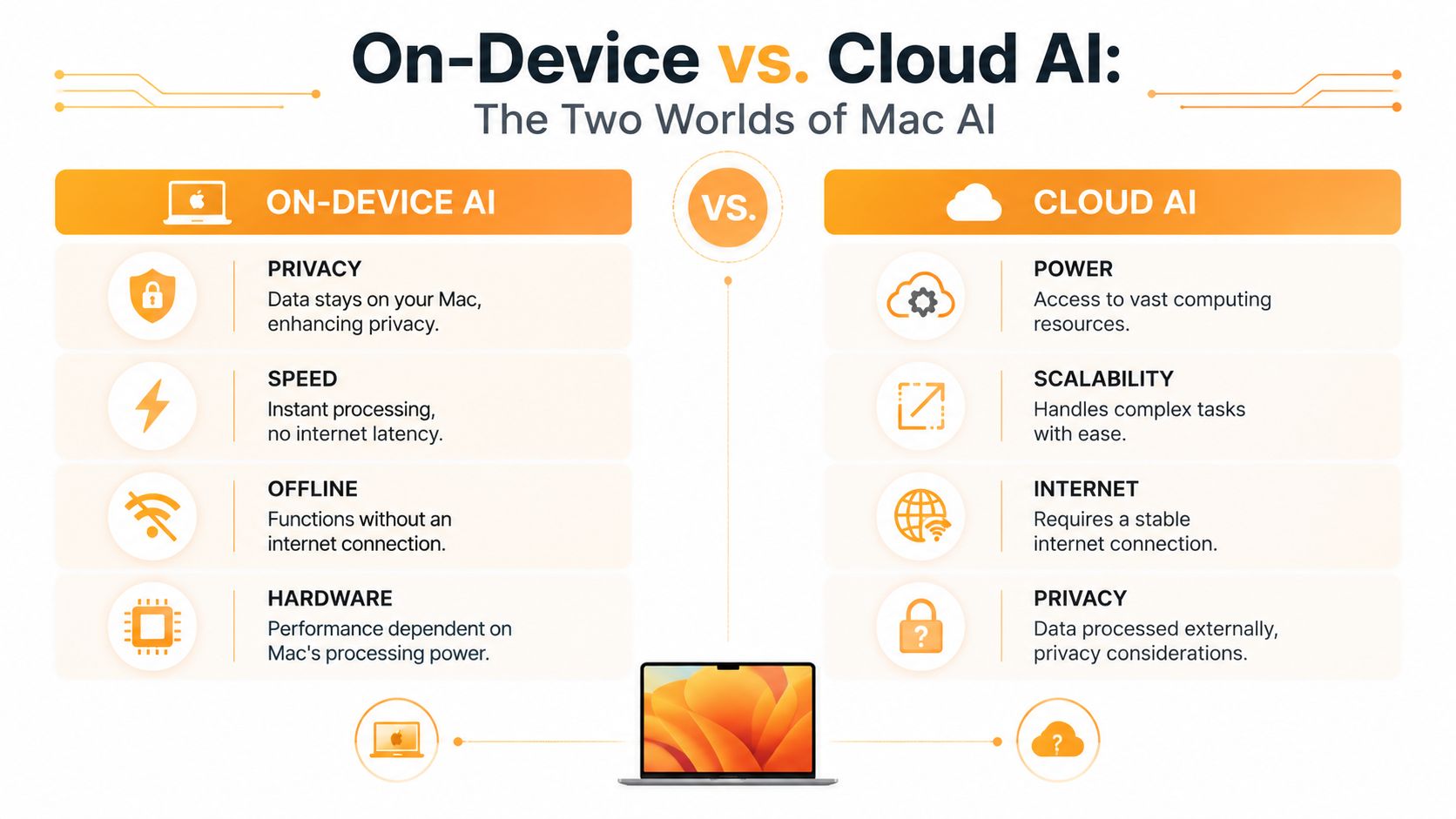
On-device AI runs locally on the Mac. Your files, prompts, and outputs can stay on the machine, which is often the deciding factor for client work, internal planning, legal drafts, and personal notes. Privacy is the obvious advantage, but it is not the only one. Local tools also avoid round trips to a remote server, so short tasks like summarizing a note, cleaning up text, or classifying content can feel faster and less interruptive.
This model also fits how many Mac users work. Laptops move between offices, home desks, trains, and conference rooms. If a tool fails the moment the connection drops, it is not a serious productivity tool. It is a web dependency with a nice interface.
Typical strengths of on-device AI on Mac include:
- Private handling of sensitive material: Better for confidential drafts, journals, research notes, and internal documents.
- Offline use: Useful on flights, in poor hotel Wi-Fi, or anywhere tethering is unreliable.
- Lower latency for small tasks: Short prompts and repeated actions often feel quicker locally.
- Tighter OS integration: Local tools can fit naturally into Spotlight, Shortcuts, Finder actions, and app-level workflows.
The trade-off is simple. Local models are limited by your Mac’s memory, thermals, and available compute. A MacBook Air can handle plenty of focused AI work, but it is not the right tool for every giant prompt, coding session, or long context analysis job.
What cloud AI still does better
Cloud AI still wins on raw model size and flexibility. If the task needs broad web research, long context windows, heavy reasoning, or strong code generation, remote models usually produce better results. That is why many Mac users keep at least one cloud assistant in the mix, even if they prefer local tools for private work.
The downside is not abstract. Your data leaves the Mac. Response time depends on your connection and the vendor’s service quality. Cost can also creep up once a tool shifts from a free trial to usage caps and monthly limits.
A practical rule works well here: keep sensitive, narrow, or repetitive tasks local first. Use cloud AI for bigger jobs where model quality matters more than privacy risk or offline access.
Why Mac users feel this trade-off so clearly
On Windows, browser-first AI often feels normal. On macOS, the bar is higher. Mac users expect native apps, system-level shortcuts, low friction, and clear permission boundaries. An AI app that ignores those expectations feels bolted on.
That is why the best Mac setups are usually hybrid. A local model handles private notes, text cleanup, or quick classification. A cloud model handles research synthesis or larger drafting jobs. Then the useful part is not the model itself, but how well it fits into the rest of your Mac workflow, alongside calendar tools, capture apps, and other productivity apps for Mac.
Audio is a good example. If you record meetings or ideas on a Mac or iPhone, the first question is not “which model is smartest?” It is “can I turn this into searchable text quickly, and where does that audio go?” For that workflow, AI tools for voice memo transcription are often more useful than a general chatbot because they solve a specific input problem fast.
A quick decision filter
Use this before installing any AI tool on your Mac:
| If the task is… | Better local | Better cloud |
|---|---|---|
| Personal or confidential | Yes | Usually no |
| Fast, repetitive, and narrow | Usually | Sometimes |
| Large, open-ended, or research-heavy | Sometimes | Usually |
| Needed without internet | Yes | No |
| Sensitive but needs top-tier reasoning | Maybe, if quality is enough | Only if the privacy policy and risk make sense |
The practical setup for ai for mac is rarely all local or all cloud. It is a deliberate split. Keep the private and routine work on the machine. Send the bigger, lower-risk tasks outward only when the extra capability is worth it.
Real-World AI Workflows for Productivity
The best AI workflows on macOS don’t feel futuristic. They feel like fewer interruptions.
A freelance designer gets a long client brief in a PDF and needs the core requirements before opening Figma. A consultant finishes a day of calls and wants a written record before details fade. A developer wants help understanding a messy error, but doesn’t want every private project file sent to an external service. Those are normal Mac problems. AI is useful when it handles them cleanly.

The workflows that hold up
The first category is capture and cleanup. This includes transcription, note distillation, and converting rough inputs into something you can act on. If you record ideas in Apple’s Voice Memos, a practical next step is using AI tools for voice memo transcription so those recordings become searchable notes instead of an archive you’ll never revisit.
The second category is summarization with context. This works well for research notes, interview transcripts, meeting recaps, and long email threads. On a Mac, the strongest version of this workflow is often local first. If the material contains client details, internal planning, or sensitive drafts, keeping processing on-device is the safer default.
The third category is workflow awareness. Here, desktop AI gets more interesting than generic text generation. Instead of asking a model to invent something, you ask it to explain your own work patterns.
For example, a Mac user tracking daily work across apps, sites, and documents can use Chronoid’s AI Assistant to analyze that local activity data and ask questions such as which tasks caused the most distraction or when focus was strongest. That is a different class of AI use. It isn’t about producing more words. It’s about making your own behavior visible. If you’re comparing software in that category, this list of productivity apps for Mac gives useful context.
Most people don’t need more AI content. They need better signals about what they already did all day.
Three examples from a normal workday
- Consultant workflow: Record a voice note after a client call, transcribe it, clean it up into action items, then drop only the non-sensitive summary into a cloud model if you want help drafting a follow-up.
- Developer workflow: Use a native AI app for quick code explanation or debugging help, but keep proprietary architecture notes and internal docs out of broad cloud prompts unless your policy allows it.
- Student or knowledge worker workflow: Summarize reading notes locally, then use cloud AI for broad comparison, brainstorming, or explaining unfamiliar concepts.
Later in the day, AI can help review the work itself. A time-aware Mac workflow is often more useful than another text prompt.
What usually doesn’t work
A few Mac AI habits look clever but age badly:
- Pasting everything into one chatbot: It creates privacy risks and turns your workflow into a mess.
- Using AI before you know the task: If you don’t know what problem you’re solving, AI adds steps instead of removing them.
- Forcing one tool to do everything: Transcription, writing help, local categorization, and heavy research often belong in different apps.
The useful pattern is narrower. Pick one repetitive pain point. Put AI there. Keep it close to the work.
Exploring the Mac AI App Ecosystem
Open a Mac used for real work and the AI story gets less dramatic fast. One app rewrites an email in Mail. Another sits in the menu bar for quick research. A third summarizes meeting notes inside the project tool where the work already lives. Grouping all of that under “AI apps” hides the part that matters, which is where the tool runs, how much context it gets, and whether it helps without creating new privacy or performance problems.
On macOS, the ecosystem breaks into three practical buckets. Built-in system features, standalone native AI apps, and productivity apps with AI woven into the workflow. Each solves a different kind of problem.
Built-in system AI
The first bucket is Apple’s own AI inside macOS and first-party apps. You see it in places like Mail, Messages, Photos, Safari, Reminders, and Shortcuts, as noted earlier. For many Mac users, this ends up being the AI they use most because it sits inside habits they already have.
Built-in features are strongest at small, frequent jobs that benefit from speed more than depth:
- Mail and Messages: rewriting, summarizing, and quick text cleanup
- Safari: help with reading and pulling out the main point from a page
- Photos and Reminders: finding, organizing, and retrieving personal content
- Shortcuts: adding AI steps to automations you already run
The upside is convenience. The downside is range. System AI usually works best for lightweight assistance, not for custom research flows, long-form drafting, or specialized analysis.
Standalone native AI apps
The second bucket is dedicated Mac apps such as ChatGPT, Claude, Perplexity, and privacy-first utilities like Cotypist. These matter more on a Mac than many people expect. A good native app removes the browser-tab mess, gives you keyboard shortcuts, and can stay one keystroke away in the menu bar or as a global launcher.
That convenience changes usage patterns. People who would never open a chatbot website ten times a day will use a native app for quick comparisons, code explanation, draft cleanup, or question answering because the friction is lower.
The trade-off is hardware pressure and data exposure. Some native apps are basically polished front ends for cloud models. Others try to run more locally, but local work on a Mac is still constrained by memory, model size, and whatever else you already have open. On lower-memory Macs, AI slowdowns often show up as a whole-desktop problem. App switching gets sticky, background tasks lag, and the assistant feels worse than it did in the demo.
That is why “native” does not automatically mean “private” or “fast.” Check where the model runs, what gets sent out, and how the app behaves with your normal workload, not on an empty desktop.
Community discussion from experienced Mac users reflects that pattern, especially on machines with limited memory, in this Mac Power Users discussion about hardware requirements for Mac AI.
AI inside productivity tools
The third bucket usually delivers the most practical value. These are writing apps, note tools, task managers, meeting tools, and research apps that add AI to the job the software already does. The AI is not the headline feature. It is a layer that classifies notes, summarizes documents, answers questions about your files, or reduces repetitive admin.
This category works well because context is built in. A notes app with access to your notes can often give a better answer about your own work than a general chatbot with no structure and no history. The result is less copy-paste, fewer manual handoffs, and less temptation to dump sensitive material into a generic prompt box.
It is also the category where buyers need the most discipline. “AI inside the app” can mean anything from a genuinely useful summarizer to a thin cloud call wrapped around a flashy button. If the feature does not save time in the workflow you already have, it is decoration.
A simple way to compare the three groups:
| Category | Best for | Main weakness |
|---|---|---|
| System AI | Fast built-in help | Limited flexibility |
| Native AI apps | Broad research and generation | Can be resource-heavy |
| AI in productivity apps | Context-aware workflows | Usually narrower in scope |
How to think about the ecosystem
The useful way to evaluate Mac AI apps is by job, not by brand.
Use system AI for quick edits and routine assistance. Use a native AI app when you need open-ended help and are comfortable with its privacy model. Use AI built into a productivity app when the answer depends on your files, tasks, notes, or project context.
That framing cuts through a lot of app-store noise. A flashy demo can hide weak Mac integration, constant cloud dependence, or memory issues that only show up after a full week of use. On a Mac, the best AI tool is usually the one that integrates smoothly into the desktop you already use and keeps sensitive work as close to the device as possible.
How to Choose and Set Up AI Tools on Your Mac
The best ai for mac setup isn’t the one with the most features. It’s the one that fits your hardware, your privacy needs, and the way you already work.
If you’re evaluating a tool, start with the machine itself. For modern macOS AI features, the practical baseline is increasingly tied to Apple Silicon and system memory. OpenAI’s ChatGPT macOS app requires macOS 14 and Apple Silicon (M1 or better), and that lines up with the broader reality that current Mac AI stacks are built around unified-memory Apple Silicon systems for local, lower-latency work, as described in OpenAI’s ChatGPT macOS requirements.
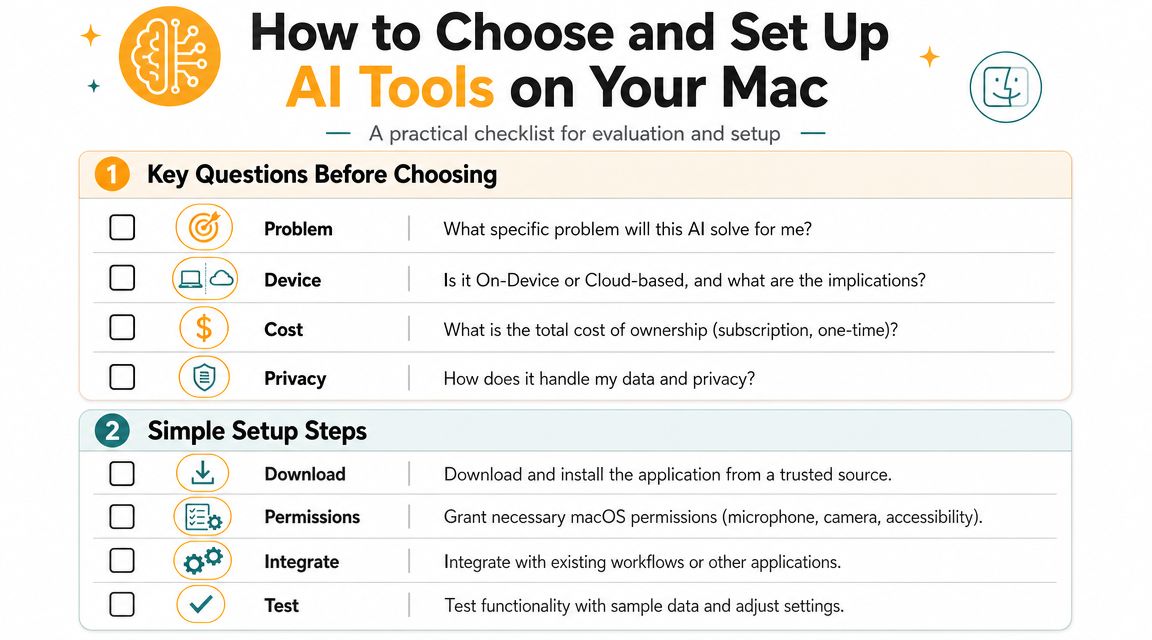
Four questions worth asking before you install anything
-
What problem does this solve on my Mac?
”It has AI” isn’t enough. Good answers are concrete: transcribing notes, summarizing research, speeding up email cleanup, or analyzing work patterns. -
Does it run locally, in the cloud, or both?
This decides your privacy trade-off before anything else. If you handle client work, finances, internal docs, or health information, this isn’t a minor detail. -
Can my Mac run it comfortably?
A tool that technically installs but slows your desktop isn’t a good fit. On-device features are much more pleasant on recent Apple Silicon Macs with enough memory headroom. -
Does it fit where I already work?
Native shortcuts, menu bar access, Finder integration, or support for system permissions can matter more than a long feature list.
Setup mistakes that waste time
A lot of frustration comes from setup, not capability. Mac users often install an AI tool, skip permissions, ignore the app’s local versus cloud settings, and then judge it before it can work properly.
Common misses include:
- Skipping permission review: Many useful tools need microphone, accessibility, or file access.
- Testing with unrealistic data: Start with a real note, real transcript, or real project file.
- Ignoring default behavior: Some apps default to cloud processing when you assumed local.
Start with one workflow, not five. If the tool saves time in one repeatable task, you’ll know whether it’s worth keeping.
A practical setup order
| Step | What to do |
|---|---|
| First | Install from a trusted source |
| Next | Check privacy and processing settings |
| Then | Grant only the permissions needed |
| Finally | Test with sample work from your actual routine |
Mac AI tools are easiest to judge after a week of normal use. If a tool doesn’t reduce friction by then, it probably isn’t a fit.
A Practical Guide to AI Privacy on macOS
You paste a client brief into a chatbot, get a decent summary back, and then realize you just sent confidential material to a service you never vetted. That is the privacy problem on a Mac in 2026. It usually looks convenient right up until the moment you remember where the data went.
The practical rule is simple. Decide based on the sensitivity of the material and the processing path the tool uses. For Mac users, that matters more than marketing claims about intelligence, creativity, or productivity.

Apple has pushed AI deeper into everyday macOS apps, and the headline feature set gets a lot of attention. The more useful question is narrower. Which jobs should stay on your Mac, and which are safe enough to send to a cloud model?
A good filter starts with the contents, not the app.
Keep these tasks local when possible:
- Client files and contract drafts
- Personal notes, journals, and messages
- Financial records
- Project plans with unreleased ideas
- Activity history from your own device
Cloud AI is a safer fit for lower-risk work such as:
- General brainstorming
- Public research
- Tone cleanup on non-sensitive text
- Explanations and learning
- Rough drafts that do not include private context
That split holds up well in real use. I use local tools for anything I would hesitate to paste into a shared Slack channel or send to an outside contractor. Cloud models still have a place, especially for broad research and first-pass writing, but they should get the scrubbed version of your data, not the raw version.
Permissions matter too. A Mac app can process locally and still collect more access than it needs. Check file access, Accessibility, Screen Recording, Contacts, Calendars, and microphone permissions in System Settings. If a writing assistant wants full disk access for no clear reason, that is a red flag.
Privacy policies deserve the same practical read. Look for plain statements about whether prompts are stored, whether data is used for model training, how long logs are retained, and whether local processing is local or just marketed that way. If you want a broader look at the policy and workflow side of AI data security, that resource is a useful supplement. For a product example built around this principle on macOS, Chronoid’s privacy approach shows what local-first handling looks like in practice.
The safest setup is deliberate routing. Sensitive notes, work history, and personal context stay in local tools. Generic prompts and low-stakes generation can go to cloud services after you remove names, numbers, and identifying details.
Treat cloud AI like an external service provider. Useful, often fast, but not automatically entitled to everything on your desktop.
That is the practical privacy posture for ai for mac today. Use local processing for trust-sensitive work, use cloud models where the upside is clear, and check settings before you assume a tool shares your boundaries.
If you want AI on your Mac to do something concrete instead of just generate more text, take a look at Chronoid. It tracks apps, websites, and documents on macOS, keeps activity data local by default, and lets you ask practical questions about how you spent your time.