
Your Mac’s trackpad can do far more than replace a mouse. Users often employ it for pointing, clicking, and the occasional two-finger scroll, then leave a lot of speed on the table. If you spend your day bouncing between client files, design tools, docs, messages, and browser tabs, that friction adds up fast.
The useful part of trackpad gestures on Mac isn’t novelty. It’s fewer micro-interruptions. Every time you reach for a menu, drag a window the slow way, or open an app just to check one file, you break flow for a second. Do that all day and your time log gets messy, your focus gets fragmented, and simple work feels heavier than it should.
Apple has made gesture control a built-in, configurable part of macOS, with at least 12 documented Multi-Touch actions that you can view, animate, customize, or disable in settings, according to Apple’s Mac gesture support page. That matters because these aren’t hacks or third-party tricks. They’re core parts of how the system is designed to be used.
If you bill by the hour, manage several projects, or want cleaner focus sessions, the right gestures help more than another productivity app icon in the Dock. Below are the eight gestures that transform day-to-day work.
1. Three-Finger Tap for Quick Look
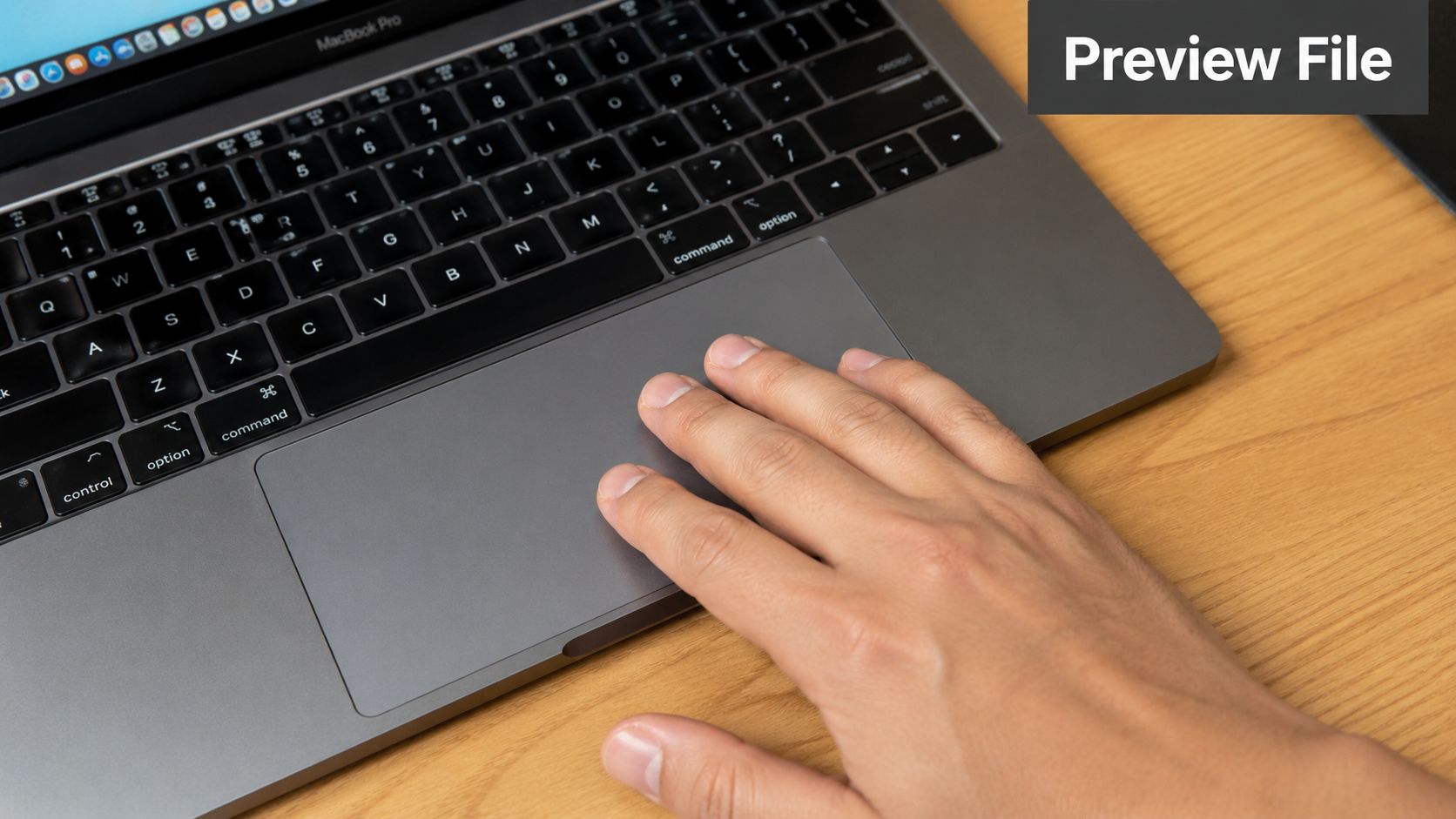
Quick Look is one of those Mac features that feels small until you use it constantly. A three-finger tap can help you inspect a file, word, address, or date without committing to opening the full app. That’s useful when you’re triaging assets, reviewing screenshots, or checking whether “final-v2-final” is really the right file.
For freelancers, this saves context. A designer can preview mockups in Finder before opening Photoshop or Figma. A consultant can inspect a report or exported PDF before jumping back into Keynote. A remote worker can verify an attachment before opening Mail, Preview, or another app that pulls attention sideways.
Why it helps billable work
The main win is reduced app churn. If you only need to confirm the contents of a file, launching a heavy app is overkill. Quick Look lets you make a yes-or-no decision faster, then keep moving.
That’s especially helpful if you use Chronoid to track app, website, and document activity on macOS. Previewing a file instead of launching a full workspace keeps your session cleaner. You get less noise from unnecessary app switching and a more accurate picture of how your time was used.
Practical rule: Preview first, open second. If a file needs less than a few seconds of inspection, Quick Look is usually enough.
A few real situations where this pays off:
- Client asset review: Check logos, screenshots, or PDFs before opening a full design stack.
- Research cleanup: Confirm which downloaded document you need without opening five tabs or files.
- Focus sessions: Stay in your current task while validating references in Finder.
If the three-finger gesture doesn’t work, check your Trackpad settings. Gesture behavior can vary by device and settings state, and some actions are configurable or can disappear after a settings change, a point echoed in this guide on Mac trackpad gesture drift and troubleshooting.
2. Four-Finger Swipe Up for Mission Control
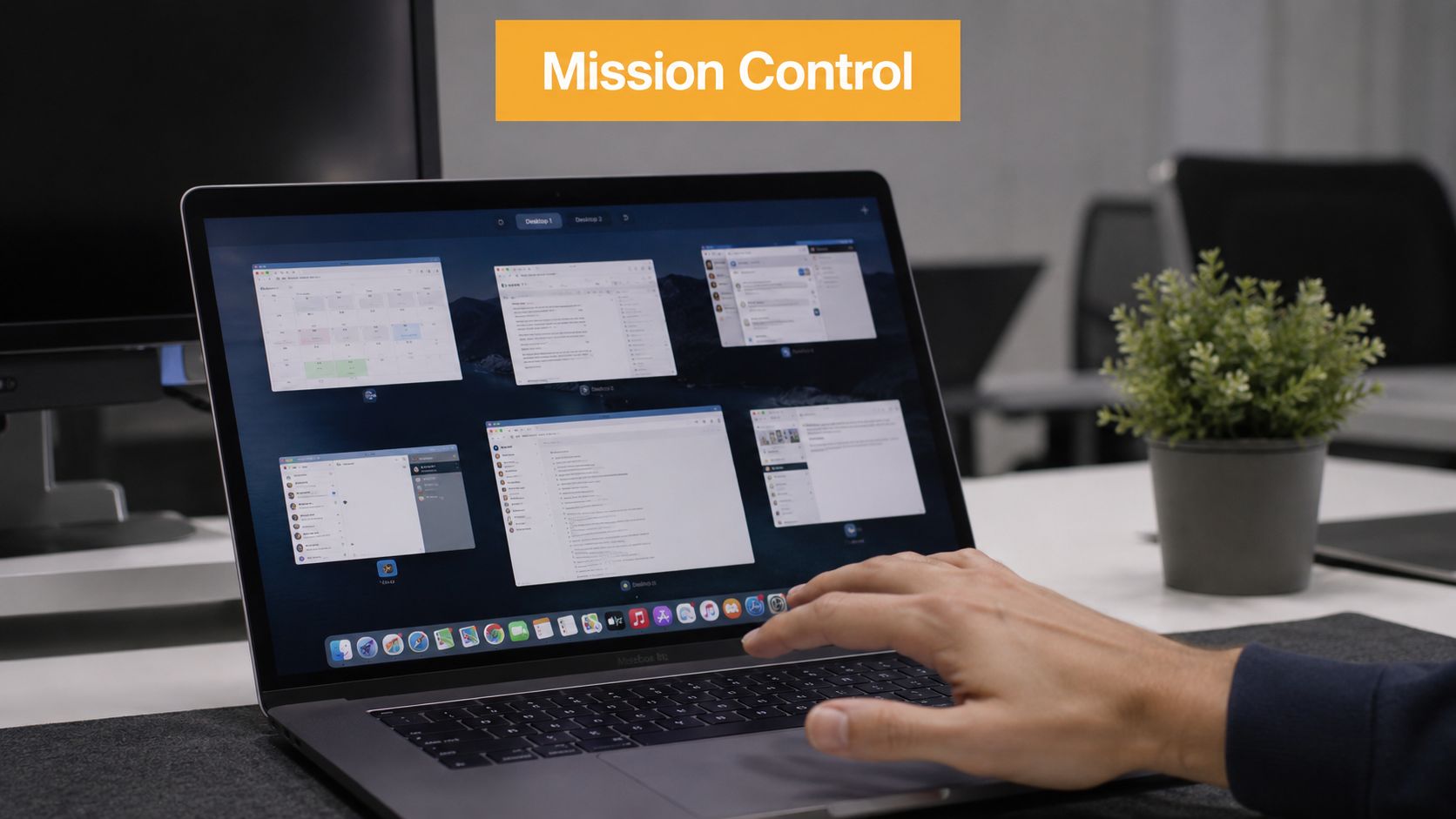
When your desktop starts looking like a pile of overlapping windows, Mission Control is the reset button. A four-finger swipe up gives you an immediate overhead view of everything you have open, including desktops and full-screen apps. It’s one of the fastest ways to answer a simple question: what am I working on right now?
That matters more than it sounds. A lot of lost time on Mac comes from invisible clutter. You think you’re focused on one task, but Slack is open behind Safari, a PDF is buried under Notes, and you’ve still got yesterday’s client desktop sitting off to the side.
Use it as a session audit
I’ve found Mission Control works best when used intentionally, not constantly. Open it at the start of a focus block, halfway through, and again before you stop. That gives you a visual check on whether your screen matches your priorities.
If you’re trying to work with fewer distractions, pair this with practical systems from these productivity methods for Mac users. The gesture gives you the overview. The method gives you the discipline to close what doesn’t belong.
Here’s where Mission Control earns its keep:
- Freelance development: See IDEs, repos, browser docs, and test windows in one glance.
- Client consulting: Review open spreadsheets, decks, and notes before ending a billable block.
- Creative work: Keep mood boards, assets, and editing tools visible without digging through layers of windows.
Use Mission Control before switching tasks, not after. It’s better at preventing drift than cleaning it up.
Apple’s larger trackpad surface also helped make gestures like this practical in everyday work. When Apple introduced the standalone Magic Trackpad on July 27, 2010, it said the first-generation device was 80% larger than the built-in MacBook trackpad of that period. That bigger surface is part of why four-finger navigation feels natural on a desk setup instead of cramped.
3. Two-Finger Swipe Left or Right for App Switching
This is the gesture that exposes your habits. On paper, a two-finger swipe between pages or views sounds harmless. In practice, it often mirrors how you bounce between work and near-work. Maybe you move from Figma to Gmail, then to a project brief, then to a browser tab that started as research and ended somewhere else.
Used well, this gesture is fast. Used badly, it becomes a fidget.
Make app switching intentional
The best approach is to create “approved pairs” of apps you switch between during a task. Writer and research doc. Code editor and documentation. Keynote and spreadsheet. Once you start swiping between unrelated tools, you’re usually not multitasking. You’re leaking attention.
Chronoid is useful here because it automatically tracks apps, websites, and documents, so you can review whether your switching pattern reflected real work or constant fragmentation. If you want a broader stack for that kind of analysis, this roundup of best productivity apps for Mac gives context around where automatic tracking fits.
A few examples:
- Consultants: Move between a source document and a deck draft without breaking rhythm.
- Video editors: Jump between editing software and reference assets while staying task-bound.
- Remote workers: Keep communication and production tools separate instead of interwoven all day.
- Students and ADHD-prone learners: Turn random app hopping into a visible pattern you can correct.
What doesn’t work
Don’t use swipe-based switching as a substitute for workspace design. If you need to jump across too many unrelated apps, the problem usually isn’t speed. It’s layout.
Also, don’t assume every left-right swipe should happen on instinct. The faster the gesture becomes, the easier it is to switch without deciding why. That’s when your time tracker fills with shallow activity across too many tools.
Fast switching is only productive when the destination was planned before your fingers moved.
4. Two-Finger Pinch for Zoom In or Out
Pinch to zoom is one of the most obvious Mac gestures, but a lot of people still treat it like a convenience instead of a workflow tool. For visual work, document review, spreadsheets, PDFs, maps, mockups, and even code reading, it cuts a steady stream of tiny interruptions.
The value isn’t dramatic. It’s cumulative. You stay inside the work instead of hunting for zoom controls, keyboard shortcuts, or menu commands.
Where pinch-to-zoom actually helps
Designers use it to inspect spacing, edges, and small UI details. Consultants use it to move between overview and detail in charts or financial models. Developers often use zoom adjustments when reading dense code on different display scales or when sharing screens during calls.
If you use Chronoid on Mac, this kind of interaction often lines up with focused review work rather than navigation noise. That can make your tracked sessions easier to interpret later, especially when you’re trying to distinguish deep revision from shallow window management.
A few practical habits improve it:
- Set default zoom sensibly: If an app always opens too small or too large, fix the default first.
- Use smooth pinch only where precision matters: In some apps, accidental zoom is more annoying than helpful.
- Combine it with Quick Look: You can inspect a file quickly without opening a whole workspace.
The trade-off
Pinch gestures are great for visual inspection, but they can become twitchy in apps with poor gesture handling. If you often trigger zoom by accident, reduce sensitivity or rely on app-specific shortcuts for that tool. Good gesture use should reduce friction, not introduce it.
The broader reason this matters is that gesture-capable peripherals aren’t niche anymore. The standalone trackpad market was valued at US$489.8 million in 2023 and is forecast to reach US$693.5 million in the U.S. by 2033, with projected global demand for Windows-oriented standalone trackpads growing at a 15.2% CAGR. For Mac users, that points to a wider shift toward gesture-based desk workflows, not just laptop habits.
5. Three-Finger Drag for Moving Windows
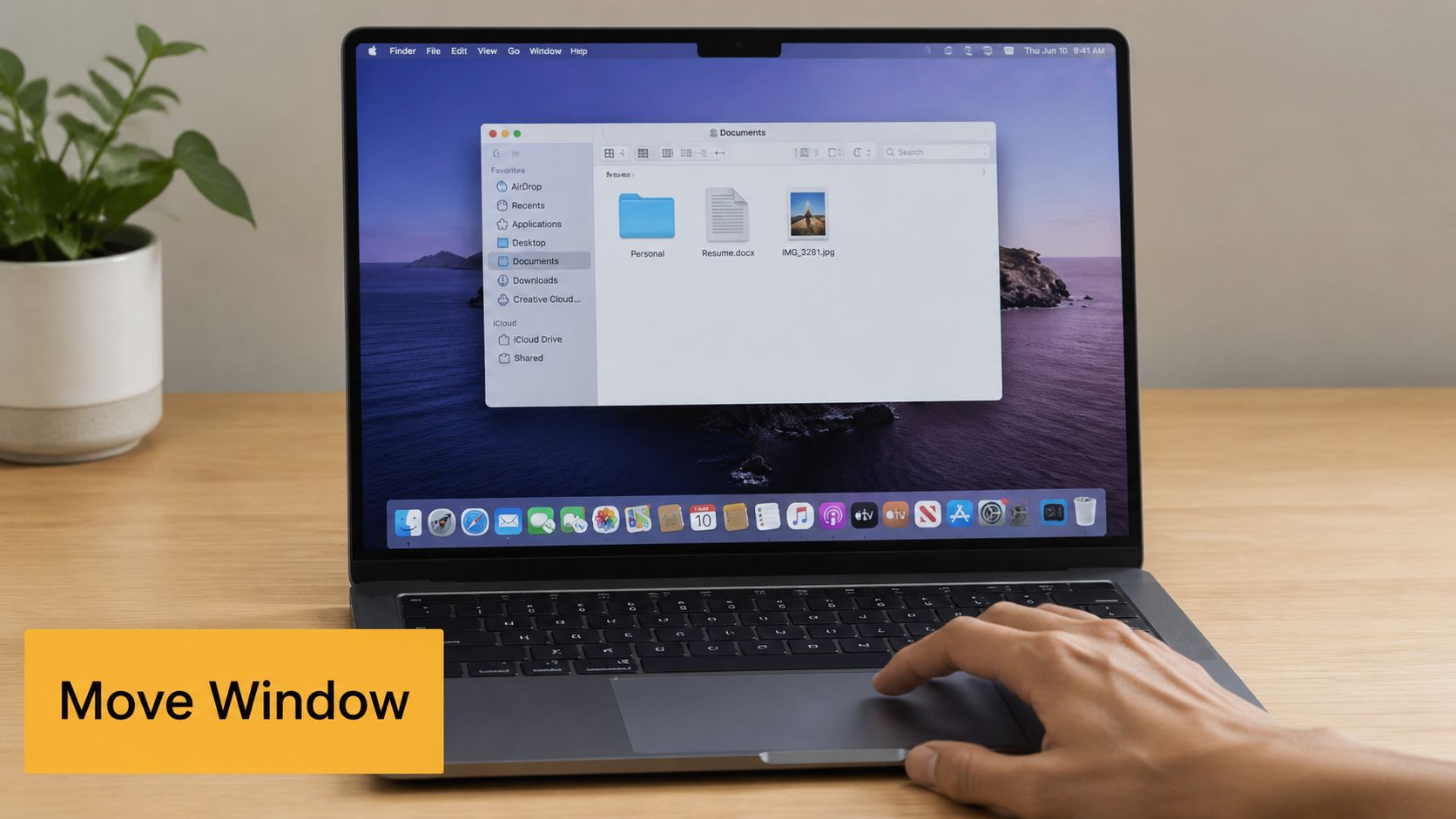
This is the gesture I recommend to almost every Mac power user who still drags windows the old way. Three-finger drag lets you move windows and items without grabbing precisely for the title bar. Once it becomes muscle memory, arranging a workspace feels much lighter.
It’s especially useful if you work with overlapping references, Split View, or multiple displays.
Best use case
Use three-finger drag before you start serious work, not only when things become chaotic. Set up the screen once, then let the arrangement support the task.
A designer might park references on one side and the active canvas on the other. A consultant might line up Notes, Safari, and a draft report. A student might place lecture notes beside an outline. The point is to reduce the need to hunt for information after the timer starts.
Apple notes that three-finger drag is configurable, and some gestures are device-specific or settings-dependent. If you don’t see it, check Trackpad or Accessibility settings on your Mac rather than assuming your hardware can’t do it.
A few practical reminders:
- Enable it first: It may not be on by default.
- Keep tap and drag distinct: Three-finger tap and three-finger drag can feel similar at first.
- Use it for setup: Workspace arrangement is best done before a billable block starts.
Later, if you want to see the gesture in action, this short demo helps make the motion obvious:
Three-finger drag won’t make you faster at the core task. It makes the workspace stop fighting you.
6. Two-Finger Scroll for Navigating Content
This is the most basic gesture on the list, and also the easiest one to underestimate. Two-finger scroll is how most Mac users move through the day: briefs, email, contracts, PDFs, docs, code, spreadsheets, research, comments, tickets. If scrolling feels rough, your whole workflow feels rough.
Apple’s documented Mac gesture set includes scrolling, smart zoom, page swipes, Mission Control, App Exposé, full-screen switching, and more, all available through built-in Multi-Touch support that can be customized in settings. In practice, two-finger scroll is the base layer that makes all the other gestures worth learning.
Tune it for your actual work
A writer reading long briefs needs different scroll behavior than someone reviewing design comps or skimming issue queues. If momentum scrolling causes overshooting, turn it down or off. If horizontal movement matters in spreadsheets or timelines, test that deliberately instead of leaving it to chance.
Good scrolling supports long focus blocks because it keeps navigation nearly invisible. That matters for anyone using automatic time tracking. The less you interrupt yourself with clumsy movement, the cleaner your work pattern looks afterward.
Examples where smooth scrolling matters most:
- Freelance writers: Reviewing comments and revisions without losing place.
- Consultants: Moving through reports and spreadsheets during analysis.
- Developers: Reading docs and repositories for extended periods.
- Remote teams: Working through long message threads during communication blocks.
What to avoid
Don’t leave the default settings untouched if they annoy you. A small mismatch in speed or momentum becomes a constant drag over a full workday.
Also, don’t confuse fast scrolling with effective reading. If you’re constantly flicking through content, that may be a focus issue, not a settings issue. Chronoid’s reports can help you spot which documents or sites absorb time productively and which ones pull you into endless browsing.
7. Four-Finger Swipe Left or Right for Full-Screen App Switching
Trackpad gestures on Mac become highly effective for project organization, rather than solely for navigation. A four-finger swipe left or right moves you between desktops and full-screen apps. If you assign one desktop to each client or work mode, the gesture becomes a clean boundary between contexts.
That’s different from ordinary app switching. App switching jumps between tools. Desktop switching jumps between environments.
Build a desktop map
The most effective setup is simple and consistent. One desktop for Client A, one for Client B, one for communication, one for admin, maybe one for personal tasks if you really need it. Keep the order stable so your fingers learn it.
For freelancers and consultants, this has an immediate billing benefit. When each desktop represents a billable context, it’s easier to stay within that scope and easier to review where your day went. You’re not just moving faster. You’re preserving cleaner separation between kinds of work.
A few solid patterns:
- Freelancers: One desktop per client project.
- Agencies: One desktop for active production, one for review, one for team communication.
- Remote workers: Separate deep work from chat and meetings.
- Developers: Keep client repositories apart from personal builds or experiments.
If every desktop contains everything, desktop switching won’t help. It only works when each space has a job.
Why this matters on modern Macs
Mac users tend to standardize quickly on current macOS behavior. One 2025 dataset cited macOS 15.5 rising from 3.6% in April to over 70% by June, while another said it crossed 70% adoption in less than two months and remained above 67% at the end of July. The same source estimates macOS at roughly 14.6% of desktop OS share globally, which makes gesture-based Mac workflows relevant at meaningful scale in practice, according to this roundup of Mac marketing statistics.
You don’t need those numbers to feel the benefit, though. If your workday includes several clients or modes of work, desktop swiping is one of the cleanest ways to avoid mixing them.
8. One-Finger Click and Drag for Selecting Text
Not every useful gesture is flashy. Click and drag with one finger is still core to productive Mac work because so much professional output is text: briefs, proposals, code, emails, outlines, captions, comments, tickets, transcripts, and documentation.
If your text selection is sloppy, editing gets slow. You over-select, miss words, lose your place, or keep reaching for the mouse. That’s a small annoyance with large cumulative cost.
Precision matters more than speed
Writers use this to edit paragraphs, move phrases, and clean drafts. Developers use it when copying snippets between docs and editors. Consultants use it to pull key lines from research into reports. Students use it to annotate reading and collect notes.
For Mac users who write all day, this is also where ergonomics matter. If click-and-drag feels awkward, adjust sensitivity rather than forcing bad movement. A slightly better trackpad feel can reduce a lot of low-grade friction.
A few useful habits:
- Use double-click and triple-click: Faster for selecting words or paragraphs than dragging every time.
- Pair with keyboard shortcuts: Cmd+A for full selection, Shift plus arrow keys for controlled edits.
- Scroll with intention: Combine selection and two-finger scroll carefully in long documents.
If your work includes repeated phrases, templates, or snippets, pair better selection habits with a text expansion workflow. This guide to text expander tools for Mac is a good next step because it reduces how often you need to select, copy, and paste the same material manually.
Where this helps time tracking
Selection work often looks invisible in a timesheet, but it’s a big part of real output. Cleaner editing means longer uninterrupted writing or coding stretches within the same app or document. That gives tools like Chronoid a more honest activity trail and gives you a clearer picture of what “writing time” contained.
8-Point Mac Trackpad Gesture Comparison
| Gesture | 🔄 Implementation Complexity & Setup | ⚡ Speed & Efficiency | ⭐ Key Advantages | 📊 Expected Outcomes & 💡 Ideal Use Cases / Tips |
|---|---|---|---|---|
| Three-Finger Tap for Quick Look | Low, built-in, no extra resources | Instant previews; avoids app launches | Minimizes context switching and accidental app logging | Cleaner time logs; use to validate files before opening heavy apps |
| Four-Finger Swipe Up for Mission Control | Low–Medium, built-in; learning to read thumbnails | Fast overview but can be visually dense | Visual workspace management and distraction detection | Reveals multitasking patterns; use during session review and pair with categorization |
| Two-Finger Swipe Left/Right for App Switching | Low, standard gesture, consistent contact required | Very fast for back-and-forth app swaps | Creates clear switching patterns for analytics | Granular app-switch data; use in timed focus sessions and limit to planned pairs |
| Two-Finger Pinch for Zoom In/Out | Low, app support varies | Moderate, quick zooming, less precise than knobs | Intuitive scaling; improves readability and detail work | Enables continuous focus during detailed tasks; set app zoom defaults to reduce gestures |
| Three-Finger Drag for Moving Windows | Medium, may require enabling and practice | Fast for coarse window repositioning | Rapid workspace reorganization; accessibility benefit | Reduces interruptions during setup; enable in prefs and use before billable sessions |
| Two-Finger Scroll for Navigating Content | Low, universal gesture, adjustable settings | Very efficient for continuous reading/navigation | Natural momentum scrolling and wide-app support | Supports extended review sessions; adjust momentum for precision |
| Four-Finger Swipe Left/Right for Full‑Screen App Switching | Medium, requires virtual desktop setup and discipline | Fast context switches between Spaces | Clear project/client separation and billing clarity | Better project-based tracking; organize desktops per client and monitor switching frequency |
| One-Finger Click and Drag for Selecting Text | Low, fundamental OS interaction | Moderate, depends on precision and sensitivity | Essential for editing and precise content manipulation | Maintains detailed activity context; adjust sensitivity and use double/triple-click shortcuts |
Integrate Gestures Into Your Daily Workflow
The advantage of mastering trackpad gestures on Mac isn’t that you’ll look faster. It’s that your workday gets quieter. Fewer clicks. Fewer unnecessary app launches. Fewer moments where you break concentration just to move around the system.
That matters most when your time has to stand up to review. Freelancers need cleaner billing narratives. Consultants need to show that a block of work was spent in the right tools and documents. Creatives need longer stretches inside Figma, Photoshop, Final Cut Pro, Logic Pro, or Preview without constant workspace friction. Developers need cleaner separation between code, docs, and communication.
Start small. Don’t try to learn every gesture in one afternoon. Pick three that directly reduce your biggest source of friction. For many, that’s Mission Control, full-screen desktop switching, and three-finger drag. Once those become automatic, add Quick Look and pinch-to-zoom. The goal is muscle memory, not memorization.
It’s also worth checking your settings instead of assuming a gesture is broken. Apple’s gesture system is configurable, and some gestures depend on device type or current settings state. That’s why two people can use the same Mac app and have slightly different gesture behavior. If something disappears after an update or starts behaving differently, settings should be your first stop.
If you’re switching from Windows, a few of these behaviors can feel unfamiliar at first. This guide to essential Mac tips for switchers is a useful companion because the biggest productivity gains usually come from learning how macOS wants to be used, not from forcing old habits onto it.
If you want to see whether these changes are improving your day, use time tracking that runs automatically in the background. Chronoid is one option for macOS. It tracks apps, websites, and documents, shows charts for work patterns, and includes focus tools like scheduled sessions, a website blocker, and a Pomodoro timer. That combination is useful because gestures reduce friction in the moment, while activity tracking shows whether the friction really went down over a full week.
The best gesture setup is the one you stop noticing. When your hands know where to go, your attention stays on the work.
If you want proof that better Mac navigation is saving time, try Chronoid. It automatically tracks your apps, websites, and documents on macOS, so you can see whether cleaner gesture habits are leading to longer focus blocks, fewer distractions, and more accurate client time.