
Your hands are probably tired for a reason. Maybe you’ve been answering client emails all morning, drafting notes after calls, or trying to get through a long document while your brain moves faster than your fingers. That’s usually when Mac users start looking for voice tools.
The problem is that most advice on mac voice dictation software is a mess. It throws live dictation, meeting transcription, AI note takers, and old-school speech recognition into one pile. That’s how people end up buying the wrong thing, testing it for ten minutes, and going back to typing.
After spending too many hours tuning shortcuts, testing microphones, and trying different workflows across macOS apps, I think the right way to approach this is simple. First decide whether you need live dictation or audio transcription. Then choose the least complicated tool that fits how you work.
The Evolution of Speaking to Your Mac
A decade ago, speaking to a Mac usually meant committing to a full speech-recognition setup. You installed dedicated software, spent time training it, adjusted your phrasing, and accepted that some apps worked better than others. It could be powerful, but it was rarely quick to start and rarely simple to maintain.
That older era mattered. Products from the Dragon and MacSpeech generation proved that serious voice input on the Mac was possible, especially for professionals who dictated for hours and were willing to tune their setup. Once native Mac desktop options faded, the center of gravity shifted. Voice on the Mac stopped being a specialist workflow and became a built-in feature first, with third-party tools filling specific gaps.
That change also split the category in a way many buyers still miss. One branch focused on live dictation inside text fields. The other focused on transcription of recorded audio. Modern Mac users benefit from both, but they are not interchangeable, and the split is the underlying reason behind how this market evolved.
You can see the same broader pattern in Apple’s push toward on-device and system-level intelligence. Tools built around that direction are getting more attention because they fit how Mac users already work, as covered in this look at Apple Intelligence and MCP on Mac.
From specialist software to everyday input
The old model asked you to adapt to the software.
The newer model is easier to live with. macOS gives users a built-in starting point for speaking into text fields, while newer apps handle the edge cases Apple still misses, such as better formatting control, industry vocabulary, or stronger results from recorded audio. That is a practical improvement, not just a technical one. Less setup means more people put voice to use instead of abandoning it after one frustrating afternoon.
In real use, the shift looks like this:
- Built-in dictation covers quick drafting in email, notes, documents, and browser text fields.
- Third-party dictation tools handle heavier writing workloads where accuracy, commands, or customization matter more.
- Transcription apps process recordings separately for meetings, interviews, lectures, and saved voice notes.
That last point is where a lot of articles get sloppy. They treat voice input as one category, then compare tools that solve completely different problems. Mac users waste time because of that confusion.
Why the change matters
Typing still wins when wording has to be exact on the first pass. Voice wins when speed matters more than polish. For drafting, brainstorming, and clearing a backlog of low-stakes writing, speaking is often faster and less tiring.
The improvement is not that every Mac dictation tool is suddenly perfect. It is that the choices are clearer if you separate live dictation from transcription and pick the tool that matches the job. That saves more time than chasing the most advanced app on paper.
Dictation Versus Transcription What Is the Difference
Most buying mistakes happen here.
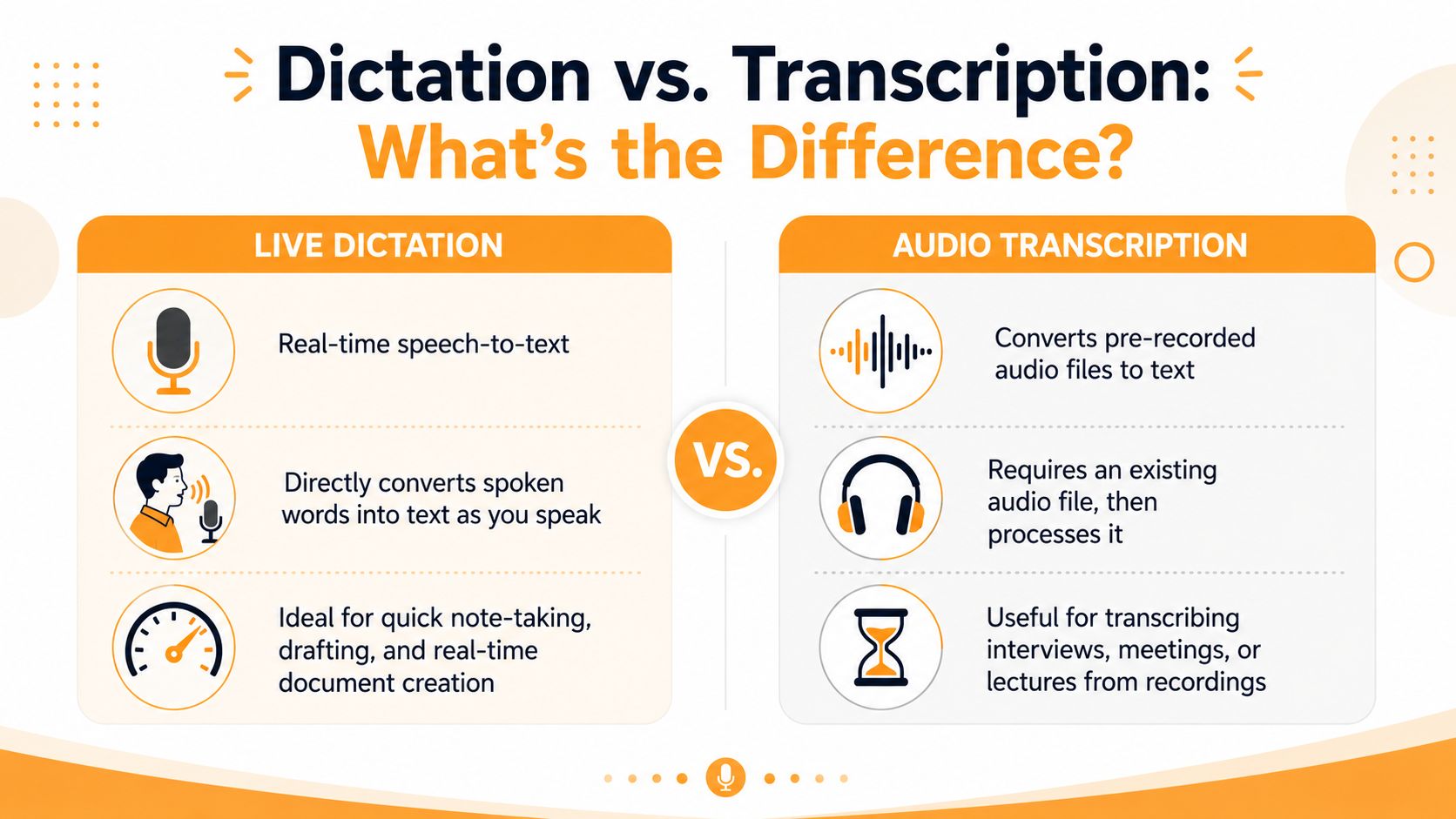
People search for mac voice dictation software, then compare Apple Dictation, MacWhisper, and various AI note apps as if they solve the same problem. They don’t. A forum discussion among Mac users calls this out directly, noting that MacWhisper is really for transcription, not dictation, while Apple Dictation is for live speech-to-text as you type, as discussed in this Mac Power Users thread.
Live dictation is for writing in the moment
Dictation is what you use when the cursor is already blinking and you want words to appear as you speak.
That includes things like:
- Replying to email: You talk directly into Mail, Gmail, or another text field.
- Drafting documents: You speak paragraphs into Notes, Word, Google Docs, or your CMS.
- Quick capture: You dump ideas into a scratchpad before they disappear.
The experience is immediate. You trigger the mic, speak, pause, edit, and keep moving.
Transcription is for recordings that already exist
Transcription starts with audio. A meeting recording, an interview, a lecture, a voice memo. The software processes that file after the fact and turns it into text.
That workflow usually includes extra features dictation tools don’t prioritize:
- Speaker separation
- Summaries
- Searchable transcripts
- Audio file import
- Post-processing and cleanup
If your real problem is “I have an hour-long client call and need notes,” you want transcription. If your problem is “I need to draft this proposal without typing every sentence,” you want dictation.
Practical rule: If you’re speaking directly into a text field, that’s dictation. If you’re feeding in a recording, that’s transcription.
Why the distinction saves time
A lot of frustration comes from expecting one tool to behave like the other.
Transcription apps often feel awkward for drafting because they’re designed around recordings, not insertion at the cursor. Dictation apps feel limited for meetings because they’re designed around live input, not speaker-aware post-processing.
Once you separate those jobs, choosing gets easier. You stop asking “What’s the best speech-to-text app?” and start asking “Do I need a live writing tool or a recording processor?” That’s the question most guides skip, and it’s the one that matters most.
Using Apple’s Built-in macOS Dictation
You open Mail to answer a routine message, tap the dictation shortcut, speak two sentences, and send it before your hands ever settle on the keyboard. That is the best case for Apple Dictation. Fast, built in, and available anywhere you can type.
Apple’s tool is the baseline for live dictation on a Mac. It is for getting words into the current text field while you work, not for turning a saved recording into a transcript. That distinction matters here. If your job is drafting emails, notes, outlines, and first-pass copy by voice, macOS Dictation is the right place to start. Apple explains setup and availability in its Dictation guide for Mac.
What it does well is simple. It is already on the machine, it works across apps, and it removes the friction of installing another tool just to test whether voice input helps you. On Apple Silicon Macs, dictation processing also stays on device, which is a real advantage if you regularly speak sensitive material.
That convenience has limits. Apple Dictation is strongest in short to medium bursts of general writing. It handles everyday business language well enough if you speak clearly and clean up as you go. It is less impressive when you throw dense terminology, unusual names, or long stretches of uninterrupted speech at it.
What to set up first
A bad first test ruins this feature for a lot of Mac users. The fix is usually not a different app. It is better setup.
Start with these basics:
- Turn on Dictation in Keyboard settings so it is always available.
- Set a shortcut you can hit without thinking. If the trigger feels awkward, you will stop using it.
- Choose the right microphone input. A decent headset usually beats the built-in mic in a busy room.
- Test inside your real apps such as Mail, Notes, Google Docs, or your CMS.
- Practice a few punctuation commands so you spend less time fixing commas and periods by hand.
If you want a quick setup walkthrough before you fine-tune anything, this guide will help you learn Mac voice typing.
Where Apple Dictation is actually useful
For casual and moderate live dictation, it is good enough. I would use it for:
- Email replies
- Notes and to-do capture
- Rough drafting
- Messages and short documents
- Private day-to-day writing on a newer Mac
That last point is easy to underrate. For many users, the best dictation tool is the one that is ready instantly and does not push them into a new workspace.
Where it starts to cost time
The trade-off is correction load. If you spend too much time fixing recognition errors, dictation stops saving time.
That usually happens in three cases. You use specialized vocabulary. You need repeatable voice commands beyond simple text entry. Or you dictate for long stretches and need the tool to stay accurate without constant babysitting.
Apple’s built-in option works best as a drafting tool. Speak, insert text, make quick edits, keep moving. It is not the best choice for processing interviews, meetings, or voice memos after the fact, and it is not the strongest option for profession-specific language.
Use it first anyway. It gives you a clean answer to the only question that matters at this stage: does live dictation fit your workflow well enough to justify going further?
When to Upgrade to Third-Party Dictation Software
The upgrade point is usually easy to spot in real use. You finish a paragraph, then spend the next minute fixing product names, punctuation, field-specific terms, and command mistakes. At that point, the bottleneck is no longer speaking speed. It is cleanup.
That tends to happen in three kinds of work. You dictate specialized language that a general tool does not hear well. You need voice commands that do more than insert text. Or you dictate long enough each day that small errors pile up into real friction.
A lot of users also mix up two separate jobs here. Live dictation is for speaking into a text field and getting words on the screen now. Transcription is for turning an existing recording into text later. If your problem is interviews, meetings, lectures, or voice memos, a third-party transcription tool may be the right upgrade, not a better live dictation app. That distinction gets missed in a lot of buying guides, which is why I like this pro’s guide to Mac dictation. It treats those as different workflows instead of pretending one app solves both equally well.
The clearest upgrade trigger
Specialized vocabulary is usually the breaking point.
Medical, legal, engineering, and finance users hit it first, but the same problem shows up in plenty of normal office work. Client names, acronyms, ticket numbers, code terms, and product SKUs all create correction drag. Apple’s built-in dictation can still be usable in those cases, but only if the error rate stays low enough that editing does not erase the time you saved by speaking.
The same logic applies to formatting. If you regularly need dictated text to come out with predictable structure, headings, lists, labels, or repeated templates, generic dictation starts to feel loose. A better tool earns its keep when it reduces rework, not when it adds more settings.
What third-party tools usually improve
Third-party apps do not all improve the same thing, and that is where buyers waste money. Some are better at raw recognition. Some focus on command control. Others are really transcription products with a dictation feature added on top.
The useful differences usually fall into a few categories:
- Better handling of domain language: Industry terms, names, acronyms, and uncommon vocabulary
- Stronger command systems: Editing, navigation, formatting, and shortcuts beyond plain text entry
- Different privacy models: Local processing for sensitive work, or cloud processing for broader device support
- More controlled output: Cleanup rules, formatting behavior, and text shaping that fit a specific workflow
The right question is simple. What is slowing you down now?
A simple comparison
| Feature | macOS Dictation | Typical Third-Party Apps |
|---|---|---|
| Cost to start | Included with macOS | Often paid or subscription-based |
| Setup | Minimal | Varies from simple to involved |
| Primary strength | Fast access for everyday drafting | Better fit for heavy use or specialized needs |
| Specialized jargon | Limited | Often a major focus |
| Privacy model | Strong on newer Apple Silicon Macs | Depends on whether processing is local or cloud-based |
| Voice commands | Basic workflow support | Often deeper or more customizable |
| Best fit | Short to moderate live dictation | Frequent dictation, custom workflows, or profession-specific language |
Who should consider upgrading
A third-party tool starts to make sense if any of these are true:
- You correct the same terms over and over
- You dictate for paid work and need consistent output
- You want voice commands that speed up editing, not just text entry
- You need clear control over whether audio stays local or goes to the cloud
- You are solving for transcription from recordings, not live dictation into apps
If none of that sounds familiar, stick with the built-in option. The best setup is the one you will use every day.
How to Choose the Right Dictation Software
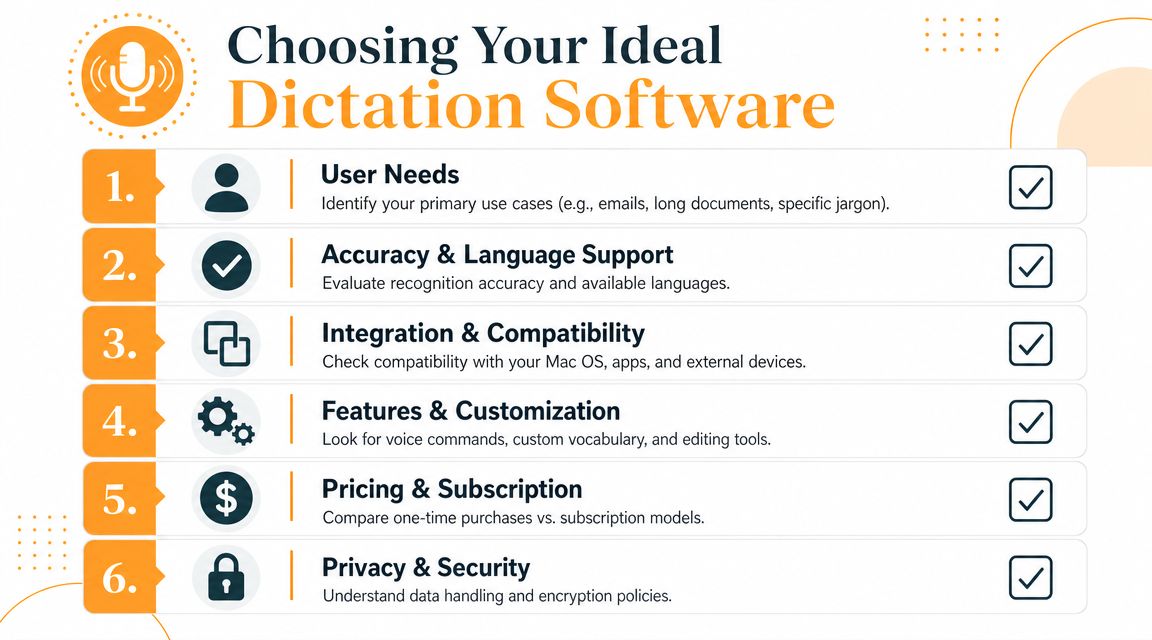
Once you know you need live dictation, the next step is filtering options by workflow instead of hype. Most app pages make big promises. Very few tell you what daily use feels like.
Start with your writing environment
The first question isn’t “Which app is best?” It’s “Where do I write?”
Some people live in browser tabs. Others split time between native apps like Mail, Notes, Slack, Word, and coding tools. If a dictation app works beautifully in one place but feels awkward in the apps you use all day, it won’t last.
Ask yourself:
- Do I need system-wide text entry or just one app?
- Am I drafting short messages, long documents, or both?
- Do I need help with formatting while I speak, or only raw text input?
Privacy and processing matter more than marketing
One of the biggest modern trade-offs is local versus cloud processing. VoiceInk says it requires Apple Silicon and macOS 14.4+ because it uses local models on the Neural Engine, a design choice described on the VoiceInk site. That approach is attractive if you care about privacy and low latency. Cloud tools can be more hardware-agnostic, but they introduce network dependence and extra data-handling questions.
That means your hardware matters. So does your tolerance for sending spoken content off-device.
If you handle client notes, internal documents, or anything sensitive, don’t treat privacy as a footnote. Check where the speech processing happens before you build a workflow around the app.
Four criteria worth caring about
I’d narrow the decision to four factors.
Accuracy and vocabulary support
If the app can’t handle the names and terms you use daily, everything else is irrelevant. Generic demos won’t tell you much. Test your real language.
Offline use and privacy
Local-first apps are often the strongest choice when your Mac can support them. Cloud tools can still be useful, but they deserve a harder privacy review.
Speed and responsiveness
Some tools feel instant. Others interrupt your flow because you’re waiting for text to land or for the mic state to catch up.
Voice commands and automation
If you only want speech-to-text, keep this low priority. If you want to edit, format, and move through work with voice, this becomes a deciding factor.
For a second opinion on the evaluation process, HyperWhisper’s pro’s guide to Mac dictation is a solid reference point.
The simplest buying filter
Choose the app that removes your biggest source of friction. Not the app with the longest feature page.
For some users that’s Apple Dictation. For others it’s a local-first app that stays private. For specialists, it’s the app that recognizes the language of their field without constant cleanup.
Integrating Dictation into Your Daily Workflow
You open your Mac to answer three emails, sketch a project brief, and turn a voice memo into notes from yesterday’s meeting. One microphone button will not handle all three jobs well. Live dictation is for creating text in the moment. Transcription is for converting recordings you already have. Keeping that split clear saves time and prevents a lot of frustration.
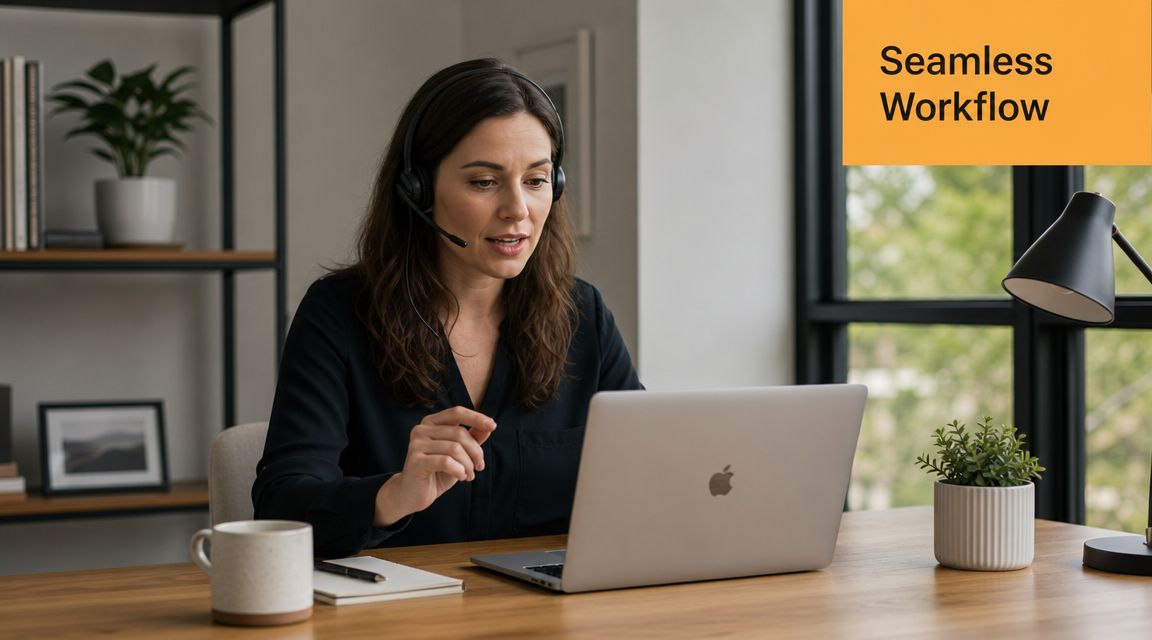
The workflow matters as much as the software. Good dictation habits make average tools usable. Bad habits make strong tools feel unreliable.
Use dictation for drafting, not for everything
The fastest setup is usually hybrid. Speak to get words onto the page. Use the keyboard to clean them up.
That works especially well for:
- first drafts
- email replies
- outlines
- meeting summaries written right after the meeting
- notes captured while switching between apps
It works poorly for heavy editing, precise formatting, and turning long recordings into polished text. That last job belongs to transcription software, not live dictation.
Build a repeatable drafting loop
Long sessions tend to drift. Short passes are easier to control and easier to edit.
A practical loop looks like this:
- Start from bullets: A rough outline keeps your phrasing tighter.
- Dictate one chunk at a time: A paragraph or idea block is easier to manage than a full page.
- Pause and scan: Fix obvious errors before they pile up.
- Type the fiddly parts: Names, figures, formatting, and link text are often faster by hand.
- Run another pass: Alternate speaking and editing until the draft is done.
I get better results with this rhythm than with long uninterrupted dictation. Cleanup stays smaller, and the text usually reads better.
Remove the friction that stops you from using it
Small setup choices decide whether dictation becomes a real habit or a feature you forget exists.
Use the right mic for the room
A quiet office is forgiving. A kitchen table, shared workspace, or room with hard echo is not. If your environment is inconsistent, a headset mic usually beats your Mac’s built-in mic.
Make start and stop automatic
If turning dictation on feels awkward, you will avoid it. Set one trigger and use it everywhere. If you already organize your Mac around hotkeys and repeatable actions, keyboard shortcut workflows for Mac are a useful model for building lower-friction routines.
Speak like you normally explain things
Clear beats formal. Dictation gets worse when people over-enunciate, talk too fast, or try to sound “written” while speaking.
Pick tasks that are easy to win
Do not begin with your most demanding writing.
Start with work where speed matters more than polish:
- rough article ideas
- low-stakes emails
- personal notes
- recap paragraphs after calls
- outline drafts before a writing session
That gives you enough repetition to notice what the tool handles well and where you still need the keyboard.
Keep transcription in a separate lane
This is the mistake I see most often. Someone records an interview, lecture, or meeting, then tries to force a dictation app to process it as if they were speaking live.
Use live dictation while you are actively writing. Use transcription software for voice memos, calls, podcasts, lectures, and recorded meetings. Once you separate those jobs, choosing the right tool gets much easier.
If you want to watch a practical walkthrough and see the mechanics in action, this video is worth a look:
Consistency matters more than enthusiasm. A dictation tool starts paying off when it becomes part of ordinary drafting, not a backup plan you try once a month.
Our Recommendations for Different Users
The best mac voice dictation software depends less on brand and more on what kind of work you do all day.
For casual Mac users
If you mostly want to answer emails, fill in forms, jot notes, or draft short messages, start with Apple Dictation. It’s built in, system-wide, and easy to test. For plenty of users, that’s all they need.
For writers and heavy drafters
If you write long documents regularly, a dedicated dictation app can be worth it when Apple’s baseline starts creating too much cleanup. Look for tools that stay responsive, work where you write, and handle your vocabulary without constant correction.
For specialists with jargon
If you work in medical, legal, or another terminology-heavy field, don’t assume general dictation is enough. This is the clearest case for specialized software. Precision matters more than convenience.
For users dealing with recordings
If your real job is turning interviews, calls, lectures, or voice memos into text, skip dictation apps and choose a transcription tool instead. That distinction is the biggest filter in this whole guide.
For productivity-minded Mac users
If you’re refining your broader Mac workflow at the same time, it helps to think beyond dictation alone. A solid stack often includes focus tools, tracking, and automation, not just speech input. This roundup of best productivity apps for Mac is a useful place to compare the surrounding tools.
The short version is simple. Start with Apple. Upgrade only when a specific limitation is costing you time.
Frequently Asked Questions
Can I use dictation with Bluetooth headphones on Mac
Usually, yes. The key is choosing the correct microphone source in your settings or inside the app you’re using. Test before relying on it for real work, because Bluetooth mics can vary in consistency.
Is Mac dictation good for long documents
Yes, if you structure the work properly. Speaking in sections works better than trying to deliver a perfect full draft in one go. Long-form dictation is realistic when your environment is quiet and your shortcut setup is dependable.
Should I choose dictation or transcription for meetings
Choose transcription if the meeting is recorded and you want text afterward. Choose dictation only if you are personally speaking live into a document while the meeting is happening.
Does dictation software affect Mac performance
It can, depending on the app and whether processing happens locally or in the cloud. Local-first tools may place more demand on newer hardware, while cloud tools shift more of the work off-device but depend on your connection.
What’s the best way to improve accuracy
Three things help most. Use a better microphone, reduce background noise, and speak in complete thoughts instead of fragmented phrases. Also test with the actual terms you use at work.
Can I add punctuation by voice
Many dictation tools support spoken punctuation and formatting commands. The exact commands vary by product, so it’s worth learning the few you’ll use daily, such as period, comma, and new paragraph.
If you’re using dictation to work faster, it also helps to know where your time goes after the words hit the page. Chronoid gives Mac users automatic time tracking, local-first activity insight, and focus tools without manual timers. It’s a practical fit if you want to pair faster input with clearer visibility into your writing, client work, and distractions.