
You’re probably here because your Mac holds more than files. It holds client deliverables, Photos libraries, music projects, source code, invoices, research notes, and all the small things you only notice when they’re gone. Individuals often don’t think seriously about backup until a Mac won’t boot, an external SSD stops mounting, or they overwrite the wrong folder and realize the mistake a week later.
That’s why the best backup software for Mac isn’t just an app pick. It’s a plan. The right tool depends on whether you need quick local restores, an off-site copy, a bootable duplicate, cloud access, or all of the above. If you spend your day trying to stay organized and focused on macOS, the same discipline you apply to your software stack also applies to data protection. It fits alongside the rest of a thoughtful Mac setup, including tools covered in this guide to the best productivity apps for Mac.
Why Your Mac Data Needs a Safety Net
A failure often appears ordinary initially. A Mac restarts and hangs on the Apple logo. Finder starts throwing errors when opening a project drive. A folder sync goes wrong and inadvertently replaces good files with broken ones. The hardware problem gets the blame, but the ultimate damage is in the missing work.
For a student, that might mean lecture notes and a thesis draft. For a freelancer, it’s the current version of a client project and all the revisions that led there. For a creative professional, it can be the raw footage, the exports, and the catalog or library that ties the whole job together. The Mac itself is replaceable. The history on it often isn’t.
Practical rule: Backups matter most when the failure isn’t dramatic. Silent corruption, accidental deletion, and bad sync behavior are more common than cinematic drive death.
A lot of Mac users assume Time Machine alone solves the problem. It solves part of it. It gives you a strong local safety net and a familiar restore experience. But local backup alone doesn’t help much if your bag is stolen, your office has a power event, or the backup drive sitting next to the Mac fails with it.
That’s why the useful conversation isn’t “Which app is number one?” It’s “What failures am I protected against?” Good backup planning starts with that question. If you want a broader framework, SES Computers has solid advice on building a robust backup strategy that maps well to real-world Mac use.
The software comes after the strategy. Get that order right, and your choices become clearer fast.
Understanding Mac Backup Strategies
A Mac backup plan gets simpler once you stop thinking in products and start thinking in layers.
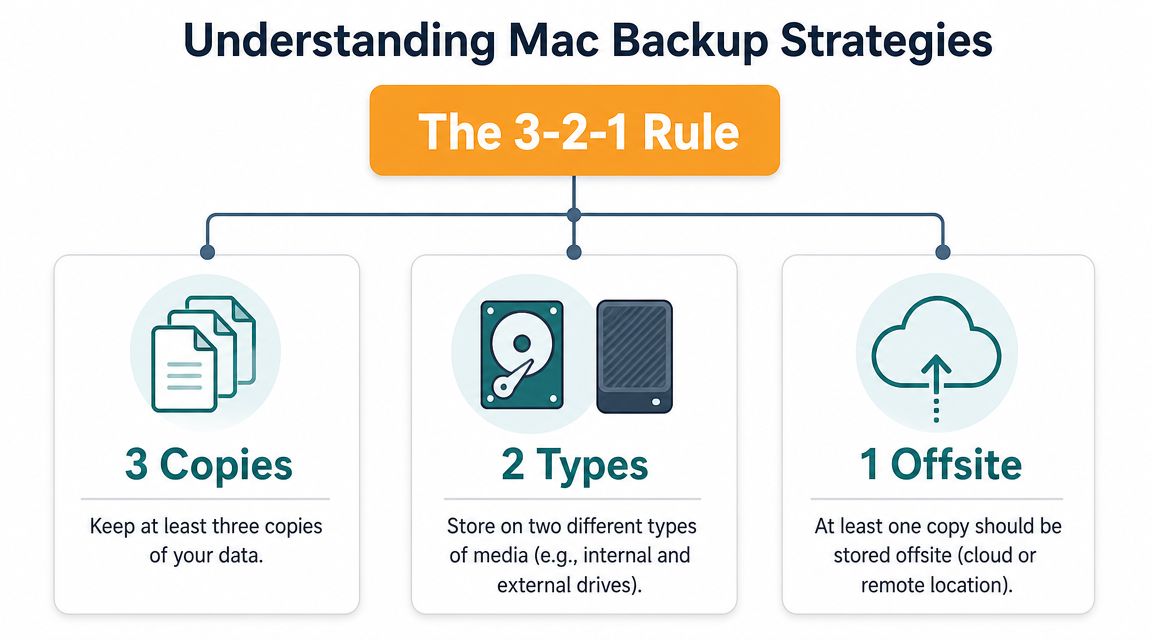
The most durable starting point is the 3-2-1 rule. Keep 3 copies of your data, store them on 2 different media, and keep 1 copy off-site, as reflected in Apple Community guidance on Time Machine backup options for Mac backup planning. That advice often means using Time Machine with one or two directly connected drives, plus another copy stored elsewhere.
Local backup
A local backup is the fastest thing to restore from. That’s why Time Machine and direct-to-drive backup apps still matter. If your internal storage fails or you delete a working folder, a nearby external disk gives you the shortest path back.
Local backup works well for:
- Quick file recovery when you deleted or changed the wrong file
- Large media libraries that would take too long to upload regularly
- Frequent restores during active project work
The trade-off is obvious. If the Mac and the backup drive share the same physical space, they share some of the same risks.
Cloud backup
Cloud backup solves a different problem. It protects against local loss. If your Mac is stolen, your home has an incident, or your external drive dies without warning, an off-site copy is what keeps the backup strategy from collapsing.
Cloud backup is useful when you need:
- Off-site protection that doesn’t rely on your desk setup
- Access from another machine during a replacement or emergency
- Background automation that keeps running with less hands-on management
It’s slower to restore large amounts of data, and it depends on your connection. For huge creative datasets, that can be frustrating. But it covers the gap that local-only plans leave open.
A backup sitting next to the original data is convenient. It is not full protection.
Hybrid backup
For many users, hybrid backup is the sweet spot. You keep a fast local copy for everyday restores and an off-site copy for real disasters. That lines up with the broader shift toward tools that combine scheduled backups, sync, and cloud destinations in one workflow, as noted in this roundup on hybrid local-plus-cloud Mac protection.
A hybrid plan also gives you better protection against hostile events. If ransomware or destructive sync behavior touches local files, you want another recovery path. REDCHIP IT SOLUTIONS INC. offers a useful overview of preventing data loss from ransomware that reinforces why off-site copies matter.
Essential Features for Mac Backup Software
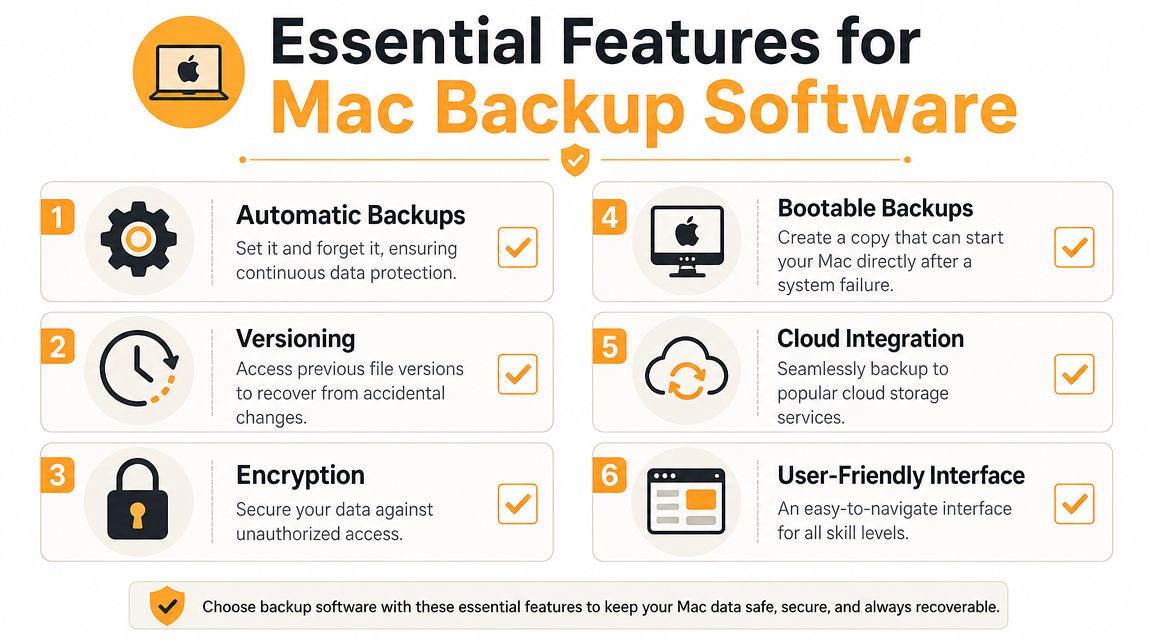
Mac backup tools can look similar on a feature grid, but daily use exposes the differences quickly. The best backup software for Mac isn’t the one with the longest list. It’s the one that handles recovery cleanly when something has already gone wrong.
Versioning and point-in-time recovery
Versioning is what saves you from your own mistakes. If a file gets corrupted, overwritten, or changed in a way you don’t catch right away, you need to go back to an earlier version, not just restore the newest broken copy.
This matters most for active work:
- Writers and students need earlier drafts
- Designers need pre-edit states
- Developers sometimes need system-level rollback beyond repo history
Without versioning, backup becomes glorified duplication.
Bootable clones and system recovery
A clone is different from a standard file backup. It’s about getting a Mac working again with less friction. If your machine fails before a deadline, a clone can be the difference between “restore and continue” and “rebuild the whole environment.”
Get Backup Pro is a good example of how commercial tools evolved beyond simple copy jobs. It markets backup, archive, disk cloning, and folder synchronization in one app, reflecting the move toward all-in-one suites rather than single-purpose utilities in its product overview.
A clone won’t replace every other backup mode. But if uptime matters, it’s hard to ignore.
Scheduling and automation
If backup depends on memory, it will fail eventually. Good software should schedule itself, run in the background, and make it obvious when something hasn’t completed. The less manual babysitting it needs, the more likely it is to protect you consistently.
The practical test is simple. Can you trust it to keep running during normal work without constant checking?
Encryption and privacy
Backups often contain your most sensitive material in one place. Contracts, tax documents, private photos, research, and client files all end up there. Encryption matters because a backup disk or cloud account is a high-value target if it’s exposed.
If privacy is a major concern in your broader Mac setup, it’s worth using the same standard across your tools. For example, Chronoid’s privacy approach on macOS is built around keeping activity data local by default. Backup software should be evaluated with the same mindset. Know where your data lives and who can access it.
Buying filter: Don’t judge backup software by how easy it is to start. Judge it by how predictable it is to restore from.
Recovery testing and interface quality
A backup app can have every advanced feature in the world and still be the wrong choice if recovery is confusing. Restore workflows need to be clear under stress. You should be able to find a file, identify the right backup point, and restore without guessing.
A simple checklist helps:
| Feature | Why it matters in real use |
|---|---|
| Versioning | Lets you recover from corruption and bad edits |
| Cloning | Shortens downtime after system failure |
| Scheduling | Removes the weak point of human memory |
| Encryption | Protects sensitive backup contents |
| Cloud support | Adds off-site resilience |
| Usable restore flow | Makes backup actually useful in a crisis |
Best Backup Software for Mac in 2026
Most roundups start with a winner and then work backward. That’s not how I’d evaluate backup software on a Mac. Start with the jobs you need done: local restore, off-site protection, full-system recovery, cloning, sync, or cross-device workflows. Then ask which tool handles those jobs with the least friction.
A useful baseline is this: Time Machine remains the default starting point because it’s built into macOS and free, but third-party tools often rank higher when users need more control over versioning, cloning, and cross-device workflows. In TechRadar’s 2026 comparison, EaseUS Todo Backup was rated the top overall backup software, with Acronis True Image and AOMEI Backupper close behind, as summarized in this review of Mac backup software choices.
Here’s the short comparison before the deeper breakdown.
| Software | Best fit | Strongest use case | Main limitation |
|---|---|---|---|
| Time Machine | Most Mac users | Native local backup and easy file restore | Limited for broader workflows |
| EaseUS Todo Backup | Users who want a broad feature set | General-purpose backup with more control | More tool than some casual users need |
| Acronis True Image | Users who want an all-in-one suite | Backup plus wider recovery options | Can feel heavier than simpler tools |
| AOMEI Backupper | Users comparing ranked alternatives | General backup coverage | Less Mac mindshare than native-first tools |
| Get Backup Pro | Mac users who want clone, archive, and sync in one app | Multi-mode Mac backup workflow | Less well-known in mainstream roundups |
| Backblaze | Users who need off-site simplicity | Cloud backup for disaster recovery | Not ideal as your only fast-restore layer |
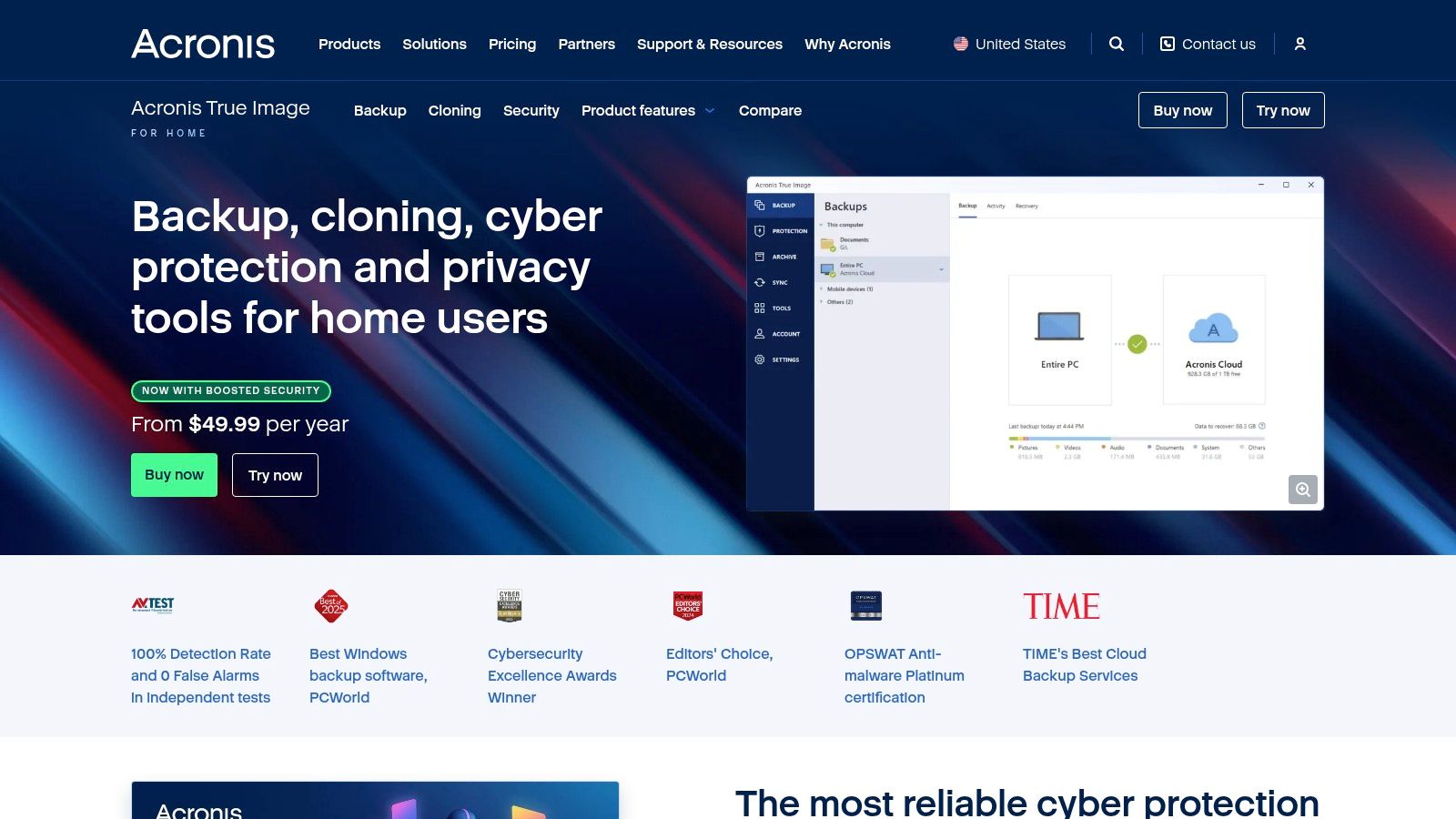
A visual example helps if you’re comparing fuller-suite products:
Time Machine
Ideal for: nearly every Mac owner as a first local backup layer.
Time Machine’s biggest advantage is that it feels like part of the operating system because it is. Setup is simple, restore is familiar, and it’s the easiest way to get regular local backups running without much thought. For accidental deletion, file rollback, and replacing a failed Mac with data from a local drive, it’s still the baseline.
Where it falls short is breadth. It doesn’t cover every modern workflow neatly, especially if you want richer cloning behavior, broader sync options, or a more customized multi-destination strategy. If you rely on it alone, you also risk confusing “I have a backup” with “I’m fully protected.”
EaseUS Todo Backup
Ideal for: people who want more than Time Machine without building a complicated setup.
EaseUS Todo Backup is the current top-ranked overall pick in the cited roundup, and that tracks with what many users want now. Not just a file history tool, but a broader backup application with more direct control. That matters when you want to fine-tune what gets backed up, how often it runs, and how recovery should work.
Its appeal is balance. It suits users who’ve outgrown the native option but don’t want an enterprise-style product. For freelancers and consultants, that often means enough capability without turning backup administration into a side job.
Acronis True Image
Ideal for: users who want an all-in-one protection suite and are willing to spend more time configuring it.
Acronis has long been the kind of tool people pick when they want backup to do more than just keep file copies. It’s usually part of the conversation when someone wants local backup, imaging, recovery options, and a broader protection stack in one product.
In practice, Acronis tends to fit users who like control and don’t mind a denser interface. If you’re the sort of Mac user who wants to define backup behavior rather than accept defaults, that can be a strength. If you just want silent background protection, it may feel heavier than necessary.
AOMEI Backupper
Ideal for: users who are shopping ranked alternatives and want another broad-feature option on the shortlist.
AOMEI Backupper appears close behind the top tools in the cited comparison. For buyers, that signals a category where breadth matters. The market isn’t rewarding “copies files to a drive” alone. It’s rewarding backup platforms that can cover more than one recovery scenario.
That said, Mac buyers should still evaluate how naturally a tool fits into macOS habits. A strong ranking is useful. Real day-to-day fit matters more.
Get Backup Pro
Ideal for: Mac users who want one app to handle backup, archive, cloning, and sync.
Get Backup Pro is interesting because it represents where backup software has gone. Instead of asking users to stitch together separate utilities, it combines backup, archive, disk cloning, and folder synchronization in one package. That can be a very practical fit if your workflow includes both disaster recovery and ongoing file mirroring between folders or drives.
This is especially useful for creative professionals and people with project archives. Archive and sync aren’t the same job as backup, but many Mac users need all three patterns in real life. The downside is that an all-in-one tool only works if its interface stays understandable. If the workflow feels cluttered, the extra capability won’t help.
Here’s a broader look at how these tools are presented in practice:
Backblaze
Ideal for: anyone who needs straightforward off-site protection.
Backblaze fills the role many local-first Mac users ignore until too late. It gives you a cloud copy that lives somewhere other than your desk. I don’t think of it as a replacement for local backup. I think of it as the layer that keeps a bad day from becoming a disaster.
Its main weakness is restore speed for large recoveries compared with a nearby drive. That’s normal for cloud-first recovery. If your Mac stores giant project files, relying only on cloud can test your patience.
What actually works best
The best backup software for Mac usually isn’t one product in isolation.
What works best is a stack:
- Time Machine or another local backup app for fast restore
- A clone-capable tool if downtime is expensive
- A cloud backup service for off-site safety
If you keep that model in mind, the software list stops feeling confusing. Each product has a clearer role.
Matching Your Backup Plan to Your Workflow
Your backup plan should match the way you use your Mac. A film editor with 4K project files, a developer with local databases, and a student writing papers do not face the same failure points. Good backup advice starts with the work, not the app list.
The practical questions are simple. What data changes every day? How much downtime can you afford? How painful would a full restore be on your internet connection? Once those answers are clear, choosing software gets easier.
The freelancer
Freelancers usually need protection that runs in the background and restores specific files fast. Client folders change often, old versions matter, and losing half a day to recovery can turn into a missed deadline.
A sensible setup is:
- Time Machine for local version history
- Backblaze for an off-site copy
- EaseUS Todo Backup if you want more control than Time Machine gives you
This covers the common risks without adding much maintenance. If your workday already relies on automation, tools focused on AI for Mac productivity workflows can save time elsewhere. Backup still needs its own dedicated setup.
The creative professional
Creative work changes the math. Large photo libraries, audio sessions, and video projects make restore speed matter more than interface polish. Waiting on a huge cloud download after a drive failure is a rough way to spend a deadline week.
What usually holds up well:
- A local backup drive for quick file recovery
- A clone-capable app such as Get Backup Pro for faster full-system recovery
- A cloud copy for current projects and the files you cannot replace
Local storage does the heavy lifting here. Cloud backup still matters, but creatives often need it as a safety layer, not the first recovery method.
Finished projects also need a different habit than active projects. Some files should stay archived for years, while current work needs frequent versioned backup. If one tool handles both jobs cleanly, great. If not, split the jobs.
The developer
Developers often underestimate how much of their setup lives outside the code repository. Git protects source history. It does not restore your terminal setup, local databases, SSH keys, containers, app configs, and all the small machine-specific pieces that make a Mac usable.
A practical stack:
- Time Machine for regular local rollback
- A clone workflow for getting a working Mac back quickly
- An off-site backup for theft, loss, or hardware failure
I would also be careful with exclusions. It is tempting to skip large folders to save space, but that often removes the exact local assets that are hardest to rebuild under pressure.
The student or casual user
Students and lighter users need a plan they will keep running for a full semester, not one they admire for a week and ignore after that. Class notes, papers, photos, and personal documents usually fit into a simple setup.
The simplest plan is often enough:
- Time Machine to an external drive
- A cloud backup service if the Mac travels often or stores irreplaceable files
Low maintenance matters more than extra features here. If the backup process feels confusing, noisy, or expensive, it usually gets turned off.
The pattern across all four workflows is consistent. Start with the kind of loss that would hurt you most, then choose software that reduces that specific risk with the least ongoing effort. That is how a backup plan stays useful after the first week.
How to Implement and Verify Your Backup
Pick your tools, then do the boring part right. That’s what makes the protection real.
Start with one local backup and one off-site copy
Set up your local backup first. For many people, that means connecting an external drive and enabling Time Machine. If you’re using a third-party app, choose your source data carefully. Include the folders you work from, not just the ones that look important.
Then add the off-site layer. Cloud backup takes longer to finish initially, but once it’s running, it closes the biggest gap in local-only setups.
Turn on automation and keep it simple
Use scheduled backups unless you have a very specific reason not to. Complicated retention rules and exclusion lists usually create blind spots. Start with a broad safety net, then refine only if you need to.
Use this checklist:
- Choose one primary local destination
- Add one off-site destination
- Enable automatic scheduling
- Check the app after the first full run
- Watch for failed or skipped jobs
Test restore before you trust it
The one step that matters is often skipped. Restore a file on purpose. Pick a folder, remove a noncritical file, and recover it from backup. Confirm that the restored version opens correctly.
Then do one slightly bigger test. Restore a folder with mixed file types and make sure the structure comes back intact.
A backup you haven’t restored from is still unproven.
If you use cloning software, verify that the clone is recognized and usable according to the app’s restore workflow. You don’t need to wait for a disaster to learn whether the system works.
If you care enough about your Mac setup to optimize how you spend your work hours, it’s worth giving the same attention to protecting the files those hours create. Chronoid helps you understand where your time goes on macOS with automatic activity tracking, on-device insights, and focus tools. It won’t back up your Mac, but it does help you build a more deliberate workflow around the work you’re trying to protect.