
You finish a client week, open your notes app, and try to rebuild the hours. A meeting was somewhere on Tuesday. There was a quick Slack thread that turned into real work. You edited a file three times, answered two “small” questions, and took a short client call while walking to get coffee. None of it felt big enough at the time.
Then invoice day arrives, and your memory starts negotiating against your income.
That’s the problem with a billable hours tracker on macOS. Most freelancers don’t lose revenue on the obvious blocks of work. They lose it in the fragments. The scattered minutes between focused sessions. The “I’ll log it later” tasks. The mental overhead of remembering to start and stop a timer while trying to do actual client work.
On a Mac, where work often flows across apps, browser tabs, documents, and messages, manual logging breaks down fast. A privacy-first automatic system changes that. It gives you a record first, then lets you sort out what was billable after the work is done.
The Hidden Cost of Manual Time Tracking
Manual time tracking fails in the exact moments when freelance work gets messy. You switch from Figma to Slack, then to Safari, then to a PDF, then back to email. By the end of the day, the work is real, but the paper trail is weak.
That’s why so many invoices end up rounded, vague, and lower than they should be.
Only 17% of professionals actively track their time, but businesses that do so systematically report a 30% increase in billing accuracy and a 20% improvement in project profitability estimates, according to 2026 industry statistics on time tracking. Those numbers line up with what many freelancers already suspect. The issue isn’t that they aren’t working. It’s that they aren’t capturing the work cleanly enough to bill for it.
Where the leakage actually happens
The biggest misses usually come from tasks that feel too small to log in the moment:
- Quick client contact that takes only a few minutes but still solves a real problem
- Context switching between projects, which makes reconstruction fuzzy
- Research and file hunting that supports deliverables but rarely makes it into a timesheet
- Minor revisions that feel too small to invoice individually, so they disappear
Manual logs reward confident guessing, not accurate records.
That’s why end-of-week timesheets feel stressful. You’re not just totaling hours. You’re trying to reconstruct attention.
Why memory is a bad billing system
Memory favors the headline tasks. It forgets the edges. Those edges are often where freelancers give work away for free.
A proper tracking habit fixes that, but the old spreadsheet approach makes the habit too fragile. If you’re still relying on calendars, sent email, and browser history, it helps to see how to keep track of work hours in a way that reflects how digital work happens.
The financial cost of manual tracking isn’t dramatic in one day. It’s persistent. That’s worse.
Why Automatic Tracking Is a Game Changer for Mac Users
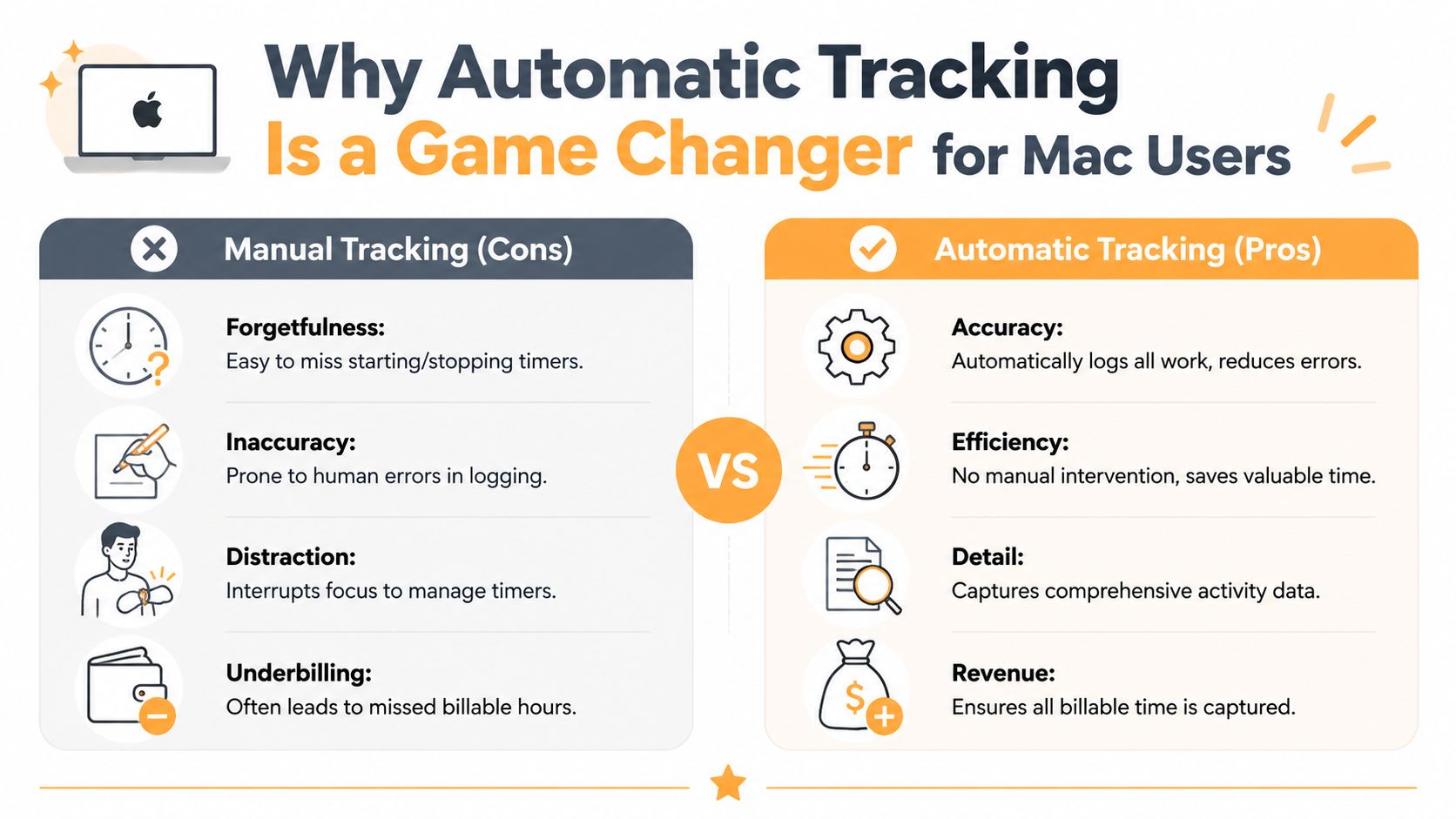
Automatic tracking solves a different problem than a timer does. A timer assumes you’ll remember to announce the beginning and end of work. Real freelance work doesn’t behave that cleanly.
On macOS, your workday is usually fragmented across desktop apps, browser tabs, docs, messages, and meetings. A timer asks you to interrupt that flow. An automatic tracker watches the activity trail in the background so you can review it later and decide what counts.
Manual timers create friction
The old model sounds simple. Start the timer. Stop the timer. Tag the project. Repeat all day.
In practice, that creates three problems:
| Tracking style | What happens in real work |
|---|---|
| Manual timer | You forget to start it, forget to stop it, or leave it running on the wrong client |
| End-of-day logging | You estimate from memory and round in ways that usually favor the client |
| Automatic capture | You review a full activity record and assign time based on evidence, not recall |
That difference matters because the software market itself is moving toward automation. The global time tracking software market is projected to reach USD 149.92 billion by 2034, driven by AI-enabled platforms that automatically distinguish between billable and non-billable activities without manual intervention, according to Fortune Business Insights’ time tracking software market projection.
Why Mac freelancers feel the difference faster
Mac users tend to work in app-heavy, tab-heavy workflows. Designers bounce between Figma, Finder, and Adobe apps. Writers jump across docs, research tabs, and CMS windows. Developers move between terminals, editors, local docs, issue trackers, and communication tools.
That makes passive capture far more useful than a timer.
A privacy-first automatic tracker on macOS can run unobtrusively in the background, build a factual history of what you did, and let you classify it later. That’s a better fit for real knowledge work. It reduces cognitive load because your attention stays on the job, not on the bookkeeping.
Practical rule: Your time data should be captured while you work, not reconstructed after you’ve already switched contexts twenty times.
If you’re refining your overall Mac setup, it also helps to discover best apps for your Mac so your tracking tool fits into a broader workflow instead of becoming another isolated utility.
The mindset shift that matters
A billable hours tracker shouldn’t be treated like a stopwatch. It should be treated like an audit trail.
That shift changes everything. You stop asking, “Did I remember to track?” and start asking, “What does the record show?” For hourly work, that’s a much stronger position.
Setting Up Your First Billable Project in Minutes
The setup is simpler than most freelancers expect. You don’t need a giant taxonomy or a perfect tagging system on day one. You need one billable project, one hourly rate, and a few clear rules that help your Mac sort work into the right bucket.
This is the basic workflow for Client A.
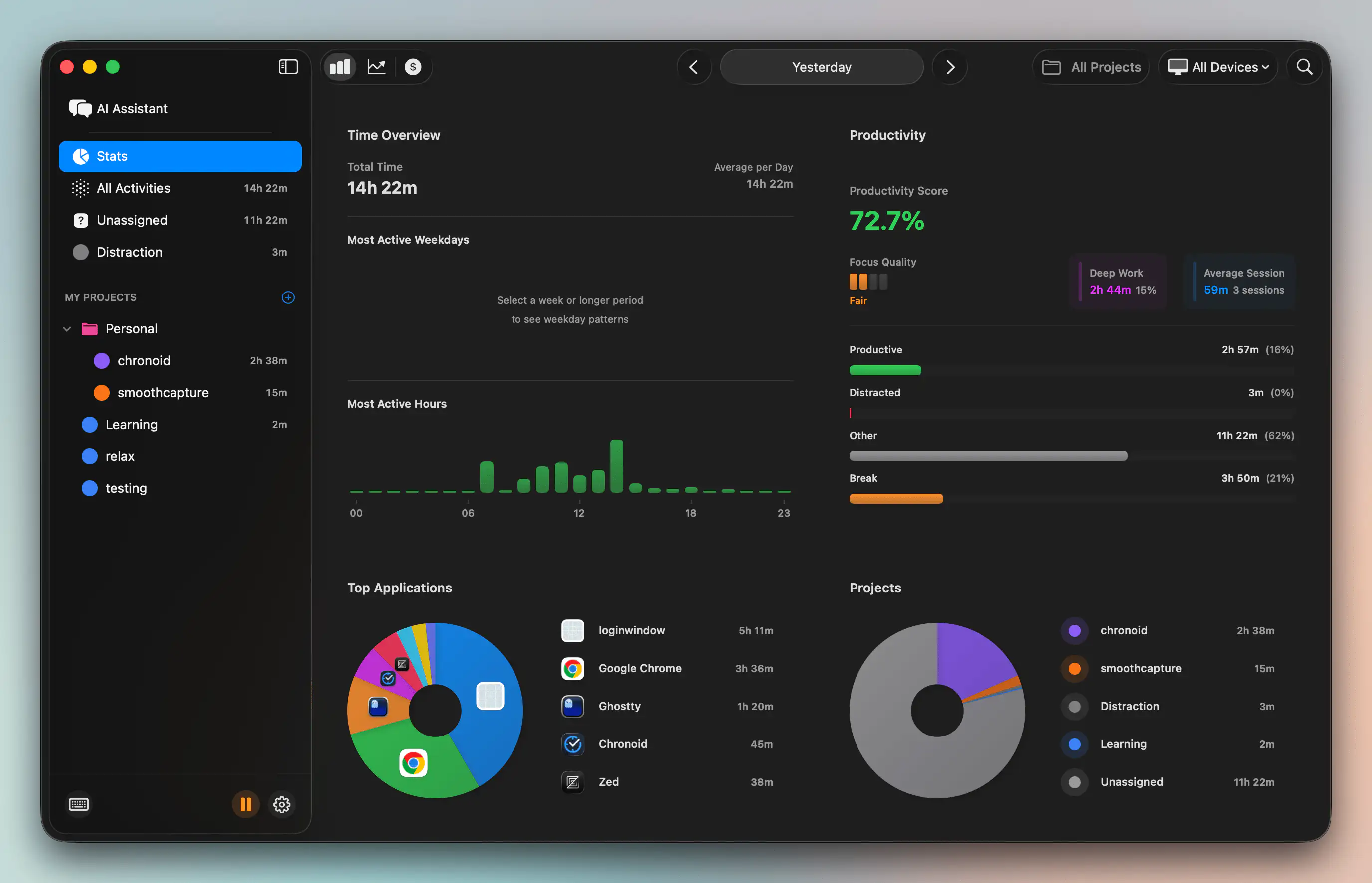
Step one: create the project correctly
When you create a project, mark it as billable and set the hourly rate right there. That gives the project a billing identity from the start, instead of forcing you to fix it later when invoice time gets messy.
In many tools, one of the most common setup mistakes happens before you ever log a minute. Users have to explicitly grant the billable hours permission for specific projects during setup, a step that’s often hidden or skipped in legacy systems, as shown in this billable hours permission walkthrough.
If you want the product-specific steps, the project creation guide for Chronoid shows the basic flow.
Step two: add rules that match how the client appears in your day
Automatic tracking becomes useful instead of noisy. The rules don’t need to be complicated. Start with obvious signals that are already part of your work:
-
Project name keyword
If the client or project name appears in docs, folders, or file titles, use that. -
Website or domain
If you work inside the client’s site, staging environment, CMS, or web app, use the domain as a rule. -
Slack channel or workspace clue
If communication happens in a client-specific channel, use that as another signal. -
App context
If Client A work always happens in a certain combination of apps, that pattern can help with grouping.
The point is not perfection. The point is getting your Mac to auto-group likely client work so you review less and recover more.
Step three: let it run in the background
Once the project is billable and the rules are in place, leave the tracker running. That’s the part many freelancers underestimate. The value comes from continuity.
If you stop and restart the system depending on your mood, you recreate the same reliability problem as a manual timer. Background capture works because it doesn’t ask for daily discipline at every transition point.
What good setup looks like
A clean first setup usually includes:
- One project per paying client
- A billable flag enabled at creation
- The agreed hourly rate attached to the project
- A handful of matching rules, not dozens
- A short review habit to catch anything that landed in the wrong place
If a tracking rule needs constant babysitting, it’s not a good rule yet.
What doesn’t work
A few patterns create bad data fast:
- Overbuilding on day one with too many categories
- Using vague client names that overlap with unrelated work
- Skipping rate setup because you plan to “add it later”
- Expecting automatic tracking to read your mind without giving it any useful keywords or domains
A good billable hours tracker should reduce admin, not create a new hobby. Simple rules are usually enough to make the first project useful within minutes.
How One Freelancer Reclaimed 20% More Revenue
A common underbilling pattern looks boring from the outside. That’s why it’s expensive.
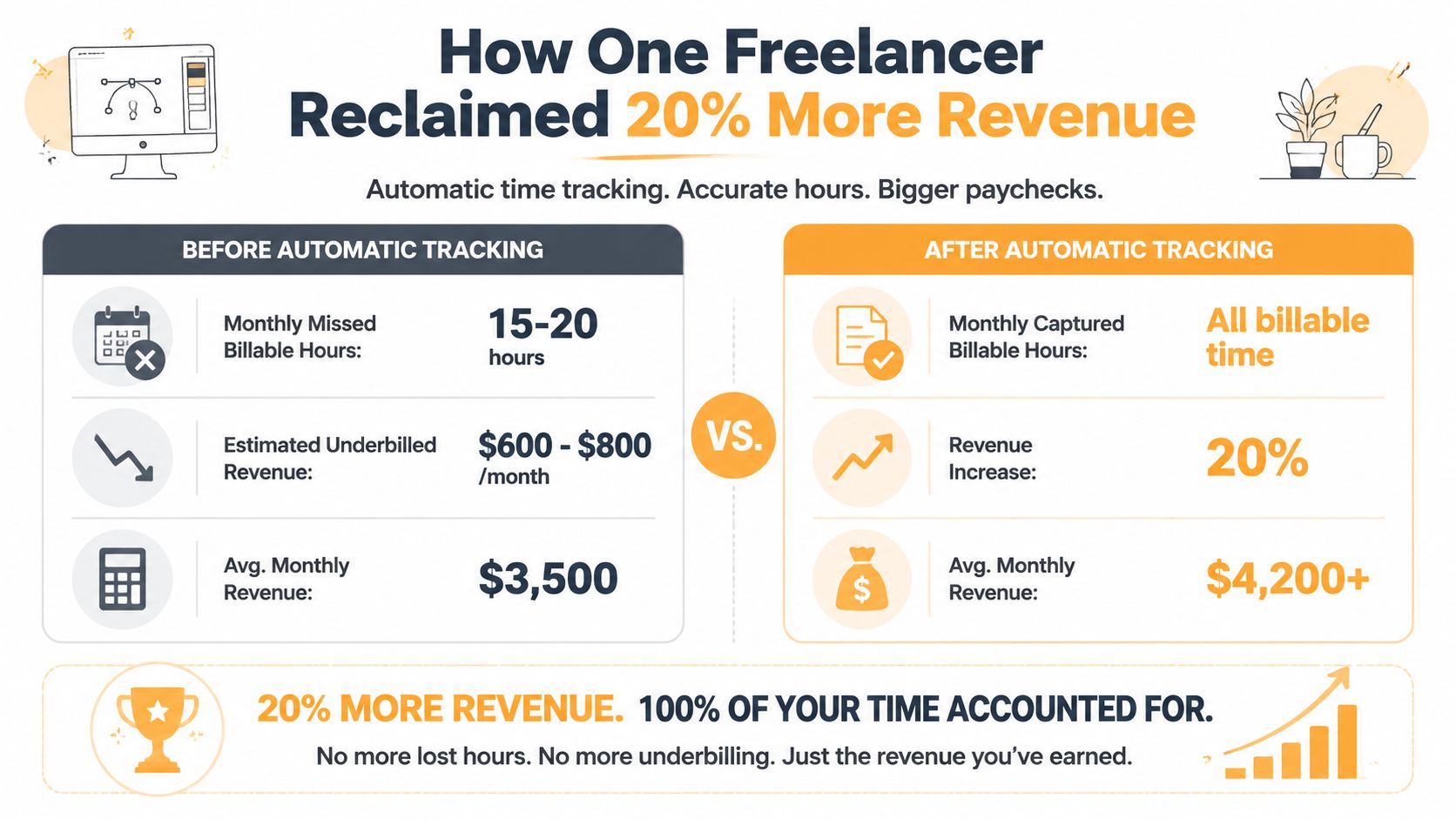
A freelance designer estimates from memory at the end of the week. The invoice includes the obvious work: homepage mockups, revision rounds, one strategy call. It leaves out the in-between pieces. The quick call that changed direction. The time spent finding an old brand asset. The short burst of edits after client feedback. None of those tasks felt large enough to deserve their own line item in the moment.
Then the month closes, and the invoice looks tidy but incomplete.
Before the switch
The old invoice often reads like this:
- Design work for homepage update
- Revision time after feedback
- Client communication
- Asset prep
Nothing there is false. It’s just compressed. The detail has been flattened into broad estimates, and broad estimates usually cut against the freelancer.
One especially common leak comes from micro-tasks. A significant source of lost freelance revenue stems from small jobs like 3-minute client calls, which many professionals don’t log because they fall below manual billing thresholds, yet can add up to hundreds of dollars a month, as discussed in this Reddit thread on keeping track of billable hours.
After automatic capture
With automatic tracking, the same month looks different. The designer can see the work trail and bill from records instead of recall.
The invoice gets more specific:
| Before | After |
|---|---|
| Homepage design | Homepage wireframe revision, component cleanup, exported assets |
| Client communication | Feedback call, follow-up Slack review, approval email handling |
| Asset prep | Brand asset search, file organization, document handoff |
The important change isn’t just detail. It’s confidence. When the work history is visible, the freelancer doesn’t feel like they’re “padding” the invoice by adding the smaller pieces. They’re billing for work that happened.
The actual gain
The clearest version of this I’ve seen is straightforward: switching from estimates to automatic capture helped recover around 20% more than the original estimate. That tracks with the practical reality of freelance billing. The missing revenue usually isn’t hidden in one giant oversight. It’s scattered across the month in recoverable fragments.
Small tasks don’t stay small when you ignore them every week.
That’s also why reporting matters beyond invoicing. If you want cleaner business visibility around pipeline and client performance, a separate guide to sales reporting can help you connect billed work to broader revenue decisions.
The freelancer didn’t start working more. They stopped giving completed work away.
Optimizing Your Tracker for Flawless Accuracy
Once your tracking system is running, the next step is refinement. At this point, a decent billable hours tracker becomes reliable enough to trust during invoicing.
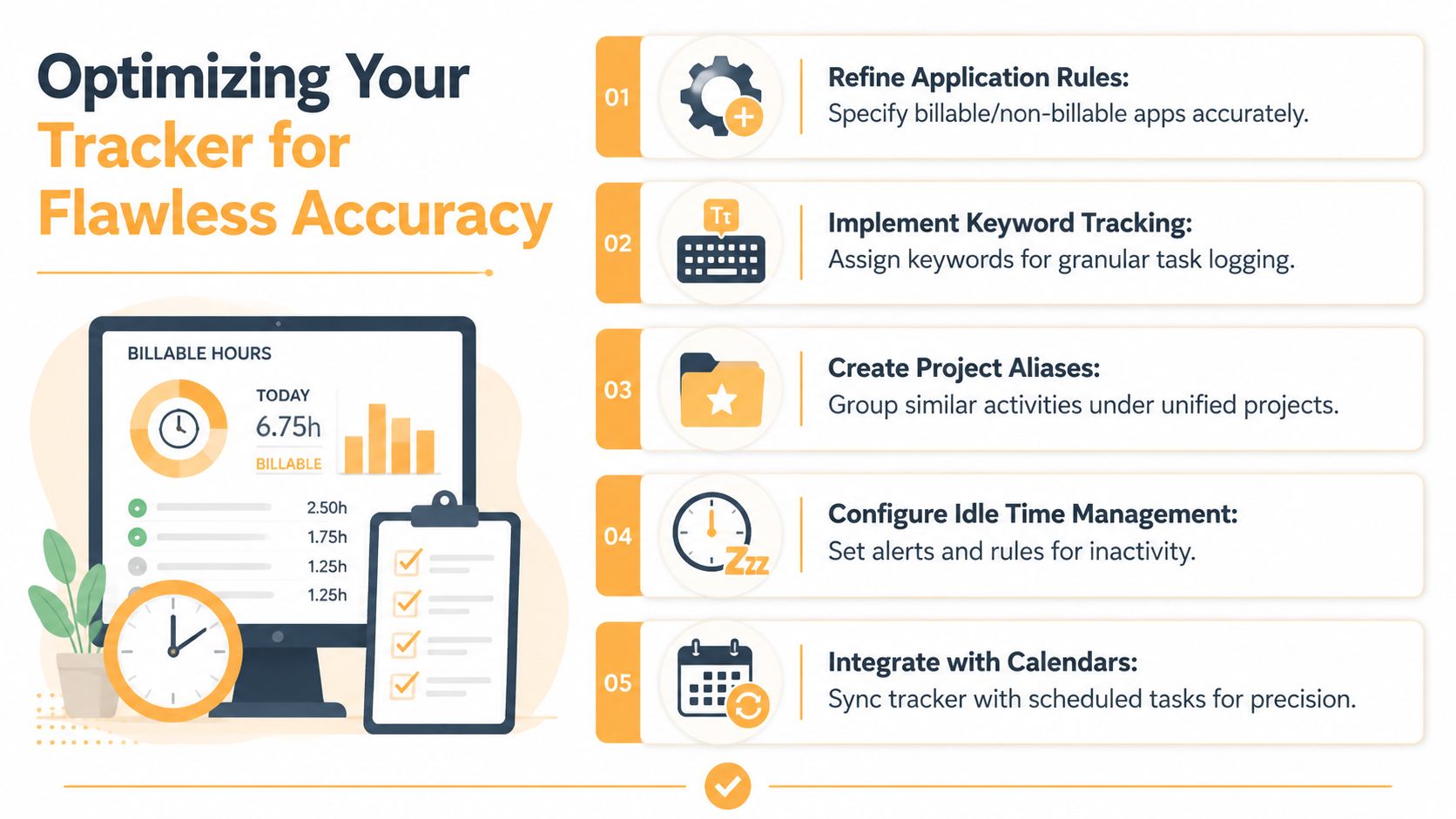
Automatic capture gives you the raw record. Accuracy comes from the rules you build around that record, plus a short review habit. That’s true on any platform, but it matters even more on macOS because so much client work happens across overlapping windows and background apps.
Use real-time capture, not end-of-day reconstruction
The biggest jump in accuracy comes from not relying on memory in the first place. Expert methodology shows that replacing end-of-day reconstruction with real-time capture and immediate logging of small tasks increases billable hour capture by 20–30% by reducing forgotten entries and guesswork, according to this expert guide to tracking billable hours.
Even with an automatic system, that principle still applies. You want the app recording your activity as it happens, and you want to confirm odd or ambiguous blocks while the week is still fresh.
Refine rules with inclusion and exclusion logic
Basic keyword matching gets you started. Accuracy improves when you tighten the edges.
Try rules like these:
-
Positive keywords
Match a client name, website, folder name, or project code that clearly belongs to billable work. -
Negative keywords
Exclude terms tied to your own admin, invoicing, bookkeeping, portfolio updates, or sales outreach. -
Alias grouping
If one client appears under multiple brand names, products, or abbreviations, group those under one project.
This matters most when one app contains both client work and internal work. Safari, Slack, Finder, and email are the obvious examples. Without exclusion logic, those apps become a pile of mixed context.
Handle micro-tasks and idle time deliberately
Many systems exhibit shortcomings. If your tracker filters short bursts or marks them as idle, you can still underbill even with automation.
Use a simple review pattern for edge cases:
- Check short interactions that might have been filtered out
- Review phone-call-adjacent work if the task happened away from keyboard input
- Confirm thinking time when you were actively working but not clicking much
- Reclassify ambiguous browser sessions before they blur together
For macOS freelancers, privacy is part of this discussion. A privacy-first setup keeps your activity data local by default, which is useful if you handle sensitive client material and don’t want your day mirrored to a third-party cloud unless you choose it.
Review weekly, not monthly
Monthly review is too late. By then, the context is gone.
A weekly review catches the categories that automatic systems can’t always infer perfectly:
- Internal admin accidentally marked billable
- Client research left uncategorized
- Short tasks that need grouping into one entry
- Idle periods that were legitimate work
Review time logs while you still remember why a strange 12-minute block mattered.
A short Friday review is usually enough. You are not auditing every click. You are checking for billing integrity.
Build a ruleset that survives real life
Good tracking rules survive interruptions, context switching, and multitasking. Bad rules only work on ideal days.
One practical example is Chronoid, a macOS app that tracks apps, websites, and documents automatically, keeps data local by default, and lets you group activity into projects with rule-based categorization. That local-first approach is useful if you want automatic tracking without turning your Mac into a surveillance feed.
A resilient system usually has these traits:
| Good setup | Fragile setup |
|---|---|
| Clear project names | Vague or overlapping labels |
| A few reliable rules | Too many brittle edge-case rules |
| Weekly cleanup | “I’ll fix it when I invoice” |
| Explicit non-billable exclusions | Everything dumped into one client bucket |
Flawless accuracy doesn’t come from obsessing over every minute. It comes from building a system that catches most work automatically and makes the remaining review easy.
From Tracked Time to a Trustworthy Invoice
A billable hours tracker earns its keep when the invoice goes out.
Tracking alone doesn’t improve cash flow if your final invoice still looks vague. The goal is to turn your time record into something a client can read and accept without confusion. Clear detail lowers friction. It also changes the tone of billing conversations because you’re no longer defending estimates. You’re presenting a documented work history.
Turn activity into invoice language clients understand
Raw logs are for you. Invoice lines are for the client.
That means you should translate tracked activity into grouped, readable descriptions such as:
- Design revisions and implementation
- Client feedback review and follow-up
- Research tied to approved deliverables
- Project coordination and decision calls
Each line should still reflect real tracked work, but it should be organized around value, not around every app switch. A client doesn’t need to know you moved between Finder, Figma, and Chrome six times. They need to know what that time accomplished.
Review before exporting
Before you generate the invoice, check three things:
-
Billable status
Make sure internal admin and business development stayed out of the client invoice. -
Grouped micro-tasks
Combine related small interactions into a clean entry where that makes sense. -
Rate alignment
Confirm the project rate matches the agreement before the total is calculated.
If you’re using built-in invoicing, the invoice generation documentation for Chronoid is the practical reference for moving from tracked entries to a finished invoice.
Trust comes from specificity, not volume
Clients usually don’t object to invoices because they contain detail. They object when the detail is missing or the categories feel padded.
A trustworthy invoice has enough precision to answer the obvious questions before they’re asked. If a client wants backup, you have the underlying log. If they don’t, the organized summary still reads as professional and fair.
A clean invoice says, “Here is what was done.” A vague invoice says, “Please trust my memory.”
If you also receive vendor bills or need to process incoming paperwork faster, tools that scan invoices using AI can help on the accounts-payable side. That’s separate from billable tracking, but it fits the same goal of reducing manual admin around money.
The broader point is simple. Better tracking creates better invoices. Better invoices create calmer client conversations.
If you bill by the hour on a Mac, Chronoid is worth evaluating. It automatically tracks apps, websites, and documents, keeps activity data local by default, and helps turn recorded work into billable project time without manual timers. For freelancers who are tired of rebuilding their week from memory, that’s a practical upgrade.