
Your remote setup probably looks productive from the outside. Laptop open. Slack running. Calendar full. Browser tabs everywhere. In practice, a lot of remote work feels messy. Notifications interrupt deep work, tasks live in three different places, and the line between “busy” and “moving work forward” gets blurry fast.
That’s why most lists of productivity tools for remote workers miss the point. The problem usually isn’t a lack of apps. It’s that the apps don’t work as a system. You don’t need another shiny workspace if you still can’t tell where your day went, what pulled you off task, or which tool owns the next action.
Remote work is large enough now that this isn’t a niche setup problem anymore. One 2026 compilation reports a U.S. telework rate of about 22% (34.6 million workers), with roughly 27% of the global workforce working fully remotely and about 52% in hybrid arrangements, which makes remote productivity tooling a mainstream need, not an edge case (VAMasters remote work statistics). If your home office still feels chaotic, the stack is the problem.
A lot of people start with communication or project management. I think that’s backward. Start with visibility, then add coordination, then tighten focus. That’s the difference between a pile of software and a clean operating system for remote work.
Reliable internet still sits underneath all of this, so if your connection is part of the problem, review Premier Broadband remote work solutions.
1. Chronoid
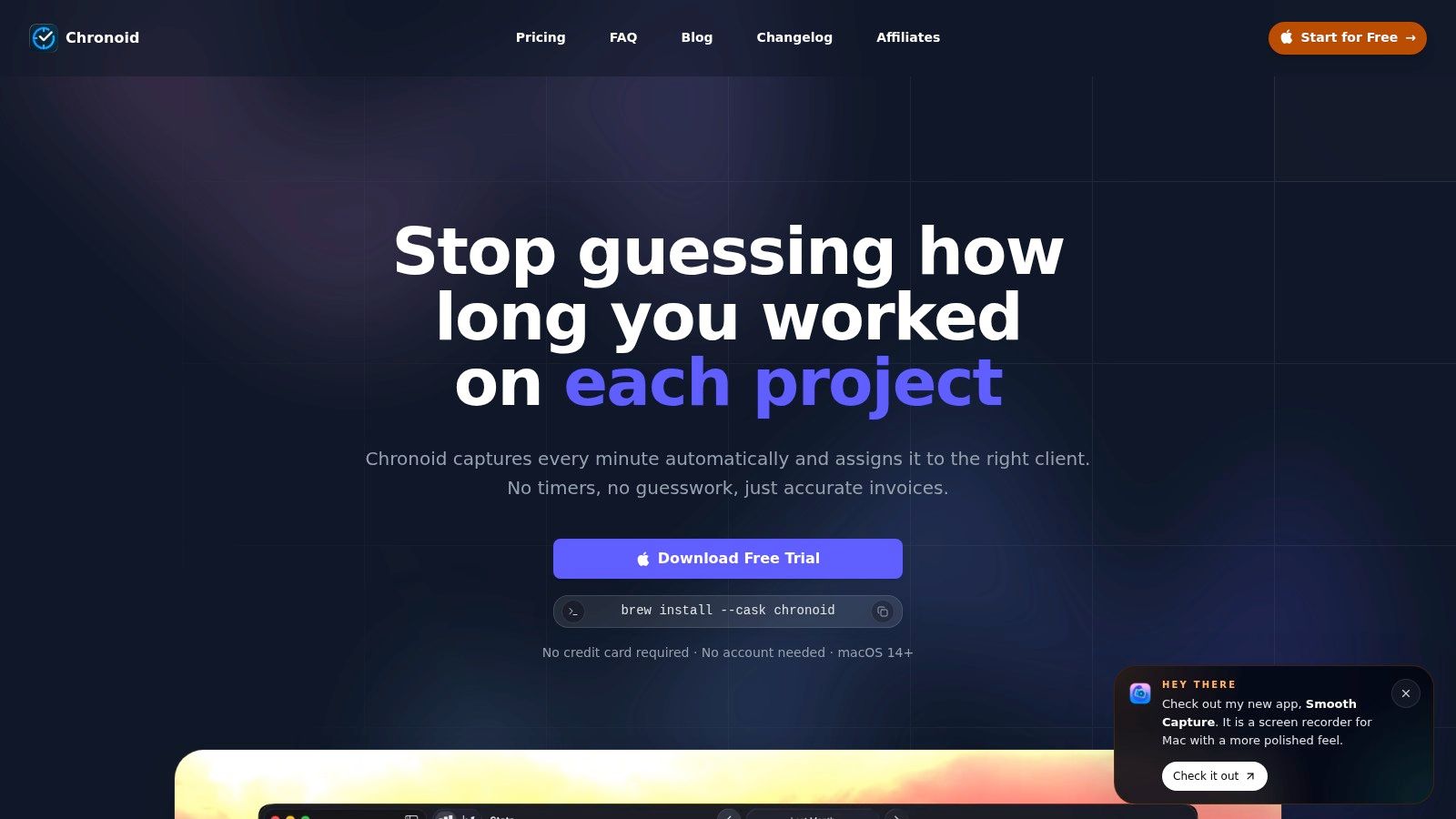
You can’t build a useful remote work stack on guesswork. Chronoid earns its place at the top because it records what happened on your Mac: which apps you used, which sites you visited, and which documents held your attention. That gives you a clean baseline before you start adding project management, documentation, or communication layers.
The impact is bigger than it looks. Analysts at CurrentWare found that remote workers often report better focus and fewer distractions, but that only helps if you can see what supported that focus in your own day. In practice, that is the gap Chronoid fills. It replaces fuzzy end-of-day recollection with a timeline you can work from.
Why it works as a foundation
I like Chronoid most as the first layer, not the last. It runs in the background, groups activity by project or client, flags idle time, and turns that activity into reports you can use without spending half an hour cleaning them up first.
That setup is especially practical for freelancers, consultants, and anyone billing by project. Missed minutes add up. Even if you never send a timesheet to a client, activity history answers the questions that usually break a remote workflow: where the day went, what kept interrupting deep work, and whether your tools are helping or scattering your attention.
The privacy model also deserves real credit. The AI chat works from local data by default, so you can ask what pulled you off task this week or how much time went to a client without handing over detailed activity logs to another cloud service. That is a meaningful difference if you care about confidentiality, client sensitivity, or just keeping your work patterns on your own machine.
Practical rule: If a time tracker adds admin work, you will stop using it the first week things get busy.
Where Chronoid fits best
Chronoid also covers part of the focus layer. Website blocking, scheduled focus sessions, and a Pomodoro timer live in the same app as the tracking, which is usually a better setup than stitching together three separate utilities that never line up cleanly.
The trade-offs are straightforward:
- Mac only: It requires macOS 14+.
- Best for solo workers and small teams: The product feels tuned for freelancers, creatives, consultants, and lean remote teams.
- Strong privacy fit: Local-first processing makes sense for people who do not want detailed activity data pushed outward by default.
- Less suited to mixed-device environments: Teams built around Windows, Linux, or enterprise-wide rollout should check compatibility early.
Pricing is simple, which I appreciate. You can test it without a credit card or even an account, and paid licences start at $59 one-time, with Lifetime at $149. For independent remote workers, that is often easier to justify than another recurring subscription for a tool you may only trust if it stays out of your way.
If your stack starts with visibility, Chronoid is one of the few tools in this list that can hold that role. For a broader Apple-focused shortlist, see this guide to best productivity apps for Mac.
2. Notion
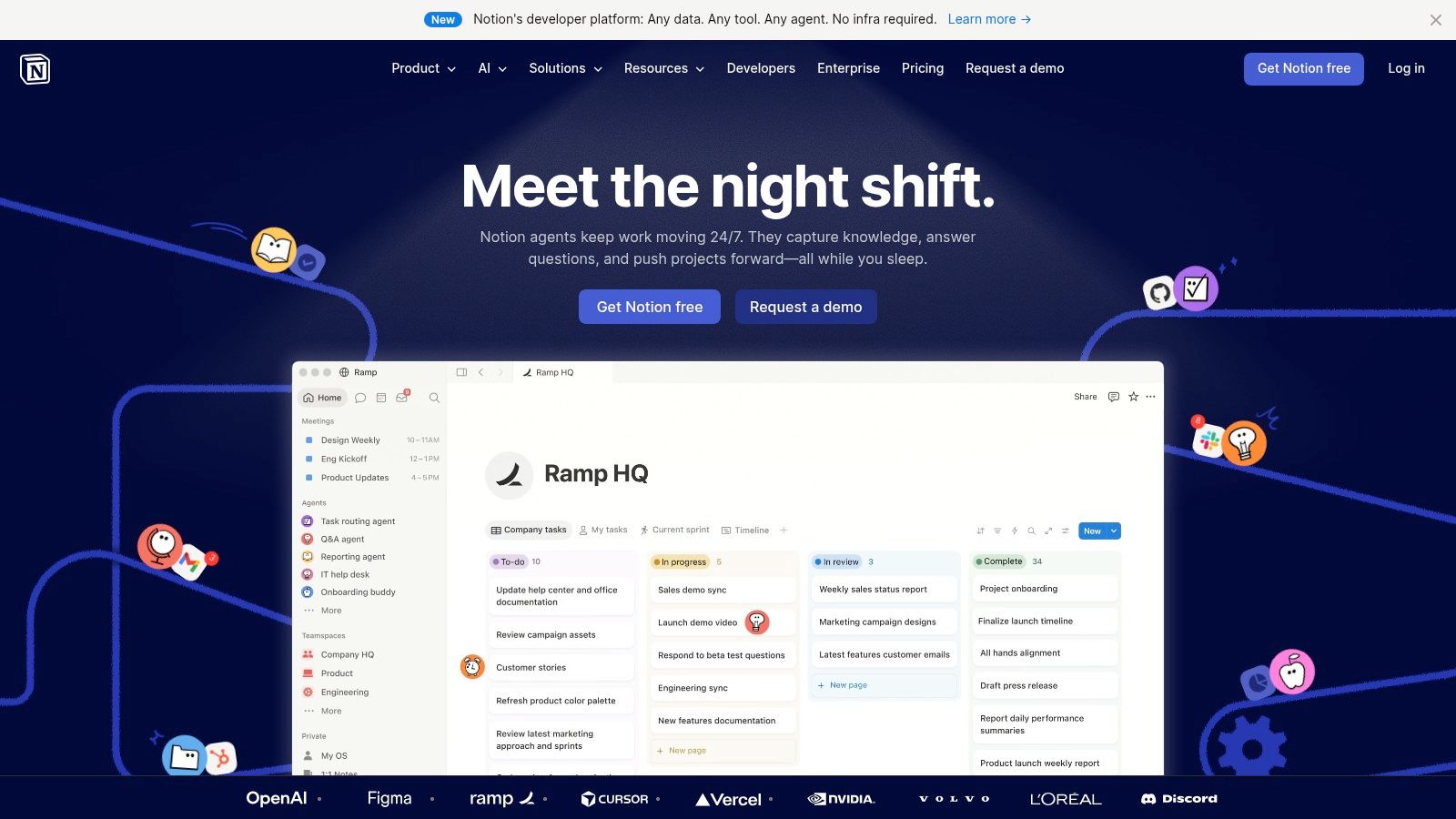
Notion is the tool I recommend when scattered information is the primary bottleneck. If your notes are in Apple Notes, project plans are in Google Docs, and process docs are buried in Slack, Notion can pull that sprawl into one place.
Its strength is flexibility. You can build a lightweight personal dashboard, a team wiki, a content calendar, a client portal, or a project tracker with linked databases. That freedom is also the danger. Teams often overbuild Notion and end up maintaining the workspace instead of using it.
Best use case for remote work
Notion works best when your remote team writes things down and reuses them. Async teams benefit most because pages, databases, meeting notes, and knowledge bases live in one searchable system. The AI features also help with summarizing and finding information, especially in documentation-heavy environments.
What it doesn’t do well is impose discipline by itself. If nobody agrees on naming, page ownership, and task status conventions, the workspace turns into a pretty mess.
Use Notion for durable knowledge. Don’t use it as your only defense against day-to-day chaos.
For solo remote workers, I like Notion as a second-layer tool. Let Chronoid or another tracker show where time goes, then use Notion to document repeatable processes, client information, briefs, and planning. For teams, it’s often strongest as the company brain, not the company heartbeat.
A few practical notes:
- Great for documentation-heavy work: Agencies, content teams, product teams, and consultancies usually get the most from it.
- Strong collaboration model: Guest access and shared pages make client-facing work cleaner.
- Setup takes effort: You’ll need someone to keep the workspace tidy.
- AI costs can get fuzzy: Advanced AI usage adds complexity.
If your remote work problem is fragmented knowledge, Notion earns its place. If your problem is attention drift, it won’t fix that on its own. You can try it at Notion.
3. Slack
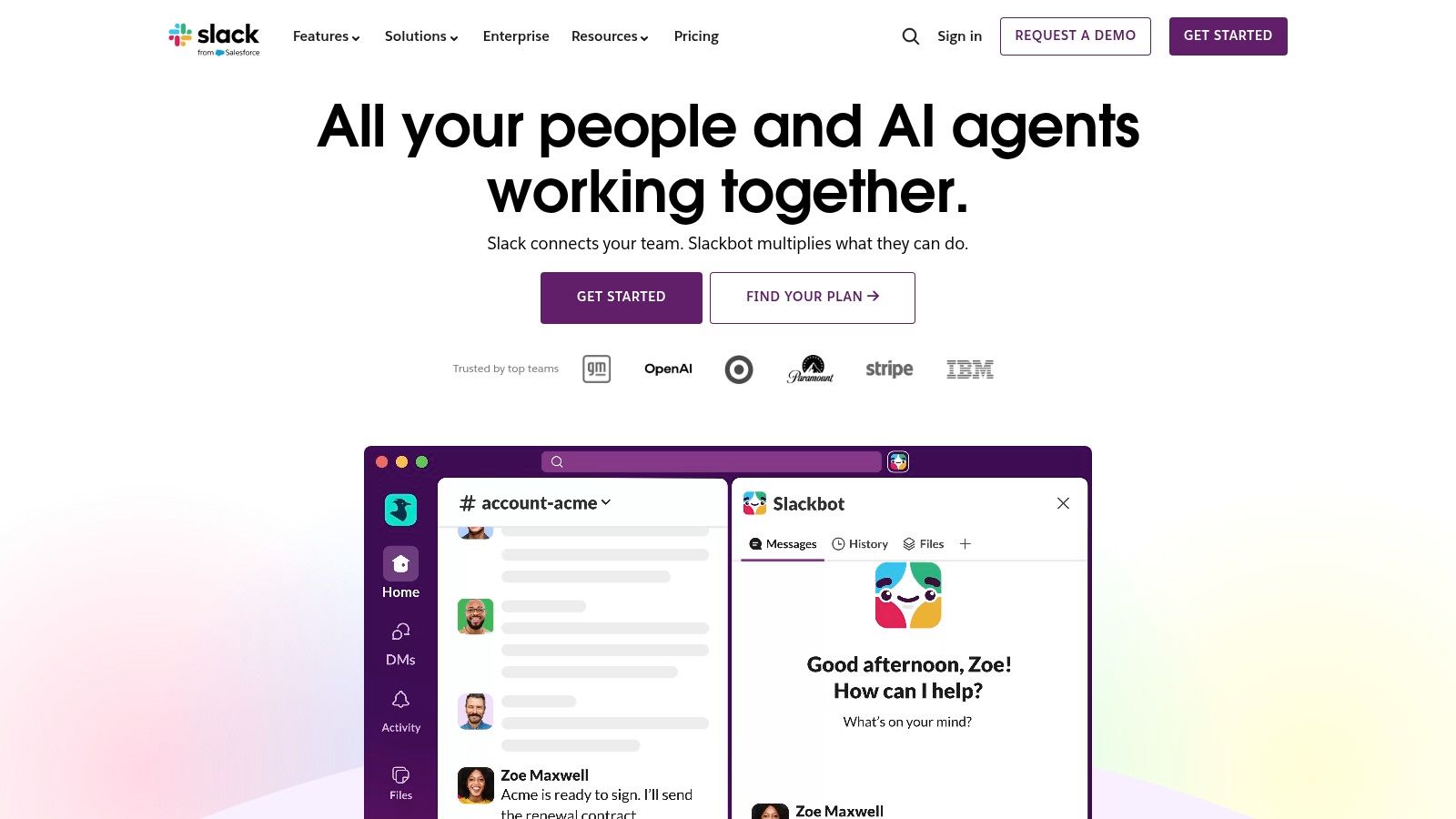
Slack is still the default communication hub for a lot of distributed teams, and for good reason. Channels, direct messages, huddles, clips, canvases, and integrations make it easy to keep work moving across time zones.
The problem isn’t Slack itself. The problem is how quickly it becomes a live feed of interruptions. For remote workers, that trade-off matters because the tools market has increasingly shifted from simple task management to attention management and interruption reduction, especially for people juggling work across apps and documents (HR Cloud on productivity tools for remote workers).
What Slack does well and badly
Slack is excellent for quick decisions, searchable conversations, and cross-functional visibility. Slack Connect is especially useful if you work with clients, contractors, or external partners and want communication in one place instead of fragmented email threads.
What Slack does badly is self-regulation. Without channel rules, notification boundaries, and a clear understanding of when to use huddles versus messages, it creates false urgency all day.
Here’s the simple version I use:
- Use channels for work with shared context: Project updates, team requests, shipping notes.
- Use DMs sparingly: DMs hide decisions that the rest of the team may need later.
- Use huddles for friction, not habit: If typing will take longer than solving, huddle.
- Mute aggressively: A remote worker who sees every message is basically volunteering to be interrupted.
Slack also wins on ecosystem depth. It connects to tools like Google Drive, Jira, GitHub, and countless others, so it often becomes the switchboard for remote operations. That’s useful, but only if you keep it from becoming the entire office in one noisy sidebar.
For freelancers, Slack is often worth using only when clients already live there. For teams, it’s hard to replace as a communication layer. Just don’t confuse activity in Slack with progress in the work itself. The platform is at Slack.
4. Zoom Workplace
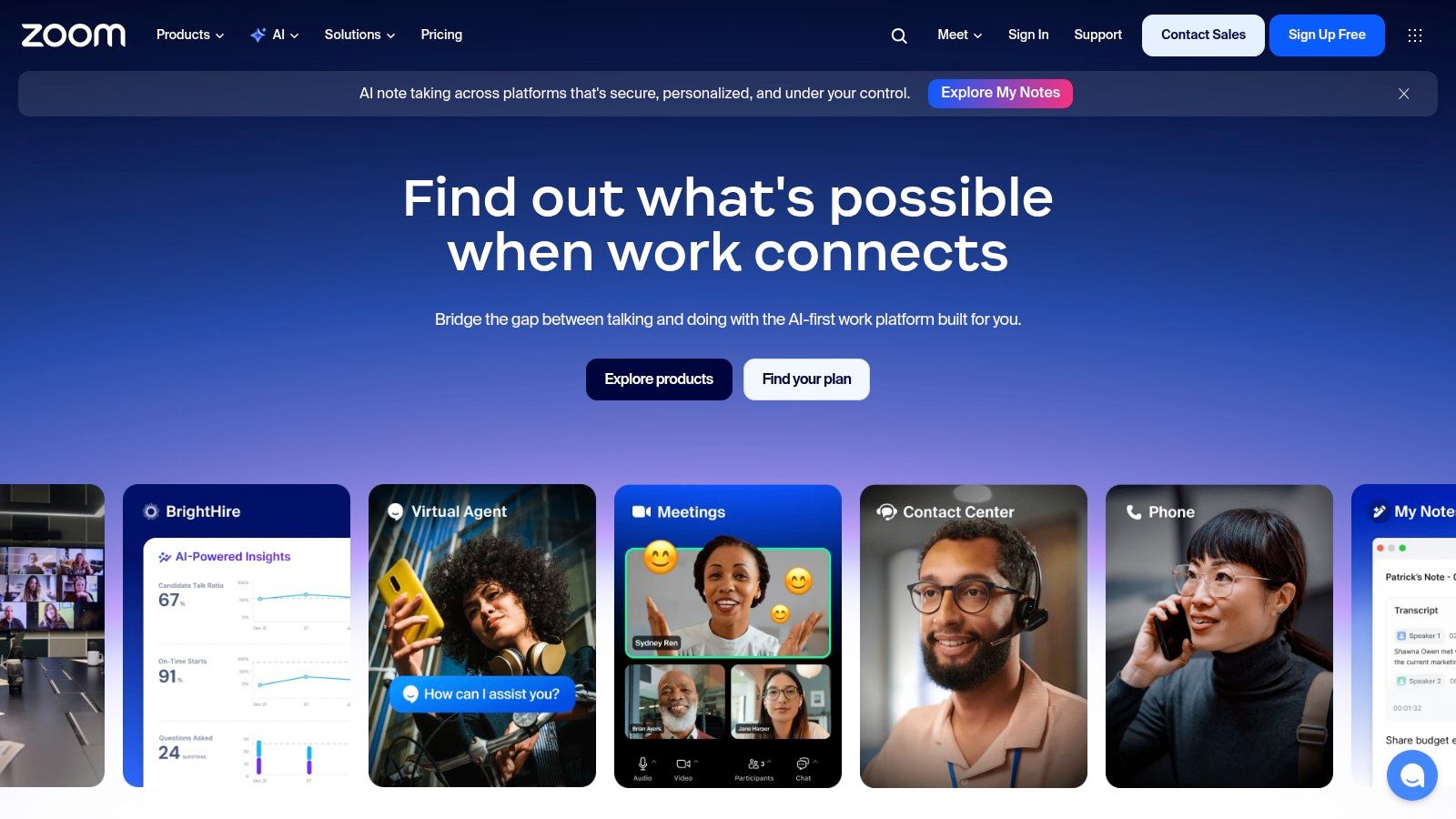
When you need a meeting link that almost everyone can join without friction, Zoom is still the safest pick. That matters more in remote work than people admit. Internal teams can adapt to almost any platform. Clients, candidates, and partners usually won’t.
Zoom Workplace now reaches beyond video meetings into chat, whiteboards, and more, but meetings remain the core reason to choose it. It’s reliable, familiar, and easy to hand off to people outside your organization.
Where Zoom earns its keep
Zoom is strongest for client calls, workshops, interviews, training, webinars, and cross-company conversations. Breakout rooms, recordings, transcription, and admin controls make it flexible enough for both small calls and larger structured sessions.
I wouldn’t use it as my main async communication tool. It can support broader collaboration, but that’s not why most remote teams keep paying for it. They keep paying because when a call matters, they want the least possible resistance.
A good remote stack reduces meetings. It still needs one meeting tool that nobody has to think about.
The main trade-off is cost creep. If you start adding webinars, larger meeting capacities, phone features, or specialized admin options, Zoom can become a bigger line item than expected. Some plan details also depend on account context and region, which makes quick pricing comparisons less clean than they should be.
Use Zoom when you need dependable external communication. If your work is mostly internal and closely integrated with another ecosystem, there may be cheaper or tighter alternatives. But for broad compatibility and low-friction joining, Zoom still earns a place in many remote stacks. The product site is Zoom Workplace.
5. Asana
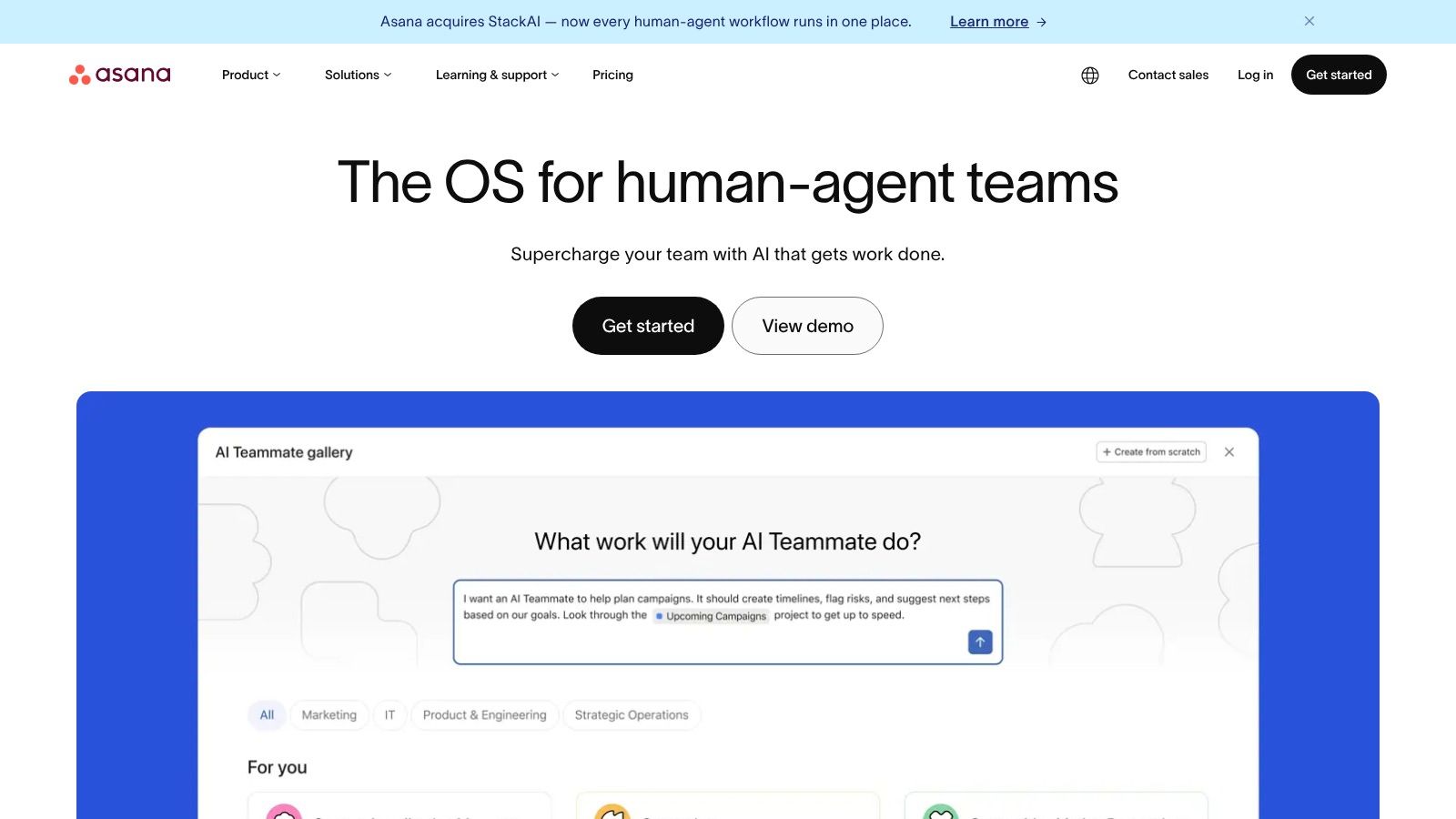
Asana is what I reach for when work is slipping because ownership is fuzzy. Not because people are lazy. Because nobody can tell what’s in progress, what’s blocked, and what’s due next.
That’s Asana’s core value. It turns project coordination into something visible. Lists, boards, timelines, calendars, forms, approvals, portfolios, and goals all feed into a more structured operating model. Remote teams often need that structure more than colocated teams because hallway clarification doesn’t exist.
Best for teams that need clarity
Asana works especially well for agencies, operations teams, creative teams, and product groups that manage recurring workflows with multiple handoffs. If a task moves from intake to draft to review to revision to approval, Asana handles that cleanly.
It’s less appealing for people who want a blank canvas. Compared with Notion, Asana is more opinionated. That’s usually a good thing if your team has been drowning in ambiguity.
A few honest trade-offs:
- Strong project visibility: Deadlines and owners are hard to miss.
- Good for cross-team coordination: Portfolios and goals help larger teams align work.
- Can feel rigid for solo workers: If you only manage your own tasks, it may be heavier than you need.
- Pricing can climb: Some useful features sit behind higher tiers or seat requirements.
Asana also pairs well with tools that answer a different question. Asana tells you what should be happening. A tracker like Chronoid tells you what occurred. That combination is powerful in remote environments because plans and time use don’t always match.
If your team keeps asking who owns this, what’s the status, or why this slipped, Asana is often the cleanest fix. You can evaluate it at Asana.
6. ClickUp
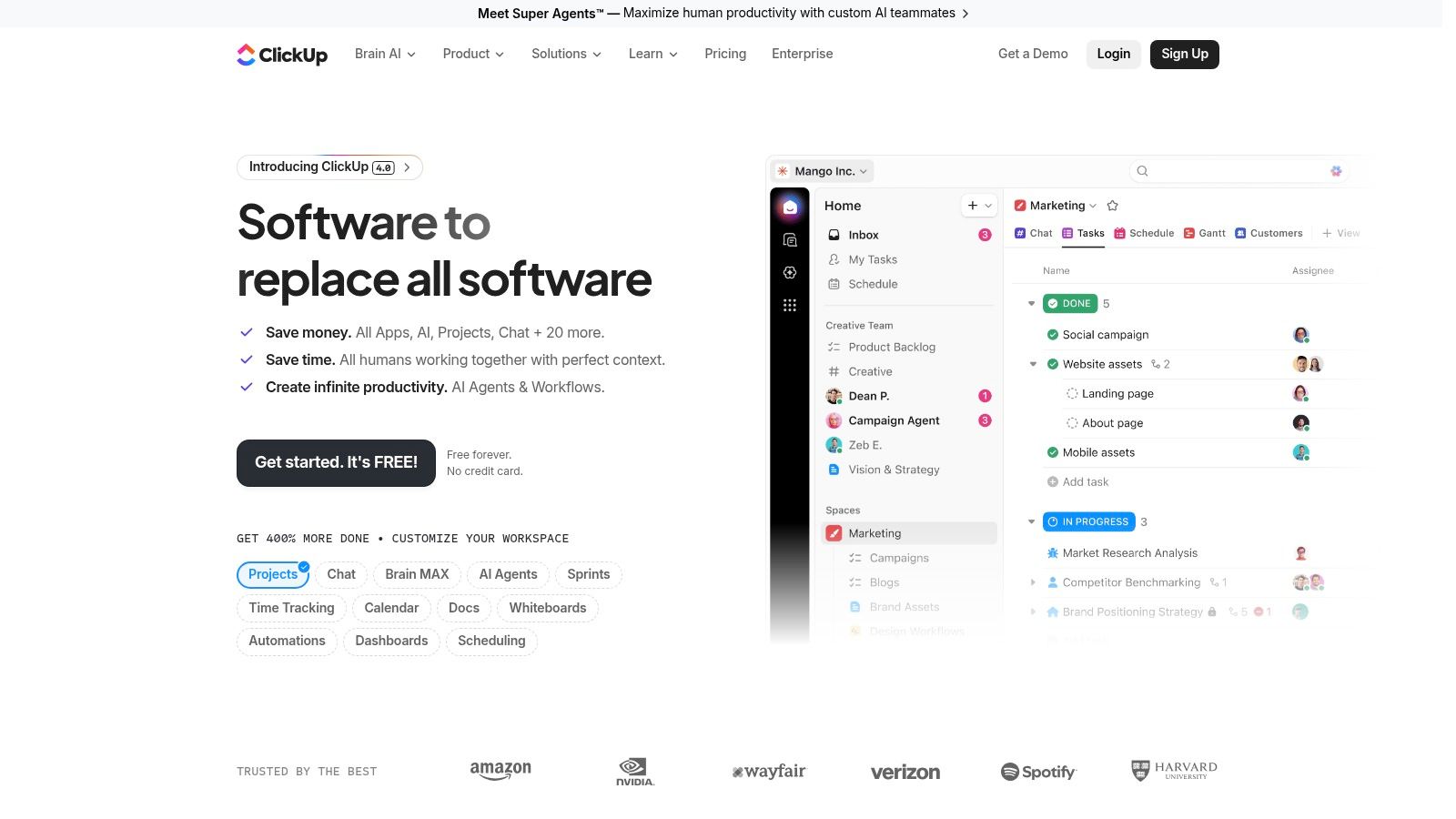
ClickUp tries to replace half your stack. Sometimes that’s exactly what a remote team wants. Tasks, docs, whiteboards, dashboards, automations, goals, templates, and native time tracking all live under one roof.
The upside is obvious. Fewer tools can mean fewer handoffs, fewer duplicate records, and less context switching. The downside is also obvious once you log in. ClickUp can feel like walking into a warehouse of features before you’ve found the front desk.
Who should choose it
ClickUp makes the most sense for teams that want one central workspace and are willing to invest in setup. Small agencies and growing product teams often like it because it can absorb project management, internal docs, and reporting in one system.
If you’re already trying to build a time-blocked remote work routine, pair ClickUp with a simple calendar discipline instead of activating every possible view on day one. This primer on how to timeblock is a sensible way to avoid turning a powerful tool into a cluttered one.
Here’s where I think ClickUp shines and stumbles:
- Broad feature set: It can replace several separate tools.
- Flexible views: Different teams can work in lists, boards, calendars, or Gantt-style planning.
- Good value for feature-hungry teams: Especially if consolidation is a priority.
- Easy to overcomplicate: Too many statuses, spaces, and automations can slow adoption.
ClickUp is one of the most ambitious productivity tools for remote workers because it covers planning, execution, and internal knowledge in one platform. I’d recommend it to teams with an operations-minded lead who can keep the workspace clean. Without that, the flexibility becomes overhead. The platform is ClickUp.
7. Todoist
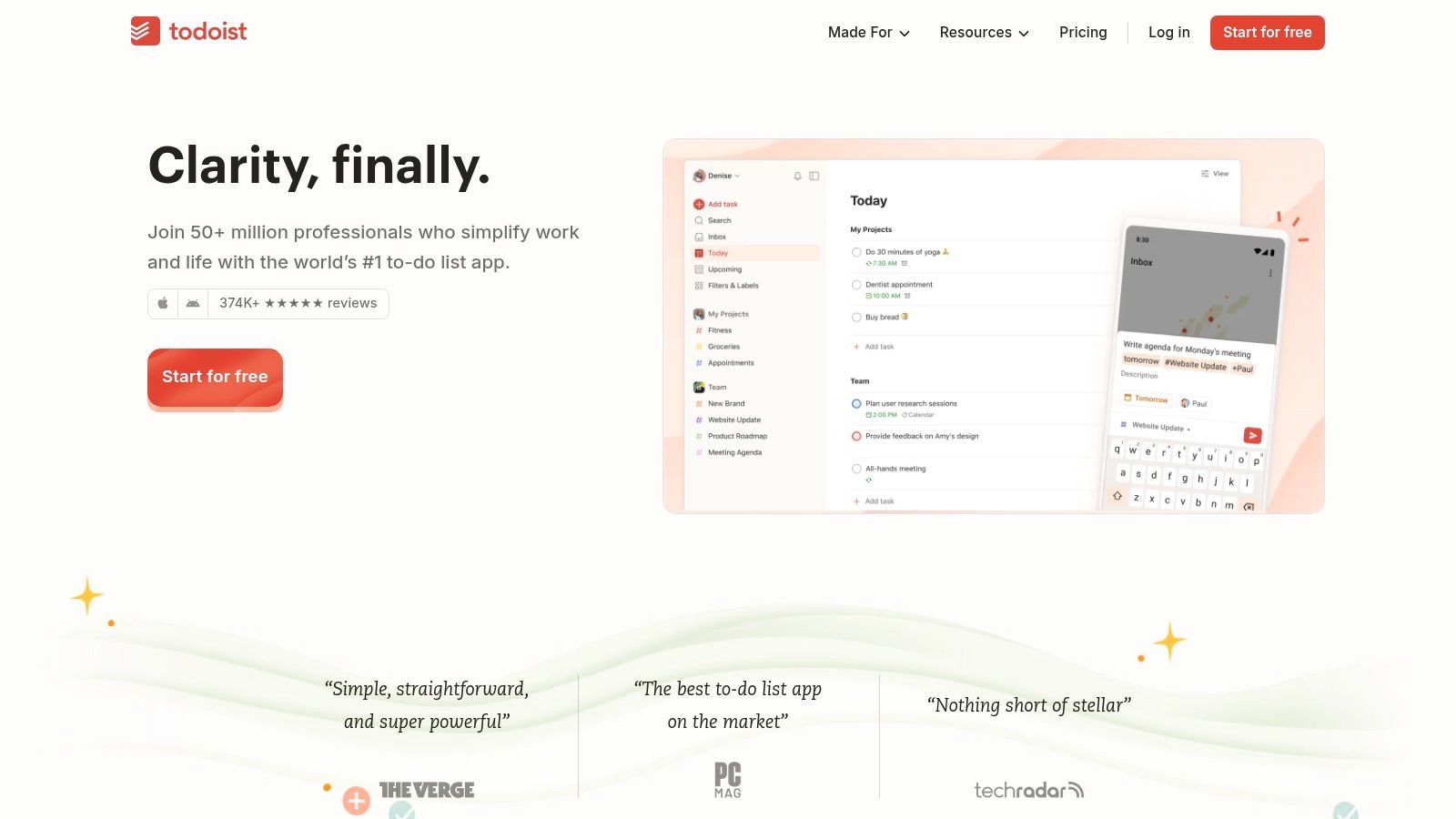
Todoist is the tool for people who hate bloated task managers. It loads fast, captures tasks quickly, and stays out of your way. For remote workers managing their own schedule, that simplicity is a feature, not a limitation.
Natural-language due dates, recurring tasks, labels, priorities, filters, and calendar views cover most individual planning needs. You can also collaborate in team workspaces, but that isn’t where Todoist is strongest.
Why minimalism helps
A lot of remote workers don’t need a full project management suite for personal execution. They need a place to capture obligations, sort them, and finish them. Todoist does that cleanly across devices.
It’s especially good if your workday includes lots of small moving parts. Calls, follow-ups, admin tasks, revision requests, invoices, and personal errands all fit naturally without turning your day into a giant system design project.
“If I dread opening my task app, the system is already broken.”
That’s where its appeal lies. Todoist has low friction. You don’t need a setup phase that takes half a day to become useful.
The limitations are real, though:
- Great personal task manager: Ideal for freelancers and individual contributors.
- Easy client adoption: Shared projects are simple enough for non-technical users.
- Not built for deep portfolio management: Complex dependencies and multi-team planning belong elsewhere.
- Some useful features require paid tiers: Heavy users will likely outgrow the free setup.
Todoist works best as a personal command center inside a broader remote stack. Let your team system handle project coordination. Let Todoist handle your daily execution. That division tends to keep both tools cleaner. You can find it at Todoist.
8. Toggl Track
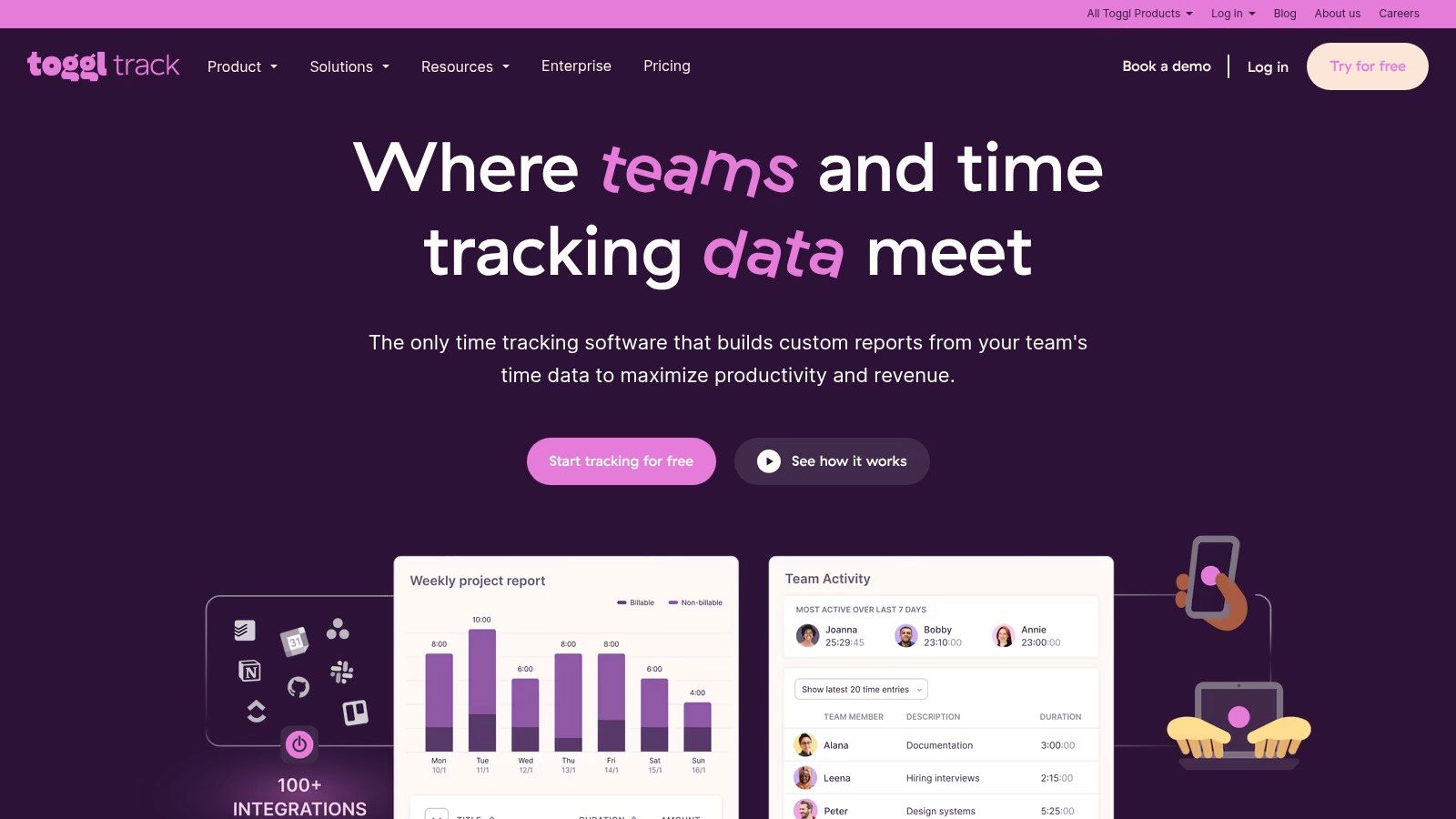
Toggl Track is still one of the easiest time trackers to recommend when a team needs something simple and cross-platform. It’s fast to start, easy to explain, and strong enough for invoicing, billable rates, and project reporting.
That simplicity is the selling point. Many teams don’t adopt time tracking because they reject insight. They reject friction. Toggl lowers that barrier with one-click timers on web, desktop, and mobile, plus integrations with tools many teams already use.
Where it fits compared with automatic tracking
If you bill by project or need basic reporting for clients, Toggl is practical. It handles the mechanics well. Start timer, stop timer, assign to project, run reports, invoice with more confidence.
Its weakness is the same one that affects most manual-first trackers. If you forget to start the timer, the record is incomplete. If your day is fragmented, those gaps add up. That’s why I prefer automatic tracking for individual remote workers who switch contexts often.
The comparison is straightforward:
- Choose Toggl Track if you need cross-platform support: It works well across different devices and teams.
- Choose it if adoption matters more than depth: Non-technical teams usually get it quickly.
- Don’t choose it for rich passive insight: Automatic trackers are better at capturing the work you forgot to log.
- Don’t expect advanced analytics on the simplest setup: More advanced reporting lives higher up the pricing ladder.
For agencies and consultancies that need a broadly compatible timer with good reporting, Toggl Track is still a solid pick. For solo Mac users who want less manual effort and more behavioral insight, something like Chronoid will feel more modern. Toggl’s site is Toggl Track.
9. Freedom

Freedom solves a problem that project managers and chat apps never will. It blocks distractions before willpower has to do the work.
That matters because a major longitudinal study cited by the U.S. Bureau of Labor Statistics found a positive association between remote-work adoption and total factor productivity growth. A one-percentage-point increase in remote-work adoption corresponded to a 0.08 to 0.09 percentage-point rise in total factor productivity, even after controlling for pre-pandemic trends. The same source notes that heavily remote workers log about one hour less per day than in 2019 while output remains steady, which points to work organization and interruption control as real drivers of performance (WorkTime summary of remote work productivity research).
Best for people who need enforced focus
Freedom lets you block websites, apps, or even the whole internet across multiple devices. Scheduled sessions, recurring routines, locked mode, and synced blocklists make it much more useful than a basic browser extension.
That cross-device consistency is the main reason to use it. If your laptop is locked down but your phone is still a slot machine, you haven’t fixed the underlying problem.
A few things to know before you buy:
- Excellent for habit-building: Scheduled sessions reduce the need to decide in the moment.
- Useful across operating systems: Good fit for mixed-device workers.
- Worth setting up carefully: Bad blocklists create frustration instead of focus.
- Platform limits still exist: Mobile blocking isn’t always as deep as desktop control.
Freedom is ideal for remote workers who know exactly where they get derailed and want a system-level way to close those doors. If your biggest productivity leak is distraction, this will help more than another task app. The product is at Freedom.
10. Loom
Loom is one of the few tools that can directly cut meetings without creating more confusion. A quick screen recording often explains context better than a long written message and faster than scheduling a call.
That’s why Loom has become a staple in async-heavy teams. You can record your screen and camera, send a link, and let the other person watch when they’re available. For remote work, that’s often a better fit than forcing everyone into the same calendar slot.
When Loom is the better choice than a meeting
Use Loom for walkthroughs, reviews, handoffs, bug explanations, design feedback, process demos, and status updates that need tone or visual context. It’s especially effective when the recipient needs to see the exact screen state instead of reading a description of it.
Transcripts, captions, AI summaries, chapters, and comments make the videos easier to skim later. That helps remote teams build a searchable record instead of letting explanations disappear into live calls.
If distraction is part of the reason you keep replacing async updates with emergency meetings, this article on how to stop getting distracted is a useful companion. And if you want a separate walkthrough on making better async recordings, this guide on using a Loom covers the practical side.
My short take on Loom:
- Great async explainer tool: It reduces repetitive meetings.
- Good for cross-time-zone teams: People can review on their own schedule.
- Needs usage discipline: Not every update deserves a video.
- Requires governance at scale: Large teams need naming, retention, and sharing rules.
Loom works best when you reserve it for communication that benefits from voice and visuals. Use it selectively, and it becomes one of the most effective tools in a remote stack. You can try it at Loom.
Top 10 Remote Productivity Tools Comparison
| Product | Core features ✨ | UX & Quality ★ | Pricing & Value 💰 | Target audience 👥 |
|---|---|---|---|---|
| Chronoid 🏆 | Automatic app/site/doc tracking; on-device AI chat; built-in blocker, Pomodoro, scheduled focus; privacy-first | ★★★★★ private, lightweight, zero‑setup | 💰 One‑time from $59 (Lifetime $149); 7‑day free trial | 👥 Freelancers, creatives, remote workers, students (ADHD-friendly) |
| Notion | Pages & databases; teams & permissions; native AI agents; wide integrations | ★★★★☆ highly customizable; setup overhead | 💰 Freemium → paid team tiers; AI credits for advanced agents | 👥 Solo builders & distributed teams |
| Slack | Channels, DMs, huddles, clips; searchable history; 2,600+ integrations | ★★★★☆ familiar UX; can be noisy without rules | 💰 Freemium; cost scales per active seat | 👥 Distributed teams & external collaborators |
| Zoom Workplace | HD meetings, webinars, chat, whiteboards; admin controls | ★★★★☆ reliable meetings; low onboarding friction | 💰 Freemium; paid plans + add‑ons (webinars/phone) | 👥 Client calls, organizations, event hosts |
| Asana | Tasks, timelines, approvals, portfolios, workload views | ★★★★☆ structured PM; opinionated workflows | 💰 Freemium; paid tiers for portfolios/time tracking | 👥 Agencies, product teams, creative ops |
| ClickUp | Tasks, docs, whiteboards, dashboards, native time tracking; AI add‑ons | ★★★★☆ feature‑dense; steeper learning curve | 💰 Freemium; strong mid‑tier value; AI credits | 👥 Teams wanting app consolidation |
| Todoist | Fast task capture, natural dates, labels/filters, calendar view | ★★★★☆ minimal & speedy; cross‑platform | 💰 Freemium; Pro & Business paid plans | 👥 Individuals & small teams |
| Toggl Track | One‑click timers, calendar sync, billable rates, solid reporting | ★★★★☆ easy onboarding; reporting‑focused | 💰 Freemium; Premium for advanced analytics | 👥 Freelancers, consultants, small agencies |
| Freedom | Cross‑device site/app blocking, schedules, locked mode, ambient sounds | ★★★☆☆ effective at focus; requires setup | 💰 Subscription; unlimited devices on plan | 👥 Distracted remote workers needing system‑wide blocks |
| Loom | Async video/screen recording, transcripts, AI summaries & chapters | ★★★★☆ reduces meetings; shareable insights | 💰 Freemium; paid team seats for libraries/analytics | 👥 Teams needing async communication and walkthroughs |
How to Build Your Ultimate Remote Productivity Stack
A remote setup usually breaks in a familiar way. Messages live in one app, tasks in another, docs in a third, and time gets reconstructed from memory at the end of the week. That is how teams end up paying for overlap, missing handoffs, and feeling busy without a clear record of what made real progress.
Build the stack around jobs, not categories. Start with the layer that gives you evidence. For Mac users, Chronoid fits that role well because it records how time is spent across apps, sites, and documents, then pairs that visibility with focus tools. That matters because every later choice gets easier when you can see where interruptions, admin work, and real production time are going.
Then assign clear ownership.
Slack handles ongoing communication for many teams, but it needs discipline or it becomes background noise. Asana, Notion, and ClickUp can all run work, yet each one pushes teams toward a different operating style. Asana is better when process matters. Notion works well when documentation is central. ClickUp can replace more tools, but that flexibility comes with more setup and more room for clutter.
The rest of the stack should fill a specific gap. Todoist works well as a personal execution layer when the team system is too heavy for daily capture. Zoom is still the safe choice for live meetings where reliability matters more than novelty. Loom cuts meeting volume when a recorded walkthrough will do the job better. Freedom is useful when distraction is the bottleneck, not planning. Toggl Track still earns a place for teams that need straightforward timers and client-facing reports.
Analysts at Global Market Insights expect the remote work software market to keep growing. More options will keep showing up. A better stack does not come from adding them all. It comes from picking one tool per job and making the boundaries clear.
A practical stack usually looks like this:
- Foundation: Chronoid for automatic time awareness and focus control
- Communication: Slack for team coordination, Zoom for live meetings
- Work management: Asana, Notion, or ClickUp based on how the team plans and executes
- Personal execution: Todoist for fast individual task capture
- Focus enforcement: Freedom for blocking distractions across devices
- Async communication: Loom for walkthroughs, updates, and feedback
The goal is a stack that cooperates. One owner for communication. One for tasks. One for documentation. One for time awareness.
If you want a broader view of complementary apps, you can also discover essential remote team tools.
If you work on a Mac and your day feels reactive, start with the layer that shows what is happening. As noted earlier, Chronoid gives you private, automatic visibility into your workday. Once that foundation is in place, it gets much easier to tighten estimates, protect deep work, and connect the rest of your tools without creating more noise.