ClickUp Time Tracking on Your Mac, Without Remembering the Timer
Chronoid records what you actually did on your Mac — apps, documents, browser tabs — then lets you attach that time to the ClickUp task it belongs to. Turn on time push and Chronoid creates real ClickUp time entries on the task and keeps them up to date.
ClickUp's timer only works if you remember it
ClickUp has proper time tracking, and that is exactly the problem: it is manual. The timer runs when you start it, and the two hours you spent in Figma, Xcode, and a support thread before you opened ClickUp are gone. Chronoid comes at it from the other side — it watches your Mac all day, so the time already exists by the time you decide which task it belongs to. You are filling in a timesheet from a recording, not from memory.
Setting it up
Paste a ClickUp API token
In ClickUp, open Settings → Apps and generate a personal API token — it starts with pk_ and does not expire. Paste it into Chronoid under Settings → Integrations → ClickUp and hit Test Connection. The token is stored in your Mac's Keychain, never in a settings file.
Pick the Lists you actually work from
ClickUp organises work into Lists, and that is what Chronoid imports from. Choose the ones you track against, then narrow with only tasks assigned to me, exclude completed tasks, and only tasks updated in the last 7, 30, or 90 days. A whole workspace would bury the suggestions you want.
Type, pick a task, keep working
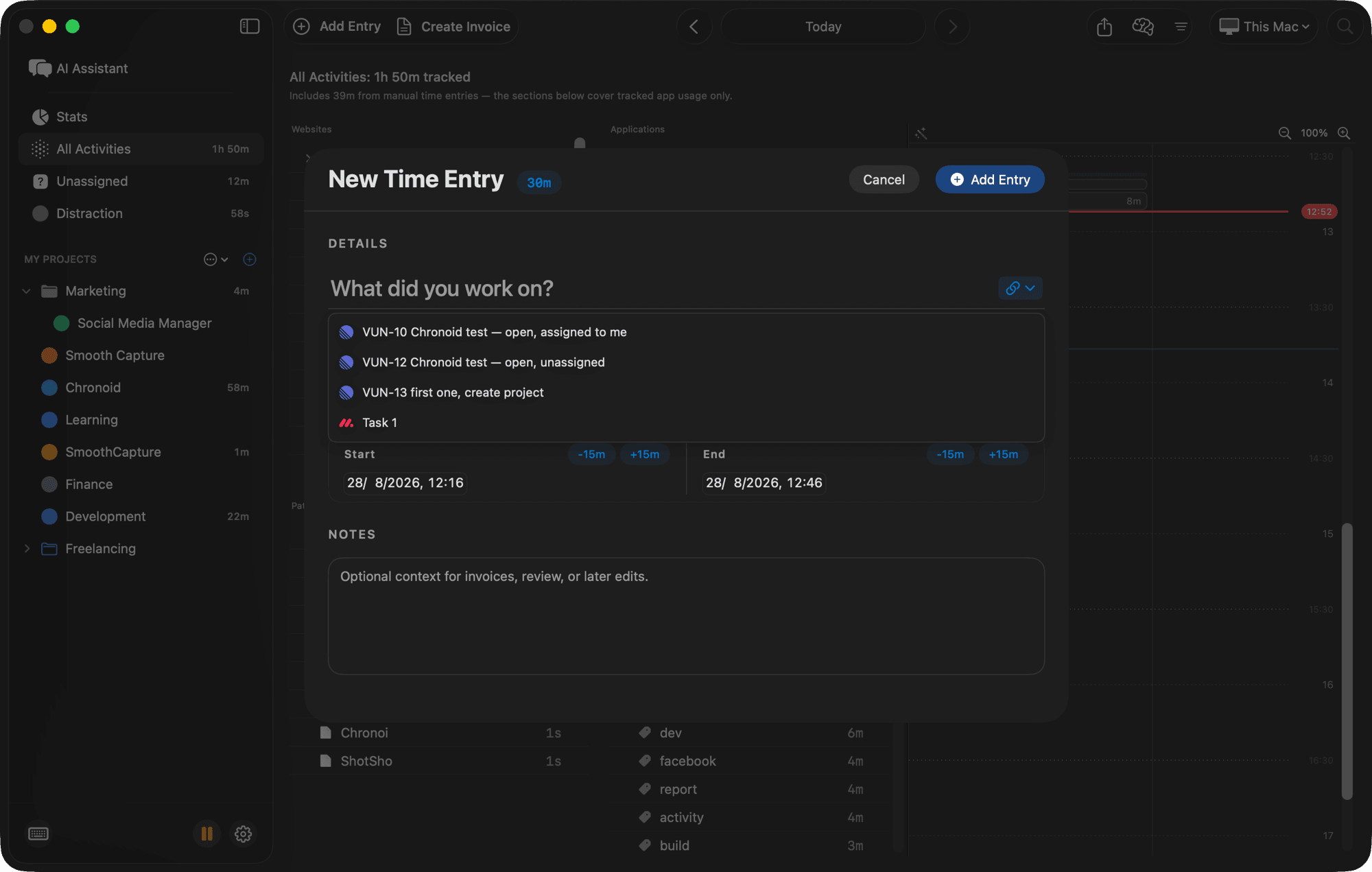
Start a time entry and your ClickUp tasks appear as you type the title. Pick one and the entry is linked to that task — a real reference, not a string that happens to match. Keep typing instead and the entry stays unlinked, exactly as before.
Your Mac time, as real ClickUp time entries
ClickUp is the one tool of the three with first-class time tracking, so Chronoid uses it directly rather than improvising. Turn on Send my tracked time to ClickUp and each linked entry becomes a ClickUp time entry on its task.
Written where ClickUp expects it
Entries land in ClickUp's own time tracking, so rollups, dashboards, and anything your team already built on top of tracked time keep working. Nothing lives in a custom field pretending to be hours.
Updated, never duplicated
Chronoid remembers what it sent. Change a duration, rename an entry, or split it, and the existing ClickUp entry is updated in place — a task you worked for three weeks does not accumulate three weeks of near-identical rows.
Only what you linked
Push is off until you switch it on, and even then only entries you explicitly linked to a ClickUp task are sent. Your raw timeline, window titles, and browsing history never leave your Mac.
Why Mac users pair Chronoid with ClickUp
Billable hours you can defend
A linked entry carries the task it belongs to, so a ClickUp task and a line on your invoice describe the same work. Chronoid's invoicing turns those hours into a PDF with rates, taxes, and currency conversion, without a second export step.
No per-seat time tracking add-on
ClickUp is already a monthly bill per person. Chronoid offers a lifetime option for the Macs you work on, so adding accurate tracking to your workspace does not add another recurring line item.
Retroactive, not just live
Forgot to start anything? Open the timeline, see the block of Figma and Chrome time you spent this morning, and attach it to the ClickUp task. Idle prompts catch the lunch you did not stop for.
Quiet in the background
Chronoid refreshes your task list about every 15 minutes, after your Mac wakes, and when you focus a title field. The heavy full reconcile runs at most once a day, so a big workspace costs almost nothing.
All integrations with Lifetime or a subscription
Chronoid offers $15/month, $96/year, or $149 lifetime access. Subscriptions include updates while subscribed; the lifetime option includes lifetime updates. Task integrations are included in the Monthly, Annual, and Lifetime licenses. Every plan starts with a 7-day free trial, no credit card.
ClickUp time tracking FAQ
Does Chronoid track time in ClickUp automatically?
Chronoid tracks your Mac automatically — apps, documents, and websites, with no timer to start. What it never does automatically is decide which ClickUp task that time belongs to; you attach an entry to a task, and only then can it be sent to ClickUp.
Will the time show in ClickUp's own time tracking?
Yes. Chronoid creates native ClickUp time entries on the task, so dashboards, rollups, and reports that already read tracked time pick them up with no extra configuration.
Will pushing time create duplicate ClickUp entries?
No. Chronoid keeps a record of what it has already sent and updates that entry when your tracked time changes, rather than adding a second copy on the next sync.
Which ClickUp tasks get imported?
Only the ones from the Lists you select, filtered further by assigned to me, completed status, and how recently they were updated. Chronoid never imports an entire workspace — that would flood your suggestions.
Where is my ClickUp API token stored?
In the macOS Keychain, not in a plain settings file, and it is only ever sent to ClickUp. Disconnecting removes the token and clears the cached tasks; entries you already linked keep their link.
Which Chronoid license includes the ClickUp integration?
All current monthly, annual, and lifetime plans, and the 7-day free trial includes the integration so you can test it against your own workspace first.
Does it work on Apple Silicon and Intel Macs?
Yes — Chronoid is a native macOS app (macOS 14 and later) and runs on both Apple Silicon and Intel.
Use more than one tool?
All three can be connected at the same time, each with its own filters and time-push setting. Task integrations overview
Stop retyping ClickUp tasks into a timesheet
Try Chronoid free for 7 days on your Mac. Connect ClickUp in a couple of minutes and every entry you log points at real work.