monday.com Time Tracking That Fills the Board For You
Chronoid records your Mac automatically, lets you attach that time to the monday.com item it belongs to, and writes the total hours back into a Numbers column on the board — with an update on the item listing every entry behind the number.
The hours column is only as good as the person filling it in
Most monday.com boards carry a number that is supposed to say how long something took, and most of those numbers were typed on Friday afternoon from memory. Chronoid closes that gap from the desktop end: it has been recording your Mac all week, so the hours already exist. You attach them to the item, and the board updates itself — the number your team plans against comes from a recording rather than a guess.
Setting it up
Paste a monday.com API token
In monday.com, open your avatar menu → Developers → My Access Tokens and copy your personal token. Paste it into Chronoid under Settings → Integrations → monday.com and hit Test Connection. Chronoid pins the monday.com API version it was built against, so a platform update cannot silently change what the integration does.
Choose the boards to import
monday.com organises work into Boards, and that is what Chronoid imports from. Pick the ones you track against, then narrow with only items assigned to me — matched against the people column — plus completed status and how recently an item was updated.
Link entries as you type
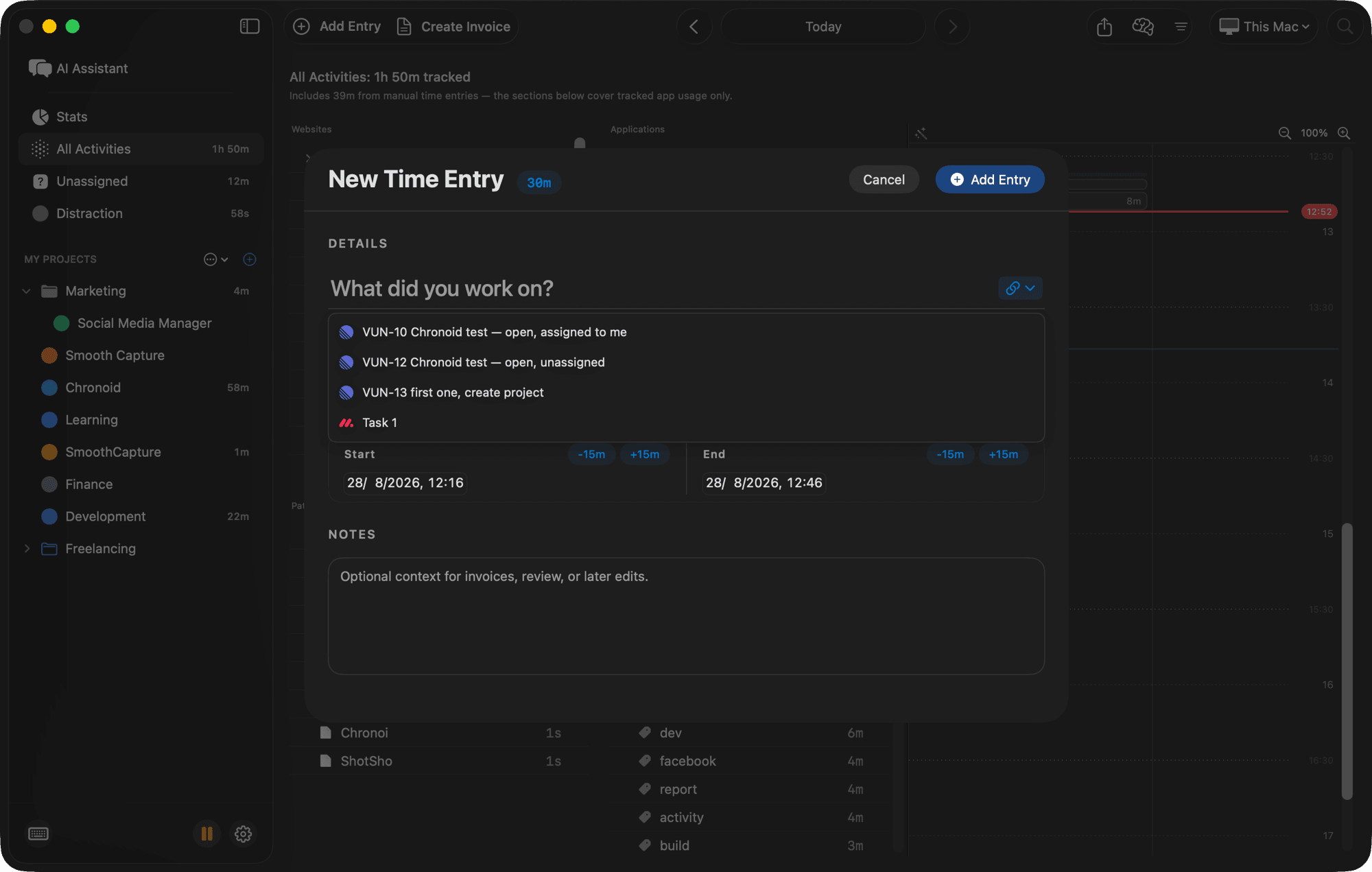
Start a time entry and matching monday.com items appear beneath the title field, labelled with the tool they came from. Pick one and the entry holds a real reference to that item, which survives you editing the title afterwards.
How tracked time gets onto the board
monday.com's own time tracking column is read-only for third-party apps — no app can write to it. So Chronoid does the next honest thing: your total goes into a Numbers column you choose, and the detail goes into an update on the item.
A Numbers column you choose
Turn on time push, then pick a destination Numbers column per board. Chronoid keeps a running total there and updates it in place. If a board has no Numbers column, Chronoid tells you rather than failing quietly — add one and pick it.
The breakdown behind the number
4.25 tells a teammate nothing. Chronoid also posts one update on the item with a table of every entry — duration, time range, title, and notes, newest first. It edits that same update in place, so the activity feed does not fill up as you track.
It comes back off cleanly
Unlink or delete all the time for an item and both the column value and the update are removed, instead of leaving a stale total on a board your team is reading.
Why Mac users pair Chronoid with monday.com
Client boards that agree with your invoice
The hours the client sees on the board and the hours on your invoice come from the same linked entries, so a billing conversation is a look at the same data rather than two versions of the week.
Choose your billing period
monday.com already bills per seat, per month. Chronoid offers a lifetime option for your Macs, with lifetime updates — accurate hours on the board without a second subscription for every person who has to log them.
Nothing else leaves your Mac
Only entries you explicitly linked to an item are sent. Your raw timeline, the window titles Chronoid captured, and your browsing history stay local — the board gets hours, not surveillance.
Fill in the week you already worked
Because tracking runs whether or not you remembered a timer, you can open Wednesday, see the real blocks, and attach them to the right items. Idle detection prompts you about the gaps.
All integrations with Lifetime or a subscription
Chronoid offers $15/month, $96/year, or $149 lifetime access. Subscriptions include updates while subscribed; the lifetime option includes lifetime updates. Task integrations are included in the Monthly, Annual, and Lifetime licenses. Every plan starts with a 7-day free trial, no credit card.
monday.com time tracking FAQ
Can Chronoid write into monday.com's time tracking column?
No — and neither can any other app. monday.com's time tracking column is read-only for third parties, so Chronoid writes your total tracked hours into a Numbers column you choose on each board instead, and posts the per-entry breakdown as an update on the item.
What happens if a board has no Numbers column?
Chronoid tells you when you go to pick a destination column. Add a Numbers column on the board in monday.com, then select it in Chronoid and the total starts flowing.
Will the item's activity feed fill up with updates?
No. There is exactly one Chronoid update per item and it is edited in place. It lists the 50 most recent entries and states how many more are behind the total.
Which monday.com items get imported?
Only items from the boards you select, filtered by assigned to me — matched on the people column — plus completed status and how recently they were updated. Chronoid never pulls an entire account.
Where is my monday.com token stored?
In the macOS Keychain, not in a plain settings file, and it is only ever sent to monday.com. Disconnecting deletes the token and the cached items from your Mac.
Which Chronoid license includes the monday.com integration?
All current monthly, annual, and lifetime plans, and the 7-day free trial includes the integration so you can point it at a real board before buying.
Use more than one tool?
All three can be connected at the same time, each with its own filters and time-push setting. Task integrations overview
Stop retyping monday.com items into a timesheet
Try Chronoid free for 7 days on your Mac. Connect monday.com in a couple of minutes and every entry you log points at real work.