Track Time Against the Tasks You Already Have
Connect Chronoid to ClickUp, monday.com, or Linear. Your tasks turn into suggestions as you type a time entry, so every entry points at real work — and your tracked time can go back to the tool your team lives in, without duplicates.
Task integrations are included in the Monthly, Annual, and Lifetime licenses.
How Task Integrations Work
Connect Your Tool
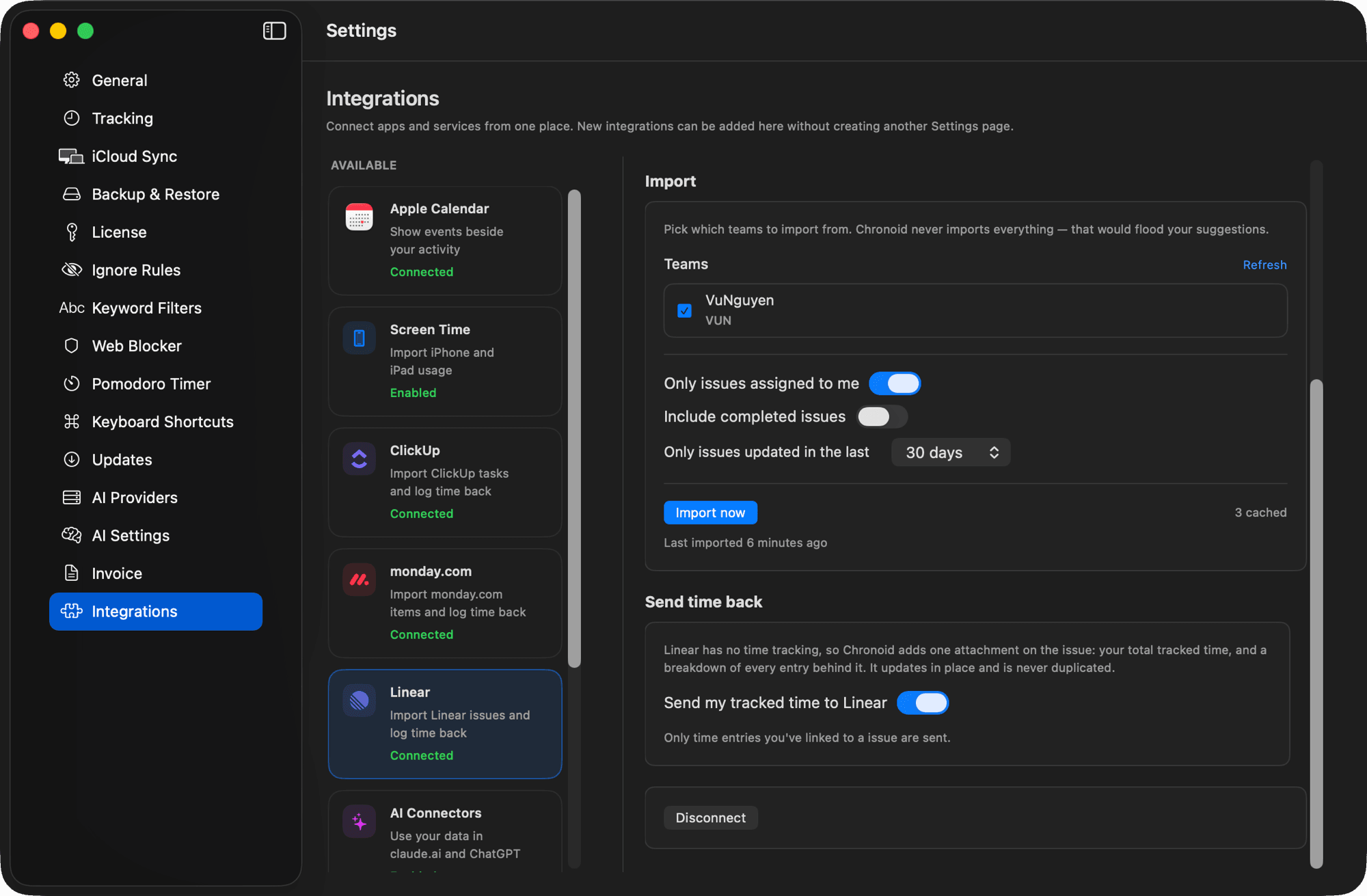
Paste a personal API token in Settings → Integrations and hit Test Connection. The token is stored in your Mac's Keychain, never in a settings file. Connect all three tools if you use all three.
Import the Right Tasks
Choose which lists, boards, or teams to pull from, and filter to work assigned to you, updated recently, and not yet completed. Chronoid never imports a whole workspace — that would bury the suggestions you want.
Type, Pick, Track
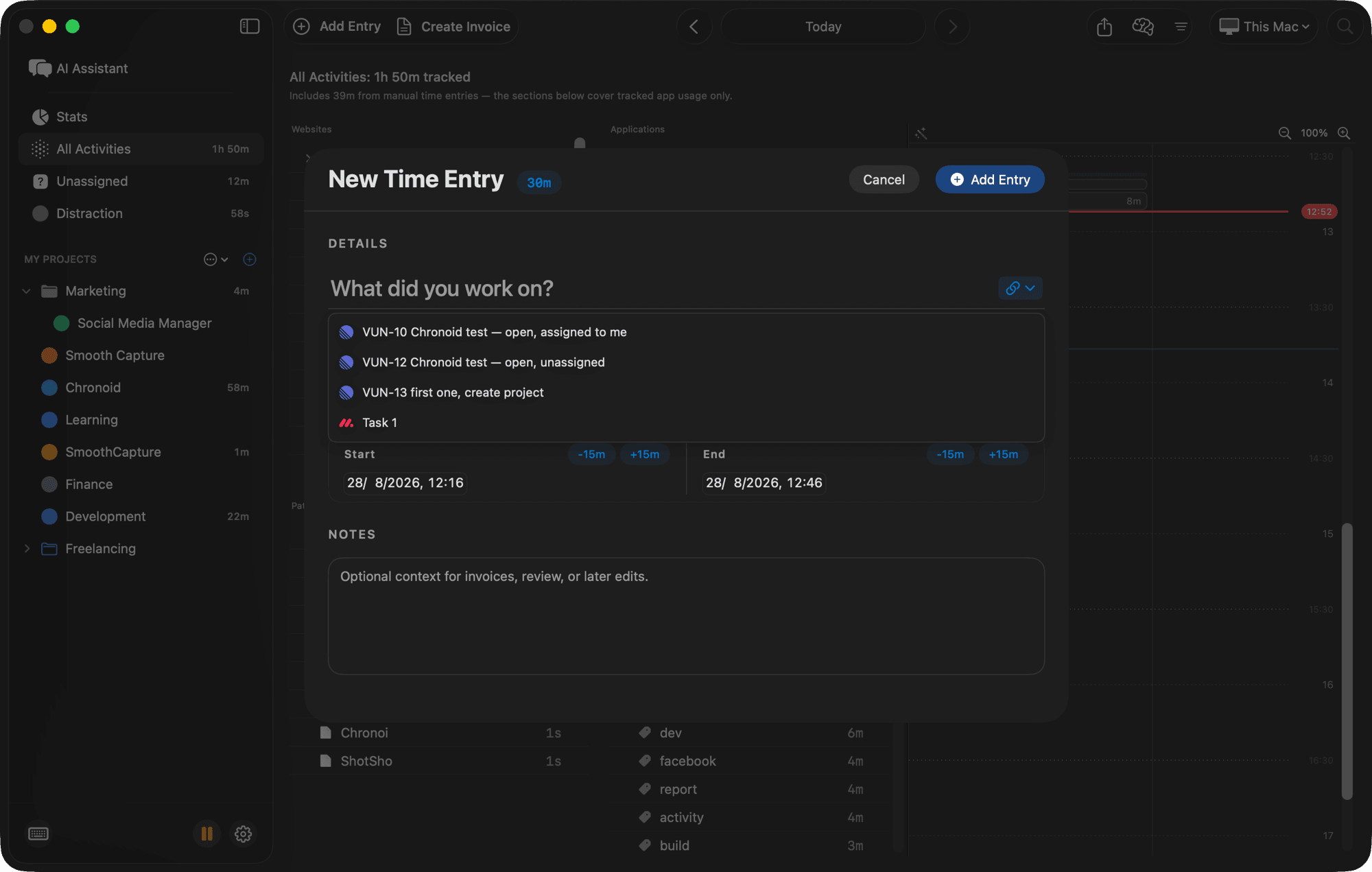
Start a time entry and your tasks appear as you type. Picking one links the entry to that task, so your timesheet points at real work instead of a line of text you retyped.
One Integration Per Tool, Shaped to That Tool
Each tool stores work differently, so Chronoid writes what that tool can actually accept instead of pretending they are the same.
ClickUp
Brings in
Pick the Lists you work from and their tasks become suggestions.
Sends back
ClickUp has real time tracking, so Chronoid creates a native ClickUp time entry on the task and updates it when your tracked time changes.
ClickUp time tracking on Mac Set up ClickUpmonday.com
Brings in
Pick the Boards you work from and their items become suggestions.
Sends back
monday.com's time column is read-only for apps, so Chronoid writes your total hours into a Numbers column you choose, plus an update listing every entry behind it.
monday.com time tracking on Mac Set up monday.comLinear
Brings in
Pick the Teams you work in and their issues become suggestions.
Sends back
Linear has no time tracking, so Chronoid attaches your total tracked time to the issue with a breakdown of every entry, updated in place.
Linear time tracking on Mac Set up LinearKey Benefits
Time Entries That Point at Real Work
A linked entry carries the task it belongs to, not just a title you happened to type the same way twice. Reports, exports, and invoices inherit that link.
Send Time Back, Without Duplicates
Turn on time push and Chronoid writes into ClickUp, monday.com, or Linear — and updates what it already sent rather than adding a second copy every sync.
Only Linked Entries Leave Your Mac
Nothing is pushed until you switch it on, and even then only entries you explicitly linked to a task are sent. Your full timeline, window titles, and browsing history stay local.
Quiet Background Sync
Chronoid refreshes your task list about every 15 minutes and shortly after your Mac wakes, incrementally. The heavier full reconcile runs at most once a day.
Three Tools at Once
Freelancers rarely get to pick one tool. Connect ClickUp, monday.com, and Linear together — each with its own lists, filters, and push setting.
Clean Disconnect
Disconnecting removes the token from your Keychain and clears the cached tasks. Entries you already linked keep their link, so reconnecting restores them.
Included in all current plans
Task integrations ship with every current plan — $15/month, $96/year, or $149 lifetime. The 7-day free trial includes them, so you can connect a real workspace before you buy.
Frequently Asked Questions
Does Chronoid send all my tracked time to ClickUp, monday.com, or Linear?
No. Sending time back is off until you turn it on, and even then only time entries you explicitly linked to a task are sent. Unlinked time — and everything Chronoid tracks automatically, like apps, window titles, and websites — never leaves your Mac.
Where is my API token stored?
In the macOS Keychain, not in a plain settings file, and it is only ever sent to the tool it belongs to. Disconnecting an integration deletes the token and the cached task list from your Mac.
Will pushing time create duplicate entries in my task tool?
No. Chronoid tracks what it has already sent and updates that record instead of adding a new one. Editing your tracked time updates the existing entry, hours column, or issue attachment upstream.
Can I connect more than one tool?
Yes. ClickUp, monday.com, and Linear can all be connected at the same time, each with its own imported lists, filters, and time-push setting. Suggestions show which tool each task came from.
How often does Chronoid sync my tasks?
Roughly every 15 minutes in the background while at least one integration is enabled, plus shortly after your Mac wakes so a laptop opened in the morning is not working from yesterday's list. You can also run an import on demand with Import now.
Which Chronoid license includes task integrations?
All current plans: monthly, annual, or lifetime, and the 7-day free trial includes the integrations so you can connect a real ClickUp, monday.com, or Linear workspace before buying.
Why does monday.com use a Numbers column instead of its time tracking column?
monday.com's time tracking column is read-only for third-party apps, so no app can write to it. Chronoid writes your total tracked hours into a Numbers column you choose on each board instead.
Your tasks, your timesheet, one place
Try Chronoid free for 7 days. No credit card required. Connect ClickUp, monday.com, or Linear in a couple of minutes and stop retyping task names.