Time Tracking for Linear, Without Leaving Your Mac
Linear deliberately ships no time tracking. Chronoid supplies it from the outside: your Mac is recorded automatically, entries link to the issues you actually worked on, and each issue gets one attachment showing the total tracked time and every entry behind it.
Linear left time tracking out on purpose — that is fine, until someone asks
Linear is fast because it does not ask you to log hours. Then an agency retainer, a client, or a capitalisation report needs to know how long ENG-431 took, and there is nowhere in Linear to look. Bolting a manual timer onto a tool built around not being interrupted defeats the point. Chronoid records your Mac in the background instead, so the answer is already there when the question arrives — and it goes back onto the issue rather than into a spreadsheet nobody reads.
Setting it up
Create a personal API key
In Linear, open Settings → API → Personal API keys and create a key. Paste it into Chronoid under Settings → Integrations → Linear and hit Test Connection — Chronoid verifies the key and shows the workspace it reached. The key lives in your Mac's Keychain and is only ever sent to Linear.
Import the teams you work in
Linear organises work by Team, and that is what Chronoid imports from. Nothing is pulled until you pick your teams, and only issues assigned to me is on by default, so a first import brings in your own work rather than the whole backlog. Filter further by completed status and recent updates.
Type an identifier, pick the issue
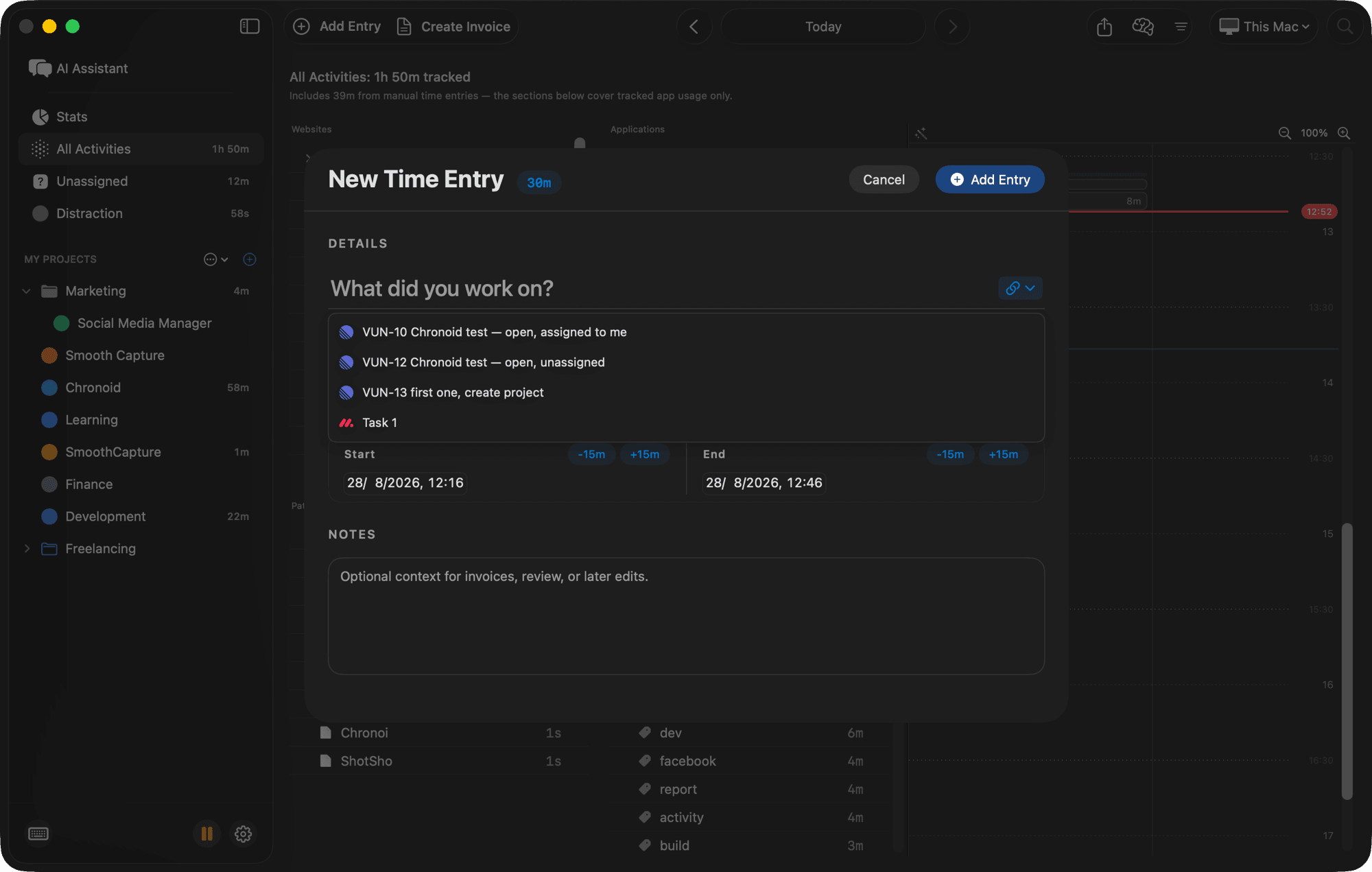
Start a time entry and matching issues appear as you type, shown by identifier and title — ENG-431 Redesign onboarding flow. Picking one attaches a real reference that survives editing the title. Every editor that writes a time entry offers the same autocomplete: timeline, menu bar, or an idle-time prompt.
The tracked time goes back onto the issue
Linear has nowhere to store a time entry, so Chronoid records your time as an attachment on the issue. The sidebar shows the headline — 3h 20m tracked — and opening it shows the work behind that number.
A summary, then the receipts
The attachment opens with the total tracked, the number of entries, and the first and last dates you worked on the issue, followed by every entry newest first with its duration, time range, title, and notes. Long-running issues list the 50 most recent and say how many more are behind the total.
One attachment, updated in place
An issue you have worked for weeks still carries exactly one Chronoid attachment. Renaming an entry or editing its notes updates it too, not just changing a duration, and updates are sent within seconds of the edit — the issue is current by the time you switch to Linear.
It removes itself when the time goes
Delete or unlink every entry for an issue and Chronoid takes the attachment down rather than leaving a stale total on an issue your teammates can see. Push is off until you turn it on, and only linked entries are ever sent.
Why Mac users pair Chronoid with Linear
Answers the retainer question without a timer
Agencies and contractors working in a client's Linear workspace can report hours per issue without asking every engineer to babysit a stopwatch. The tracking already happened; linking is the only manual step.
Estimate points against real hours
Linear estimates in points, not hours, and no one ever finds out how far off they were. With time attached to the issue, a cycle review can compare what a 3-point issue was supposed to be with the eleven hours it actually took.
Nothing about your day is uploaded
Chronoid is local-first: your timeline, window titles, and browsing history stay in a database on your Mac. Linear receives a duration and the titles of entries you linked yourself — nothing else.
One payment, not per-seat forever
Time tracking add-ons bill per person per month indefinitely. Chronoid offers monthly, annual, or lifetime access, so a small team can add hours to Linear without another recurring seat cost.
All integrations with Lifetime or a subscription
Chronoid offers $15/month, $96/year, or $149 lifetime access. Subscriptions include updates while subscribed; the lifetime option includes lifetime updates. Task integrations are included in the Monthly, Annual, and Lifetime licenses. Every plan starts with a 7-day free trial, no credit card.
Linear time tracking FAQ
Does Linear have built-in time tracking?
No. Linear has no native time tracking — there is no timer and no hours field on an issue. Chronoid adds it from your Mac: it tracks automatically, links entries to issues, and attaches the total back onto each issue.
How does the time appear inside Linear?
As an attachment on the issue. The sidebar shows a headline like 3h 20m tracked, and opening the attachment shows a summary plus every entry behind it — duration, time range, title, and notes, newest first.
Will it add a new attachment every time I track?
No. There is one Chronoid attachment per issue and it is updated in place, including when you rename an entry or edit its notes. If all the time for an issue is deleted or unlinked, the attachment is removed.
Which Linear issues get imported?
Only issues from the teams you choose. Only issues assigned to me is on by default, and you can exclude completed issues and limit to those updated in the last 7, 30, or 90 days.
Can my team see what I track?
They see only what you send: the attachment on an issue you explicitly linked entries to, and only once you have turned time push on. Everything Chronoid captures automatically — apps, window titles, websites — stays on your Mac.
Which Chronoid license includes the Linear integration?
All current monthly, annual, and lifetime plans, and the 7-day free trial includes the integration so you can attach real time to a real issue before paying.
Does it work with Linear on Apple Silicon Macs?
Yes. Chronoid is a native macOS app for macOS 14 and later, on both Apple Silicon and Intel, and talks to Linear's API directly — you do not need the Linear desktop app installed.
Use more than one tool?
All three can be connected at the same time, each with its own filters and time-push setting. Task integrations overview
Stop retyping Linear issues into a timesheet
Try Chronoid free for 7 days on your Mac. Connect Linear in a couple of minutes and every entry you log points at real work.