Chronoid MCP Server
Chronoid includes an MCP server so compatible AI assistants can work through Chronoid’s tool layer instead of relying only on free-form text.
The MCP server exposes the same core action layer used by Chronoid’s in-app AI Assistant. That means an external assistant is not limited to read-only reporting. It can also perform supported mutations such as creating projects, categorizing tracked activity, creating auto-assignment rules, adding ignore rules, and creating manual time entries.
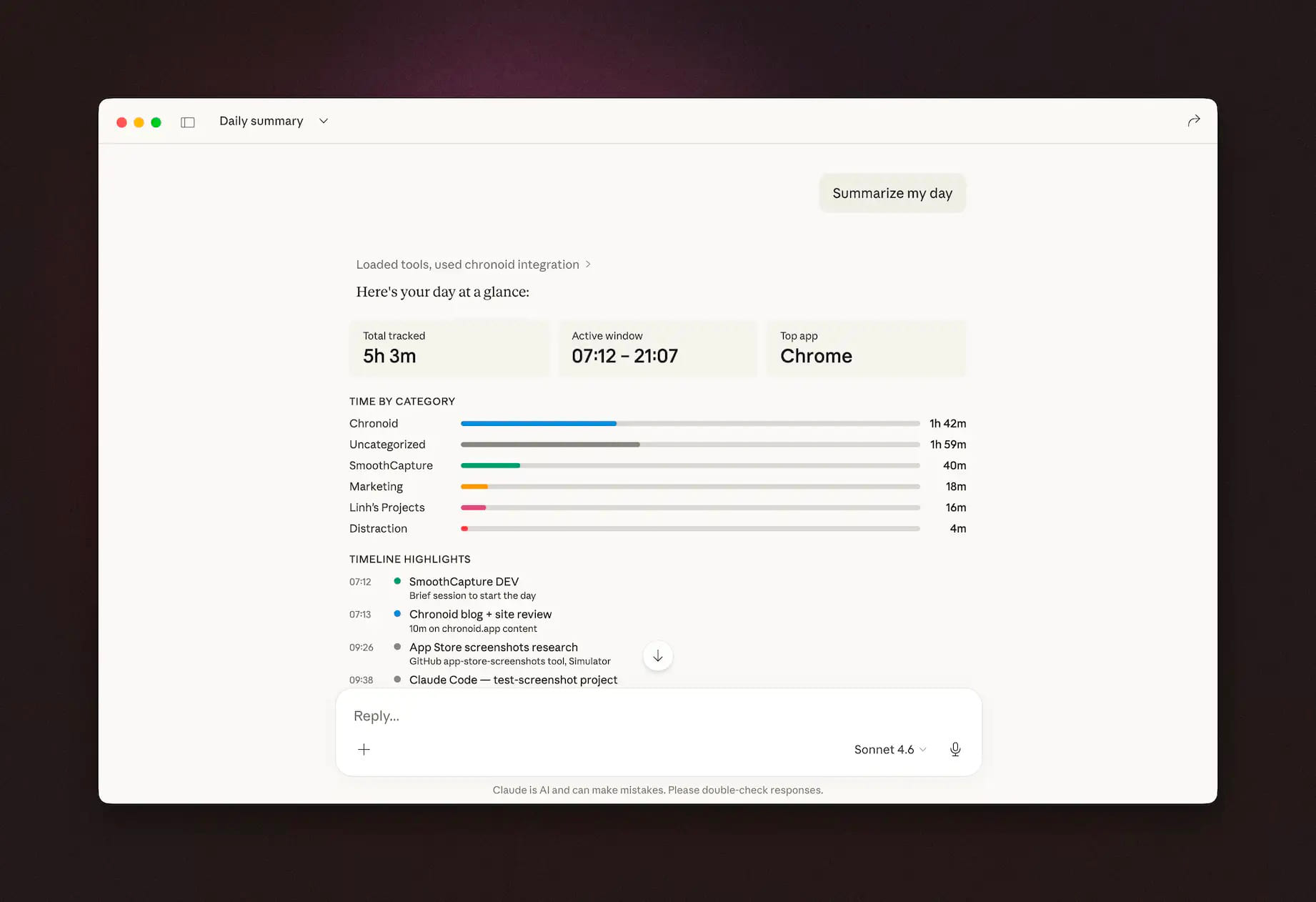
What MCP Enables
With a compatible assistant, MCP can make it easier to:
- ask structured questions about time, projects, and activity
- retrieve billing-oriented summaries
- inspect work sessions and distractions
- use the same write-capable Chronoid actions available in the in-app AI Assistant
Supported Actions
Chronoid’s MCP tools cover both analysis and mutation workflows.
Typical read and analysis workflows include:
- daily summaries and app usage lookups
- detailed activity queries and raw data queries
- work session, interruption, distraction, and productivity analysis
- billing reports across projects and date ranges
Supported write actions include:
- creating a new project or subproject
- assigning or unassigning tracked activity to a project
- creating an auto-assignment rule and applying it to matching activity
- adding future ignore rules for activity you do not want tracked
- creating manual time entries
In practice, this means you can ask an MCP-compatible assistant to do things like create a client project, categorize matching work from a date range, or set up a reusable rule for future activity, not just answer questions about your data.
Why Use MCP
MCP is useful when you want Chronoid’s tools inside the assistant you already use.
Common reasons to use it:
- you want Chronoid’s queries and actions in Codex, Claude, Cursor, VS Code, Windsurf, or another MCP client
- you want to keep using the AI subscription or provider setup you already pay for in that assistant
- you want Chronoid data and actions available in a broader workflow outside the Chronoid app
Before You Start
To use Chronoid over MCP:
- Keep Chronoid running on your Mac.
- Make sure Chronoid already has tracked data you want to query or update.
- Use the bundled MCP wrapper binary at:
/Applications/Chronoid.app/Contents/Resources/chronoid-mcpChronoid’s MCP wrapper talks to the local app, so if Chronoid is not running the assistant will not be able to use the tools.
Setup In Your Assistant
Most assistants only need a local MCP server entry pointing to the bundled Chronoid binary.
Claude Desktop
Edit:
~/Library/Application Support/Claude/claude_desktop_config.jsonAdd:
{
  "mcpServers": {
    "chronoid": {
      "command": "/Applications/Chronoid.app/Contents/Resources/chronoid-mcp",
      "args": []
    }
  }
}
Restart Claude Desktop.
Cursor
Create or edit either:
.cursor/mcp.jsonin your workspace~/.cursor/mcp.jsonfor a global setup
{
  "mcpServers": {
    "chronoid": {
      "command": "/Applications/Chronoid.app/Contents/Resources/chronoid-mcp",
      "args": []
    }
  }
}
Restart Cursor.
Windsurf
Edit:
~/.codeium/windsurf/mcp_config.json{
"mcpServers": {
"chronoid": {
"command": "/Applications/Chronoid.app/Contents/Resources/chronoid-mcp",
"args": []
}
}
}Restart Windsurf.
VS Code
Create or edit:
.vscode/mcp.jsonin your workspace- or your VS Code user settings if you prefer a global setup
{
  "mcp": {
    "servers": {
      "chronoid": {
        "type": "stdio",
        "command": "/Applications/Chronoid.app/Contents/Resources/chronoid-mcp",
        "args": []
      }
    }
  }
}
Reload or restart VS Code after saving the config.
Claude Code
Create or edit:
.mcp.json{
"mcpServers": {
"chronoid": {
"command": "/Applications/Chronoid.app/Contents/Resources/chronoid-mcp",
"args": []
}
}
}Codex
Codex supports MCP in both the CLI and IDE extension, and they share the same configuration.
You can either add Chronoid with the Codex CLI:
codex mcp add chronoid -- /Applications/Chronoid.app/Contents/Resources/chronoid-mcpOr add it directly in your Codex config file:
~/.codex/config.toml[mcp_servers.chronoid]
command = "/Applications/Chronoid.app/Contents/Resources/chronoid-mcp"
args = []If you want the setup scoped to just one project, you can use:
.codex/config.tomlAfter saving the config, restart Codex or reload the IDE extension. In the Codex CLI or TUI, you can verify MCP servers with:
codex mcp listVerify It Works
After setup:
- Keep Chronoid open.
- Restart or reload your assistant client.
- Confirm the client shows a
chronoidMCP server or Chronoid tool list. - Send a simple query such as:
- “Summarize my work today.”
- “Show my top apps this week.”
- “Find uncategorized work from this morning.”
If the assistant says Chronoid is not running, open the app and try again.
How To Use It
Once connected, use the assistant normally. The difference is that the assistant can call Chronoid tools instead of guessing from plain text.
Good read and analysis prompts:
- “How much time did I spend on client work this week?”
- “Show my longest focused session today.”
- “Summarize my distractions from yesterday.”
- “Which apps took the most time this month?”
- “Find uncategorized activity from this morning.”
Good write and mutation prompts:
- “Create a project called Acme Redesign.”
- “Categorize GitHub and Figma work from today into Acme Redesign.”
- “Create a rule so work in
/Users/me/Projects/acmeis assigned to Acme Redesign.” - “Ignore future activity on example.com.”
- “Create a manual time entry for planning from 2 PM to 3 PM today in Acme Redesign.”
For best results with write actions:
- be explicit about the project name
- include a date range when asking to categorize existing activity
- use stable domains, paths, or window-title phrases when asking for reusable rules
When To Use MCP Instead Of The Built-In Assistant
Use MCP when you want:
- more reliable structured queries
- the same core Chronoid actions available in the in-app assistant, but from Codex, Claude, Cursor, VS Code, or another MCP client
- to work through the assistant subscription or provider setup you already use outside Chronoid
- deeper assistant workflows outside Chronoid itself
Use AI Assistant when you want quick answers and attachments inside Chronoid itself.
Privacy Notes
Chronoid’s tracked data remains local, but your connected assistant and chosen model may still receive prompts and tool results necessary to answer your request.
Related Guides
For help, email support@chronoid.app