Troubleshooting
Chronoid includes a dedicated troubleshooting view for creating a support report when tracking or permissions are not behaving as expected.
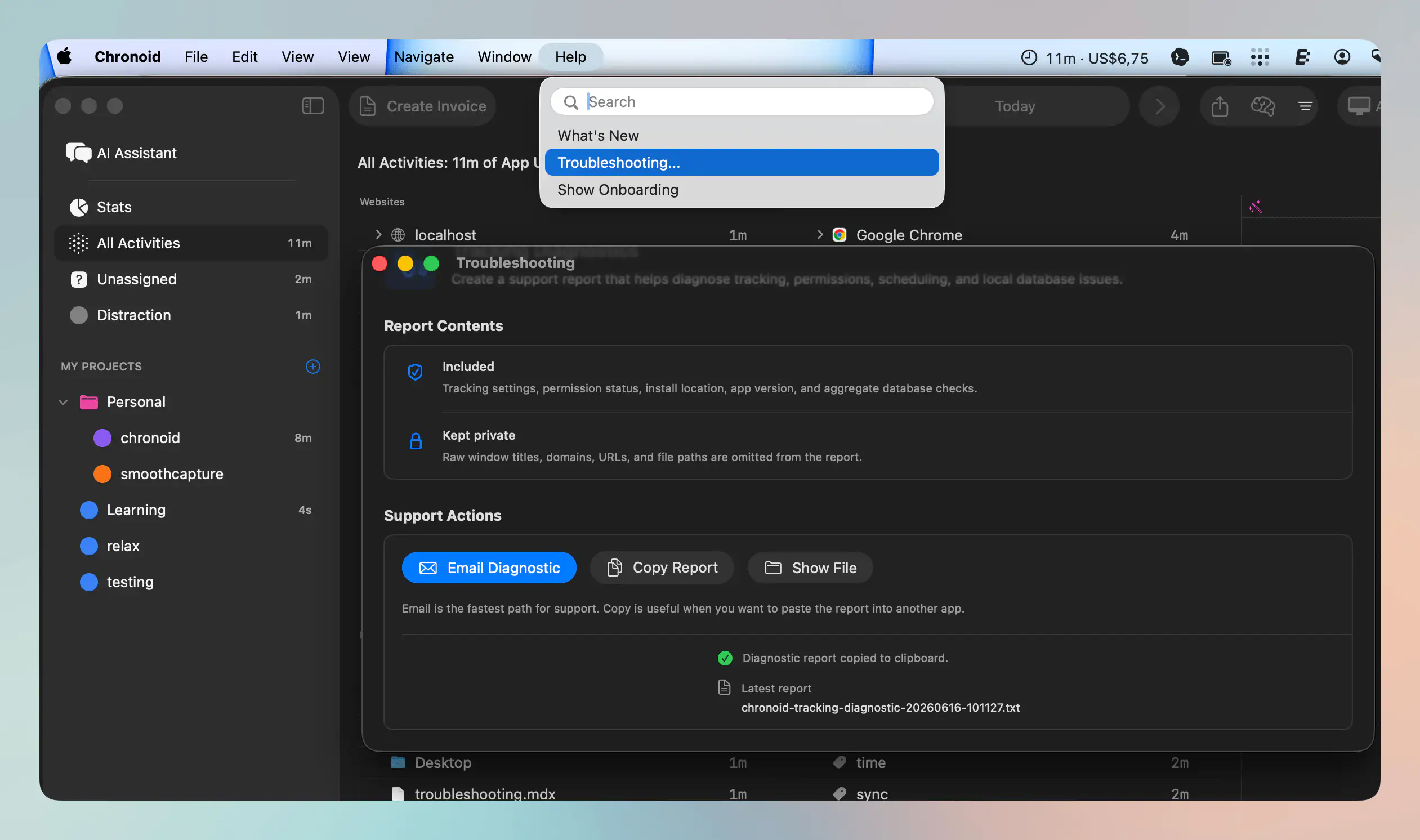
What The Diagnostic Report Includes
The report is a plain-text snapshot of what Chronoid has actually been doing, not just how it is configured. It covers:
- App and system — Chronoid’s version, build, install location, and your macOS version and hardware
- Permissions — Accessibility and Automation status, including which running browsers and scriptable apps have denied Chronoid access
- Tracking settings and control — your idle threshold, schedule, and whether tracking is running, paused, or waiting for work hours
- Tracker runtime — whether the poll loop is alive, when it last ran, and why tracking last went idle
- Tracker counters and events — a bounded log of recent tracking events since launch, so intermittent problems leave a trail
- URL extraction — how browser address reading is faring, per browser
- Database health — integrity checks, applied migrations, per-day totals, and anomalies detected in today’s data
- License, AI providers, integrations, sync, and updates — connection and last-result state for each, without any keys or tokens
- Power and performance — battery, thermal, and Low Power Mode state
- Process log — Chronoid’s own recent notice-level log entries
If you write in about something not being tracked, this is usually what explains why.
What Stays Private
Chronoid deliberately leaves your actual activity out of the report:
- window titles
- domains and URLs
- file paths
- rule condition values
- API keys and integration tokens
- email addresses and device names
You get counts, states, and timings — never the content of what you worked on. That makes the report safe to send to support, and much safer to share than a database export.
Support Actions
The troubleshooting view can:
- create an email diagnostic flow
- copy the report to the clipboard
- reveal the generated file in Finder
If your mail app is not configured, Chronoid can still copy the report and reveal the file so you can send it manually.
When To Use It
Use the troubleshooting report when:
- tracking seems inconsistent
- Screen Time sync or permissions are stuck
- support asks for diagnostics
- you want a quick summary of the app’s local tracking state
For help, email support@chronoid.app