Using AI in Chronoid
Chronoid works without AI. Tracking, rules, reports, and invoices all run on your Mac with no model involved. AI is an extra layer you turn on when you want to ask questions about your time, let it sort your activity into projects, or write up your day for you.
This guide covers every place AI shows up in Chronoid, helps you pick a provider, and collects the tips that make the biggest difference. Each section links to a more detailed page.
Where AI Shows Up
| Feature | Where you find it | What it does | Which provider it uses |
|---|---|---|---|
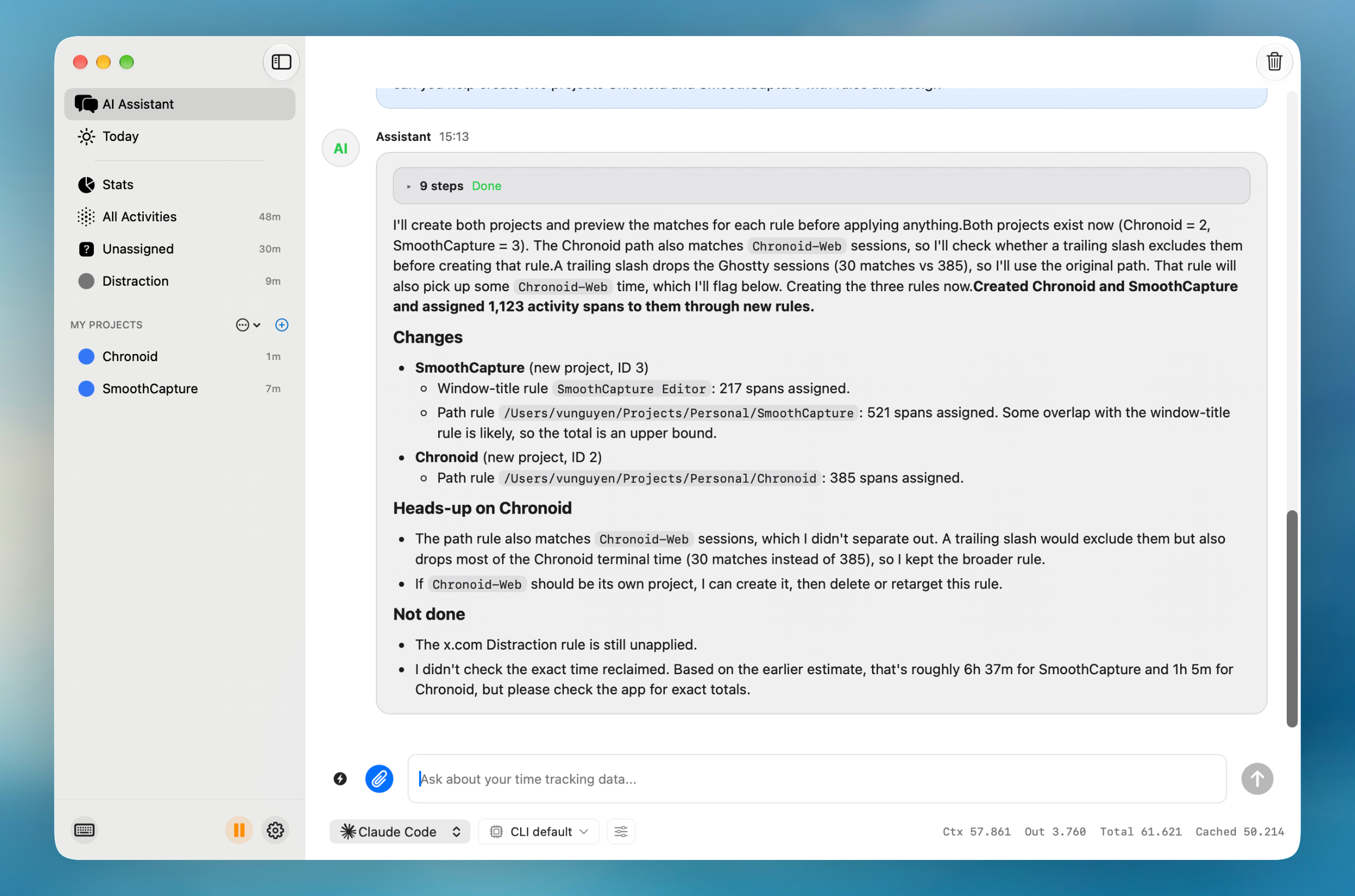
| AI Assistant | AI Assistant, the first item in the sidebar | Answers questions about your time, and can create projects, rules, and time entries after you approve each change | The provider picked in the chat bar |
| AI Suggestions | The brain button in the report toolbar | Suggests a project or category for unassigned activity | The provider set in Settings → AI Settings |
| Titles & notes | The wand button in a time entry | Writes a title, notes, and project for an entry | The suggestions provider |
| Timeline suggestions | The wand button on the timeline | Proposes time entries for your day | The suggestions provider |
| Today recaps | Today in the sidebar | Writes a recap of your day, on demand or each evening after 6 p.m. | The provider picked on the Today page |
| Agent CLI | A provider type | Runs chat through Claude Code, Codex, and other CLIs on your existing subscription | — |
| AI Connectors | Settings → Integrations → AI Connectors | Lets claude.ai and ChatGPT ask Chronoid about your time | The assistant you chat in |
| MCP Server | Help → MCP Setup… | Gives Claude Desktop, Cursor, VS Code, and other local tools access to Chronoid | The tool you connect |
The Today item only appears in the sidebar after you enable at least one provider.
Pick Your Path
Most people only need one of these. Start with the one that matches what you care about most.
”I already pay for Claude or ChatGPT”
Use Agent CLI with Claude Code or Codex. Chat runs on the subscription you already have, so there is no API key and no extra bill. Install the CLI, sign in once in Terminal, then add an Agent CLI provider. Chronoid finds the command for you.
If you would rather ask from the claude.ai or ChatGPT website or app, use AI Connectors instead. You can use both.
”My data must not leave my Mac”
Use LM Studio or Ollama. The model runs on your Mac, so prompts and answers stay local. Both are free. You need an Apple Silicon Mac with enough memory for the model. Plan on at least 16 GB for the default gpt-oss-20b, or pick a smaller model on a lighter Mac.
On macOS 26 or later, Apple Intelligence is a zero-setup option. It can read your data but cannot change anything, and it has a small context window, so keep questions short.
”I want the best answers and don’t mind paying per use”
Use Anthropic Claude, OpenAI, or Google Gemini with an API key. Larger hosted models are noticeably better at multi-step requests like “find everything I did for this client last month and put it in a project.” Cost depends on the model you pick and how much you ask, and you pay the provider directly.
”I want to try many models with one key”
Use OpenRouter. One key gives you models from most of the providers above. Chronoid only lists OpenRouter models that support tool calling, so anything you pick can work with your data.
”I want it cheap and fast”
Groq, Gemini Flash-Lite, and DeepSeek are quick and inexpensive. They are a good fit for AI Suggestions, which runs in the background every few minutes.
”I live in Claude Desktop, Cursor, or VS Code”
Connect the MCP Server. The tool you already use gets the same Chronoid tools as the in-app assistant.
Set Up in Five Minutes
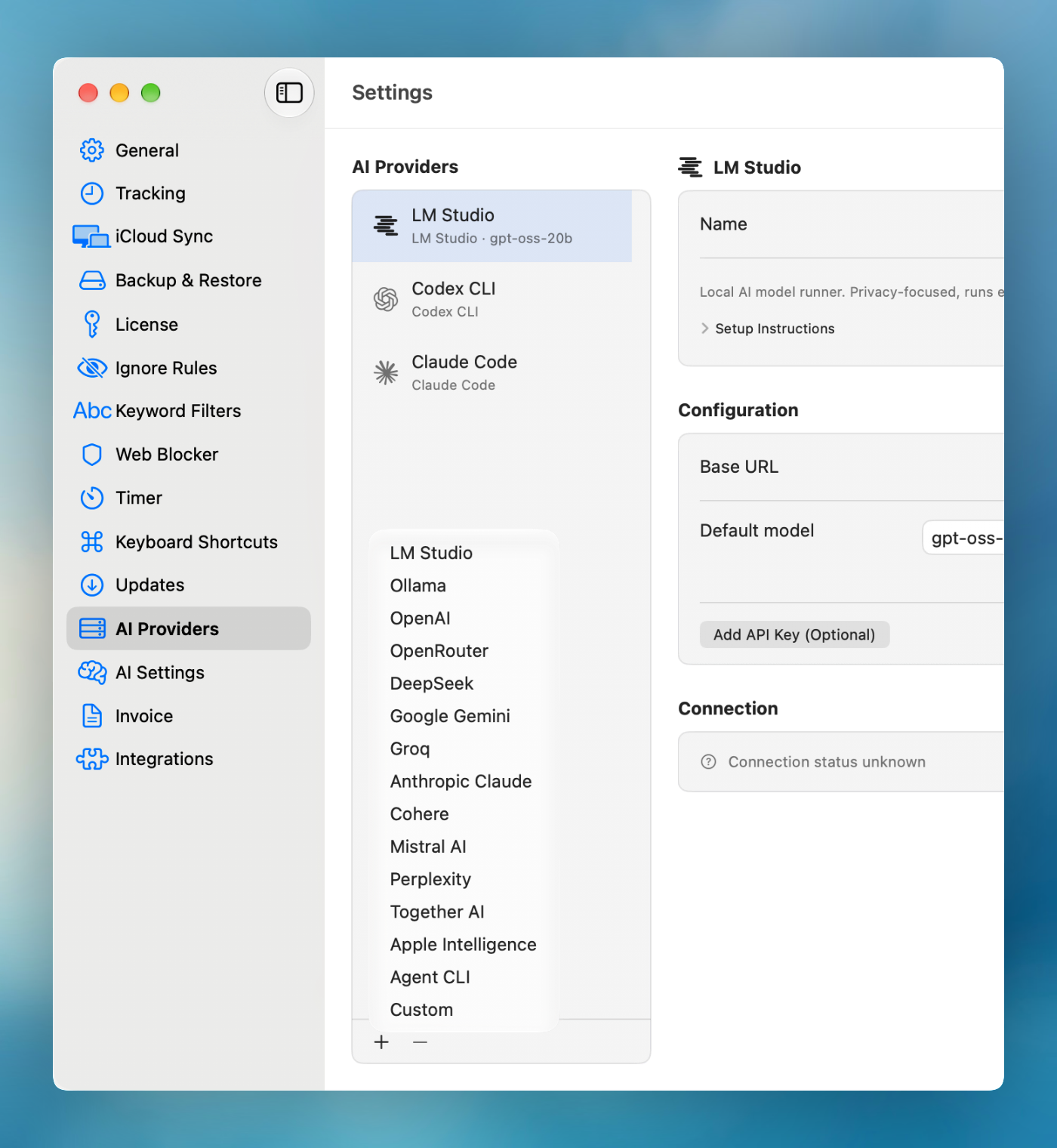
- Open Settings → AI Providers.
- Click + at the bottom of the provider list and pick a provider.
- Fill in what the provider asks for. Hosted providers need an API key. LM Studio, Ollama, and Custom need a base URL, and the defaults are usually right. Agent CLI needs the command, which Chronoid finds automatically.
- Pick a Default model, or click the reload button to fetch the list.
- Click Test Connection.
- Open AI Assistant in the sidebar and ask, “How much did I work today?”
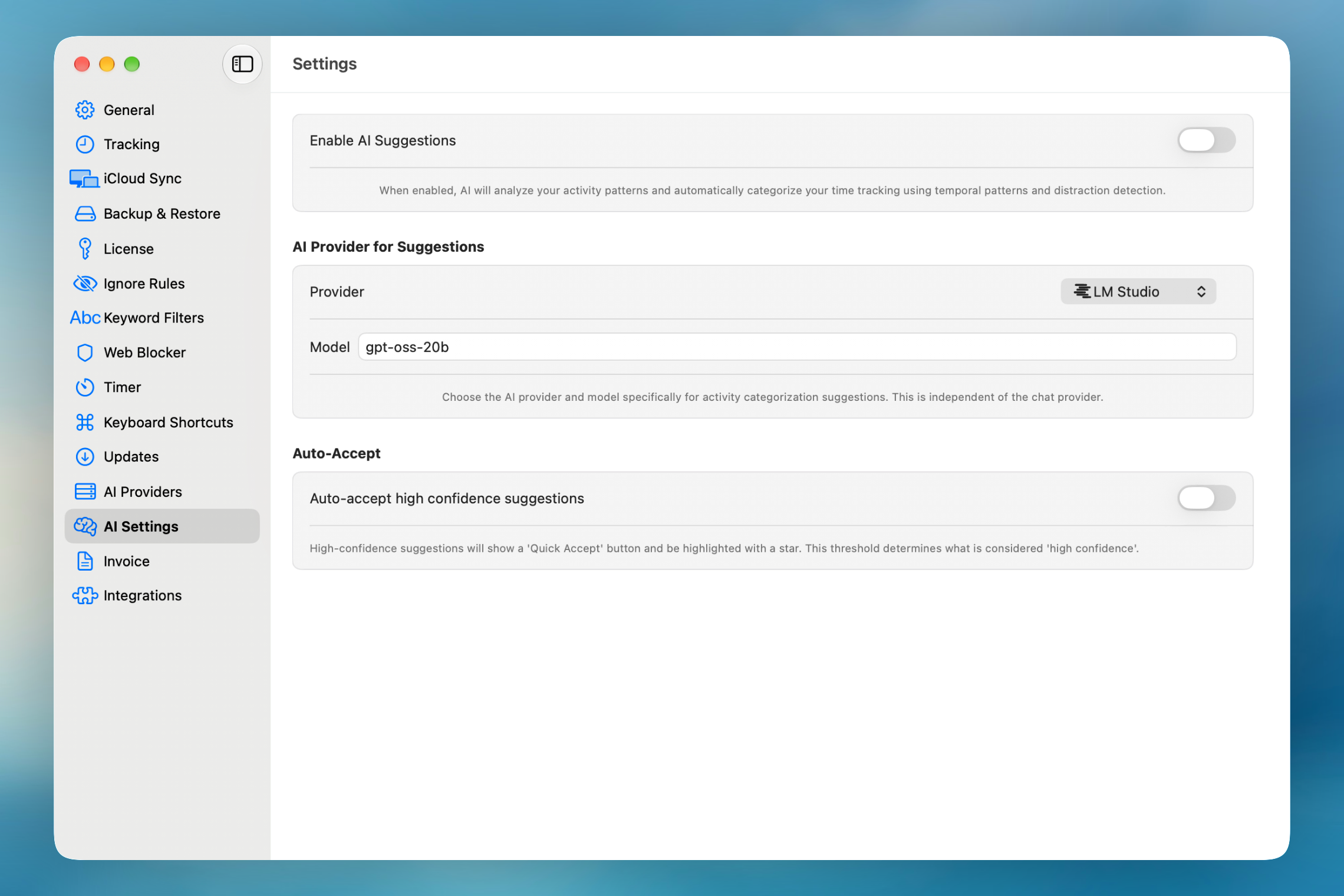
To use AI Suggestions too, open Settings → AI Settings, turn on Enable AI Suggestions, and choose a provider and model under AI Provider for Suggestions. It can be a different provider from the one you chat with.
Provider Cheat Sheet
| Provider | Needs | Default model | Images |
|---|---|---|---|
| LM Studio | The LM Studio app | gpt-oss-20b | No |
| Ollama | The Ollama app | gpt-oss-20b | No |
| Apple Intelligence | macOS 26+ on Apple Silicon | built in | No |
| OpenAI | API key | gpt-4o-mini | Yes |
| Anthropic Claude | API key | claude-3-5-haiku-latest | Yes |
| Google Gemini | API key | gemini-2.5-flash-lite | Yes |
| OpenRouter | API key + credits | ~openai/gpt-latest | Yes |
| Groq | API key | llama-3.1-8b-instant | Yes |
| DeepSeek | API key | deepseek-v4-flash | No |
| Mistral AI | API key | mistral-small-2407 | Yes |
| Together AI | API key | Llama 3.1 8B Turbo | Yes |
| Cohere | API key | command-r | No |
| Perplexity | API key | sonar | No |
| Custom | Base URL, optional key | custom-model | No |
| Agent CLI | A supported CLI | the CLI’s default | No |
The default model is only a starting point. Pick a newer model from the list once the connection works.
“Images” means a screenshot you attach is sent to the model. For providers marked “No”, Chronoid sends only the file name and type, and audio and video are never sent to any model.
Tips for Local Models
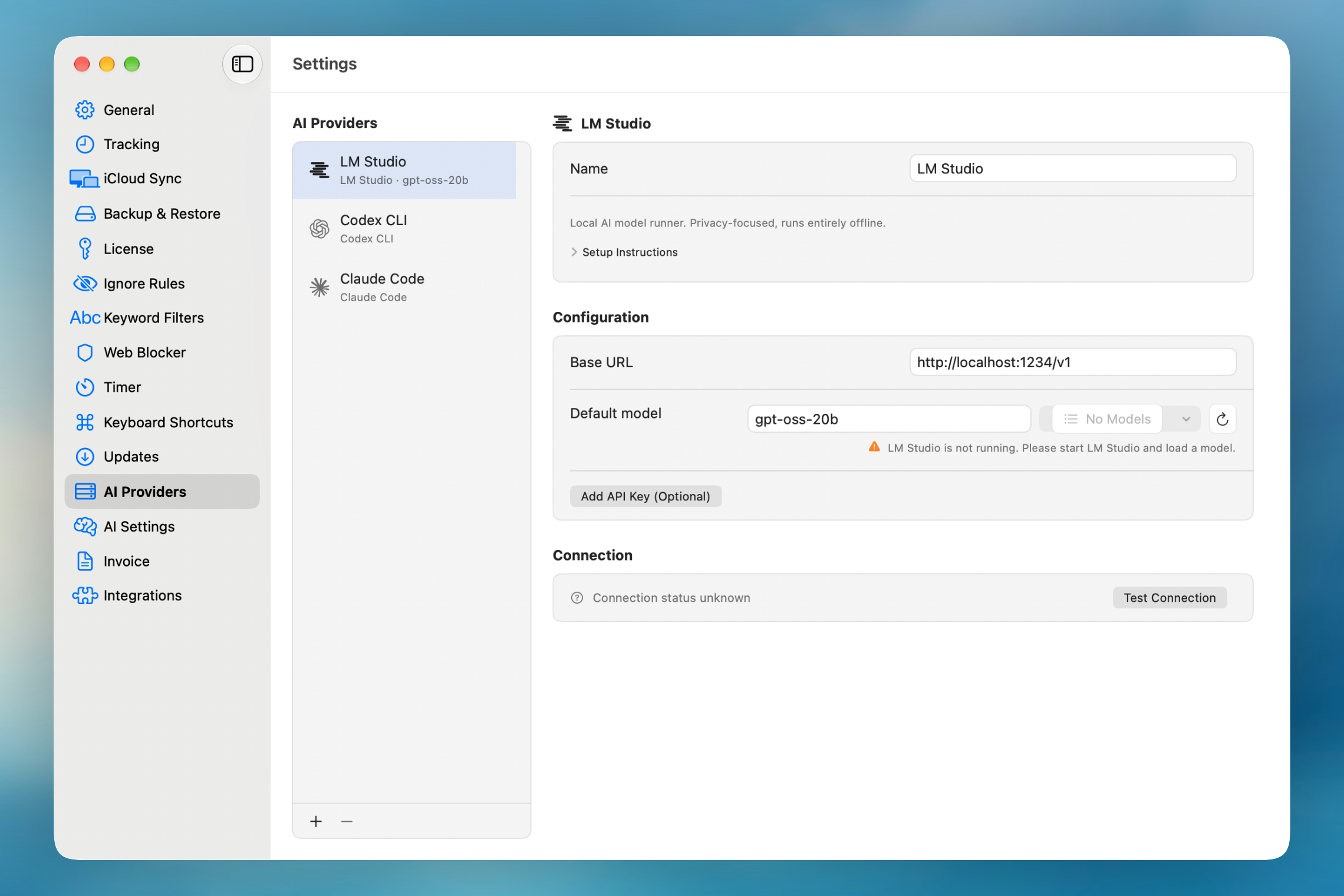
- Check the address. The defaults are
http://localhost:1234/v1for LM Studio andhttp://localhost:11434/v1for Ollama. Change the Base URL only if you moved the server. - Start the app first. If you see “LM Studio is not running” or “Ollama is not running”, open the app (or run
ollama serve) and load a model, then click the reload button next to the model picker. - Give the model room. Answers about your time include tool results, and those can be long. If answers stop halfway or ignore your data, raise the model’s context length in LM Studio’s load settings or Ollama’s model settings.
- Pick a model that can call tools. The assistant works by calling Chronoid’s tools. Small chat-only models often answer from guesswork instead.
gpt-oss-20bhandles this well for its size. - Thinking models are fine. Chronoid keeps the model’s reasoning separate from the answer.
Tips for Hosted Providers
- Your key stays in the Keychain. Each provider setup keeps its own key. Removing a provider deletes its key.
- Add more than one. You can add the same provider twice, for example two Claude accounts or a work and a personal OpenAI key. Right-click a provider to Duplicate it, and give each one a clear Name.
- OpenRouter needs credits. If requests fail right after setup, check that your OpenRouter account has a balance.
- Perplexity is for the web. Its models are built around web search, so other providers are a better fit for questions about your own time.
Tips for Agent CLI
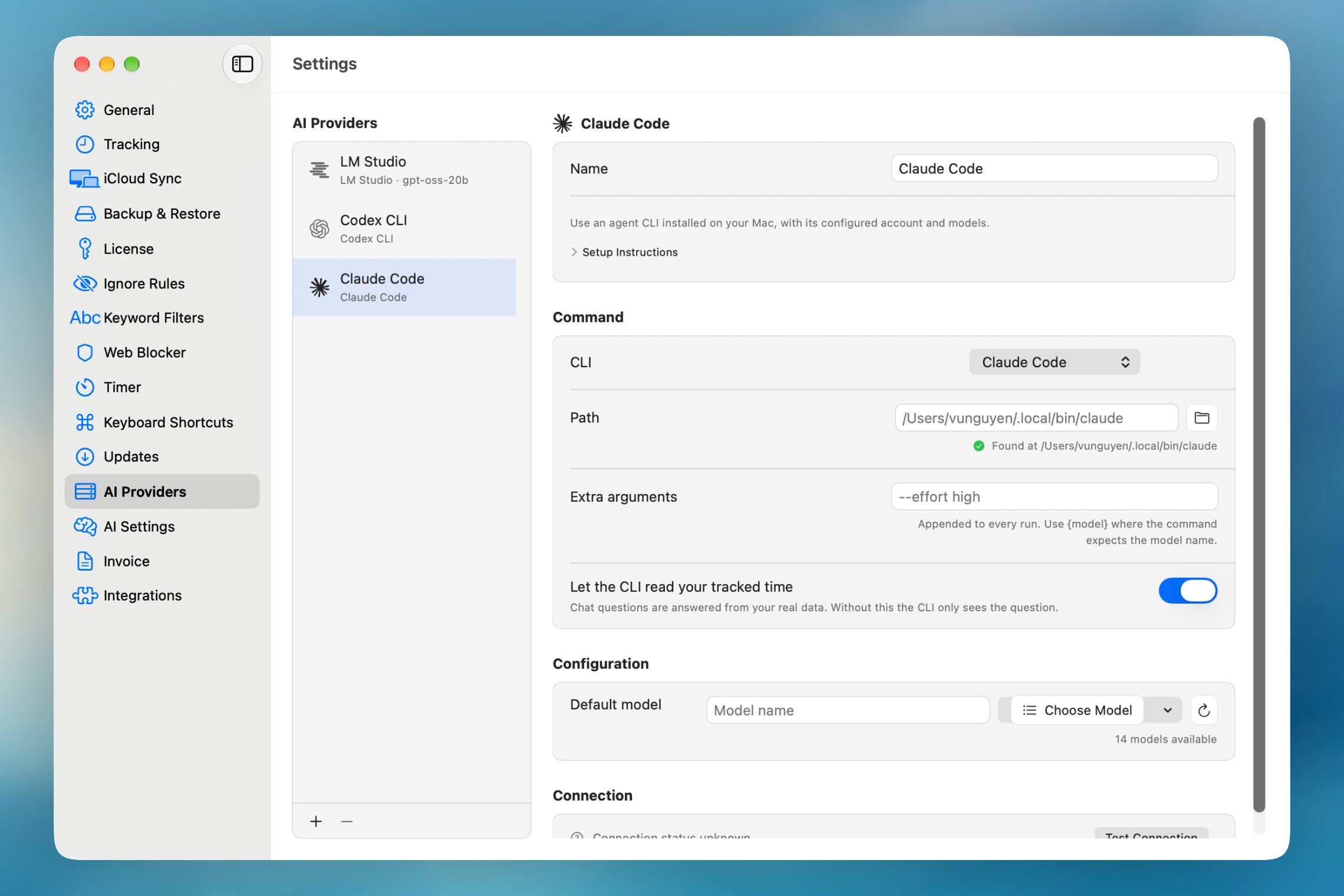
- Sign in to the CLI first. Run
claudeorcodexonce in Terminal before adding the provider. - Leave “Let the CLI read your tracked time” on. Without it the CLI only sees your question, not your data.
- Use Extra arguments for effort and speed. For example,
--effort highfor Claude Code. Use{model}where your command expects a model name. - Keep requests focused. Each request has a 5-minute limit.
- Pick Claude Code or Codex for questions about your time. OpenCode, Pi, Amp, and custom commands are also supported, but only Claude Code and Codex can read your tracked data.
Getting Better Answers From the Assistant
Name the date range. “This week”, “yesterday afternoon”, and “October 1 to 15” all work. Without one, the assistant has to guess.
Name the project or client. “How much time on Acme this month?” is answered from a project report. “How much time on work?” needs extra guessing.
Start from a workflow. The ⚡ button next to the message box runs ready-made workflows: Daily Review, Standup Notes, Weekly Review, Prepare Invoice, and Clean Up Time Data.
Ask it to preview first. For bigger cleanups, say “show me what would match before changing anything.” The assistant can check a rule’s matches without applying it.
Read the approval card. Every change, such as a new project, rule, or time entry, shows an Approve / Deny card with what will change and how much time it affects. Nothing is written until you approve. If you deny, the assistant is told nothing changed.
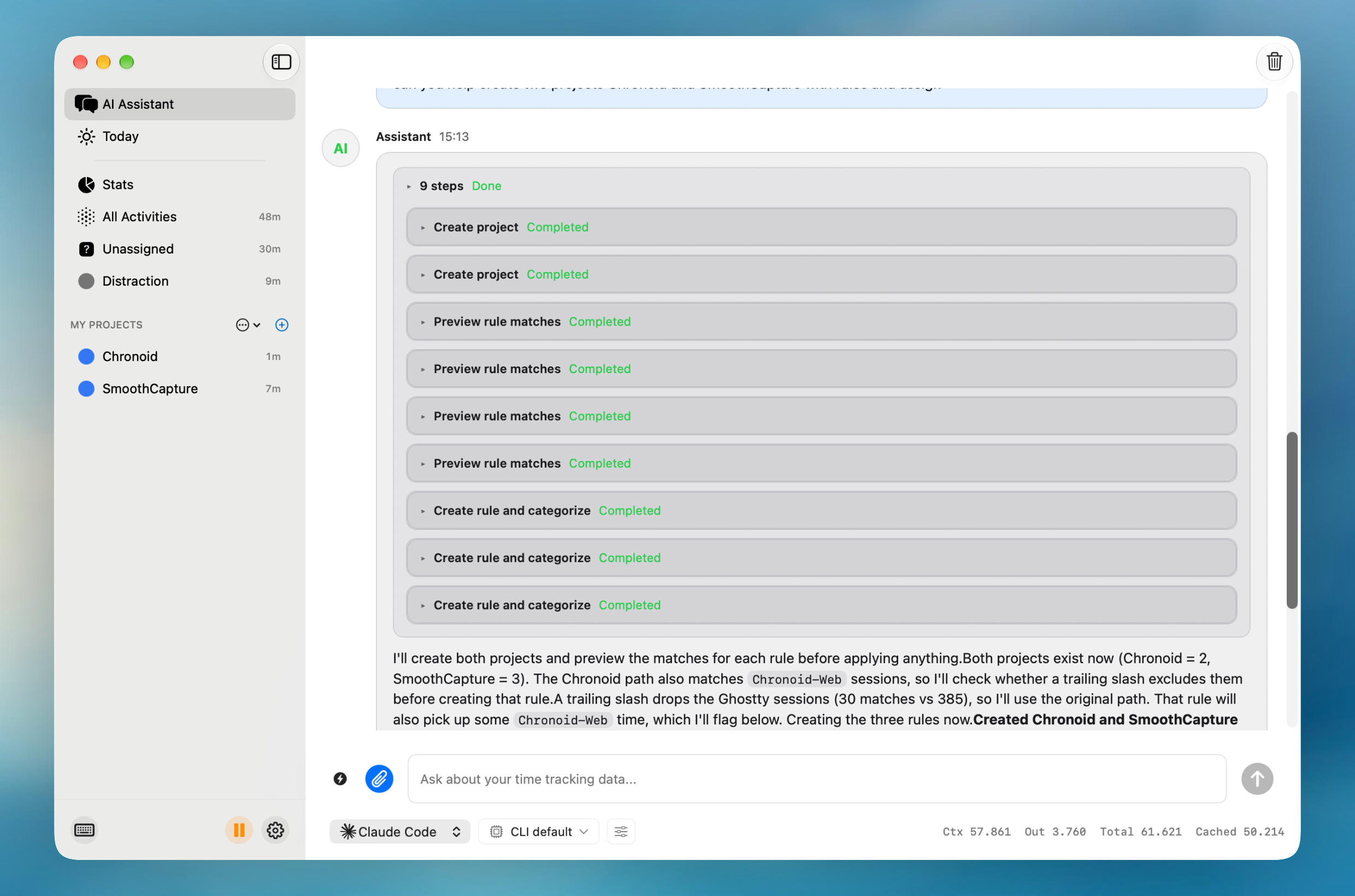
Use Continue on long jobs. A single request can take up to 12 steps. If it needs more, click Continue.
Clear the chat when you switch topics. Chronoid keeps one conversation and remembers it across restarts. Use the trash button at the top right to start fresh. This also makes local models faster, since they reread less history.
Picking a model in the chat bar changes that provider’s default. The model you choose in chat becomes the provider’s Default model in Settings.
Prompts Worth Trying
- “What did I work on yesterday? Group it by project.”
- “Show my longest focus blocks this week.”
- “What distracted me most this week, and when?”
- “How much billable time do I have for Acme this month?”
- “Find unassigned time from this morning and suggest a project for each item.”
- “Create a project called Website Redesign and a rule for anything in the
websitefolder. Preview the matches first.” - “Are any of my rules duplicates or too broad?”
- “Write standup notes for today.”
Getting Better AI Suggestions
- Use a fast, cheap model. Suggestions run in the background every five minutes, so speed and cost matter more than depth.
- Create your projects first. Suggestions can only point to projects that exist.
- Review by confidence. In the AI Suggestions window, start with High (80%+), accept in bulk with Accept Selected, then work down to medium and low.
- Turn on Auto-Accept to highlight the safest calls. Suggestions above the threshold are marked with a star and get a Quick Accept button.
- Turn good suggestions into rules. If you accept the same kind of suggestion over and over, a rule is faster and needs no AI at all.
Today Recaps
Today writes a short recap of your day from your tracked activity. Click Create Recap, or open Recap Settings and turn on Recap My Day Automatically to get one each evening after 6 p.m. while Chronoid is running. Pick the provider and model in the Today toolbar. The choice is remembered separately from chat, so you can use a cheap model for recaps and a stronger one for chat.
Privacy at a Glance
| Setup | Where prompts and data go |
|---|---|
| No AI | Nowhere. Everything stays on your Mac. |
| LM Studio, Ollama, Apple Intelligence | Your Mac only (or your own server, if you point the base URL there). |
| Hosted provider (OpenAI, Claude, Gemini, …) | That provider, for each request. Your database stays on your Mac. |
| Agent CLI | The service behind that CLI (for example, Anthropic for Claude Code). |
| AI Connectors | claude.ai or ChatGPT, through Chronoid’s relay. Nothing is stored on the relay. |
In every case Chronoid only sends what a request needs: your question, the results of the tools the model calls (such as a day’s activity with app names, window titles, and URLs), and any attachments. The full database never leaves your Mac.
With AI Suggestions on, app names, window titles, and domains of unassigned activity go to the suggestions provider every few minutes. If that is a concern, use a local provider for suggestions, or add Ignore Rules for apps you never want tracked.
Troubleshooting
| You see | What to do |
|---|---|
| ”LLM is not configured. Please add an AI provider in Settings.” | Add a provider in Settings → AI Providers. |
| ”No API key is saved for this provider…” | Re-enter the key, and click Allow if macOS asks about the Keychain. |
| ”Invalid API key. Please check your credentials.” | Create a new key in the provider’s dashboard and paste it again. |
| ”Too many requests. Please try again later.” | You hit the provider’s rate limit. Wait a minute, or use a different provider for suggestions. |
| ”LM Studio is not running…” / “Ollama is not running…” | Start the app, load a model, then click reload next to the model picker. |
| ”Could not find the claude command…” | Install the CLI, or set its full path in the Path field. |
| ”The CLI did not finish within 300 seconds.” | Break the request into smaller questions. |
| ”The response was cut off before finishing.” | The model ran out of room. Try a model with a larger context window, or clear the chat. |
| ”This conversation is too long for the on-device model.” | Clear the chat, or switch to a provider with a larger context window. |
| Apple Intelligence does not appear to work | Check that you have macOS 26 or later on Apple Silicon and that Apple Intelligence is on in System Settings. |
| The model list is empty | Check the base URL and key, then click the reload button. For a custom server, type the model name by hand. |
| Answers ignore your data | Use a model that supports tool calling, and for Agent CLI make sure Let the CLI read your tracked time is on. |
Related Guides
- AI Providers
- AI Assistant
- AI Suggestions
- Use Claude Code or Codex as Your Assistant
- AI Connectors (claude.ai & ChatGPT)
- Chronoid MCP Server
For help, email support@chronoid.app