Menu Bar & Status Bar
Chronoid is designed to stay useful even when the main window is closed. The menu bar lets you open reports, control tracking, start focus timers, and review quick totals without switching context.
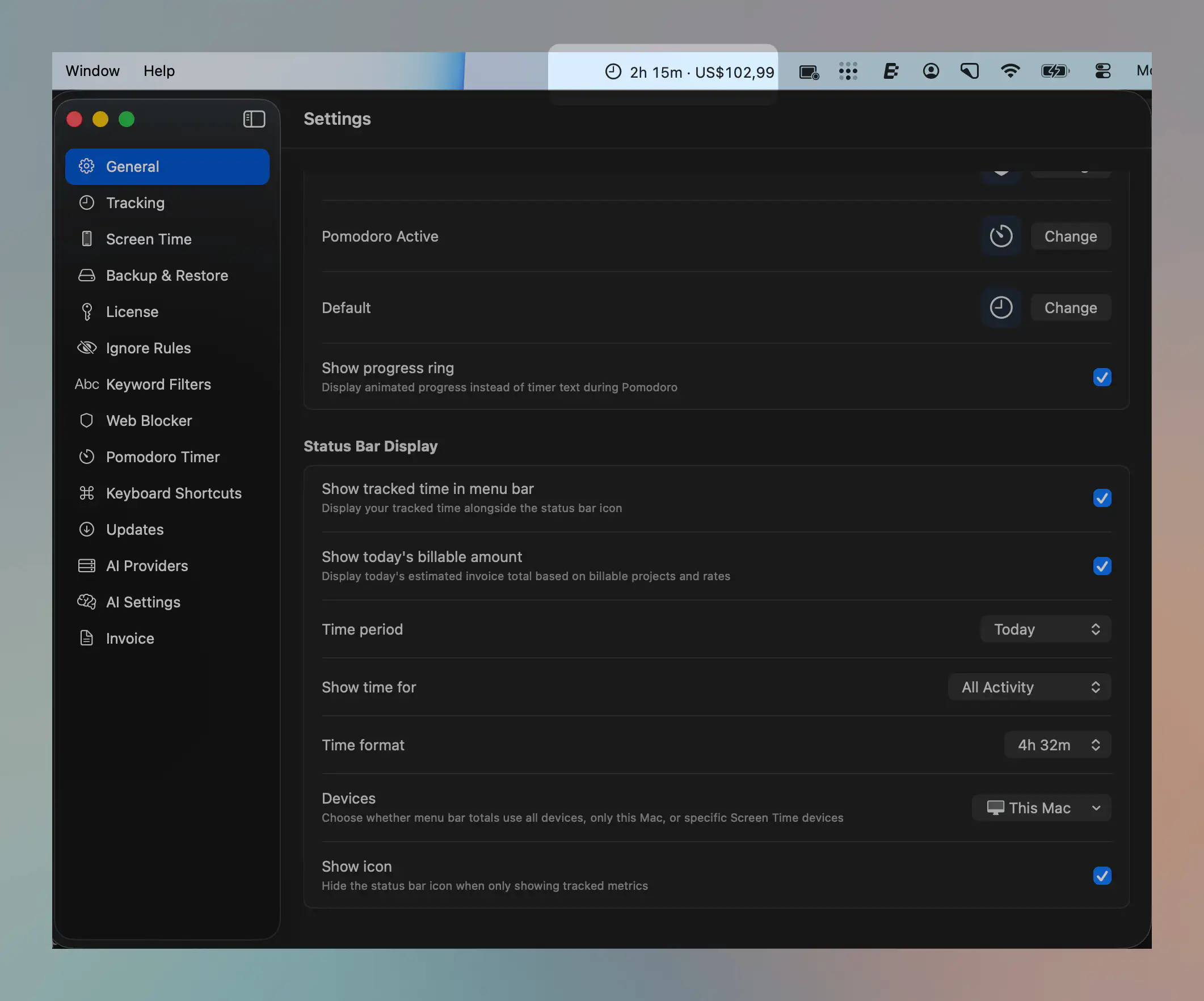
What You Can Show In The Menu Bar
Open Settings → General to configure the status bar display.
Chronoid can show:
- tracked time in the menu bar
- today’s billable amount
- a chosen time period
- all projects or a specific project
- all devices, only this Mac, or selected mobile devices
- the status bar icon itself, if you want a text-only display
Status Bar Icons
Chronoid supports separate icons for these states:
- Default
- Tracking Paused
- Web Blocker Active
- Pomodoro Active
You can also turn on the Pomodoro progress ring to show animated session progress instead of simple timer text.
Device-Scoped Totals
If you use Screen Time Sync, the menu bar display can be filtered by device.
Examples:
- Show only work done on This Mac
- Show totals from all devices
- Show only selected imported iPhone or iPad devices
This is useful when you want a cleaner local summary during work hours but still keep mobile data available in reports.
Main Menu Actions
Click the Chronoid menu bar icon to access the primary actions.
Common items include:
- Open Report
- tracking pause or resume actions
- Pomodoro timer controls
- Quick Start Focus Timer presets for 5, 10, 25, or 45 minutes
- Web Blocker actions
- What’s New and other lower-frequency app actions
Open Report
The Open Report action is now surfaced prominently in the menu so you can jump straight to the main report window from anywhere.
If you prefer the keyboard, pair it with the global shortcut documented in Keyboard Shortcuts.
Tips
- Turn on Show today’s billable amount if you invoice by time and want a quick daily revenue estimate.
- Use Show icon when you want a compact mixed icon-and-text layout.
- Hide the icon only if the text display is enough to stay recognizable in your menu bar.
For help, email support@chronoid.app