Activate License
After purchasing Chronoid, you will receive a license key by email. Follow the steps below to activate it and manage your purchase later.
Activate Your License
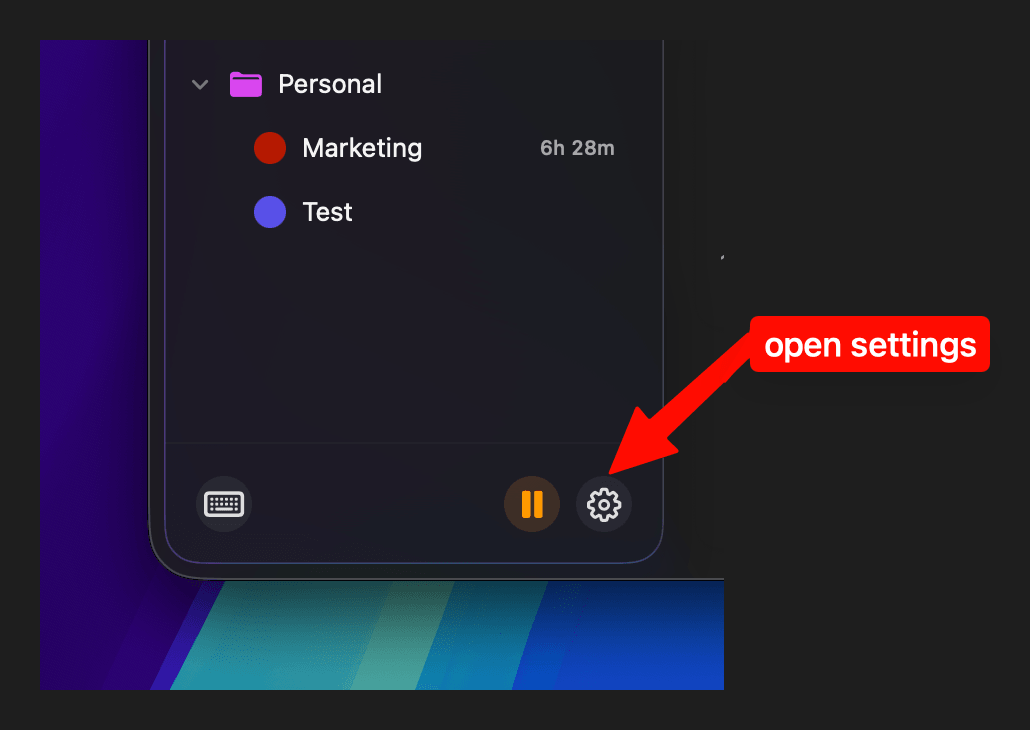
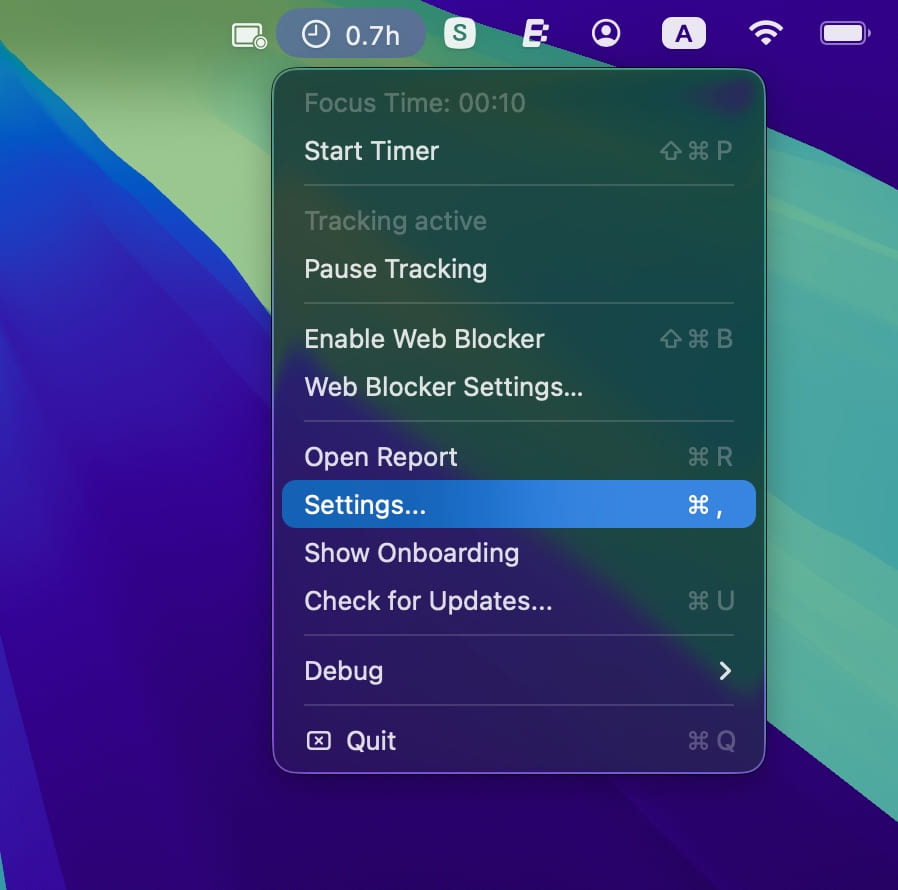
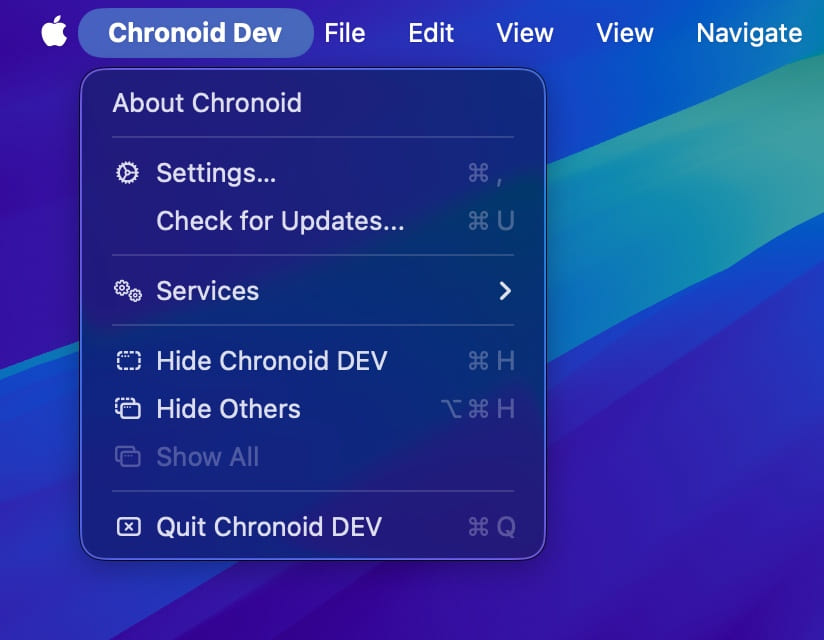
- Open Settings in Chronoid. You can do this in a few ways:
- Press
Cmd + , - Click the Settings button inside the app
- Click the Chronoid icon in the menu bar and choose Settings
- Press
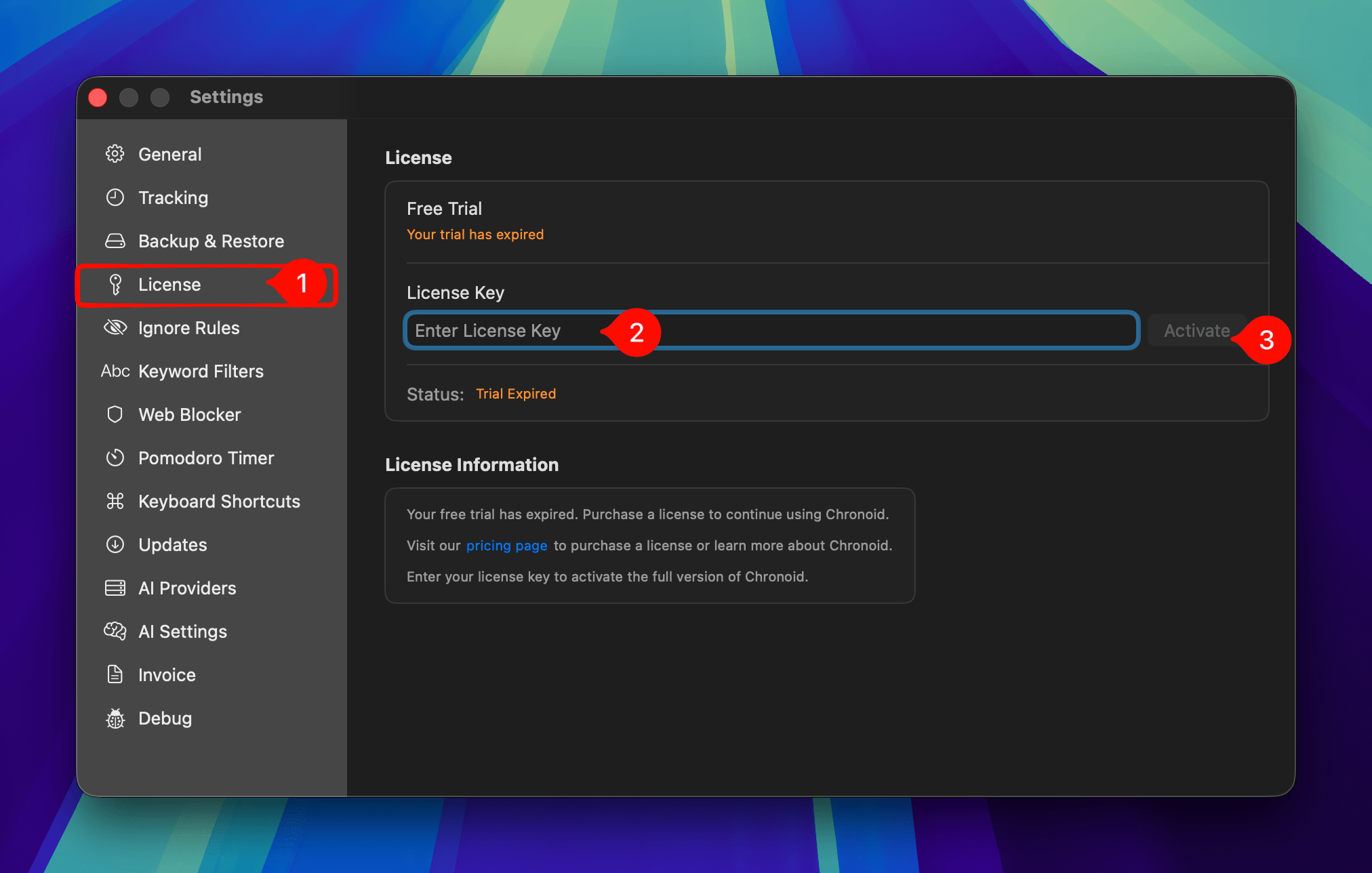
- Open the License tab, paste your license key, and click Activate.
Manage Your License
To view your purchase history, download invoices, or manage your license, open the Chronoid customer portal.
Need Help?
If you are having trouble activating your license or cannot find your license key, contact support@chronoid.app.