Screen Time Sync
Screen Time Sync imports iPhone and iPad activity into Chronoid so reports, timelines, and device filters can show your desktop and mobile usage together.
What It Does
- Imports Screen Time sessions from selected iPhone and iPad devices
- Keeps syncing in the background while Chronoid is running
- Lets reports and menu bar totals filter by device
- Can backfill Safari URLs when the local Safari history database is available on your Mac
Imported sessions behave like other Chronoid activity, so you can review them in reports and use them in project workflows.
Requirements
Chronoid depends on Apple’s local Screen Time data on your Mac. For setup to work well:
- Screen Time must be enabled on your Mac
- Screen Time must be enabled on each iPhone or iPad you want to import
- Apple device sharing must be enabled
- Chronoid needs Full Disk Access
An initial sync can take time. It is normal for Apple data to appear with a delay.
Guided Setup
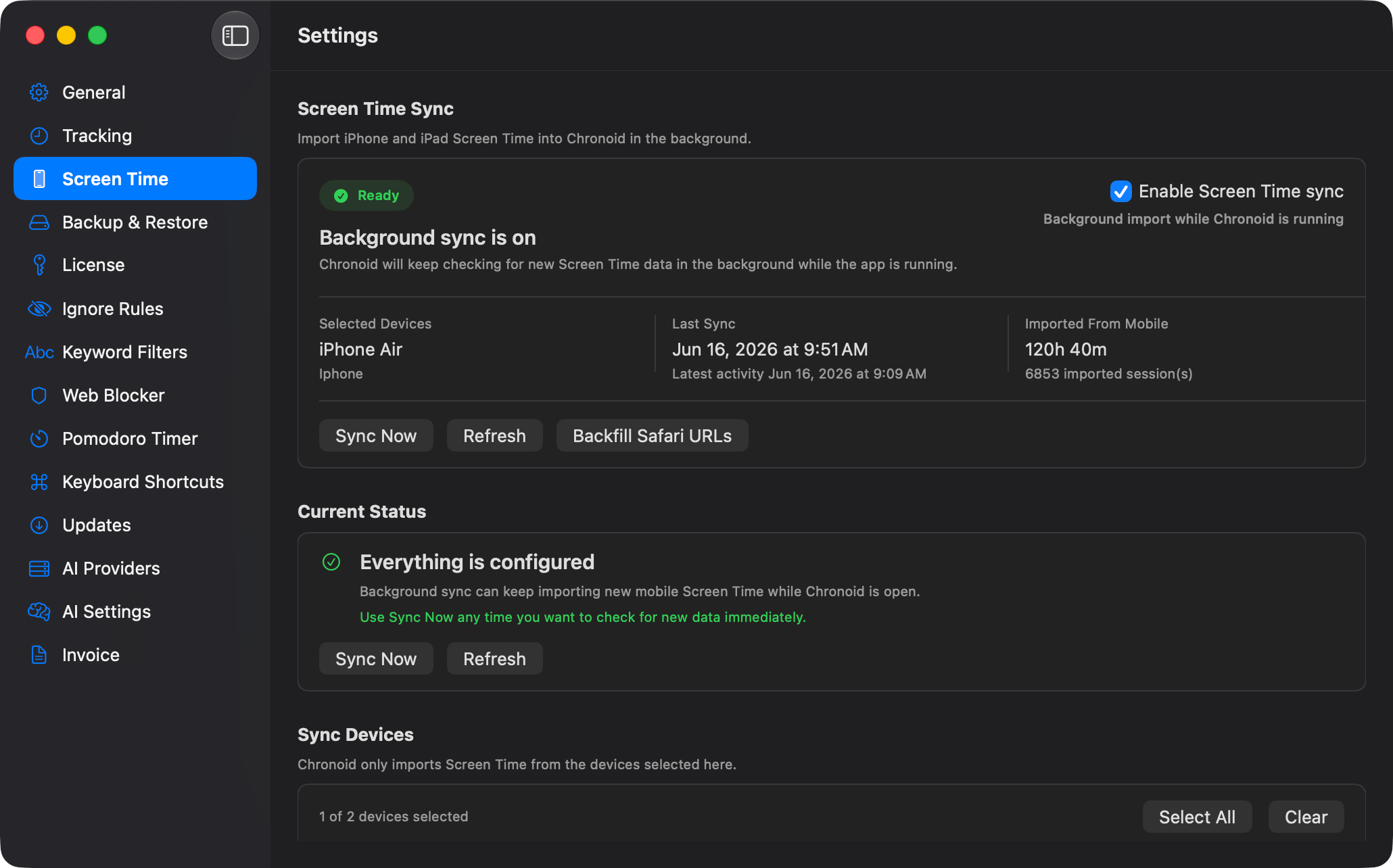
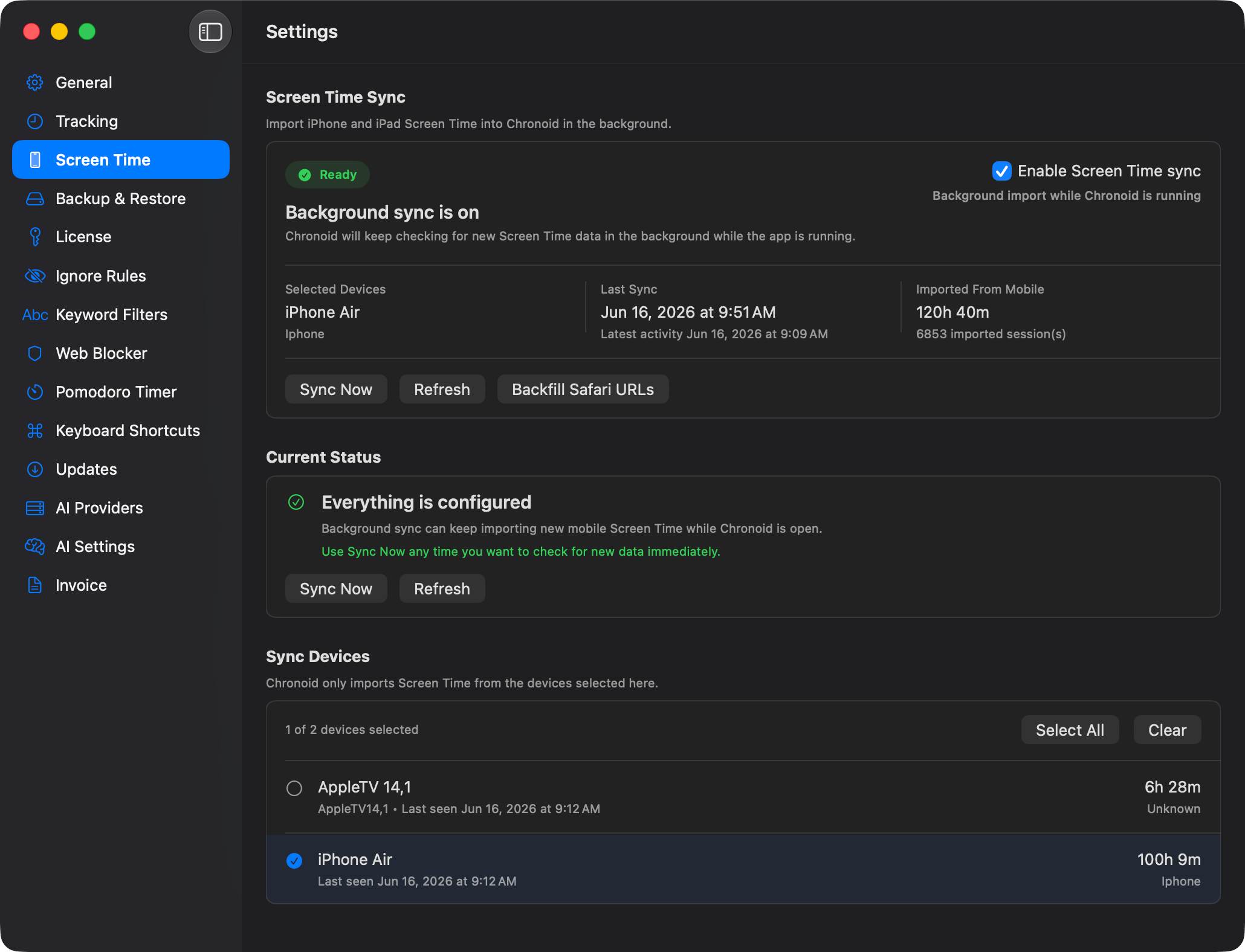
- Open Settings → Screen Time.
- Turn on Enable Screen Time sync.
- Follow the status guidance shown in the pane.
- Grant Full Disk Access if Chronoid requests it.
- Wait for Apple to expose available devices.
- Select one or more devices to import.
- Click Sync Now for the first import.
The Screen Time pane now uses a more guided step-by-step flow, so the Next Step card is the best place to look if something is missing.
Device Selection
Chronoid can now import from multiple devices instead of forcing a single active phone or tablet.
That is useful if you regularly split time across:
- an iPhone and an iPad
- a work iPhone and a personal iPad
- multiple family-shared devices tied to your Apple account
Use the selected devices summary in the Screen Time pane to confirm what Chronoid is currently importing.
Sync Controls
The Screen Time pane includes these actions:
- Sync Now to import the latest available Screen Time data immediately
- Refresh to reload device and status information
- Backfill Safari URLs to enrich imported Safari sessions when history data is available
Reporting And Filtering
Imported mobile activity appears in Chronoid reports and can be filtered by device.
This matters in two places:
- Reports can compare This Mac against imported iPhone or iPad activity
- Menu bar totals can be scoped to all devices, only this Mac, or selected devices
Limitations
- Screen Time import remains dependent on Apple’s sync timing
- Initial imports can be delayed
- Safari URL backfill only works when the local history database is readable
- Imported mobile data may not appear instantly after activity happens on the device
Troubleshooting
If Screen Time Sync is stuck:
- Re-open Settings → Screen Time and read the Next Step message.
- Confirm Screen Time is enabled on the Mac and every selected device.
- Confirm device sharing is enabled in Apple’s settings.
- Confirm Chronoid has Full Disk Access.
- Click Refresh, then Sync Now.
For help, email support@chronoid.app