Tracking Settings
The Tracking settings pane controls when Chronoid records activity and how it handles edge cases like idle time, meetings, and privacy-sensitive browsing.
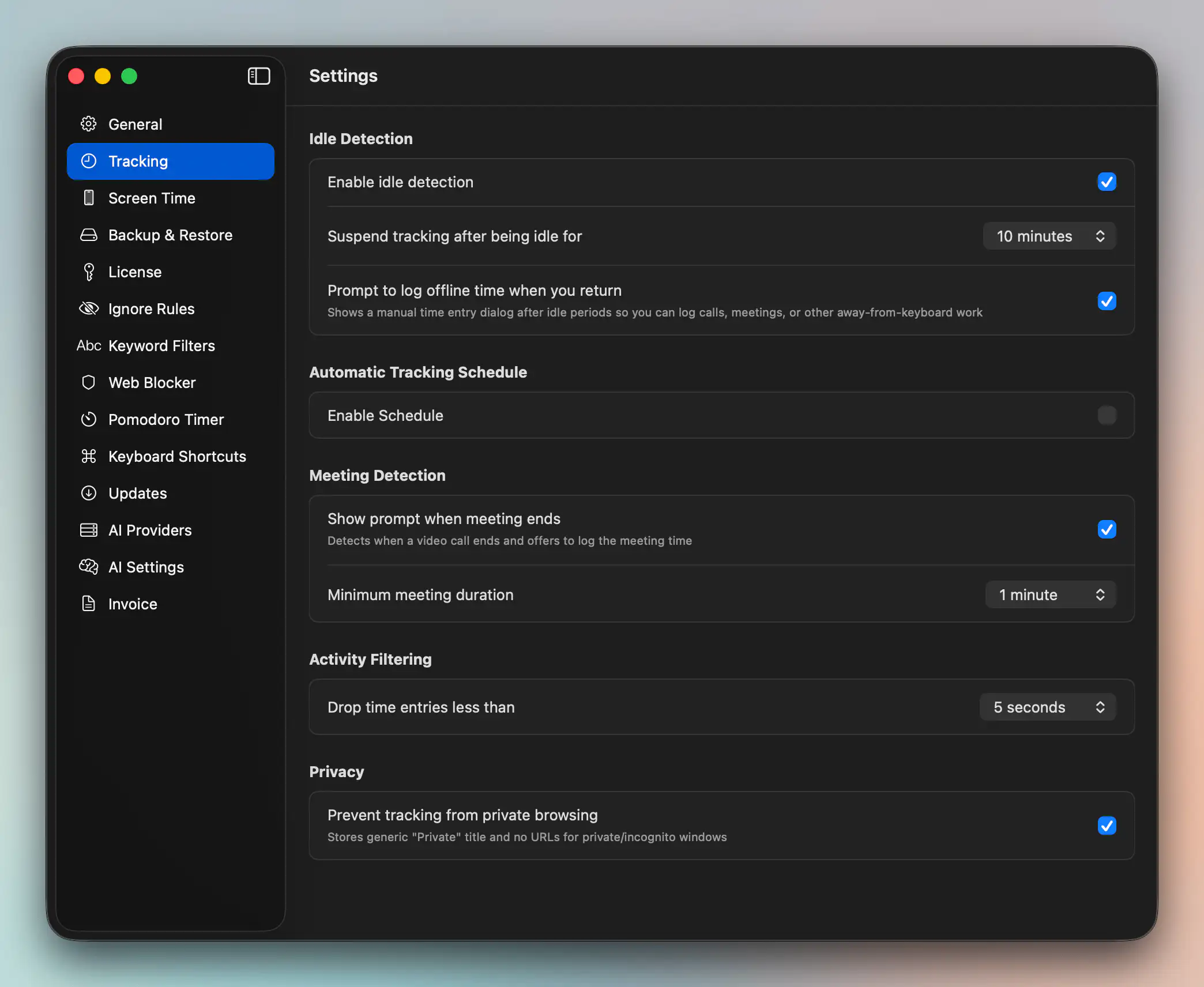
Idle Detection
Chronoid can suspend tracking after a chosen period of inactivity.
You can configure:
- whether idle detection is enabled
- how long Chronoid waits before considering you idle
- whether to prompt you to log offline time when you return
The return prompt is useful for calls, meetings, or offline work that still belongs in your day.
Automatic Tracking Schedule
If you do not want Chronoid tracking all day, enable a schedule and choose:
- start time
- end time
- active weekdays
Chronoid then tracks only during those windows.
Meeting Detection
Chronoid can detect when a meeting ends and offer to log that time as a manual entry.
You can choose:
- whether the meeting-end prompt is enabled
- the minimum meeting duration required before Chronoid shows the prompt
Privacy And Filtering
Chronoid includes settings to reduce noisy or sensitive tracking.
Depending on your setup, this can include:
- filtering out very short entries
- avoiding private browsing details
- using ignore rules for apps or sites you do not want treated like normal tracked work
For more on dedicated exclusions, see Ignore Rules.
Related Guides
For help, email support@chronoid.app