iCloud Sync
iCloud Sync keeps your Chronoid data up to date across every Mac signed in to your iCloud account. Activity, projects, rules, and manual time entries flow between your Macs automatically, so reports on any machine show your complete work history.
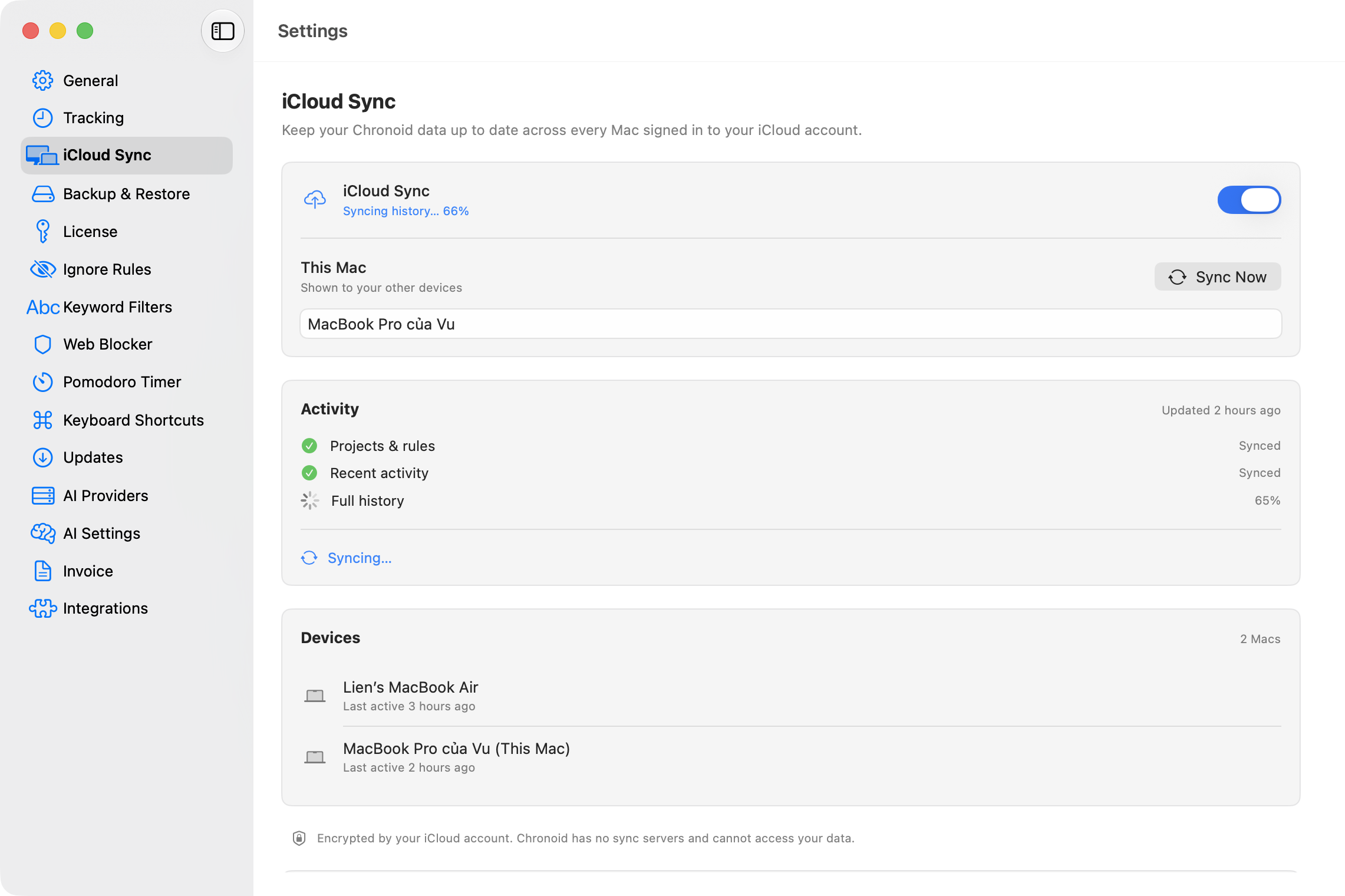
Sync goes through your private iCloud database. Chronoid has no sync servers and cannot access your data — it is encrypted by your iCloud account.
Turning Sync On
- Open Settings → iCloud Sync.
- Turn on the iCloud Sync switch.
That is all. There is no pairing step and no account to create — any Mac signed in to the same Apple ID joins automatically once it turns the switch on too.
The first sync uploads your history in stages, and the Activity card shows each milestone:
- Projects & rules — your setup syncs first
- Recent activity — the last month of tracked time
- Full history — everything else, with a running percentage
Your Macs do not need to be online at the same time. Changes wait in iCloud until the other Mac picks them up.
Adding Another Mac
- Install Chronoid on the second Mac and sign in to the same Apple ID in System Settings.
- Turn on Settings → iCloud Sync there as well.
The new Mac appears in the Devices list on your other machines automatically, with a “Last active” time under its name. The Mac you are looking at is marked (This Mac).
Naming This Mac
The This Mac field controls the name your other devices see. It defaults to your Mac’s name from System Settings; type a new one at any time and it updates everywhere. Use the Sync Now button next to it to push and pull changes immediately instead of waiting for the next automatic cycle.
Working With Multiple Devices
Once more than one device is syncing, reports gain a device filter in the toolbar — switch between All Devices, This Mac, or a specific selection. Exports, invoices, and the Billing tab all respect this filter, so a timesheet filtered to one Mac only bills that Mac’s hours. You can also choose which devices feed the menu bar totals in Settings → General.
What Syncs
Tracked activity (apps, websites, window titles, folders), projects and categories, rules and rule groups, ignore rules and keywords, and manual time entries. Local settings like keyboard shortcuts and Web Blocker schedules stay per-Mac.
Troubleshooting
- A Mac looks out of date. Open Settings → iCloud Sync on the Mac with the most complete history and click Re-upload Everything to iCloud… (in the Troubleshooting card). This wipes the synced copy in iCloud and re-uploads it from that Mac; your other Macs re-download everything on their own. Local data is never touched. Run it on one Mac only.
- “Sign in to iCloud to sync.” Sync needs an iCloud account. Tracking keeps working without one, and sync resumes on its own after you sign in.
- “Sync ran into a problem.” Chronoid keeps retrying automatically. If the message persists, check that iCloud Drive is enabled and that your iCloud storage is not full.
- Turning sync off does not lose anything. Chronoid keeps recording changes while sync is paused and sends them all when you turn it back on.
Sync vs Backup
iCloud Sync keeps multiple Macs consistent; it is not a backup. For point-in-time snapshots you can restore from, see Backup & Restore.
Related Guides
- Backup & Restore
- Screen Time Sync — import iPhone and iPad usage
- Stats & Reports
For help, email support@chronoid.app