AI Assistant
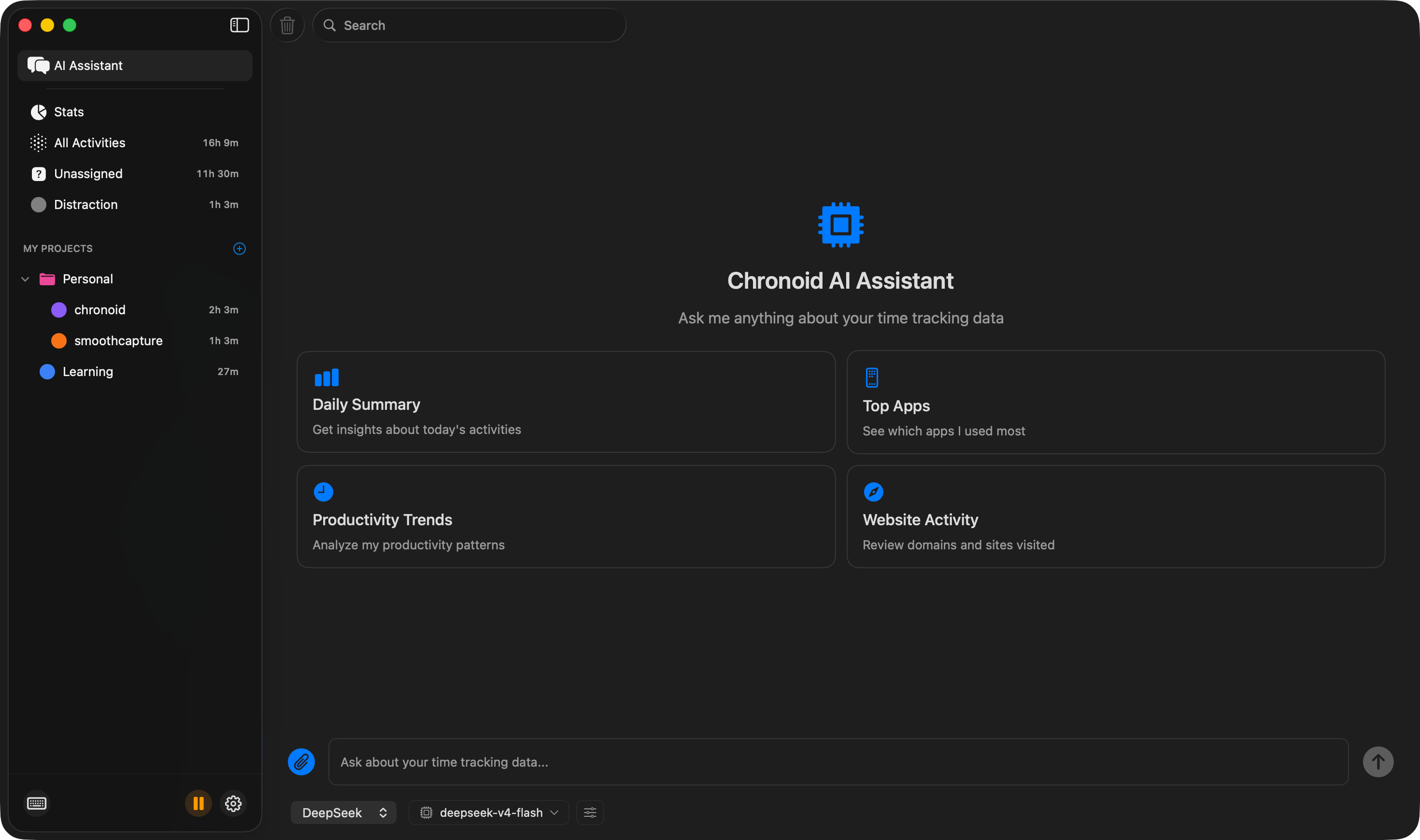
Chronoid includes a built-in AI assistant for conversations about your tracked time. Questions, follow-ups, attachments, and provider-backed actions all happen in one place.
Before You Start
- Open Settings → AI Providers and enable at least one provider.
- Make sure your tracking data is already in Chronoid so the assistant has something useful to work with.
If you have not configured a provider yet, start with AI Providers.
What You Can Do
- Answering questions about time worked, projects, distractions, and activity breakdowns
- Summarizing a day, week, or custom date range
- Helping you understand billing or invoice-related totals
- Suggesting or applying updates to time entries when the provider supports tool use
- Attaching screenshots or files when extra context helps
- Continuing a conversation with follow-up questions
- Working with Chronoid’s local MCP-powered actions for richer queries
Common Prompts
- “How much time did I spend on client work this week?”
- “Show my longest focused session today.”
- “Summarize my distractions from yesterday.”
- “Find unassigned work from this morning.”
- “Update that meeting block to the Design project.”
- “Compare this week’s work hours with last week.”
- “Look at this screenshot and tell me what project it belongs to.”
Conversation Flow
The assistant keeps context within the current conversation, so you can ask follow-up questions without starting over.
- “How much time did I spend on Project X this week?”
- “What about last week?”
- “Break it down by day.”
Start a new conversation when you want a clean context window.
Attachments
Attachments are part of AI Assistant.
Typical uses:
- screenshots
- exported reports
- reference images
- other files that help explain what you want the assistant to analyze
Typical workflow:
- Open AI Assistant in Chronoid.
- Attach the relevant file or media.
- Add your question or instruction.
- Review the response and continue with follow-up prompts if needed.
Tips:
- Add a short explanation with each attachment so the assistant knows what to focus on.
- Use attachments when a text-only prompt would be ambiguous or slower to explain.
- Keep sensitive material in mind if you are using a cloud provider.
How It Works
Chronoid sends your prompt to the provider you selected. For supported providers and models, the assistant can call Chronoid tools to query or update local data instead of relying only on text generation.
That usually means:
- Better date and project lookups
- More reliable billing answers
- Less manual searching through reports
Privacy Notes
Chronoid is designed around local data. Your tracked database stays on your Mac, but prompts, attachments, and tool results needed to answer your request may be sent to the provider you enabled.
If you want more control:
- Use a local provider such as Ollama or LM Studio
- Review AI Providers before enabling cloud services
- Avoid sharing prompts that contain information you do not want sent to the selected model
Related Guides
For help, email support@chronoid.app