Idle Detection
Chronoid pauses tracking when it detects no keyboard or pointer input, then prompts you when you return so you can log calls, meetings, and offline work.
Idle Detection keeps your timelines honest by pausing tracking when Chronoid senses inactivity. When you return, Chronoid can prompt you to log that time as offline work — calls, meetings, or anything else that happened away from the keyboard.
How It Works
- Chronoid watches for keyboard and pointer input from your Mac.
- Once the idle timeout hits, the current entry pauses so breaks stay out of your reports.
- Activity starts again? Chronoid restarts tracking automatically.
- If the idle-return prompt is on, a small floating panel appears when you come back so you can account for the away time.
Enable Idle Detection
- Open Settings → Tracking.
- Enable Idle detection.
- Set how long Chronoid should wait before pausing (try 10 minutes to start).
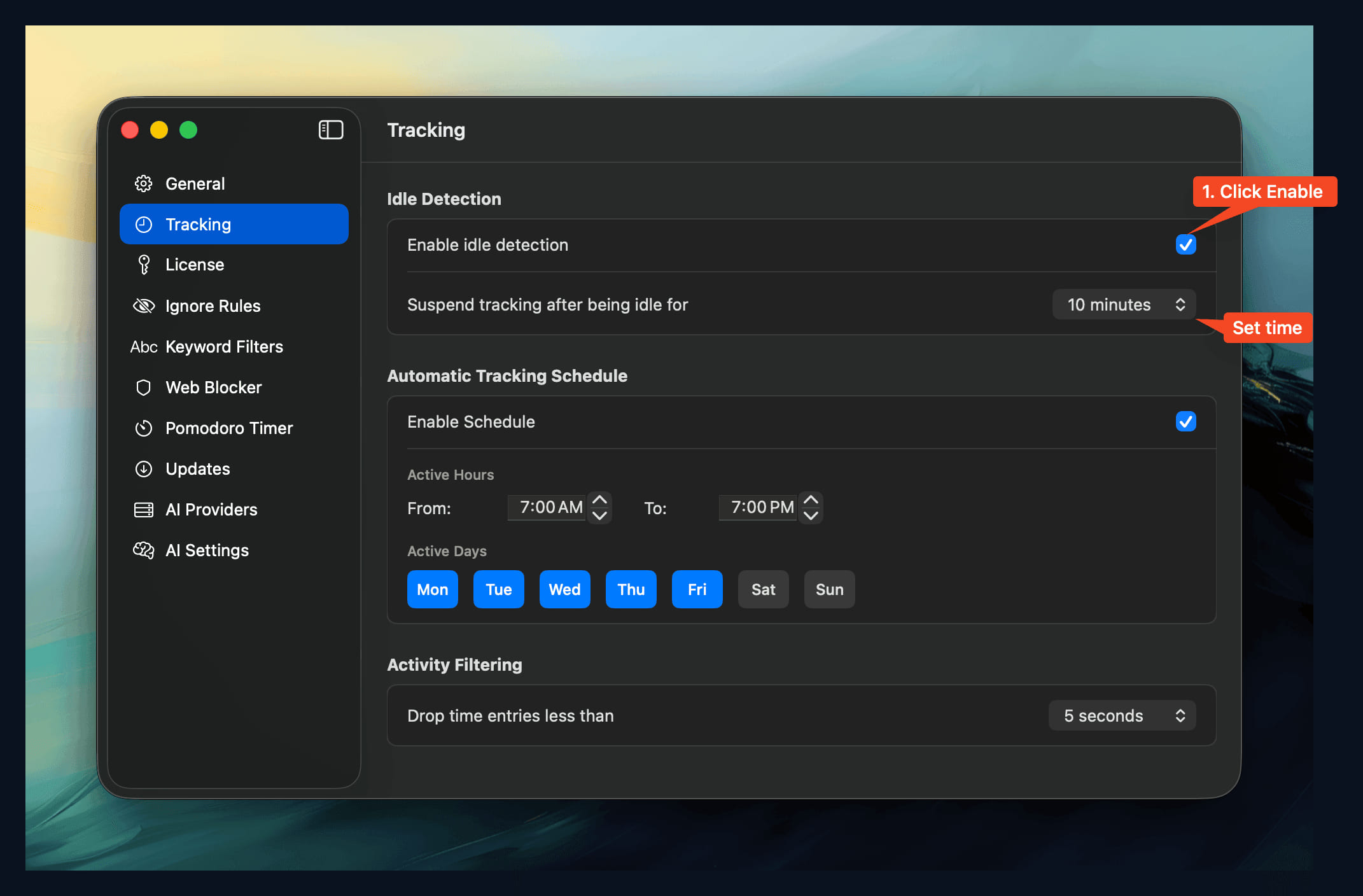
Tip: Pick a timeout slightly longer than your usual quick breaks to avoid accidental pauses.
Log Offline Work When You Return
Stepping away doesn’t always mean a break. You might be in a call, a meeting, reading on paper, or doing offline work. The idle-return prompt lets you capture that time instead of losing it.
When you come back, a small floating panel (it doesn’t steal focus) shows the detected away-time window and lets you:
- give the time entry a title (e.g. “Standup with design team”)
- add notes
- adjust the start and end times if the detected window is slightly off
- assign it to a project or category
- save it as a tracked entry, or dismiss it to leave the gap untracked
Enable it under Settings → Tracking with the prompt to log idle time on return option.
This is especially useful for:
- phone calls and video meetings that happen off-screen
- in-person meetings and whiteboard sessions
- reading, planning, or thinking away from the keyboard
- any focused work that doesn’t involve your Mac
The prompt is optional. Turn it off if you’d rather Chronoid simply pause and resume silently.
Example Break
- 9:00–9:45 AM: Focused work session.
- 9:45–9:55 AM: You step away; Chronoid pauses after your 10-minute idle threshold.
- 9:55–10:05 AM: You’re in a quick call away from your Mac.
- 10:05 AM: You return. Chronoid resumes, and the idle prompt offers to log the 9:45–10:05 gap. You title it “Client call” and save it.
Your report shows 45 minutes of focused work plus the logged call — not just a silent gap.
Related Guides
For help, email support@chronoid.app